








WhatsApp has become one of the main ways we stay in touch with family, friends, and colleagues. So, once you accidentally delete a chat, switch your phone, or delete your WhatsApp without realizing your chats would disappear, all this can be quite stressful. The good news is that you can still recover the WhatsApp data on your phone. In this guide, we will show you several methods to recover old WhatsApp messages on both Android phones and iPhones.
- Part 1. How Do I Recover Old WhatsApp Messages?
- Part 2. How to Recover Old WhatsApp Messages on Android
- Part 3. How to Recover Old WhatsApp Messages on iPhone
- Part 4. FAQs about Retrieving WhatsApp Messages
- Part 5. Conclusion
Part 1. How Do I Recover Old WhatsApp Messages?
Depending on whether you have a WhatsApp backup and the backup type, there are different methods to recover old WhatsApp messages. WhatsApp doesn't store your chats on its servers, so the only practical way to get old messages back is to restore them from a backup or from data stored on your device. On Android, this usually means Google Drive backups or local backup files, while on iPhone, it typically involves iCloud or iTunes backups. If you don't have any backup at all, there are still a few methods and tools you can try. Keep reading to check the solutions.
Part 2. How to Recover Old WhatsApp Messages on Android
On Android, WhatsApp can store your messages in two main places: Google Drive and your internal storage. If you have been using either of these backup options, there's a good chance you'll be able to retrieve old WhatsApp messages.
Method 1. Restore Old WhatsApp Messages from Google Drive Backup
If you have backed up your old WhatsApp messages to Google Drive, you can restore them from there. If you have enabled automatic backups for WhatsApp, you can restore the most recent backup to your phone.
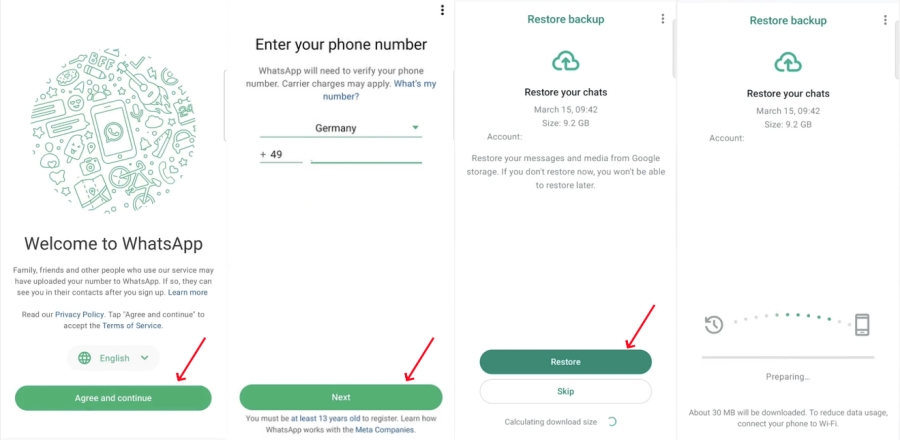
Step 1. Uninstall and reinstall WhatsApp on your phone.
Step 2. Open WhatsApp and tap Agree & continue.
Step 3. Enter your WhatsApp phone number to verify, and tap Next.
Step 4. If WhatsApp detects a backup from Google storage and asks you whether to restore, tap Restore to restore your WhatsApp chats.
Method 2. Restore Old WhatsApp Messages from Local Backup
Though you haven't backed up WhatsApp in the app, your phone will store your WhatsApp data in its internal storage. This gives you a chance to restore old WhatsApp messages from local storage. However, the process seems to be more complex. Follow the steps below:
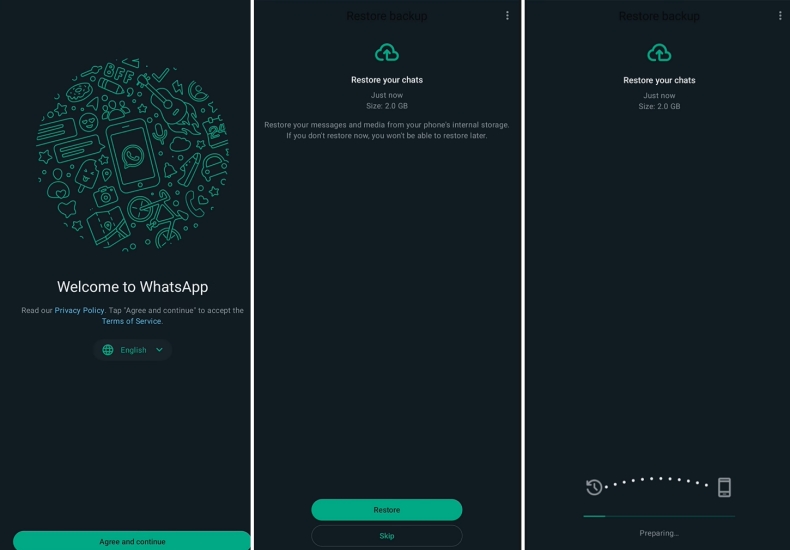
Step 1. Open File Manager on your phone, and find the location: Internal storage > Android > media > com.whatsapp > WhatsApp > Databases.
Step 2. Make a copy of the Databases folder on your phone for additional guarantee. In the Databases location, you can find various files named msgstore-YYYY-MM-DD.db.crypt12 or msgstore-YYYY-MM-DD.db.crypt14. Rename the old file you want to restore to msgstore.db.crypt12 or msgstore.db.crypt14.
Step 3. Uninstall and reinstall WhatsApp on your device.
Step 4. Open WhatsApp and follow the onscreen instructions to verify your identity. When a backup is detected from internal storage, choose Restore to restore it.
Part 3. How to Recover Old WhatsApp Messages on iPhone
For iPhone users, you can rely on iCloud and computer backups made through iTunes or Finder to restore old WhatsApp messages. In the following methods, we'll walk you through how to restore old WhatsApp messages from iCloud, recover them from an iTunes backup, and what options you have if you don't have any backup at all.
Method 1. Restore Old WhatsApp Messages from iCloud Backup
If you have backed up your WhatsApp chats to iCloud, you can also restore old WhatsApp messages from the backup. When you restore, you can see the backup time, and WhatsApp data after the backup point will disappear from your device.
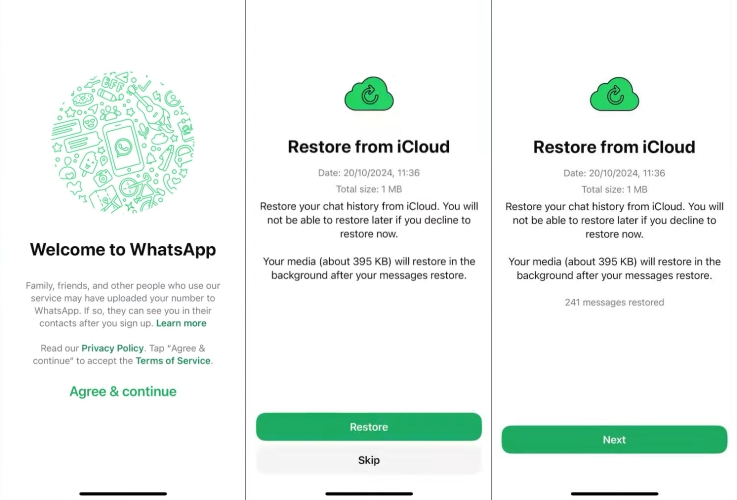
Step 1. Install WhatsApp on your iPhone.
Step 2. Open WhatsApp and follow the on-screen instructions to verify your phone number and Apple ID.
Step 3. If WhatsApp detects that there is an iCloud backup, you will be asked whether to restore the iCloud backup. Choose Restore when you see the prompt.
Method 2. Restore Old WhatsApp Messages from iTunes Backup
If you used to sync your iPhone to a computer in iTunes, you can also restore old WhatsApp messages from an old iTunes backup. However, the WhatsApp data created between the backup point and restore point will be removed from the iPhone. Not only will WhatsApp data be affected, but all other data on the device will also be affected.

Step 1. Connect your iPhone to the computer that you used to sync your iPhone.
Step 2. Open iTunes and click the device icon when the iPhone is detected.
Step 3. Click Summary > Restore Backup, choose an iTunes backup, then click Restore to restore it to the iPhone.
Step 4. After restoring the iTunes backup to your iPhone, you can access WhatsApp to check old messages. If you want a transparent restore, MagFone iPhone Data Recovery can help view data in the iTunes backup.
Method 3. Restore Old WhatsApp Messages without Backup
Even though you have a WhatsApp backup, there will be much uncertainty and some data loss in WhatsApp or your iPhone. One safer and more reliable method to restore old WhatsApp messages on iPhone is to use a data recovery tool. A data recovery tool can help scan old data on the device and allow users to preview the scanned data before recovery. Without losing data and needing a WhatsApp backup, MagFone Photos Data Recovery can help you retrieve old WhatsApp messages without backup.

MagFone iPhone Data Recovery
Recover data from iPhone and iPad in three recovery modes without data overwritting and device reset.
Step 1 Run MagFone iPhone Data Recovery

First, download and install MagFone iPhone Data Recovery on the computer. Then run this tool after installation.
Step 2 Scan Old WhatsApp Messages on iPhone
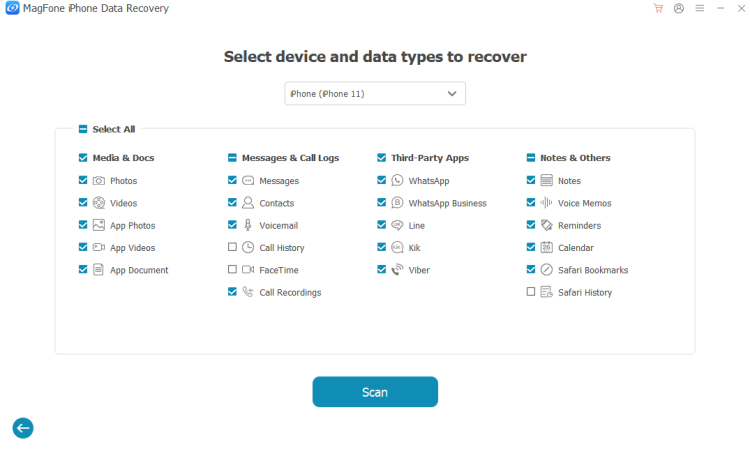
Connect the iPhone to the computer using a data cable. Then click iPhone/iPad Data Recovery from the provided features. Select WhatsApp and click Scan to let the tool scan old WhatsApp messages.
Step 3 Retrieve Old WhatsApp Messages on iPhone
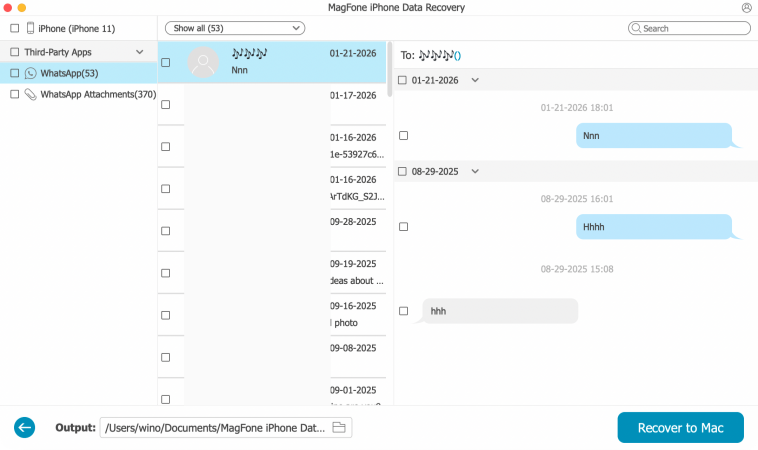
After scanning, click WhatsApp to check your old messages. If you want, click Recover to PC or Recover to Mac to export the old WhatsApp messages to your computer.
Part 4. FAQs about Retrieving WhatsApp Messages
How to recover old deleted WhatsApp messages without backup?
To recover old deleted WhatsApp messages without backup, you can only use a data recovery tool to help. You can consider the tool we tested in this guide and follow the method 3 in Part 3.
How to recover 1/2/3/4 year old whatsapp messages without backup?
You can use data recovery tools like MagFone iPhone Data Recovery to recover old WhatsApp messages without backup, whether it's 1, 2, 3, or 4 years old.
How to recover WhatsApp messages from old phone?
You can transfer WhatsApp messages from the old phone to recover them. Based on your device, there are corresponding solutions: iPhone to iPhone, iPhone to Android, Android to Android, Android to iPhone.
Part 5. Conclusion
Whether you're changing devices, have deleted old WhatsApp messages and now want them back, or accidentally uninstalled WhatsApp, there are still ways to recover your chats. Take a moment to review your own situation and then choose the method in this guide that best fits your device and backup status. If you're using an iPhone and want a quicker, more streamlined recovery process, MagFone iPhone Data Recovery is also worth trying.

Olivia Wood
Editor in chief





