








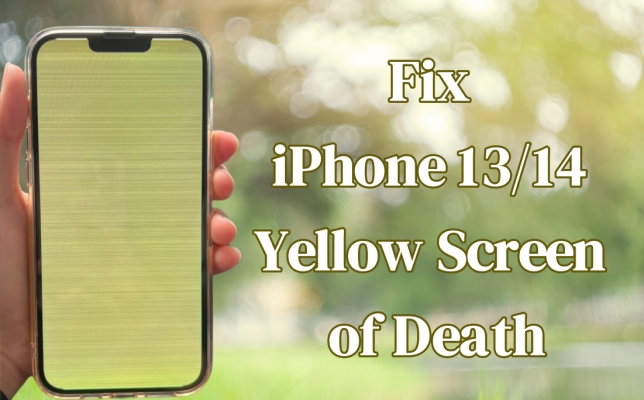
Dealing with the iPhone yellow screen of death can be frustrating and concerning, especially if you rely heavily on your iPhone for daily tasks. The yellow screen of death issue is when the screen suddenly bricks and turns yellow with a horizontal line on the iPhone. There have been multiple discussions on this issue in the Apple community. While this problem may seem daunting at first, there are several solutions you can take to address it and restore your iPhone's screen to its normal color balance. Here, we're going to show you how to fix the iPhone yellow screen of death.
- Part 1. What Is iPhone Yellow Screen of Death?
- Part 2. Quick Fixes for iPhone Screen Turning Yellow
- Part 3. How to Fix iPhone Screen Turns Yellow without Data Loss
- Part 4. How to Fix iPhone Screen Looks Yellow with Data Loss
- Part 5. Conclusion
Part 1. What Is iPhone Yellow Screen of Death?
Whether your iPhone screen suddenly is glowing with a harsh, unreadable yellow hint or it has transformed into a solid, glowing yellow brick, you're not alone, and don't panic. Before starting the troubleshooting steps, it's important to know what the issue means and why it happens.
What Is iPhone Yellow Screen of Death?
The iPhone Yellow Screen of Death is not an official system error from Apple. Instead, it is a term used by users to describe when the iPhone display suddenly appears yellowish or warmer than usual. Unlike system crashes such as the "blue screen of death" on computers, this issue is usually related to display settings rather than a serious malfunction.
Common symptoms include:
- The screen appears yellow or warmer than normal
- Whites look cream-colored instead of pure white
- The display color changes suddenly or at night
- Colors appear less vibrant
Why Is My iPhone Screen Yellow?
In many situations, the yellow tint is actually caused by built-in features designed to reduce eye strain or adapt to lighting conditions. But in addition to several settings and environmental factors, some other reasons such as software glitches or hardware issues can cause an iPhone screen to appear yellow. The following are the main causes of this issue.
01Software Glitches
Software glitches, including bugs or conflicts within the iOS operating system, can trigger the yellow screen of death. This issue is often seen when iOS is outdated or when certain apps conflict with the operating system. A software reset or update may help resolve these bugs and restore normal display functionality.
02Hardware Issues
Hardware malfunctions, such as damaged display connectors, malfunctioning graphic chips, or a faulty LCD screen, can contribute to the yellow screen of death. These issues may disrupt the color calibration, causing a yellowish tint to appear on the iPhone display. In some cases, hardware failures may require professional repairs.
03Physical Damage
Physical damage caused by water exposure, accidental drops, or excessive pressure on the device can interfere with the iPhone's internal components, including the display. This may lead to the yellow screen of death, where a yellowish hue overtakes the display. Repairing or replacing damaged parts may be necessary to fix the issue.
Part 2. Quick Fixes for iPhone Screen Turning Yellow
Before attempting any fixes, it's essential to confirm whether your iPhone indeed has the yellow screen of death issue. This can be done through simple visual resetting on the iPhone. Below are some quick ways to help diagnose and address the iPhone screen turned yellow issue.
Step 1 Check Night Shift Settings (Most Common Cause)
Night Shift is the most common reason an iPhone screen looks yellow. This feature reduces blue light by shifting the display toward warmer tones, especially at night. If it is enabled automatically, your screen may suddenly appear yellow in the evening. To resolve the issue, check Night Shift settings on your iPhone, then turn off this feature in two ways.
Option 1. In Control Center
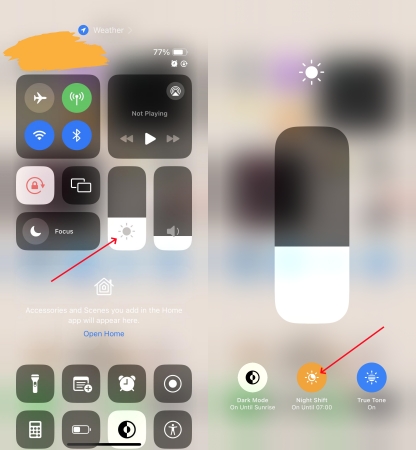
1) Go to Control Center and tap the Brightness control icon.
2) Then tap the Night Shift button to turn it off.
Option 2. In Settings
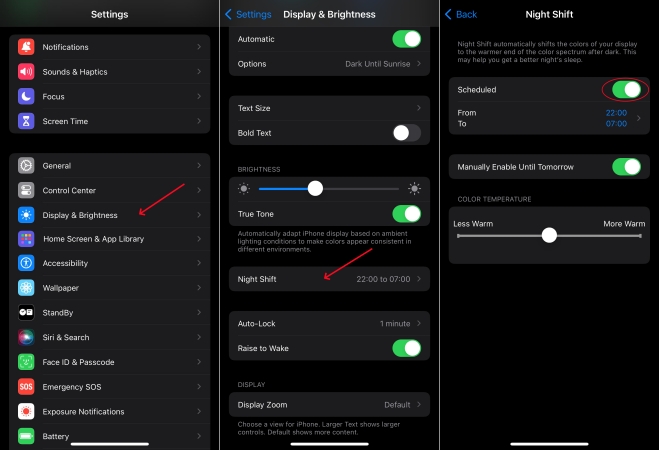
1) Go to Settings > Display & Brightness > Night Shift.
2) Schedule a time for the Night Shift to turn it off.
Step 2 Turn Off True Tone
If Night Shift is already disabled on your iPhone but the display still looks yellow, the next thing to check is True Tone. On supported models, True Tone automatically adjusts screen color temperature based on surrounding light. Under warm indoor lighting, this can make the screen appear more yellow. Here you can change True Tone to fix the issue.
Option 1. In Control Center
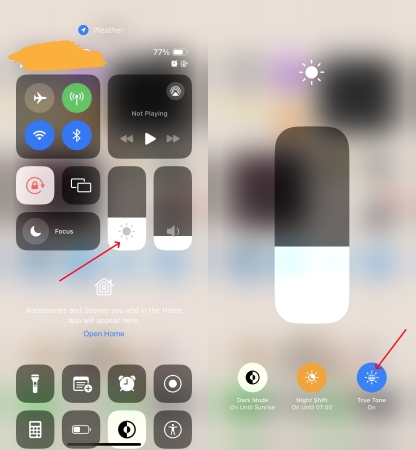
1) Launch Control Center, then touch and hold the Brightness control icon.
2) Tap the True Tone button to turn it off.
Option 2. In Settings
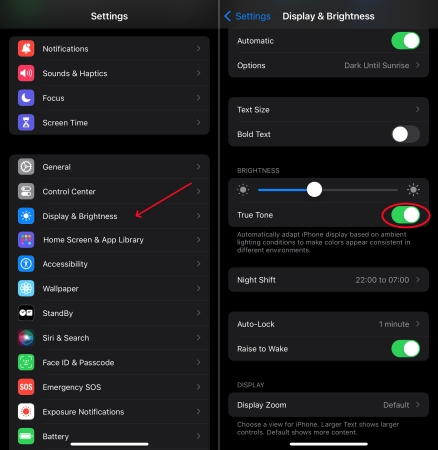
1) In Settings on your iPhone, tap Display & Brightness.
2) Then turn True Tone off.
Step 3 Disable Accessibility Color Filters
If neither Night Shift nor True Tone are the cause of iPhone screen turning yellow, you can disable Accessibility Color Filters on your device. Accessibility features allow users to customize display colors. If Color Filters are accidentally enabled, they can change the entire display tone and create a yellow tint. Turning off Color Filters should restore the screen's normal color balance.
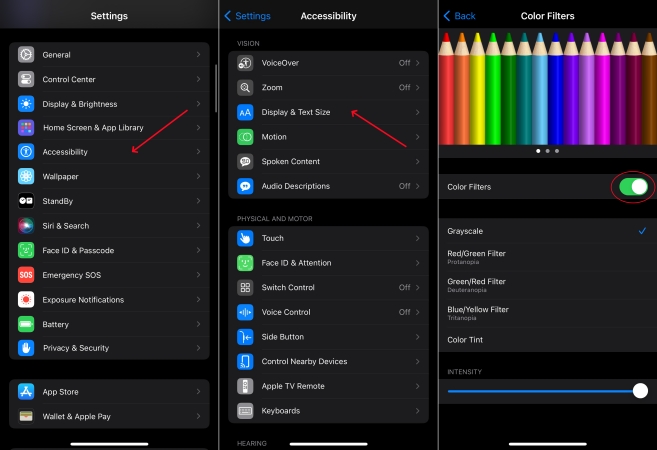
1) Open the Settings app, then tap Accessibility > Display & Text Size.
2) On the Color Filter screen, toggle on the switch next to the Color Filter.
3) Drag the slider to adjust your display's hue.
Step 1 Adjust the Auto-Brightness Feature
In addition, the Auto-Brightness feature can cause iPhone yellow screen of death at night. If the Auto-Brightness feature is enabled, the iPhone can adjust the screen brightness for current light conditions using the built-in ambient light sensor. To fix the issue, you can go to turn off the Auto-Brightness feature. Here's how to.
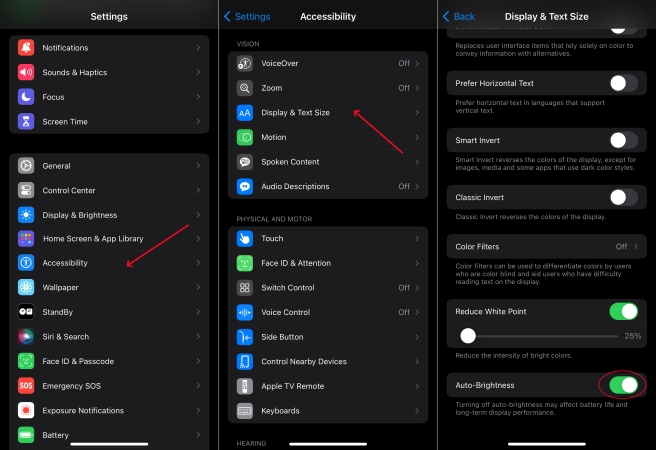
1) Go to Settings > Accessibility.
2) Tap Display & Text Size, then turn off Auto-Brightness.
Part 3. How to Fix iPhone Screen Turns Yellow without Data Loss
By following the above steps, you can confirm whether the display settings cause the issue or not. When the above troubleshooting steps fall short, you can try several common fixes to fix the iPhone yellow screen of death issue. There are several fixes to resolve the software glitches that cause the iPhone yellow screen of death issue.
Method 1. Force Restart iPhone
A simple restart can sometimes resolve minor software glitches causing the yellow screen of death issue. Here's how to restart an iPhone.
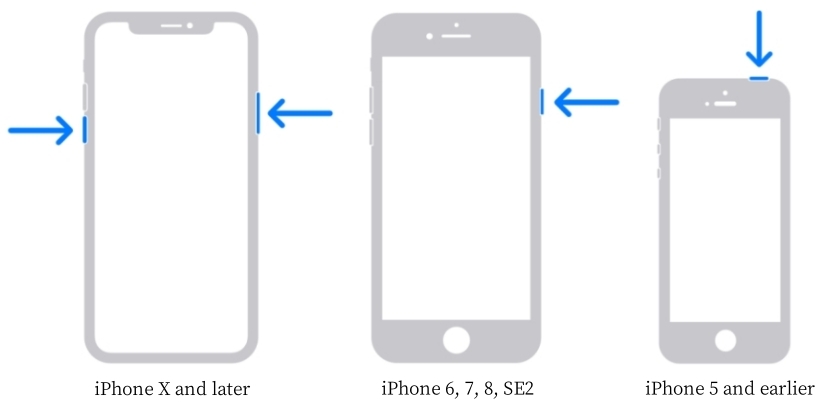
Step 1. Press and hold the Power button and the volume down button until the slider appears, then slide to power off.
Step 2. After a few seconds, press and hold the Power button again until the Apple logo appears.
Method 2. Reset All Settings
Resetting all settings on your iPhone can help eliminate configuration errors that may be contributing to the yellow screen of death issue. Just reset all settings to fix the issue.

Step 1. On your iPhone, open Settings and tap General > Transfer or Reset iPhone.
Step 2. Tap Reset, then select Reset All Settings.
Step 3. Enter your screen lock passcode and tap Reset All Settings to confirm.
Method 3. Update iOS System
Ensure your iPhone is running the latest version of iOS. When your iPhone is out of date, there is a yellow screen of death issue.

Step 1. Go to Settings > General, then tap on Software Update.
Step 2. Find an available update and tap Download and Update.
Step 3. After downloading the updates, enter the passcode and tap Install Now.
Method 4. Repair iOS Issues
When the yellow screen of death issue is caused by software glitches or bugs, you can also use an iOS repairing tool to fix the issue effectively while not deleting any data on your iPhone. MagFone iOS System Recovery is ideal as it is a professional and multifunctional repairing tool for iPhone, iPad, and iPod touch. It can not only fix more than 150 kinds of system issues but also help users downgrade the iOS version with one click. Here you can use MagFone iOS System Recovery to fix the iPhone yellow screen of death without losing any data.

MagFone iOS System Recovery
Fix various iOS and iPadOS system issues, such as black screen, boot loop, frozen screen, or stuck on Apple logo, without data loss.
Step 1 Open MagFone Software and Connect iPhone

Launch MagFone iOS System Recovery on your computer, then use a USB cable to connect your iPhone to the computer. On the interface of MagFone software, select iOS System Repair, then click Start and select Standard Repair.
Step 2 Go to Put iPhone into Recovery Mode
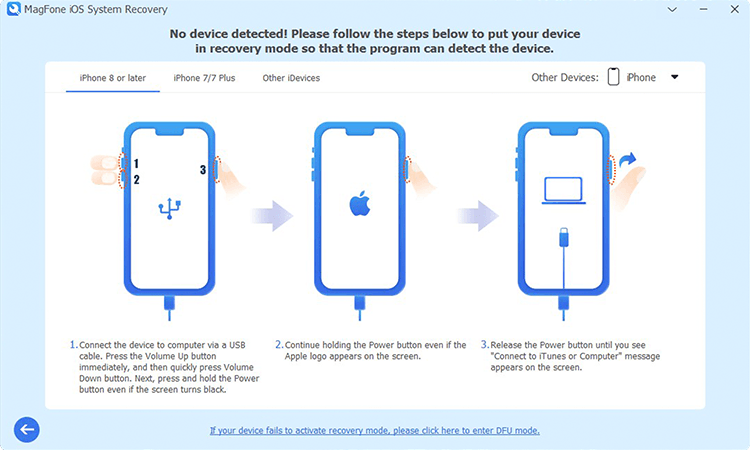
Make sure that you have turned your iPhone off. Then follow the onscreen instructions to put your iPhone into recovery mode. If your device fails to activate recovery mode, you can make your device into DFU mode.
Step 3 Download the Firmware Package for iPhone

After your device is detected by MagFone software, you can check the device information appearing on the screen. Manually correct the device information and click the Download button to get the firmware package for your device.
Step 4 Start to Fix iPhone Yellow Screen of Death

When the firmware package is downloaded to your computer, click the Repair button to initiate the process of fixing the iPhone yellow screen of death issue. Wait for a while, and your device will automatically reboot.
Part 4. How to Fix Yellow Screen on iPhone with Data Loss
Except for those common solutions, you can factory your iPhone to the factory default settings or restore your iPhone in Recovery Mode, which can completely repair some software glitches and bugs. This can possibly fix the yellow screen of death issue on your iPhone. Now perform the following steps to restart your iPhone to normal condition.
Method 1. Factory Reset iPhone
Resetting your iPhone to its original state can be a good option to fix the yellow screen of death issue. By doing a factory reset, you can get a normal iPhone.

Step 1. Go to Settings > General and scroll down to tap Transfer or Reset iPhone.
Step 2. Tap Erase All Content and Settings, then tap Continue > Erase iPhone.
Step 3. Enter your screen lock passcode to make a backup of your device.
Step 4. Proceed to enter your Apple ID password to sign out of your Apple ID.
Step 5. Tap Erase to start deleting all contents and settings on your device.
Method 2. Restore iPhone via iTunes
If the yellow screen of death issue persists, you may need to restore your iPhone in Recovery Mode using iTunes or Finder. You can follow the below steps to fix the issue.

Step 1. Power off your iPhone, then connect it to your computer through a USB cable.
Step 2. Put your device into Recovery Mode by pressing and holding the correct button.
Step 3. After your device is in Recovery Mode, open iTunes or Finder on the computer.
Step 4. In the pop-up window, click the Restore button to start restoring your device.
Method 3. Contact Apple Support
If the aforementioned steps do not resolve the issue, it's advisable to seek assistance from an authorized Apple service provider or visit an Apple Store for further diagnosis and repair. In cases where hardware components are found to be faulty, such as the display assembly or logic board, professional repair or replacement may be necessary to fix the yellow screen of death issue.
Part 5. Conclusion
Experiencing the iPhone screen yellowing can be disruptive, but it is not insurmountable. By following the steps outlined in this article and seeking professional assistance when needed, you can fix the yellow screen on your iPhone and restore your iPhone's screen to its optimal condition. Don't forget to try MagFone iOS System Recovery to fix software issues that cause the iPhone yellow screen of death.

Dylan Jones
Editor in chief





