








You open the Messages app, tap on a contact, and the entire conversation history is gone while every other thread looks perfectly fine. If this has happened to you, you are not alone. This guide explains exactly why one person's text messages disappear on iPhone and shows you how to fix text messages disappeared from one person on iPhone.
- Part 1. Why Did My Text Messages Disappear for One Person?
- Part 2. Quick Checks to Text Messages from One Person Disappeared on iPhone
- Part 3. How to Recover Disappearing Text Messages from One Person on iPhone
- Part 4. How to Avoid Text Messages from One Person Disappeared on iPhone
- Part 5. Conclusion
Part 1. Why Did My Text Messages Disappear for One Person?
Before jumping into fixes, it helps to understand what likely happened. Unlike a full message wipe, losing only one contact's thread almost always points to one of these specific causes:

Keep Messages Settings
The Keep Messages setting decides how long the text messages stay on your iPhone. If the Keep Messages is set to 30 Days or One Year, your device will automatically delete the messages when they reach the timer.
iCloud Sync Issue
A sync issue between devices or a full iCloud storage can cause a single conversation thread to vanish on one device only.
Accidentally Blocked contact
Blocking someone on an iPhone will hide all future messages without any notification.
iOS 18 Known Bug
Multiple users on iOS 18.0 and 18.1 reported specific threads disappearing after the update. Apple patched this in iOS 18.1.2.
Accidental Deletion
It's easy to delete a batch of messages without noticing the accidental deletion of a specific message thread.
Part 2. Quick Checks to Text Messages from One Person Disappeared on iPhone
When you find that text messages from one person have disappeared on iPhone, don't worry. Here are some practical steps you can try right away before moving on to deeper recovery methods. Go through these methods in this section. Many times, a simple setting change, a search, or a sync refresh is all it takes to make those disappearing text messages from one person show up again.
Method 1. Search for Disappeared Messages
If the disappeared text messages from one person are still on the iPhone, use the search bar to check if it's a loading bug on your iPhone. Open Messages, swipe down from the top of the screen, and type the contact's name, phone number, or a keyword from your conversation into the search bar.
Method 2. Check the Recently Deleted Folder
If the text messages from one person are disappearing due to an accidental deletion, you may still find them in the Recently Deleted folder. If you find it, you can select the thread and restore it. This is one of the fastest ways to get messages back if they were removed by mistake.
On iOS 18:
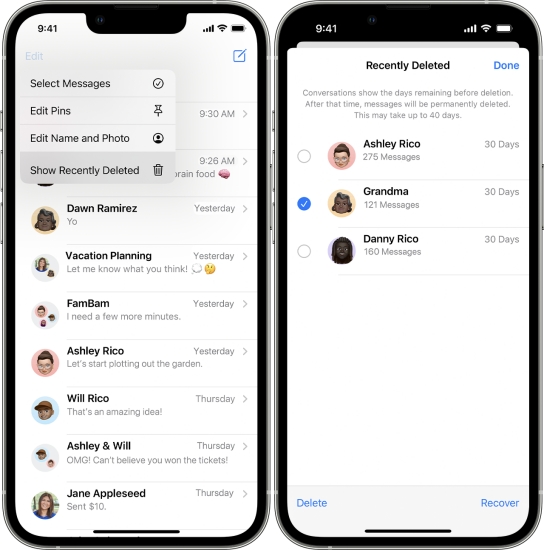
Step 1. Open Messages and tap Edit.
Step 2. Tap Show Recently Deleted to find the disappearing text messages from one person.
On iOS 26:
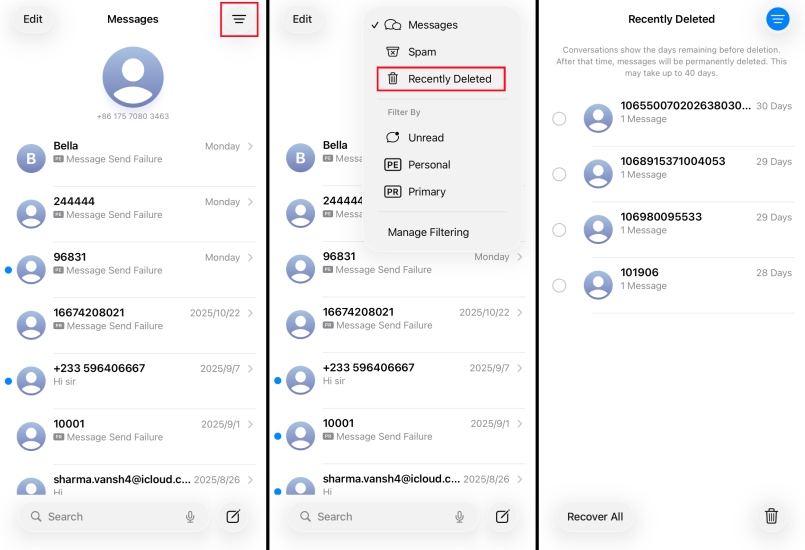
Step 1. Open Messages and tap the icon in the upper-right corner.
Step 2. Tap Recently Deleted to check if the disappearing text messages are there.
When you find the disappearing thread, just long-press it and tap Recover to restore it to your inbox.
Method 3. Re-enable iCloud Messages Sync
If you use iCloud to sync messages across Apple devices, a sync issue can make texts from one person appear to vanish on your iPhone even though they still exist in iCloud. You can disable iCloud Messages and re-enable it to resync messages.
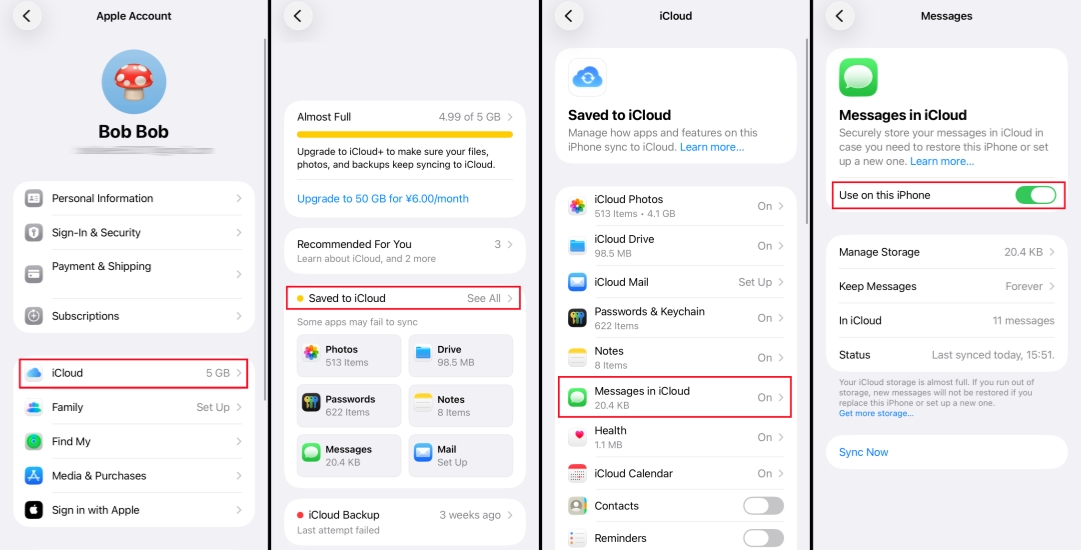
Step 1. Open Settings and tap the Apple ID.
Step 2. Tap iCloud > Saved to iCloud and disable Messages.
Step 3. Choose Keep On My iPhone.
Step 4. Re-enable Messages in iCloud and choose Merge Data.
Method 4. Verify the Blocked Contacts
If you block a contact, you will not receive new messages from the person, but the previous chat thread will remain in the list. You can verify the blocked contact list to avoid disappearing messages from a person.
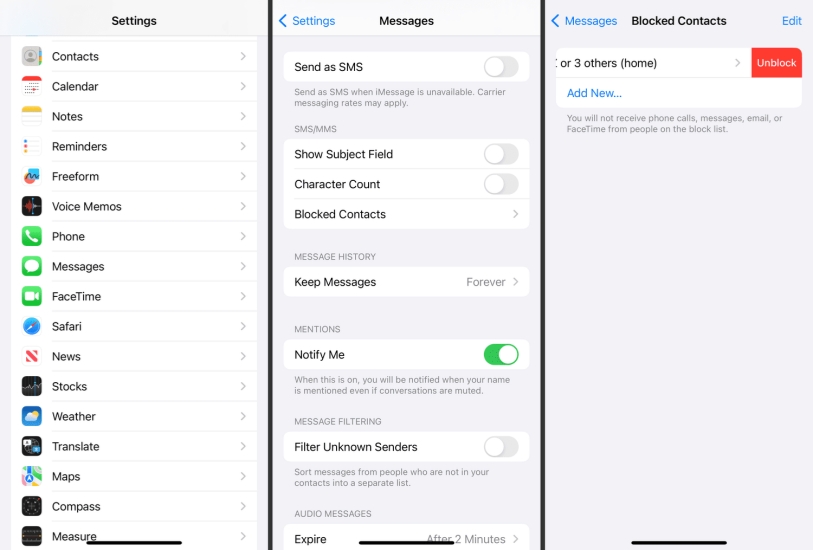
Step 1. Go to iPhone Settings > Apps > Messages.
Step 2. Tap Blocked Contacts and unblock that person to let new messages appear normally.
Method 5. Sign Out and Back Into iMessage
Occasionally, a glitch with your iMessage account can affect individual conversations. Signing out and back in refreshes your connection to Apple's servers and resolves the issue that causes text messages from one person to display correctly.
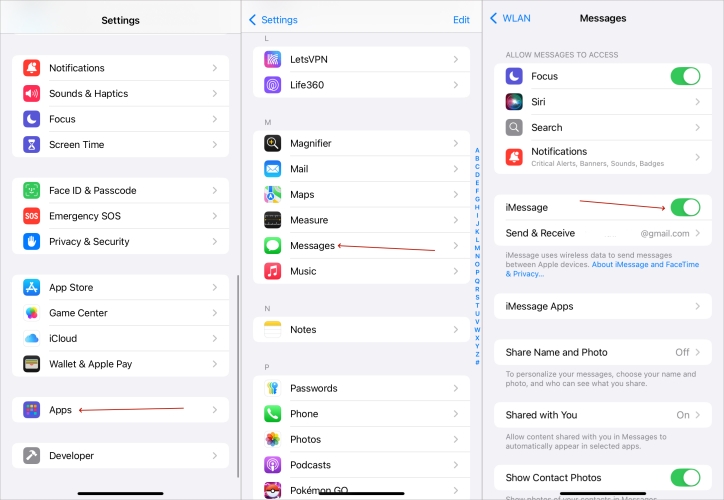
Step 1. Go to iPhone Settings > Apps > Messages.
Step 2. Find iMessages and disable it.
Step 3. Re-enable iMessages and log in to the relevant account.
Method 6. Check "Send & Receive" Addresses
Your iPhone can send and receive messages through multiple phone numbers and email addresses linked to your Apple ID. If the address or number that person uses to contact you isn't enabled, their messages might not show up in the conversation you expect.
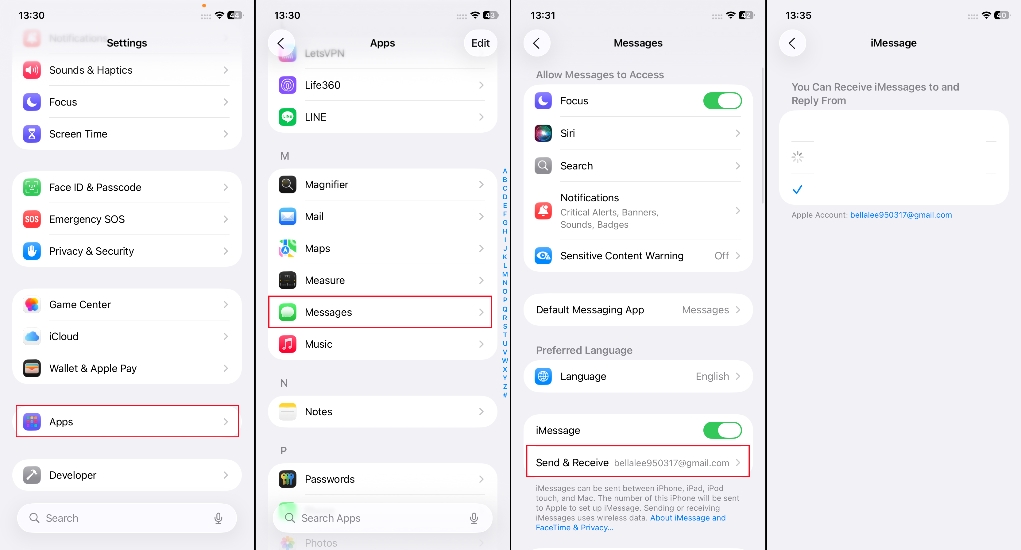
Step 1. Go to iPhone Settings > Apps > Messages.
Step 2. Find Send & Receive under iMessage and make sure all your used addresses are allowed to send and receive messages.
Part 3. How to Recover Disappearing Messages from One Person on iPhone
If the disappearing text messages from one person are deleted from the device, then you need to recover them from a previous backup that contains them. Or use a third-party data recovery tool to scan them on the device.
Method 1. Restore Disappeared Messages from iCloud Backup
If you have enabled Messages in iCloud Backup, by erasing iPhone data and restoring from a previous backup, you may be able to restore disappeared messages from one person. But it's hard to figure out the contents in an iCloud backup, so you should be careful when deciding to restore disappearing text messages from iCloud backup.

Step 1. Open Settings on iPhone and tap General.
Step 2. Scroll to the bottom and tap Transfer or Reset iPhone > Erase All Content and Settings.
Step 3. Tap Continue > Erase iPhone, then enter the required passcode or password to confirm.

Step 4. Get started to set up your iPhone when it restarts after a factory reset. Choose Set Up Maually and when you see the Transfer Apps & Data screen, choose From iCloud Backup. Then sign in to your iCloud.
Step 5. When data in the iCloud backup has been synced and loaded on your iPhone, you can check the disappeared text messages.
Method 2. Restore Disappeared Messages from iTunes Backup
When there is an iTunes backup that includes the disappearing text messages on iPhone, you can also restore an iTunes backup to recover the disappeared messages on iPhone. It's also hard to figure out the contents of the backup, so be cautious make a backup in advance if you want to try.

Step 1. Connect your iPhone to the computer with iTunes backup.
Step 2. Launch iTunes and click the iPhone icon, then click Summary in the left column.
Step 3. Click Restore Backup and choose a backup to restore from.
Method 3. Restore Disappeared Messages via Data Recovery Tool [No Backup]
If you can't be sure whether the disappearing text messages are included in a backup, a third‑party data recovery tool offers a more flexible and effective solution. MagFone iPhone Data Recovery stands out as a dedicated iOS recovery utility that can scan your iPhone directly, as well as your iTunes and iCloud backups, to locate and recover disappearing text messages. It works as a powerful complement to Apple's recovery options, especially when you don't have a recent backup or you only want to restore specific conversations instead of the entire device. Here's how to use MagFone iPhone Data Recovery to restore disappeared messages from one person.

MagFone iPhone Data Recovery
Recover data from iPhone and iPad in three recovery modes without data overwritting and device reset.
Step 1 Download and Install MagFone iPhone Data Recovery

First, download MagFone iPhone Data Recovery on your computer. Then connect your iPhone to the computer using a data cable for further scanning.
Step 2 Scan Disappearing Text Messages on iPhone
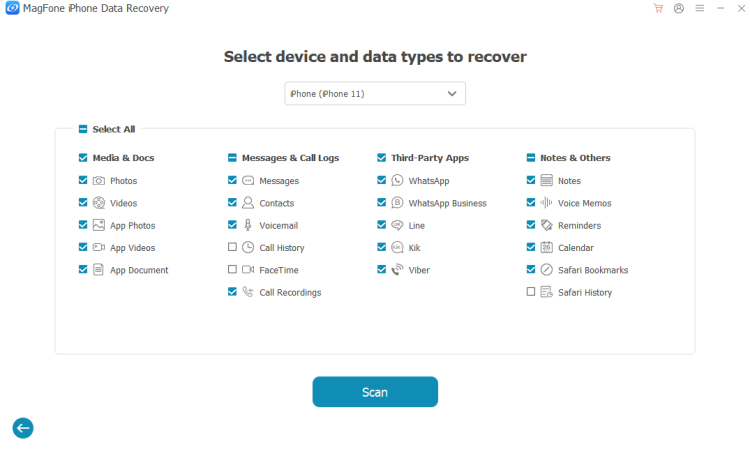
Launch the tool, click iPhone/iPad Data Recovery mode on the main interface. Then select Messages and click Scan to scan disappeared text messages from one person on iPhone.
Step 3 Recover Disappearing Text Messages on iPhone
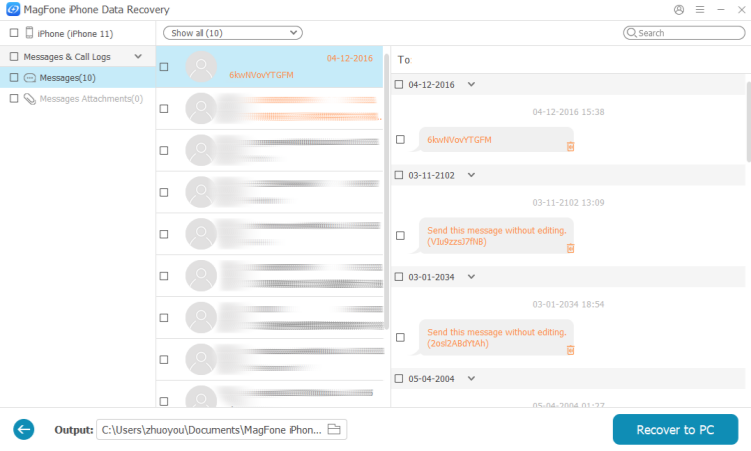
When the scanning is completed, you can check the disappeared text messages on the computer. Then select and click Recover to PC or Recover to Mac to export them.
Part 4. How to Avoid Text Messages from One Person Disappearing on iPhone
Once your messages are restored, these three settings will significantly reduce the chance of this happening again.
01Method 1. Audit the Keep Messages setting
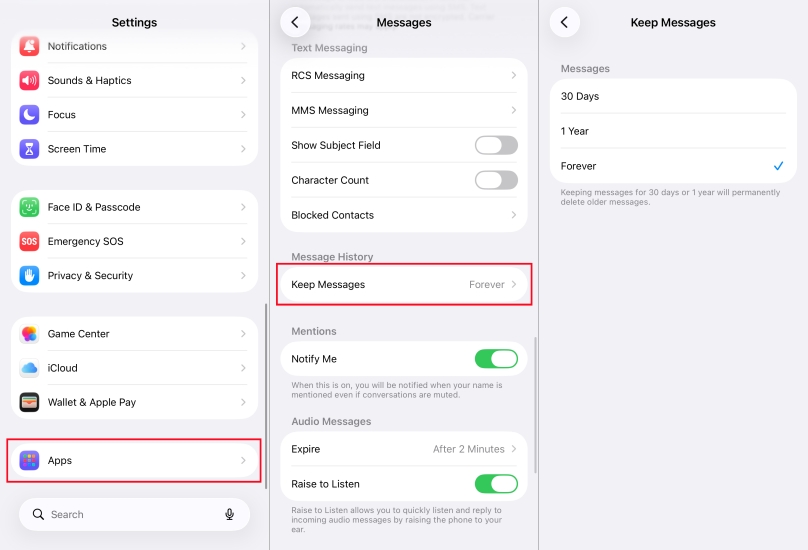
Adjusting the Keep Messages setting to Forever ensures that your messages aren't automatically deleted after 30 days or a year, allowing you to retain important conversations indefinitely. Go to Settings > Apps > Messages > Keep Messages and change the option to Forever.
02Method 2. Turn on Regular iCloud Backup
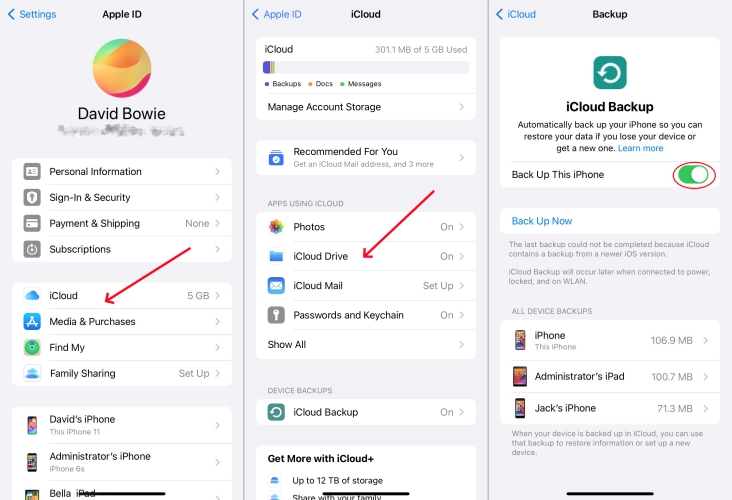
By enabling iCloud Backup, your iPhone will automatically back up your messages and other data daily when connected to Wi-Fi. This ensures that you have a safe copy of your messages, making it easier to recover them if needed. Go to Settings > [Your Name] > iCloud > iCloud Backup and enable Back Up This iPhone. Connect to Wi-Fi and charge overnight to ensure daily backups run automatically.
03Method 3. Disable Filter Unknown Senders
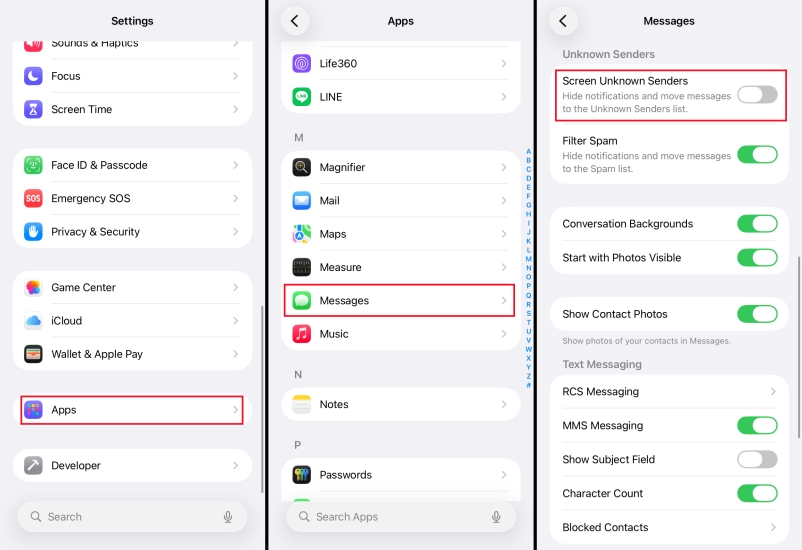
Turning off the Filter Unknown Senders option prevents messages from unfamiliar contacts from being redirected to a separate folder. This helps ensure that you receive all important messages directly in your main inbox, reducing the chances of missing out on communications. Go to Settings > Apps > Messages and turn off Filter Unknown Senders.
Part 5. Conclusion
Disappearing text messages from just one person can be confusing. By working through the quick checks in Part 2, you can often uncover hidden or misfiled conversations. If the messages truly are missing, the recovery options in Part 3, restoring from backups or using a data recovery tool like MagFone iPhone Data Recovery, give you a solid chance of getting them back. With the right prevention tips, you can keep important conversations safe and reduce the risk of losing text from one person again.

Olivia Wood
Editor in chief




