








Accidentally deleted files in WhatsApp? Whether it's a PDF file, a text file, or a media file, losing any of them can feel like a disaster, especially when you need them badly. The good news is that there may be a chance you can recover them. In this guide, we will walk you step by step through practical ways to recover deleted WhatsApp files on both Android and iPhone.
- Part 1. How to Recover Deleted WhatsApp Files On Android
- Part 2. How to Recover Deleted WhatsApp Files on iPhone
- Part 3. Conclusion
- WhatsApp files that are deleted for everyone cannot be recovered.
- Ensure you have downloaded and checked the files before. Or you can't recover them using the methods below.
Before recovery, you need to note that:
Part 1. How to Recover Deleted WhatsApp Files On Android
On Android devices, you have three options to recover deleted WhatsApp files: from local folders, local backup, or Google Drive backup. The first option doesn't cause data loss, while the latter two options will cause data loss. You can try the methods below in order.
Option 1. Recover Deleted WhatsApp PDF Files from File Manager
Thanks to Android's system, your WhatsApp files will remain stored on your device's internal storage even after they are deleted from a chat. You can find a series of subfolders for images, videos, documents, and more in the WhatsApp folder on your internal storage. If you want to recover a deleted WhatsApp file, check your internal storage first, and you may be surprised.
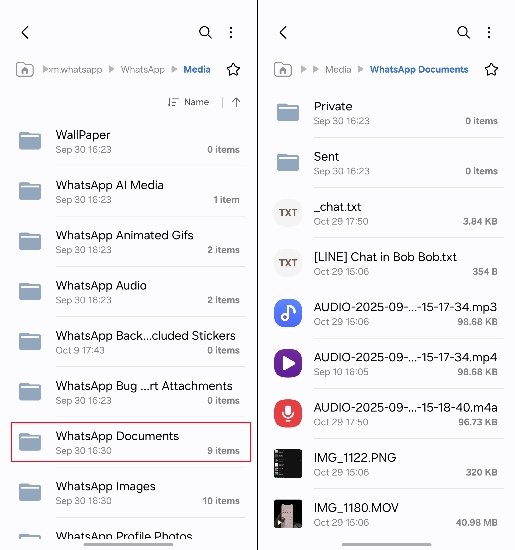
Step 1. Open File Explorer on your phone and tap Internal storage.
Step 2. Go to the path where WhatsApp data is stored: Android > media > com.whatsapp > WhatsApp > Media.
Step 3. You can find all the different types of WhatsApp data under this location. Access the specific folder to find the deleted WhatsApp files you need.
Option 2. Recover Deleted WhatsApp Files from Local Backup
WhatsApp on Android automatically creates local backup files on your phone. Accessing the Databased folder inside the WhatsApp directory, you can see several daily backup files. Choosing the right one that includes your deleted WhatsApp files and restoring it may help you bring back the deleted files in WhatsApp. It suggested that you make a copy of WhatsApp backup files on internal storage for guarantee.
- Warning: Restoring from a local backup will overwrite your current WhatsApp chats with the backup version.
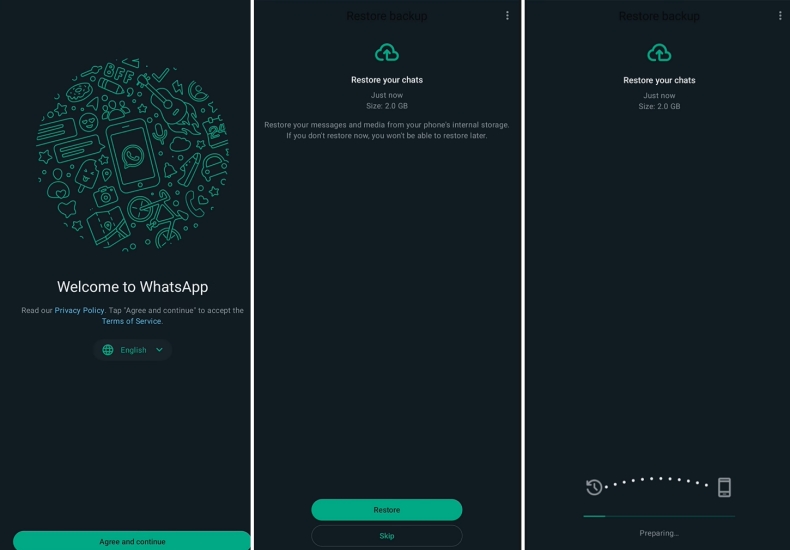
Step 1. Open File Manager, and tap Internal storage.
Step 2. Find the location: Android > media > com.whatsapp > WhatsApp > Databases.
Step 3. Make a copy of the backup file "msgstore-YYYY-MM-DD.db.crypt14" which you want to restore and rename it to "msgstore.db.crypt14".
Step 4. Uninstall WhatsApp on your phone, then reinstall it from the Google Play.
Step 5. Open WhatsApp and follow the instructions to activate it.
Step 6. When a backup is found in internal storage, choose Restore to restore it.
Option 3. Recover Deleted WhatsApp Files from Google Drive
If you've enabled WhatsApp backups to Google Drive and the backup contains your chats and media, you may be able to restore deleted WhatsApp files from a Google Drive backup.
- Warning: WhatsApp backups on Google Drive always store the latest WhatsApp data, including recent deletions. If you're not sure whether the backup was created before you deleted the files, avoid restoring it, as you may overwrite your data without recovering the missing files.
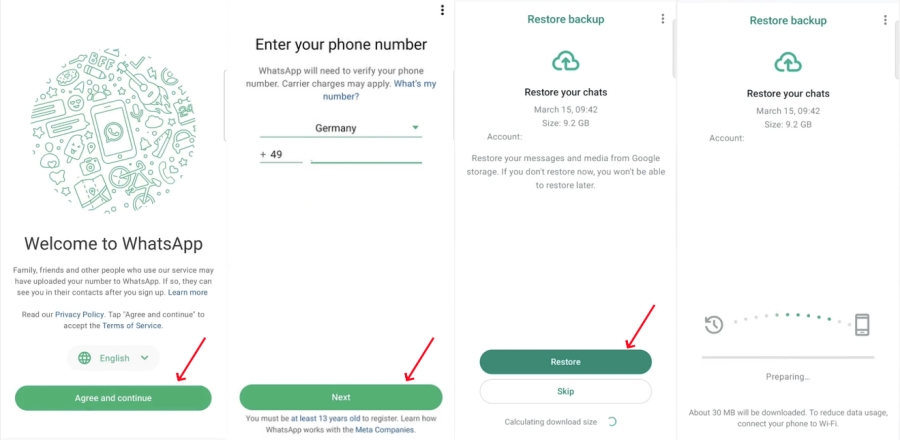
Step 1. Uninstall WhatsApp on your phone and reinstall it from the Google Play.
Step 2. Open WhatsApp and tap Agree to set it up.
Step 3. Verify your WhatsApp account and choose Restore when there is a backup detected from Google Drive.
Part 2. How to Recover Deleted WhatsApp Files on iPhone
There are three options to recover deleted WhatsApp files on iPhone: from an iCloud backup, an iTunes backup, or the local storage. On iPhone, though you don't have access to app folders like on Android, you can still recover the deleted WhatsApp files from local storage using a data recovery tool. Or you can restore them from an iCloud backup or iTunes backup if they were included in it.
Option 1. Recover Deleted WhatsApp Files from iCloud Backup
Only if you have a WhatsApp backup that includes the deleted files and hasn't been overwritten by new data can you restore the backup to recover deleted WhatsApp files. If you happen to have a backup that meets the requirements, you can uninstall WhatsApp and restore from iCloud.
- Warning: Restoring an iCloud backup requires reinstalling WhatsApp and will overwrite current chat data with whatever is stored in the selected backup.
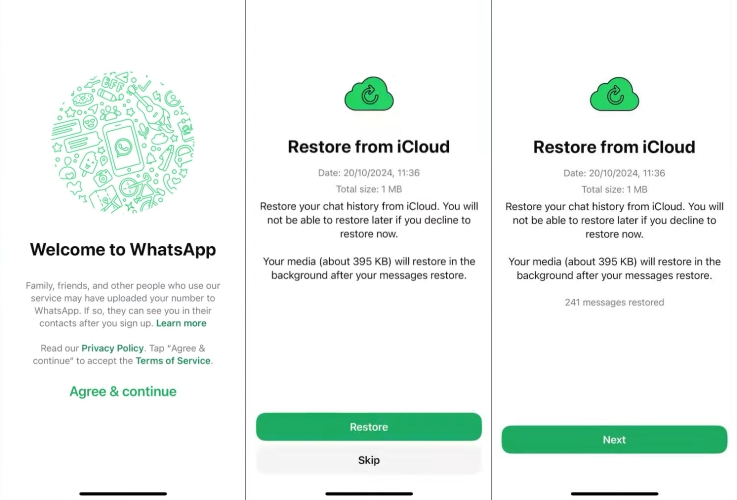
Step 1. Uninstall WhatsApp on your iPhone and reinstall it in the App Store.
Step 2. Tap Agree & continue, then enter your WhatsApp account and verify your identity.
Step 3. When there is a backup found in iCloud, you will see the Restore from iCloud screen. Choose Restore to restore WhatsApp from backup.
Step 4. After restoring and logging into your account, check if the deleted files are in chats.
Option 2. Recover Deleted WhatsApp Files from iTunes Backup
If there is an old iTunes backup that includes the deleted WhatsApp files, you can also try restoring an iTunes backup to get them back. But this requires a full restore and will cause data loss on your iPhone. Be careful before making your decision.
- Warning: Restoring an iTunes backup affects the whole device, which can overwrite newer iPhone data and settings along with WhatsApp.

Step 1. Use a data cable to connect your iPhone to the computer where you created the backup.
Step 2. Click the iPhone icon, then click Restore Backup.
Step 3. Choose the backup that most likely includes your deleted WhatsApp files and click Restore.
Option 3. Recover Deleted WhatsApp Files without Backup
There are many uncertainties and data loss when restoring WhatsApp from an iCloud backup or iTunes backup. In this case, the most recommended method to recover deleted WhatsApp files on an iPhone is to use a data recovery tool. MagFone Photos Data Recovery is available to scan deleted WhatsApp data and recover deleted WhatsApp files on iPhone. Without uninstalling WhatsApp and restoring a backup, you can get back deleted WhatsApp files effortlessly. Follow the operation below to recover your WhatsApp data.

MagFone iPhone Data Recovery
Recover deleted WhatsApp files on iPhone without data overwritting.
Step 1 Install MagFone iPhone Data Recovery

Download and install MagFone iPhone Data Recovery on your computer, then use a data cable to link your iPhone to the computer via a data cable. When all is done, launch MagFone.
Step 2 Scan Deleted WhatsApp Files on iPhone
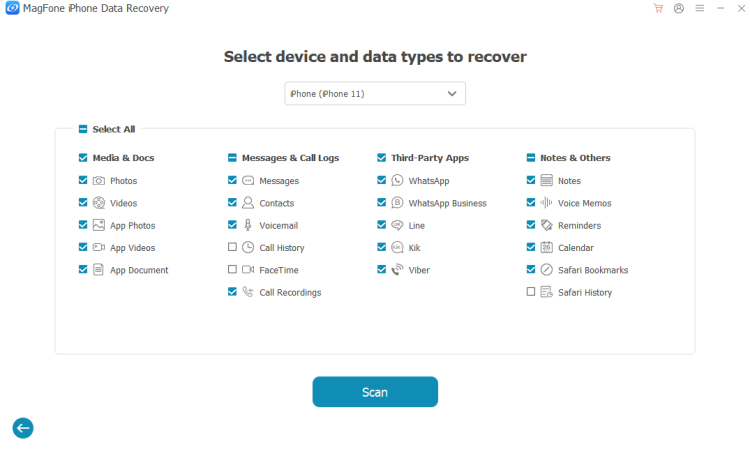
Click iPhone/iPad Data Recovery, then select WhatsApp under Third-party Apps. Click Scan to scan deleted WhatsApp data on your iPhone.
Step 3 Recover Deleted WhatsApp PDFs on iPhone
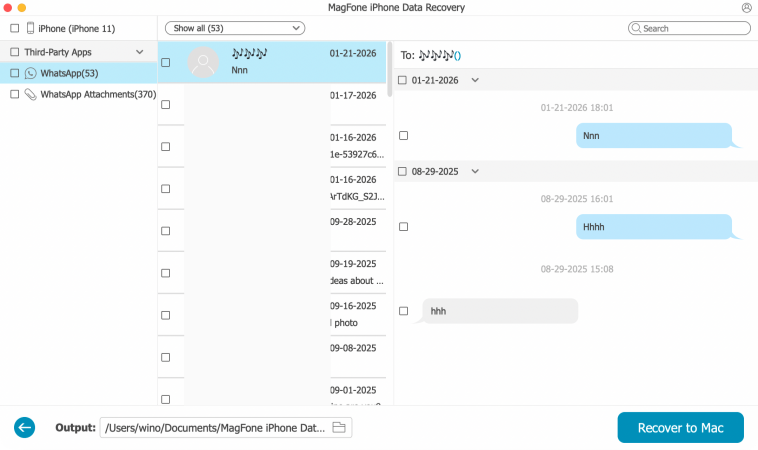
After scanning, you can click WhatsApp Attachments to find your deleted WhatsApp files. Then select the files and click Recover to PC or Recover to Mac to export them to your computer.
Part 3. Conclusion
Losing WhatsApp files can be frustrating, but there are several effective ways to get them back. On Android, the most recommended method is to restore deleted files from your File Manager without any data loss. On iPhone, the most recommended method is to use professional tools like MagFone iPhone Data Recovery without any data loss. Always be careful when you need to take any action to recover a backup.

Olivia Wood
Editor in chief





