








When someone calls you, and you miss it, your iPhone's voicemail steps in so they can still leave you an important message. It might be a job offer, an update from a loved one, or a reminder you really can't afford to lose. But what if you accidentally or permanently delete that voicemail? Don't panic. Walk through this guide, and you'll get clear, practical methods to find, listen to, and recover deleted voicemail on iPhone, with or without a backup, so you have the best chance of getting those messages back.
- Part 1. Can You Recover Deleted Voicemail on iPhone?
- Part 2. How to Recover Deleted Voicemail on iPhone without Backup
- Part 3. How to Retrieve Deleted Voicemail on iPhone with Backup
- Part 4. FAQs about iPhone Deleted Voicemail
- Part 5. Conclusion
Part 1. Can You Recover Deleted Voicemail on iPhone?
Yes! You can recover deleted voicemail on iPhone as long as you meet the essential factors. Here, we will introduce the basic information you should know before and then proceed to the recovery method.
How Long Do Deleted Voicemails Stay on iPhone?
Once you delete a voicemail on iPhone, it will be removed to the Deleted Voicemails folder. And the deleted voicemails will stay there until you delete them permanently or the carrier deletes them automatically once they reach the time limit. The exact retention period can depend on your carrier and region.
How to Undelete Voicemail on iPhone Directly
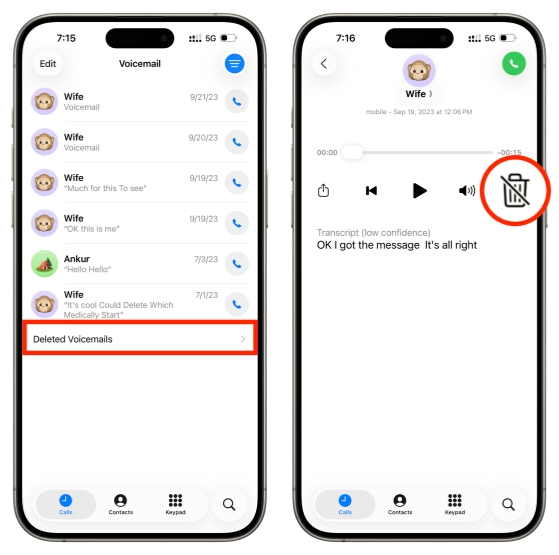
Step 1. Open the Phone app and tap the Voicemail at the bottom, or tap the triple-line icon > Voicemail.
Step 2. Tap the Deleted Voicemails, and you can find all deleted voicemails here.
Step 3. Tap one voicemail and tap the trash icon to undelete it.
How to Recover Permanently Deleted Voicemails on iPhone
Once the voicemails are removed from the Deleted Voicemails folder, either automatically or because you manually clear it, they're considered permanently deleted, and you'll need other methods, like backup recovery or third-party tools, to try to get them back. There are different considerations for each method.
| Method | MagFone | iCloud Backup | iTunes Backup |
|---|---|---|---|
| Backup | No need | Require | Require |
| Preview Voicemail | ✔️ | ❌ | ❌ |
| Erase iPhone | ❌ | ✔️ | ❌ |
| Data Overwriting | ❌ | ✔️ | ✔️ |
| Selective Recovery | ✔️ | ❌ | ❌ |
| Success Rate | High | Moderate | Moderate |
Part 2. How to Recover Deleted Voicemail on iPhone without Backup
Among the three recovery methods, the most recommended is to use a recovery tool. As a dedicated data recovery tool for iPhone and iPad, MagFone Voicemail Data Recovery supports scanning deleted data from iPhone, previewing scanned iPhone data, and recovering deleted iPhone data at any time. When you want to retrieve deleted voicemail on iPhone but you don't have a backup, or you are unsure about voicemail in the backup, MagFone Voicemail Data Recovery is your optimal choice. The operation is quite easy as follows:

MagFone iPhone Data Recovery
Recover data from iPhone and iPad in three recovery modes without data overwritting and device reset.
Step 1 Run MagFone iPhone Data Recovery

Download and install MagFone iPhone Data Recovery on your computer. Connect your iPhone to the computer via a data cable. Then run this tool after installation.
Step 2 Scan Deleted Voicemail on iPhone

Click iPhone/iPad Data Recovery. Mark the data you allow to scan, then click Scan to proceed.
Step 3 Retrieve Deleted Voicemail on iPhone
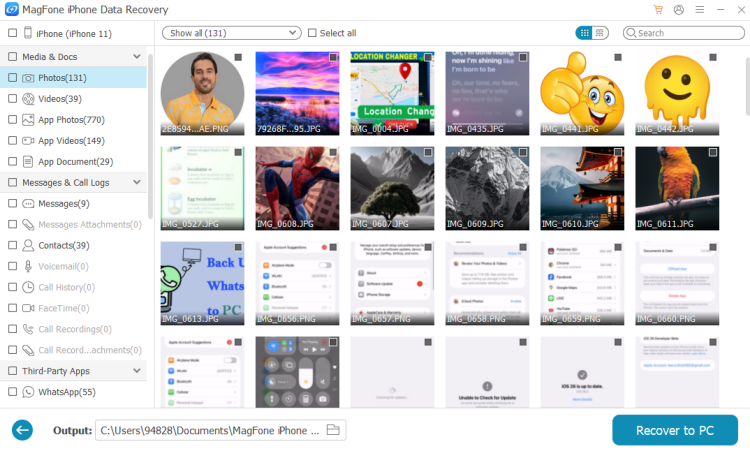
Once the deleted voicemail is scanned, you can check the details on the next page. Select the wanted voicemails and click Recover to PC or Recover to Mac to restore them to your computer.
Part 3. How to Retrieve Deleted Voicemail on iPhone with Backup
If you regularly back up your iPhone, your deleted voicemail may still be tucked away safely in one of those backups. Restoring from a backup can roll your device back to a previous state, bringing back voicemails that existed at that time. In this part, we'll show you how to use an iCloud or iTunes backup to retrieve deleted voicemails.
Method 1. Restore Deleted Voicemail from iCloud Backup
If the iCloud backup is up-to-date and the deleted voicemails are stored in iCloud as well, then you can restore deleted voicemails from the iCloud backup. To restore deleted voicemail from iCloud backup, make sure that you have enabled the Phone app in iCloud Backup, and you need to factory reset your iPhone.
Limitations:
- Require a recent iCloud backup.
- Phone app is enabled in iCloud Backup.
- Need to erase the iPhone and reset it.
- The recovery success is not guaranteed.
- Must restore the entire iCloud backup to the iPhone.

Step 1. Navigate to iPhone Settings > General > Transfer or Reset iPhone.
Step 2. Press Erase All Content and Settings > Continue > Erase iPhone.
Step 3. Enter the lock screen passcode and Apple ID password if prompted.

Step 4. Restart your iPhone and follow the on-screen instructions to set it up. When you see the Transfer Your Apps & Data screen, choose From iCloud Backup to restore an iCloud backup to your iPhone.
Step 5. After setting up, open the Phone app to check if the deleted voicemails are back.
Method 2. Restore Deleted Voicemail from iTunes Backup
If you prefer backing up your iPhone to a computer instead of iCloud, or you have older backups saved locally, you can try restoring deleted voicemails from an iTunes backup. This will not erase your iPhone, but will overwrite the current data on your iPhone. Be careful when operating.
Limitations:
- Require a previous iTunes backup.
- Must restore the entire iTunes backup to the iPhone.
- Replace the current data on the iPhone with the previous data in the iTunes backup.

Step 1. Connect your iPhone to the computer you used to back up the device using a data cable.
Step 2. Click the device icon, then click Summary in the left menu.
Step 3. Click Restore Backup and choose one backup to restore it to your iPhone.
Part 4. FAQs about iPhone Deleted Voicemail
How to listen to deleted voicemails on iPhone?
To listen to deleted voicemails on iPhone, you can:
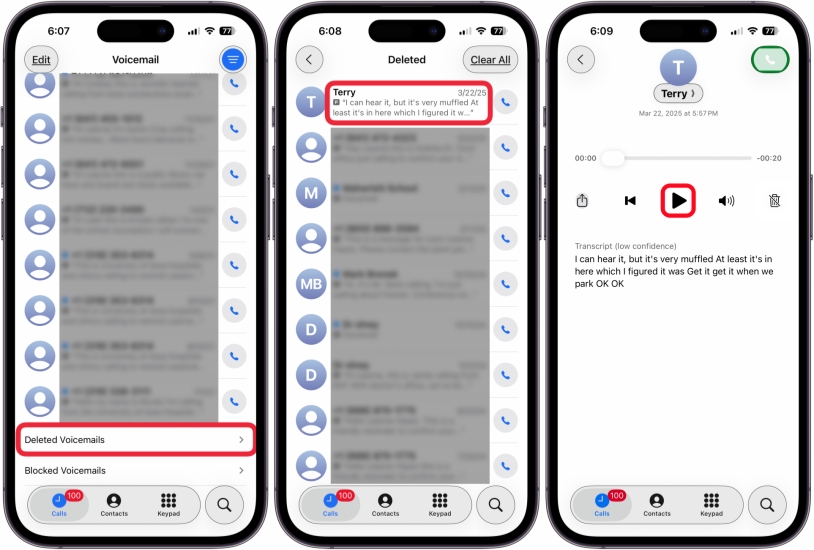
Step 1. Go to the Phone app and tap Voicemail at the bottom or tap the upper-right corner icon to access Voicemail.
Step 2. Tap Deleted Voicemails, tap one voicemail, and tap the play icon to listen to it.
Does iPhone automatically delete voicemails?
iPhone itself will not automatically delete voicemail. However, the voicemails are automatically removed after a certain period, but the exact behavior depends heavily on your carrier, AT&T, Verizon, T‑Mobile, etc., and your plan. To know how long your voicemails are kept, go to check your carrier's support website or app.
How to mass delete voicemails on iPhone?
You can delete multiple voicemails at once directly from the Phone app. To mass delete voicemails:
Step 1. Open the Phone app to access Voicemail.
Step 2. Tap Edit, then select the voicemail you want to delete
Step 3. When you've selected everything you want to remove, tap Delete to mass delete them.
How to delete all voicemail messages on iPhone?
There is no clear all or delete all option to delete all voicemail messages on iPhone. However, you can tap the Edit option, then use two fingers to press the voicemail and scroll down to the bottom to quickly select all voicemails. Then tap Delete to delete all voicemail messages.
Part 5. Conclusion
Deleting and losing important voicemail from an important person can be very upsetting. Fortunately, you can still get them back from an iCloud backup or iTunes backup. Or you can utilize a third-party tool like MagFone iPhone Data Recovery to recover deleted voicemail on iPhone without backup. To reduce the risk of losing important voicemail messages in the future, it's a good idea to share important voicemails to the Files app or other apps as an extra backup. That way, even if something happens to your voicemail inbox, you'll still have a safe copy of your most important messages.

Edgar Davis
Editor in chief





