
-
Unlock
-
Utilities
-
Recovery
-
Solutions
- Support
 Content
Have you accidentally deleted important files from your iPhone and need a reliable way to get them back without a backup? MagFone iPhone Data Recovery provides a powerful recovery mode that allows you to scan your iPhone directly and retrieve lost data quickly and safely. If your data is lost but not backed up yet, MagFone iPhone Data Recovery works by deeply scanning your device's internal storage to find recoverable files, even after accidental deletion, system crashes, or iOS update issues. Here's how to retrieve data from iPhone or iPad without a backup.
Step 1 Choose Recovery Mode and Connect Device

First, download and install MagFone iPhone Data Recovery on your computer, then launch the program and choose iPhone/iPad Data Recovery on the main interface. Go to connect your iPhone or iPad to the computer using a USB cable and unlock your device.
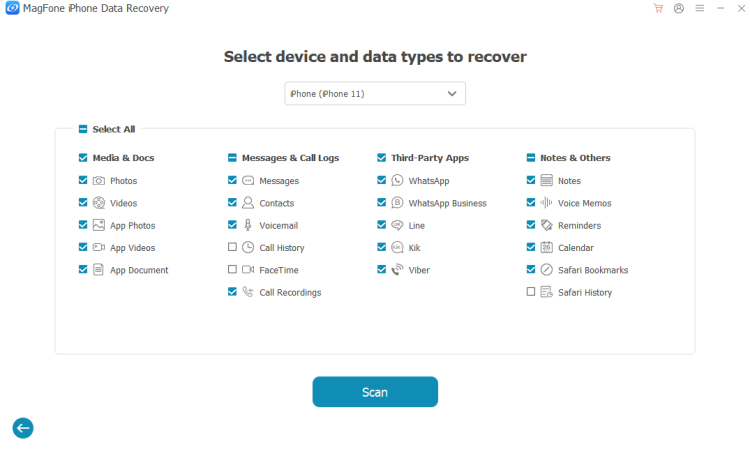
After your device is detected by the software, select the device and data type to scan. Here you can choose what only you want to recover. Or you can click Select All to scan all recoverable data on your device. Then click Scan to let MagFone perform a deep scan of your device.
Step 2 Scan and Preview the Lost Data on the Device

Wait for the software to scan your device. In the scanning process, keep your device connected to the computer and unlocked. After scanning, preview the recoverable data by category like Photos, Messages, Videos, Contacts, WhatsApp, and more.
Step 3 Select the Data to Recover on the Device
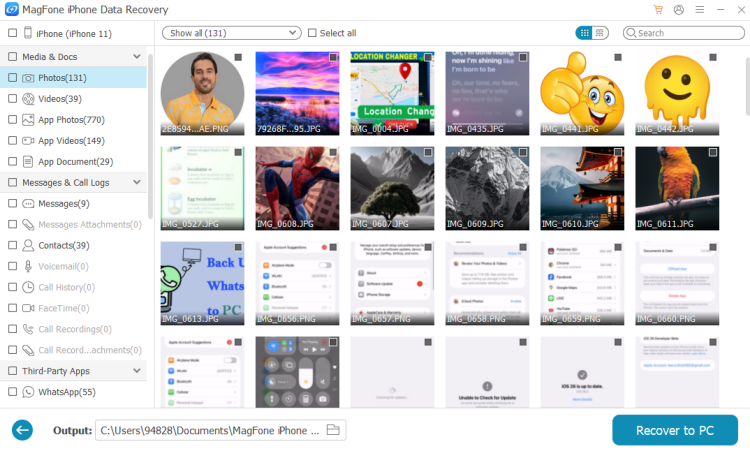
Once the scanning is finished, all recoverable data will be shown by category. In each column, you can view all items by clicking the tabs one by one. Then select the files you want and click Recover to PC to save them to your computer.
Have you ever wanted to restore data from an iTunes backup without overwriting your current iPhone data? MagFone iPhone Data Recovery offers a smart Recover Data from iTunes mode that lets you extract specific files from your iTunes backups if you regularly back up your iPhone to a computer using iTunes or Finder. Instead of performing a full restore, which can erase existing data, MagFone iPhone Data Recovery allows you to selectively access and recover the content stored in your backup file. Here's how to recover iPhone or iPad data from iTunes backup.
Step 1 Select Recovery Mode and Run MagFone
First up is to install and launch MagFone iPhone Data Recovery on your computer. Then choose Recover Data from iTunes on the main interface of the software. The software will automatically detect all available iTunes backups on your computer.
Step 2 Scan Data from iTunes Backup to Recover
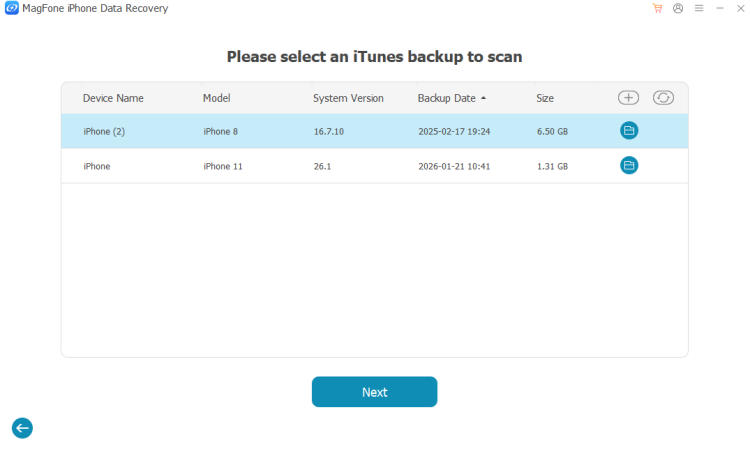
On the software, you will find all the iTunes backups stored on your computer. All the iTunes backups are organized by the created date of the files. You can then select the backup file you want to recover from and click Scan to scan the selected backup.
Step 3 Start to Recover Data from iTunes Backup
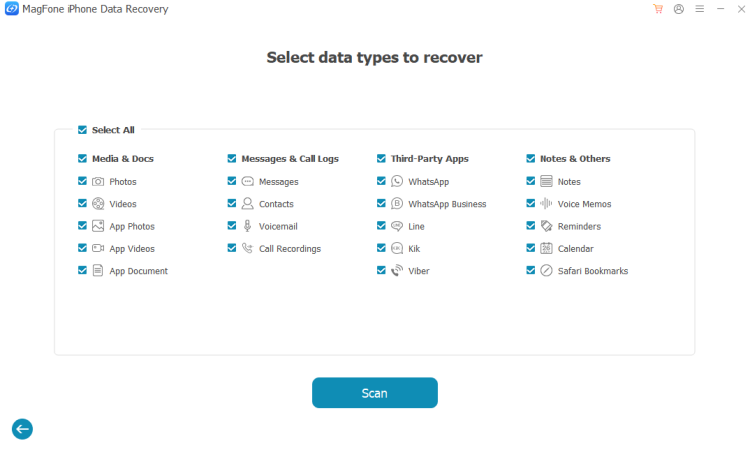
After scanning, all the recoverable data are organized by category, such Photos, Messages, Contacts, Call History, and more. You can check all the displayed data in each column. Now you can select the files you need and click Recover to PC to export them safely to your computer.
Have you lost important iPhone data but only have an iCloud backup to rely on? MagFone iPhone Data Recovery provides a convenient mode that allows you to access, preview, and restore your files from the cloud without needing your iPhone connected. Using Recover Data from iCloud in MagFone iPhone Data, you can download your iCloud backup securely and extract only the files you need, instead of performing a factory reset that could wipe other important data on your device. Here's how to recover iPhone or iPad data from iCloud backup.
Step 1 Run MagFone and Log to iCloud Account
To begin with, download and launch MagFone iPhone Data Recovery on your computer. From the main screen of the software, select Recover Data from iCloud. Then sign into iCloud by entering your Apple ID and password. Note that your login information remains private and safe.
Step 2 Download and Scan Data from iCloud Backup
Once successfully logged into iCloud, MagFone iPhone Data Recovery begins detecting all backups from your iCloud account. From the list, choose the iCloud file you want to restore. Then click Download to fetch the backup data to your computer.
Step 3 Preview and Recover Data from iCloud Backup
After scanning, you can preview the files from iCloud backup by category such as Photos, Contacts, Messages, Notes, and more. Continue to select the data you need and click Recover to PC to save it to your computer in just seconds.
Have you ever felt that heart-sinking moment when you realize important photos or messages have vanished from your iPhone or iPad? Whether it's an accidental deletion, a failed update, or a system crash, losing data is a major headache. MagFone iPhone Data Recovery is designed to back up and restore iOS devices like iPhone and iPad with ease. It allows you to back up iOS devices freely and then restores iOS devices from different backups. Here is your step-by-step guide to using MagFone iPhone Data Recovery for backing up and restoring iOS devices.
Step 1 Open MagFone and Connect iOS Devices
Grab MagFone iPhone Data Recovery from the official MagFone website and launch it on your computer. Use a USB cable to plug your iPhone into the computer. On the main interface, choose Backup & Restore, then click Back Up iOS Data.
Step 2 Make a Backup of iOS Devices
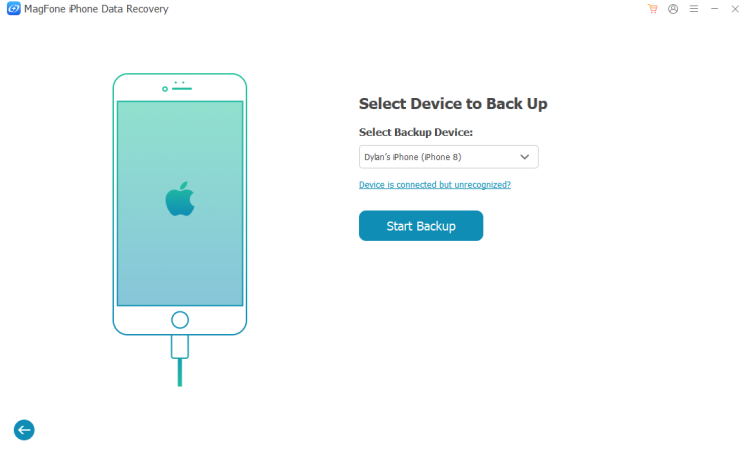
Click the Start Backup button to start backing up data on your iPhone. Wait for a while, and MagFone iPhone Data Recovery will make a complete backup. Once the backup finishes, click the View button to check the backup.
Step 3 Start to Restore iOS Devices
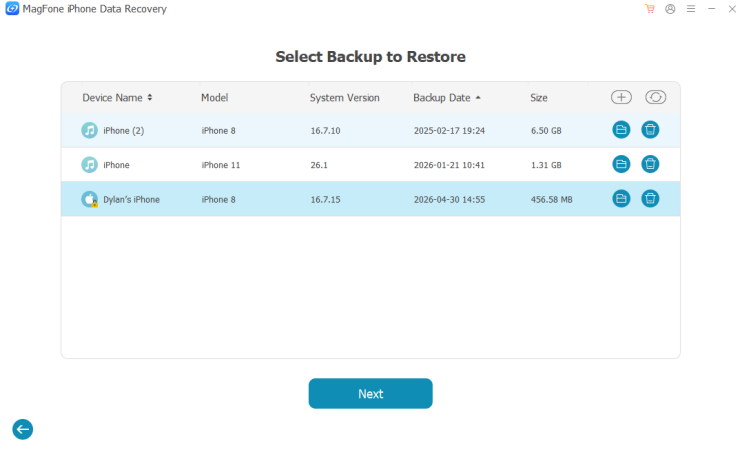
You will see a list of all backups found on your computer, including iTunes backups. Select the relevant backup and click the Next button. Then click the Start Restore button to starting restore your iPhone directly.

Follow Us:











