







Accidentally deleting WhatsApp messages from a specific contact can be frustrating, especially when the chat was emptied without you noticing, and there is no undo button. The good news is that as long as you take the right action, there may be a chance to get them back. In this guide, we will walk you through several ways to restore deleted WhatsApp messages of one contact on both Android and iPhone. Read on and recover your important WhatsApp messages!
- Part 1. How to Restore Deleted WhatsApp Messages of One Contact without Data Loss
- Part 2. How to Restore Deleted WhatsApp Messages of One Contact [Android]
- Part 3. How to Restore Deleted WhatsApp Messages of One Contact [iPhone]
- Part 4. Conclusion
Part 1. How to Restore Deleted WhatsApp Messages of One Contact without Data Loss
There are two effective ways to restore deleted WhatsApp messages from a single contact without risking data loss. Note that these methods do not directly add the chat thread back into your WhatsApp conversation list. Instead, they allow you to export the deleted messages in a readable format so you can view and save them safely outside WhatsApp.
Option 1. Ask the Contact to Export Chat
If it's convenient to contact your WhatsApp contact, you can ask the contact to export your chat and share it with you. Though this can't restore the deleted WhatsApp messages to your chat list, it provides you with a copy of the deleted WhatsApp messages, and you can check it anytime.
On Android:
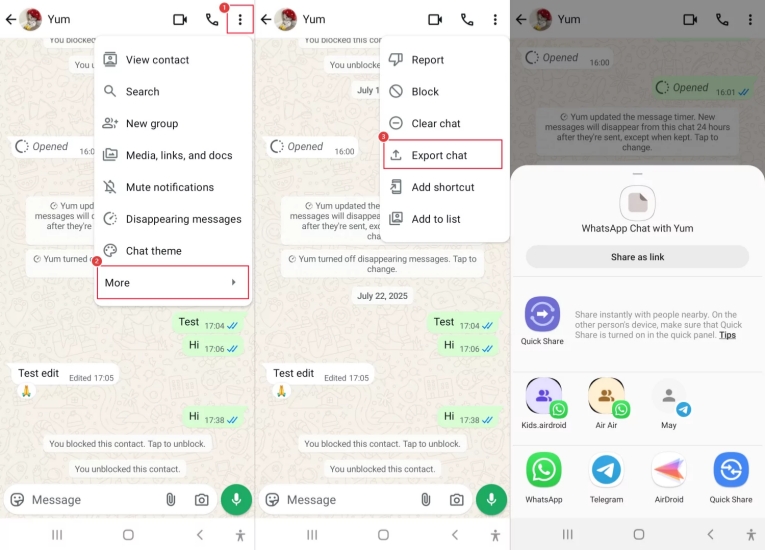
Step 1. Open the chat and tap the triple-dot icon.
Step 2. Tap More > Export chat, then choose whether to export media along with your messages.
Step 3. Then choose WhatsApp to share the exported chat with the contact.
On iPhone:
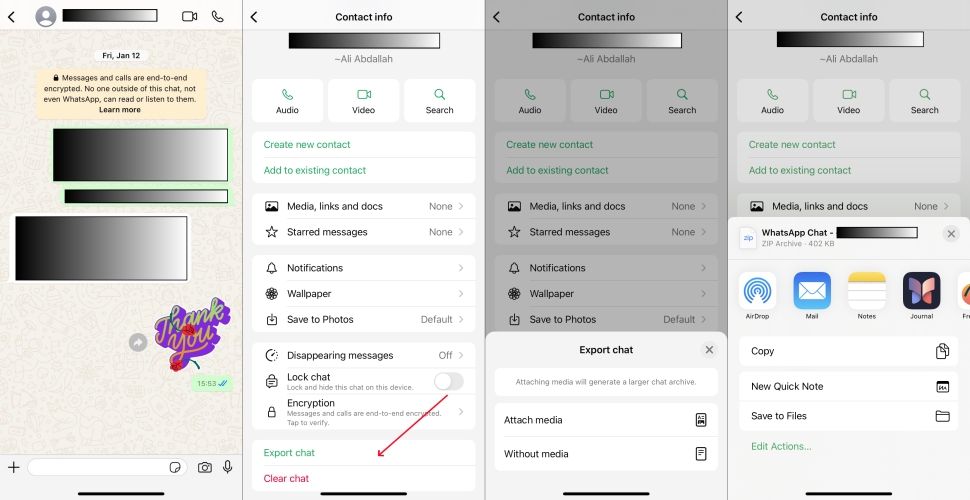
Step 1. Open the WhatsApp chat and tap the contact's profile.
Step 2. Tap Export Chat and choose whether to attach media along with the exported chat.
Step 3. Tap WhatsApp to share the exported chat with your contact.
Once your contact shares the exported chat with you, you can download the file and save it on your device.
Option 2. Use MagFone iPhone Data Recovery [iPhone]
Another option for recovering deleted WhatsApp messages of one contact is to use a data recovery tool. MagFone Photos Data Recovery is designed to scan, view, and export deleted data from an iPhone or iPad. If you have accidentally deleted all messages in a single WhatsApp chat or have removed a WhatsApp chat from a chat thread, MagFone iPhone Data Recovery can bring them back quickly. This method won't sync the messages back to the WhatsApp app either. But you can recover the deleted WhatsApp messages and export them for further reading and saving. Below is how to use MagFone to restore your deleted WhatsApp messages.

MagFone iPhone Data Recovery
Recover deleted WhatsApp messages on iPhone without data overwritting.
Step 1 Download and Install MagFone iPhone Data Recovery

First, download and install MagFone iPhone Data Recovery on your computer. Then activate this tool and use a data cable to link your iPhone to the computer.
Step 2 Scan Deleted Messages on WhatsApp
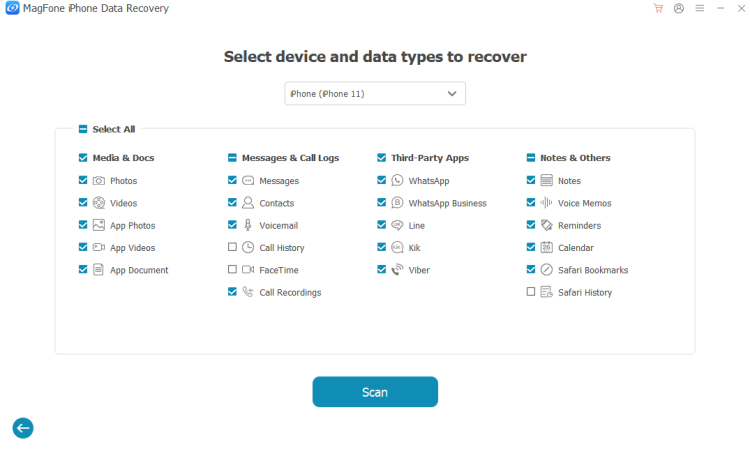
Choose iPhone/iPad Data Recovery from the main features. Then select WhatsApp from the data list and click Scan to scan the deleted WhatsApp messages on iPhone. If you are required to enter the passcode on your iPhone, follow the instructions.
Step 3 Restore Deleted WhatsApp Messages from One Contact
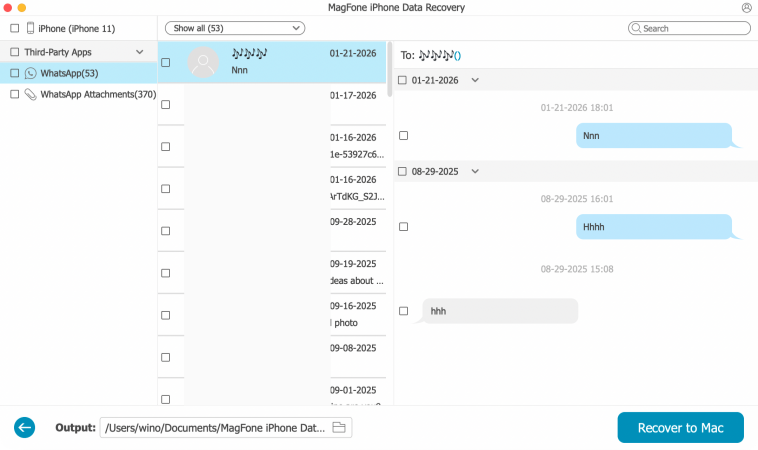
After scanning, you can check all your WhatsApp messages on the computer. Just select the deleted WhatsApp chat and click Recover to PC or Recover to Mac to export it to your computer.
Part 2. How to Restore Deleted WhatsApp Messages of One Contact [Android]
If you want the deleted messages to appear again in your WhatsApp chat list, you need to restore WhatsApp from a backup that still contains those messages. Keep in mind that restoring from an earlier backup will remove any chats created after the backup date. In this section, we'll show you how to restore deleted WhatsApp messages of one contact on Android devices.
Method 1. Restore Deleted WhatsApp Messages from Google Drive Backup
The deletion of WhatsApp messages from a single contact is irreversible. However, if you've recently deleted a chat, you may still be able to restore it from a Google Drive backup, provided that Google Drive has not yet synced the deletion. In this case, you can quickly recover the chat by restoring WhatsApp from the most recent Google Drive backup that still contains those messages.
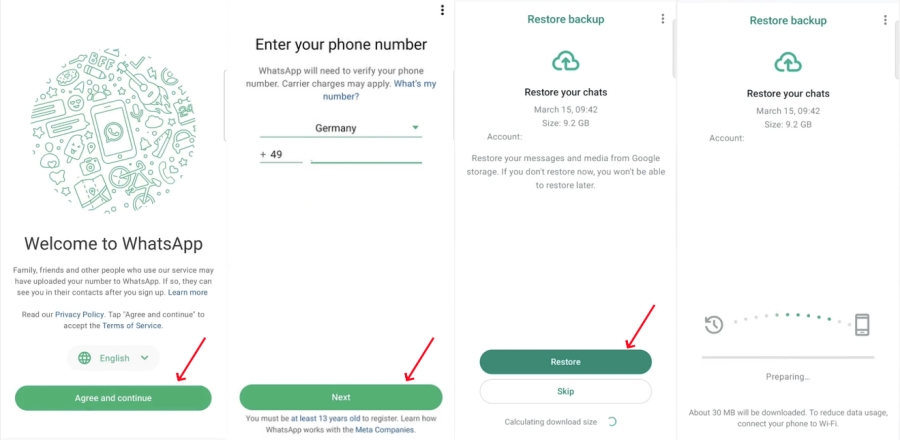
Step 1. Uninstall WhatsApp from your phone, then reinstall it on your phone.
Step 2. Open WhatsApp and follow the instructions to activate it.
Step 3. After you verify your account, WhatsApp will detect if there is an available WhatsApp backup. When you reach the Restore backup screen, choose Restore to restore WhatsApp from Google Drive.
Method 2. Restore Deleted WhatsApp Messages from Local Backup
You can also restore a local WhatsApp backup to restore deleted WhatsApp messages of one contact. To avoid data overwriting, it is suggested that you restore the local WhatsApp backup to an extra phone.
- Before restoring a local backup, you can first check the WhatsApp backup time so you can restore the correct backup that includes the deleted WhatsApp chat.
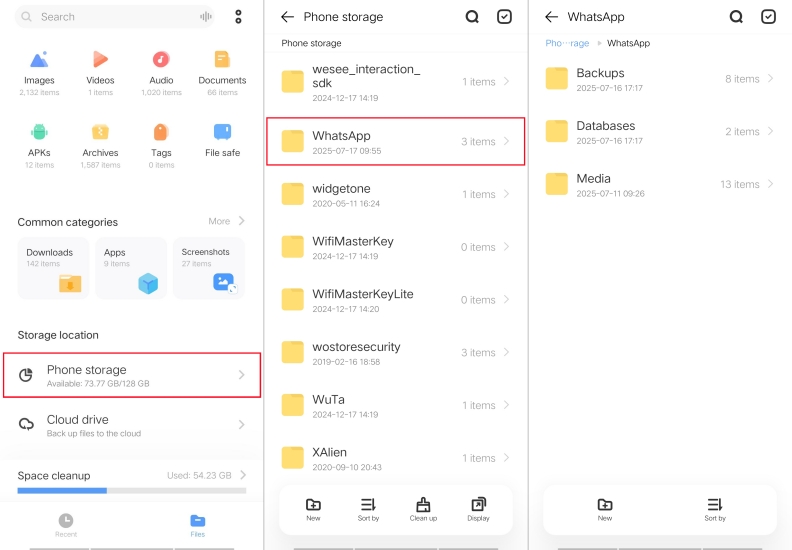
Step 1. Open File Manager and find the path: Internal storage > Android > media > com.whatsapp > WhatsApp > Databases.
Step 2. In this folder, you can find many backup files named with data. Make a copy of the one that includes the deleted WhatsApp messages.
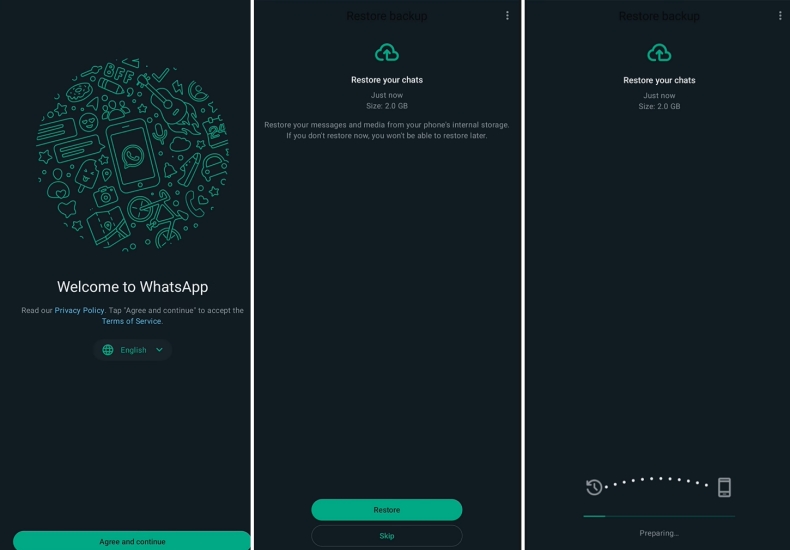
Step 1. Install WhatsApp on another phone, and activate WhatsApp until you see the Verify your phone number screen.
Step 2. Move the copied WhatsApp backup file to the same directory as the Databases on another phone. And rename it to "msgstore.db.crypt14".
Step 3. Verify your phone number in WhatsApp and wait for WhatsApp to detect the local backup. When you see the Restore backup screen, choose Restore to restore WhatsApp from internal storage.
Part 3. How to Restore Deleted WhatsApp Messages of One Contact [iPhone]
If you want to recover deleted WhatsApp messages for a specific contact on iPhone, you can restore WhatsApp from an iCloud or iTunes backup. Also note that this will cause data after the backup date to disappear.

MagFone Chats Transfer
Back up your WhatsApp messages without data loss or data overwriting.
Method 1. Restore Deleted WhatsApp Messages from iCloud Backup
WhatsApp on iPhone supports direct backups to iCloud, which you can use to restore your chats if something is deleted by mistake. To recover deleted messages from a single contact using an iCloud backup, first go to WhatsApp Settings > Chats > Chat Backup and check the time of the latest backup. This can help you determine whether the backup was created before you deleted the messages and therefore may still contain the chat you want to restore. If you have confirmed that the iCloud backup is available, then follow the steps below to restore it.
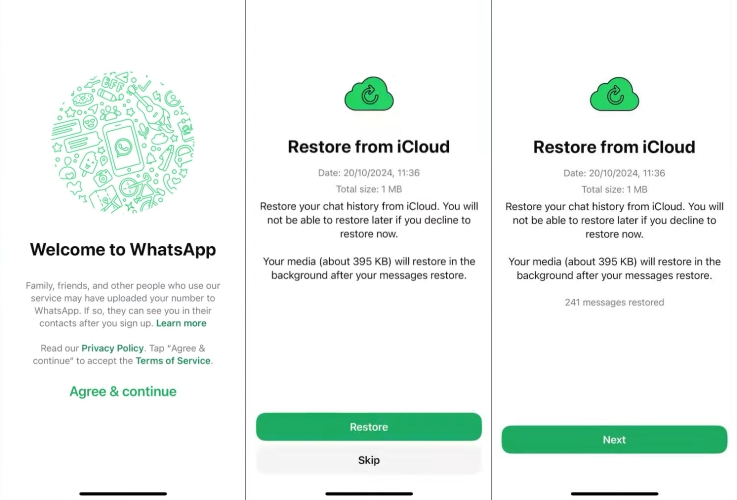
Step 1. Delete WhatsApp from your iPhone, then reinstall it from the App Store.
Step 2. Open WhatsApp and follow its instructions to activate it and verify your account.
Step 3. When a backup from WhatsApp is detected, you can choose Restore to restore the backup.
Method 2. Restore Deleted WhatsApp Messages from iTunes Backup
If there is an old iTunes backup that contains the deleted WhatsApp messages of the contact, you can choose to restore the iTunes backup. This method restores the entire iPhone, not just WhatsApp, so it's riskier when other data on the iPhone matters to you.

Step 1. Use a data cable to connect your iPhone to the computer.
Step 2. Launch iTunes and click the device icon if your iPhone is detected.
Step 3. Click Restore Backup and choose an old iTunes backup to restore to your iPhone.
Part 4. Conclusion
For safer data maintenance, it's recommended to either ask the contact to export the chat or use MagFone iPhone Data Recovery to export the deleted WhatsApp messages between you. If you can accept the risk of additional data loss and some uncertainty, you can then consider restoring WhatsApp from a previous backup to recover deleted messages from a single contact.

Olivia Wood
Editor in chief





