








Receiving a notification - iPhone Locked to Owner - can be frustrating, especially if you are unable to access your own device. It is not surprising that you would receive such an alert on your iPhone, as many users also encounter the same issue. With many iPhone users asking for a solution to iPhone Locked to Owner, we will show you how to bypass iPhone Locked to Owner, whether you know the Apple ID password or not. Additionally, we've included tips to help you find the owner of a locked iPhone. If you want more details about the iPhone Locked to Owner bypass, you can read this post carefully.
- Part 1. What Does iPhone Locked to Owner Mean?
- Part 2. How to Unlock iPhone Locked to Owner with Computer
- Part 3. How to Unlock iPhone Locked to Owner without Computer
- Method 1. Unlock iPhone Locked to Owner via Screen Passcode
- Method 2. Unlock iPhone Locked to Owner on Find My App
- Method 3. Unlock iPhone Locked to Owner at iCloud.com
- Method 4. Unlock iPhone Locked to Owner in Settings
- Method 5. Unlock iPhone Locked to Owner with Recovery Key
- Method 6. Unlock iPhone Locked to Owner by Resetting DNS
- Part 4. FAQs about iPhone Locked to Owner Bypass
- Part 5. Conclusion
Part 1. What Does iPhone Locked to Owner Mean?
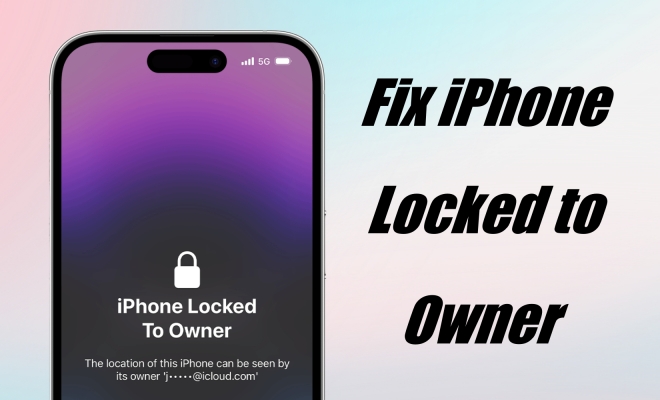
iPhone Locked to Owner means that you have no access to your device unless you enter the correct Apple ID password. If you see an iPhone Locked to Owner screen when you power on your device, this means that the owner of the iPhone uses Mark As Lost in the Find My app or on iCloud.com to lock the device. The iPhone Locked to Owner screen would appear on an iPhone running iOS 15 or later once the device is locked by Activation Lock.
Part 2. How to Unlock iPhone Locked to Owner with Computer
The quickest way to unlock an iPhone Locked to Owner is by using a professional Activation Unlocker on your PC. We recommend MagFone for this purpose. MagFone iPhone Unlocker is a powerful tool that can remove the iCloud Activation Lock on iPhone, iPad, and iPod touch so as to bypass the iPhone Locked to Owner screen. Whether you've bought a used iPhone that's remotely locked by the previous owner or have forgotten your Apple ID password, MagFone provides an efficient solution to unlock your device. Here's how to bypass the iPhone Locked to Owner screen via MagFone.

MagFone iPhone Unlocker
Bypass iCloud Activation Lock on iPhone, iPad, and iPod touch without the original Apple ID or password.
Step 1Run MagFone Activation Unlocker
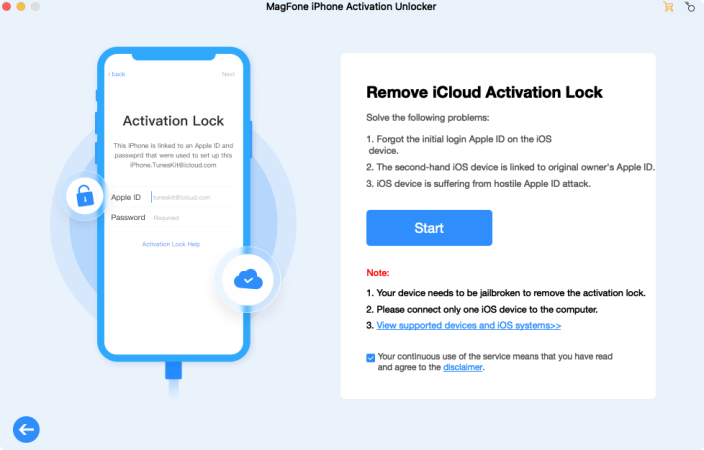
Start by installing MagFone Activation Unlocker on your computer, then open it and connect your iPhone to your computer. Click Remove iCloud Activation and carefully read the disclaimer and confirm to remove iCloud Activation Unlock by clicking the Agree button. Then click Start to go to the next step.
Step 2Manually Jailbreak iPhone
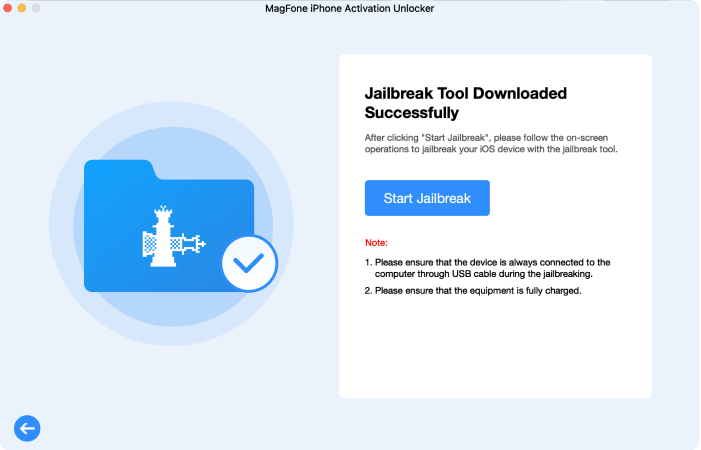
Before fixing the iPhone Locked to Owner, you have to jailbreak your iPhone according to what iOS version your device is running. If you don't know how to jailbreak your iPhone, you can follow the onscreen instructions to do it. Or you can check the detailed guide for jailbreaking an iPhone.
Step 3Start to Fix iPhone Locked to Owner
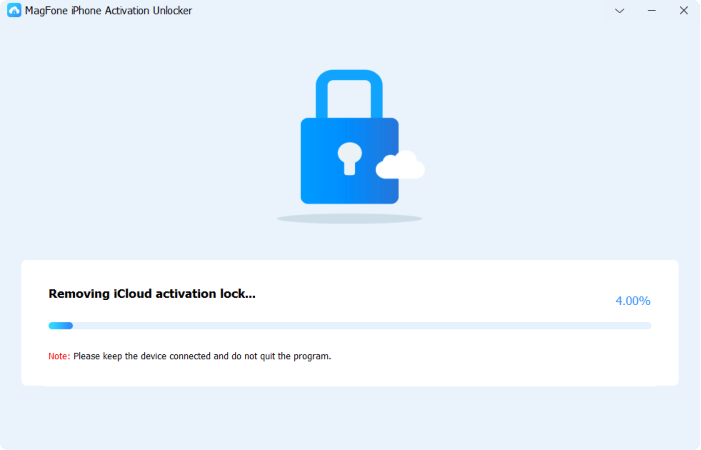
After completing the jailbreak progress, you can confirm the device information shown on the screen of MagFone software. You can click the Start to Remove button to remove the Activation Lock from your iPhone, so as to bypass iPhone Locked to Owner.
Part 3. How to Unlock iPhone Locked to Owner without Computer
In addition to the PC-based unlocking option discussed earlier, there are five useful and quick approaches that can be done without a computer. These solutions offers flexible alternatives for users facing the iPhone locked to owner screen in different real-world situations.
Method 1. Unlock iPhone Locked to Owner via Screen Passcode
If you can't access the Apple ID password on your iPhone but still remember the screen passcode, there is a quick solution. In addition to some earlier iOS versions, most iPhones locked to owner can be unlocked by the screen passcode from the Apple ID entry screen. Here's how to do it:
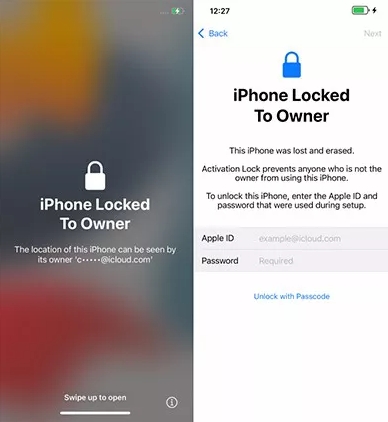
Step 1. Swipe up the locked-to-owner screen on your iPhone.
Step 2. Find and tap the blue Unlock with Passcode note under the password entry box.
Step 3. Type your screen passcode and the Locked to Owner screen will be removed.
Method 2. Unlock iPhone Locked to Owner on Find My App
Another option is to use the Find My app to manage your Apple devices, where you use the same Apple ID. If you have more than one Apple device and use the same Apple ID, you can turn off iPhone Locked to Owner by using the Find My app.
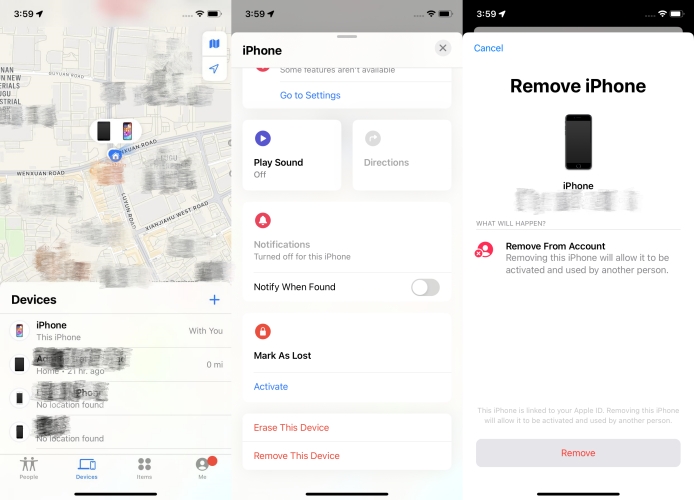
Step 1. Fire up the Find My app on your Apple device where you use the same Apple ID.
Step 2. Tap Devices at the bottom of the screen and find your locked iPhone from the device list.
Step 3. Scroll down and choose Remove This Device, then tap Remove to confirm.
Step 4. Enter your Apple ID password and tap Remove to get your iPhone unlocked.
Method 3. Unlock iPhone Locked to Owner at iCloud.com
In Find Devices on iCloud.com, you can see all your Apple devices that are connected to the same Apple ID. By signing into iCloud.com with your Apple ID credentials, you can remotely fix the iPhone Locked to Owner screen with ease.
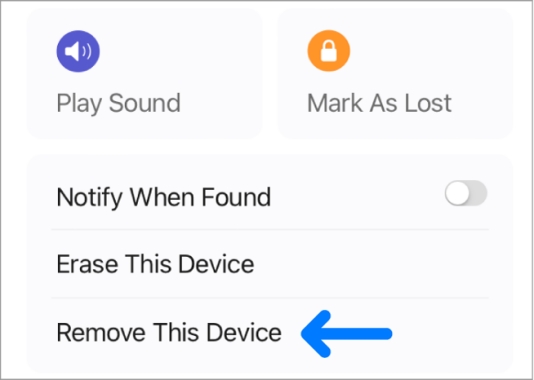
Step 1. Sign to iCloud.com and head to Find My, then click All Devices.
Step 2. From the drop-down device list, find your locked iPhone and click it.
Step 3. In the pop-up window, select Remove from Account and click Remove.
Step 4. Enter your Apple ID password and click Remove Device to confirm.
Method 4. Unlock iPhone Locked to Owner in Settings
In the Settings of your iPhone, you can find and manage your Apple ID. If you use an Apple ID on all your Apple devices, you can remove your locked iPhone from your Apple ID in Settings. This can help you get past iPhone Locked to Owner.
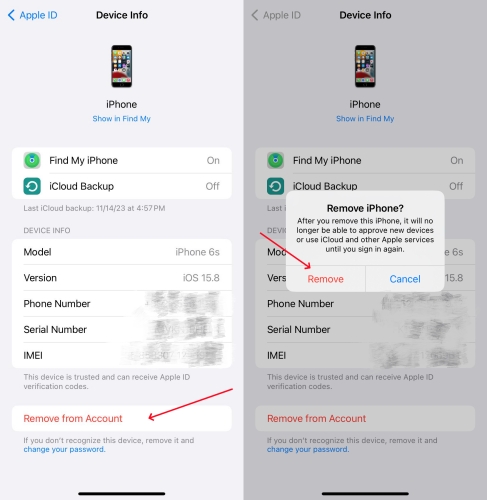
Step 1. On your other Apple device, open the Settings app and tap your Apple ID name.
Step 2. View the devices connected to your Apple ID and find your locked iPhone.
Step 3. Select your locked iPhone and tap Remove from Account, then tap Remove to confirm.
Method 5. Unlock iPhone Locked to Owner with Recovery Key
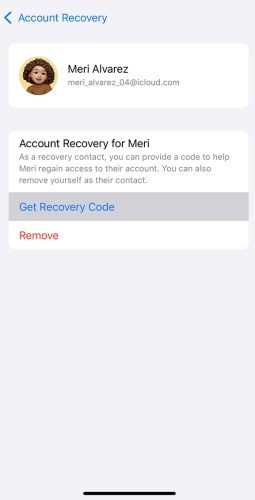
If you don't have access to a computer, you can still remove the iPhone Locked to Owner screen by resetting your Apple ID password online. This method requires another Apple device that's signed in with the same Apple ID so you can receive a verification code.
Step 1. Open the Settings app on your friend's iPhone or iPad.
Step 2. Tap the Apple ID header at the top of the screen (your friend's name).
Step 3. Select Sign In & Security and tap Account Recovery.
Step 4. Under Account Recovery For, select your name.
Step 5. Tap Get Recovery Code to display the 6-digit code.
Step 6. On your device, enter the 6-digit code from your friend's screen to verify your identity and start resetting your password.
Method 6. Unlock iPhone Locked to Owner by Resetting DNS
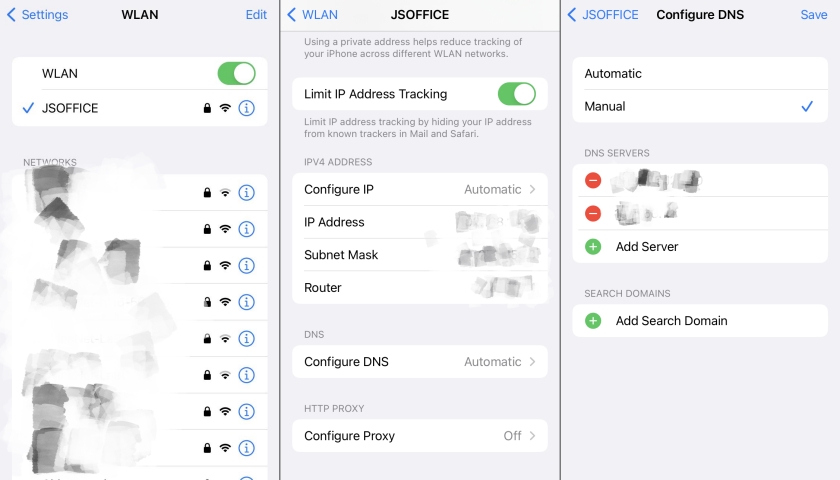
You can also reset DNS to bypass the iPhone Locked to Owner screen. Configuring a DNS through HTML or an online server can disable iCloud Activation Lock from your iPhone. Then your iPhone will get out of the iPhone Locked to Owner screen. But this method only works for iPhones running iOS 10 and earlier.
Step 1. Tap Swipe up to open the iPhone Locked to Owner screen..
Step 2. Set up your device by following the onscreen instructions until you choose the WiFi Network.
Step 3. Press the Power button and the Volume Down button at the same time.
Step 4. From the pop-up window, select More WiFi Settings and tap the i button at a WiFi network.
Step 5. Scroll down to tap Configure DNS and tap Manual > Add Server, then enter the following DNS value according to your location.
- Asia: 104.155.28.90
- USA: 104.154.51.7
- Europe: 104.155.28.90
- South America: 35.199.88.219
- Australia and Oceania: 35.189.47.23
- Other: 78.100.17.60
Step 6. Tap Save at the top right corner, go back to Choose WiFi Network, and tap Done.
Step 7. Tap Set Up Manually and wait for your iPhone to be activated, then tap Continue.
Step 8. Skip to set a passcode and tap Don't Transfer Apps & Data > Don't Have an Apple ID.
Step 9. Tap Set Up Later in Settings and select Don't Use, then tap Agree > Continue.
Step 10. After completing the setup of your iPhone, you will successfully enter the Home screen.
Part 4. FAQs about iPhone Locked to Owner Bypass
-
How to bypass iPhone Locked to Owner for free?
There are several methods you can try to bypass the iPhone Locked to Owner screen for free. These include using the Apple ID, such as removing the iPhone from the Find My app, as well as methods that don't require an Apple ID, like DNS bypass, which can help you remove the Activation Lock without needing the Apple ID password.
-
How to unlock iPhone Locked to Owner without Apple ID?
It is illegal to unlock an iPhone locked to another owner without the Apple ID. If you are the legitimate owner who forgot credentials, try Apple's account recovery first. Limited options include passcode-based reset, DNS workarounds, or third-party tools like MagFone Activation Unlocker.
-
How to get through iPhone Locked to Owner without data loss?
If you want to get through iPhone Locked to Owner without data loss, you can use the screen passcode by pressing the Unlock with Passcode option on the iPhone Locked to Owner screen. Alternatively, if the device is linked to your iCloud account, you can remove it from iCloud.com or the Find My app. This method requires the Apple ID and password while keeping your data safe.
Part 5. Conclusion
Bypassing iPhone Locked to Owner can be a complex and challenging endeavor. But with the correct Apple ID and password, you can resolve the issue effectively. Read this article on how to unlock iPhone Locked to Owner, you'll know seven easy and feasible ways to unlock the iPhone Locked to Owner screen. Whether you have forgotten your Apple ID password or purchased a second-hand device, you can use MagFone Activation Unlocker to fix the iPhone Locked to Owner issue with ease.

Teresa Miller
Editor in chief




