








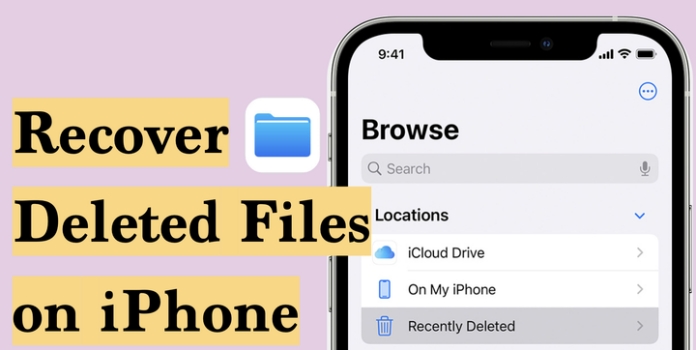
Apple's Files app is surprisingly versatile for Apple users, acting as a central hub where you can store, organize, and access documents, photos, and other important data across your devices. But even with such a powerful tool, it's still all too easy to accidentally delete a file you really need, sometimes without noticing until it's too late. In this guide, we will walk you through practical methods to recover deleted files on your iPhone, from using the Recently Deleted folder in the Files app and iCloud.com, to restoring from iTunes or iCloud backups, and even exploring options when you don't have a backup at all.
- Part 1. Can You Recover Deleted Files from iPhone?
- Part 2. How to Recover Recently Deleted Files on iPhone
- Part 3. How to Recover Permanently Deleted Files on iPhone with Backup
- Part 4. How to Recover Permanently Deleted Files on iPhone without Backup
- Part 5. Conclusion
Part 1. Can You Recover Deleted Files from iPhone?
Yes, you can recover deleted files on your iPhone. Thanks to Apple's recovery system, you are often able to recover deleted iPhone files from the Recently Deleted folder in the Files app. If you have an iCloud Backup or iTunes backup, it's also possible to restore deleted files on iPhone from the backup. And even if you don't have a backup available, we'll still show you a practical method to recover permanently deleted files on your iPhone without backup.
| Recovery Method | Time Since Deletion | Need Backup | Selective Restore | Operation | Best When |
|---|---|---|---|---|---|
| Recently Deleted Folder | Up to ~30 days | ❌ | ✔️ | Easy | You noticed deletion quickly |
| iCloud Backup | Any time, as long as backup is kept in iCloud |
✔️ | ❌ | Moderate | You consistently use iCloud Backup |
| iTunes Backup | Any time, as long as backup file is available |
✔️ | ❌ | Moderate | You regularly back up to a computer |
| Recovery Tool | Anytime | ❌ | ✔️ | Easy | You have no suitable backup and data is critical |
Part 2. How to Recover Recently Deleted Files on iPhone
When you delete a file on your iPhone, it's moved to the Recently Deleted folder, where it's kept for 30 days before being permanently erased. That means the fastest and easiest way to recover deleted files on your iPhone is to check this folder as soon as you realize something is missing.
Method 1. Recover from Recently Deleted in the Files App
The Files app has a Recently Deleted folder that temporarily stores items you remove, such as documents, PDFs, and other files. You can get deleted files back directly from this folder.
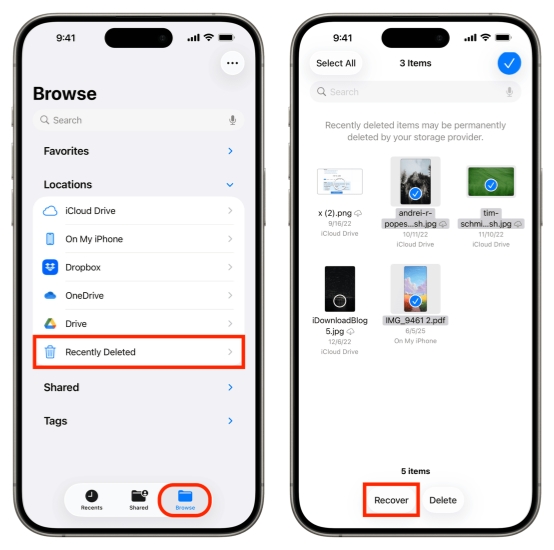
Step 1. Open the Files app and tap Browse at the bottom.
Step 2. Tap Recently Deleted to view deleted files on iPhone.
Step 3. Tap the triple-dot icon > Select to select the deleted files you want to recover. Then tap Recover to recover them to their original locations.
Method 2. Recover from Recently Deleted on iCloud.com
If the deleted files were stored in iCloud Drive, you can also view and restore them from the iCloud website. There, you'll be able to access and recover files that were synced from any of your devices using the same Apple ID, not just your iPhone.
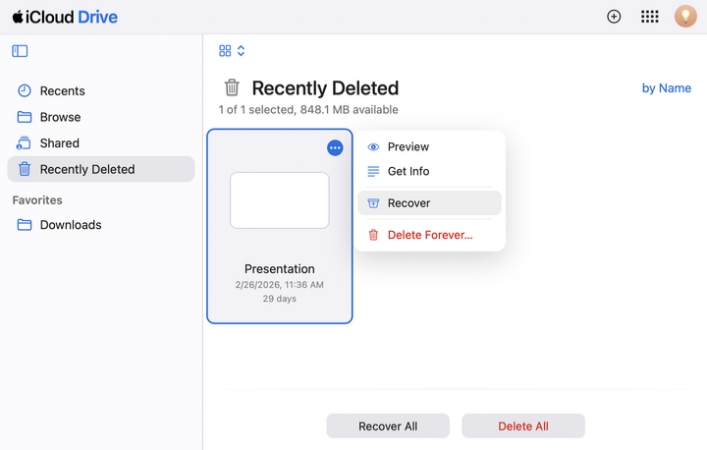
Step 1. Log in to your Apple Account at https://www.icloud.com/iclouddrive/.
Step 2. Click Recently Deleted to view iPhone deleted files.
Step 3. Click the triple-dot icon of each item and click Recover to restore it to its original location.
Note:
iCloud Drive lets you restore deleted files that were stored in iCloud Drive or created with iWork apps like Pages, Numbers, and Keynote. If you want to restore deleted files from other apps in iCloud, you need to use the Data Recovery feature.
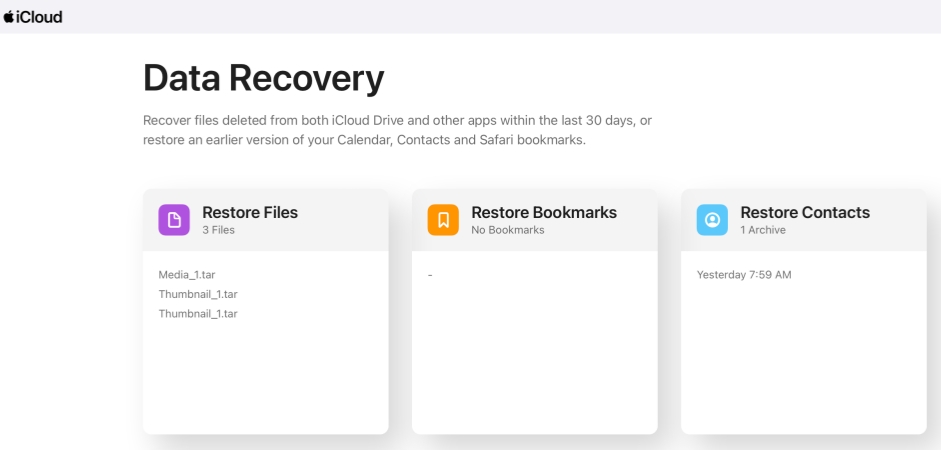
Step 1. Log in to your Apple Account at iCloud.com.
Step 2. Click the icon next to your Apple ID profile and click Data Recovery.
Step 3. Click Restore Files, then click Restore to restore the deleted files on iPhone.
Part 3. How to Recover Permanently Deleted Files on iPhone with Backup
If your files are no longer in the Recently Deleted folders, your next hope is a backup. When you back up your iPhone with iTunes, Finder, or iCloud, the backup usually includes documents, photos, and other data that were on your device at that time. By restoring your iPhone from one of these backups, you may be able to bring back files that now seem permanently deleted. Though you should be aware that a full restore will also overwrite your current data and settings with the contents of the chosen backup.
Method 1. Recover Deleted iPhone Files from iTunes Backup
If you have backed up your iPhone using iTunes, there is a chance to recover deleted files on iPhone from the iTunes backup.
What You Need and Will:
- A computer with a previous iTunes backup
- Restore the entire iTunes backup to the iPhone
- Lose new data on iPhone

Step 1. Connect your iPhone to the computer you used to back up your iPhone via a data cable. Open iTunes.
Step 2. Click the device icon, then click Summary in the left menu.
Step 3. Click Restore Backup and choose one backup to restore to your iPhone.
Method 2. Recover Deleted iPhone Files from iCloud Backup
If you have an instant iCloud backup, you can restore deleted files by erasing your iPhone and setting it up again from an earlier iCloud backup. Once you choose an older backup during setup, your iPhone will download and restore the data from that point.
What You Need and Will:
- Erase iPhone data
- Restore the entire iCloud backup
- Stable network connection
- Lose newer data made after the backup date

Step 1. Open iPhone Settings and tap General.
Step 2. Tap Transfer or Reset iPhone > Erase All Content and Settings.
Step 3. Tap Continue > Erase iPhone and enter the iPhone passcode and Apple ID password to forward.

Step 4. After erasing, follow the on-screen instructions to set up your iPhone. When you are asked to Transfer Your Apps & Data, choose From iCloud Backup.
Step 5. When your iPhone is set up and data is restored completely, open the Files app to check iPhone deleted files.
Part 4. How to Recover Permanently Deleted Files on iPhone without Backup
There are lots of limitations to restoring deleted files from iCloud or iTunes backup. And the success can't be guaranteed. Here, we suggest a safer and more efficient method, which is to use a data recovery tool. MagFone iPhone Data Recovery is designed to recover data from an iPhone, iPad, or iPod. It supports recovering various data on iPhone, including notes, contacts, messages, photos, videos, etc. With MagFone, you can access and preview deleted data from your iPhone easily. Just follow the steps below to recover permanently deleted files on iPhone without backup.

MagFone iPhone Data Recovery
Recover data from iPhone and iPad in three recovery modes without data overwritting and device reset.
Step 1 Run MagFone iPhone Data Recovery

First, download and install MagFone iPhone Data Recovery on your computer. Link your iPhone to the computer using a data cable. Then run MagFone to start.
Step 2 Scan iPhone Deleted Files

Click iPhone/iPad Data Recovery, mark Files in the next page. Then click Scan to scan deleted files on iPhone. To proceed, you need to enter the passcode on iPhone to give permission.
Step 3 Recover iPhone Deleted Files
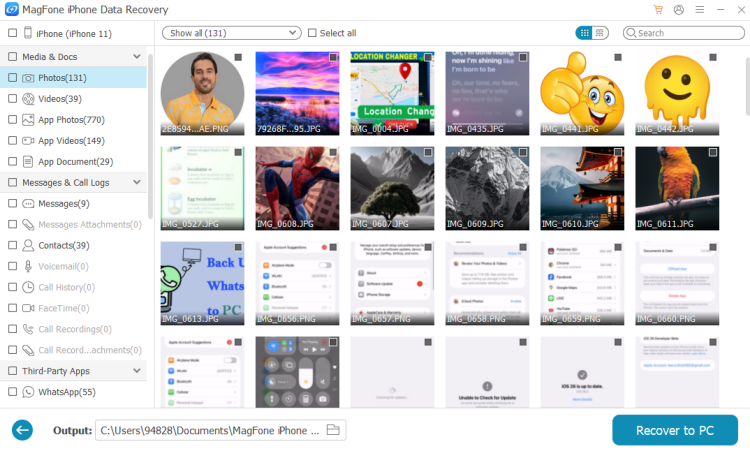
Once the scan is completed, you can view your deleted files from iPhone. Select iPhone deleted files from App Documents and click Recover to PC or Recover to Mac.
Part 5. Conclusion
Recovering deleted files from iPhone isn't always straightforward, but you still have several options. Recently Deleted folders in the Files app and on iCloud.com offer a quick safety net for recently deleted files, while iTunes and iCloud backups can help you bring back data that is permanently gone, provided those backups were made in time. When no backup is available, or you don't want data overwritten, third‑party recovery tools like MagFone iPhone Data Recovery may be your best resort.

Edgar Davis
Editor in chief





