








You've accidentally deleted some messages on your iPhone and now, after some time has passed, you realize you need to check them again. The messages seem to be gone from your device, and you're wondering how to get them back. How can you recover these deleted messages on your iPhone? In this guide, we'll walk you through different methods to recover deleted messages on iPhone, whether they were recently deleted or permanently removed.
- Part 1. Can You Recover Deleted Messages on iPhone?
- Part 2. How to Recover Recently Deleted Messages on iPhone
- Part 3. How to Recover Permanently Deleted Messages on iPhone
- Part 4. Conclusion
Part 1. Can You Recover Deleted Messages on iPhone?
Yes. Whether the messages were deleted recently or permanently, there is a chance to get them back. On iPhones running iOS 16 or later, deleted messages can be found and recovered in the Recently Deleted folder within 30 days. Once messages have been there for more than 30 days, they're permanently deleted. At that point, the only way to get them back is from an iCloud backup, an iTunes backup, or with a dedicated message recovery tool.

MagFone iPhone Message Recovery
Recover deleted messages from iPhone, iCloud, or iTunes, without overwriting existing files.
Part 2. How to Recover Recently Deleted Messages on iPhone
On iPhones running iOS 16 or later, deleted messages are moved to the Recently Deleted folder for 30 days. If you've recently deleted messages on your iPhone, you can simply check the Recently Deleted folder and recover them.
On iOS 18:
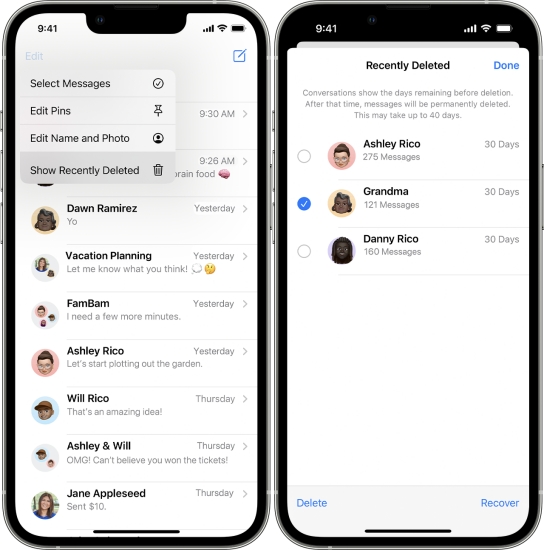
Step 1. Tap Edit in the upper-left corner of the Messages app.
Step 2. Choose Show Recently Deleted to check recently deleted iPhone messages.
Step 3. Select the recently deleted iPhone messages you want to recover and tap Recover, then tap the Recover option again to get them back.
On iOS 26:
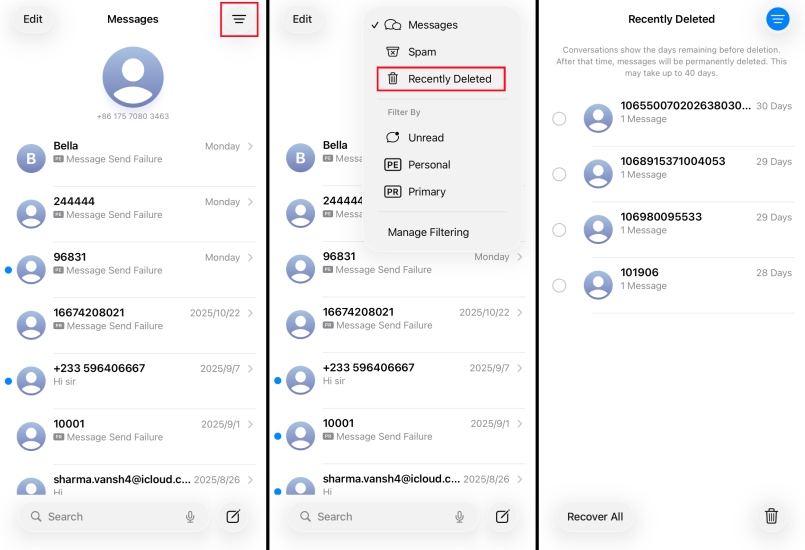
Step 1. Open the Settings app and tap the icon in the upper-right corner.
Step 2. Choose the Recently Deleted filter, and you can see all deleted messages on iPhone in the last 30 days.
Step 3. Select the target deleted message and tap Recover, then tap Recover x Messages to get them back.
Part 3. How to Recover Permanently Deleted Messages on iPhone
If your iPhone is running a software version earlier than iOS 16, you can't view or retrieve recently deleted messages directly on the device. Also, if you've emptied the Recently Deleted folder or if those messages have been there for more than 30 days, they are permanently deleted. In this part, we will introduce three feasible methods to help you recover deleted messages on iPhone.
| Feature / Method | MagFone iPhone Message Recovery | iTunes Recovery | iCloud Recovery |
|---|---|---|---|
| Data Source | Directly scans the connected iPhone | Local iTunes backup files on computer | iCloud backups stored online |
| Apple ID Required | ❌ | ❌ | ✔️ |
| Internet Connection | Not required | Not required | Required |
| Selective Recovery | ✔️ | ❌ | ❌ |
| Preview Before Recovery | ✔️ | ❌ | ❌ |
| Recover Without Reset | ✔️ | ❌ | ❌ |
| No Data Overwrite | ✔️ | ❌ | ❌ |
| Ease of Use | Beginner-friendly | Moderate | Moderate |
| Recovery Speed | Fast and efficient | Slow (full restore) | Depends on internet speed |
Method 1. Recover Deleted iPhone Messages without Backup
The most recommended way to retrieve deleted iPhone messages is to use an iPhone data recovery tool. Here, MagFone iPhone Message Recovery is recommended. It's compatible with all iOS versions and a wide range of iPhone models. With MagFone, you can preview and recover deleted iPhone messages efficiently. In addition, it can help you extract iPhone data from an iTunes backup or iCloud. If you don't want any data to be overwritten, simply follow the steps below to recover deleted iPhone messages without backup.
MagFone iPhone Data Recovery
Recover data from iPhone and iPad in three recovery modes without data overwritting and device reset.
Step 1 Download MagFone iPhone Data Recovery

Download the MagFone iPhone Data Recovery package to your computer. Install the software. Then connect your iPhone to the computer using a data cable. Once you have prepared, launch MagFone.
Step 2 Scan iPhone Deleted Messages

Click iPhone/iPad Data Recovery on the main interface. Select the data you want to recover. Then click Scan to allow the software to scan for deleted iPhone messages for you.
Step 3 Retrieve Deleted Messages on iPhone
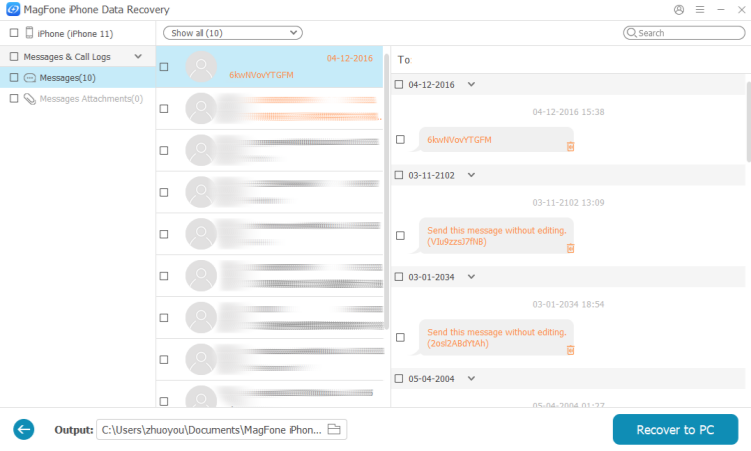
After the scan, you can check both recently deleted messages and permanently deleted messages. Then select the messages you want and click Recover to PC/Recover to Mac to recover them.
Method 2. Recover Deleted iPhone Messages from iCloud Backup
Recovering deleted messages on iPhone without backup can be quite easy and effective. For those who have backed up Messages data to iCloud, you can also recover deleted iPhone messages from an iCloud backup. However, deleted messages can't be restored selectively from iCloud, and this may lead to data being overwritten.

Step 1. Access iPhone Settings and tap General.
Step 2. Tap Transfer or Reset iPhone > Erase All Content and Settings.
Step 3. Tap Continue > Erase iPhone, then enter your iPhone passcode or Apple ID when you're prompted to the screen.

Step 4. Restart your iPhone and then follow the on-screen instructions to set it up. When you reach the Transfer Your Apps & Data screen, choose From iCloud Backup to recover all iPhone data, as well as the deleted iPhone messages, to your device.
Step 5. After setting up the device, you can reopen the Messages app to check deleted iPhone messages.
Method 3. Recover Deleted iPhone Messages from iTunes Backup
If you've been using iTunes to back up your iPhone, you can use one of those backups to recover deleted messages on your device. However, this method will not only restore the deleted messages but also restore your entire iPhone to the state it was in when the backup was made.

Step 1. Connect your iPhone to the computer on which you have backed up your iPhone.
Step 2. Launch iTunes and click the device icon, then click Summary.
Step 3. Click Restore Backup and choose a previous backup to restore it to your iPhone.
Part 4. Conclusion
When you want to check an important message only to realize that you deleted it earlier, don't panic. In many cases, there's still a chance to recover it. Depending on your iOS version and backup habits, you can use the methods in this guide to get deleted messages on your iPhone back. For greater flexibility, a professional iPhone data recovery tool like MagFone iPhone Data Recovery gives you the optimal solution to recover deleted messages on iPhone.

Edgar Davis
Editor in chief





