







You pick up your iPhone to call someone important, only to realize their contact has mysteriously disappeared. No name, no number, nothing. If this sounds familiar, you're not alone. Many iPhone users suddenly find contacts missing after an update, a sync issue, or small settings change they didn't even notice. Whether it's just a contact name missing on iPhone or iPhone contact numbers disappeared, just go through this guide, and you will find the solution when iPhone contacts disappeared.
- Part 1. Why Are My Contacts Disappearing from My iPhone?
- Part 2. How to Fix Contacts Disappeared from iPhone
- Part 3. How to Restore Disappeared Contacts on iPhone
- Part 4. Conclusion
Part 1. Why Are My Contacts Disappearing from My iPhone?
If you've suddenly opened your iPhone's Contacts app and noticed that some or all of your contacts are missing, you're not alone. Disappearing contacts can be caused by anything from simple settings changes to software glitches or sync issues with iCloud and other accounts. Below are the most common reasons why contacts disappeared from an iPhone:

iCloud Contacts Sync Issue:
If Contacts sync is turned off, interrupted by a network issue, or temporarily fails, your contacts may stop appearing on the device even though they still exist in iCloud.
Contacts App Settings:
Many users store contacts across multiple accounts, such as iCloud, Gmail, or Outlook. If the Contacts app is set to display only one account or specific groups, contacts from other sources will appear to be missing.
Contacts App Display Settings:
After an iOS update, certain settings related to how contacts are displayed may change.
Apple Account Issue:
Signing out of an Apple ID, switching accounts, or using different Apple IDs on multiple devices can temporarily remove contacts from your iPhone until syncing is completed.
Network or System Glitches:
Abnormal network conditions or temporary system bugs can prevent contacts from loading correctly.
Contacts Were Accidentally Deleted:
In some cases, contacts may have been deleted manually or removed due to a sync conflict. However, even deleted contacts can often be recovered from iCloud within a limited time.
Part 2. How to Fix Contacts Disappeared from iPhone
Once you know the reason why the contacts disappeared from iPhone, the next step is to troubleshoot the issue. In many cases, missing contacts are still on your device or in your accounts. They're just being hidden by a temporary glitch or incorrect setting. Try the following quick fixes one by one to get the disappeared contacts back.
Method 1. Refresh Contacts App
Sometimes the Contacts app fails to load all your contacts' information due to temporary bugs. You can quit and relaunch the Contacts app to refresh the contents. Just swipe from the bottom edge of the screen and swipe Contacts from the background app list. Then reopen the app to load the information.
Method 2. Restart iPhone
In most cases, iPhone contacts disappearing is related to temporary bugs on the iPhone. A simple restart can clear temporary system glitches that affect how your contacts are displayed or synced.
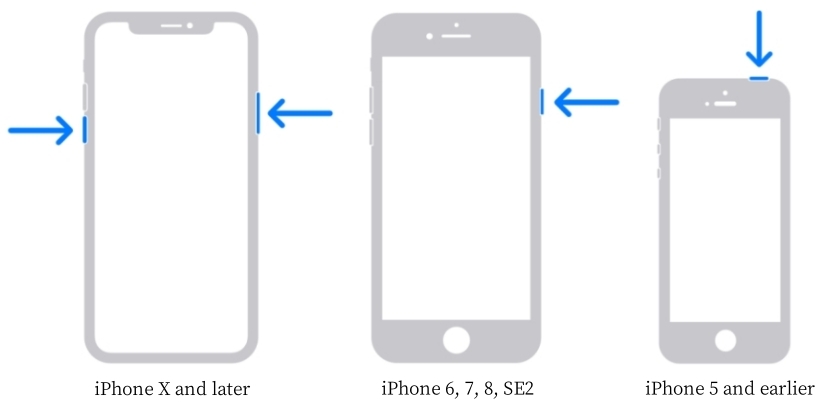
For iPhone X and newer:
Step 1. Press and hold the side button and either volume button at the same time.
Step 2. When the power-off slider appears, swipe it to the right.
Step 3. After the screen goes completely dark, hold the side button again until the Apple logo appears.
For iPhone models older than iPhone X:
Step 1. Press and hold the power button and the home button together.
Step 2. When the power slider shows up, swipe it to the right to turn the device off.
Step 3. Once it's off, press and hold the power button until the Apple logo is displayed to turn it back on.
Method 3. Verify Data & Time
If your iPhone's date and time are not set correctly, it can lead to contacts disappearing. You can check if the data and time are correct on your iPhone.
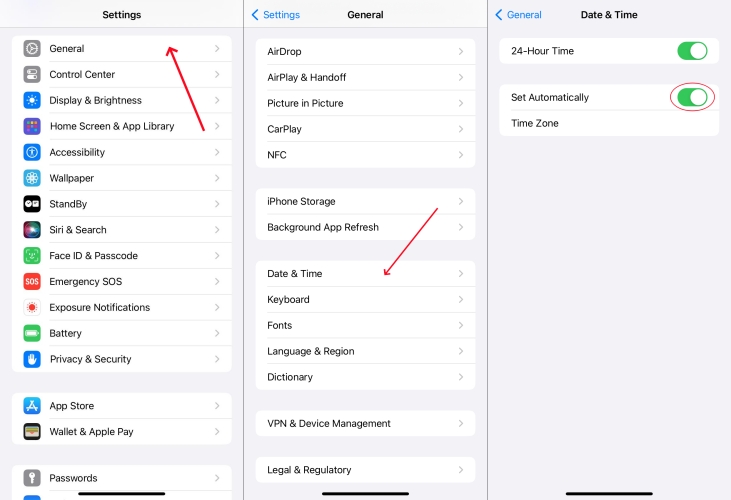
Step 1. Open iPhone Settings and tap General.
Step 2. Tap Data & Time and enable Set Automatically.
Method 4. Check Contacts App Settings
The Contacts app allows users to add multiple accounts, so when some contacts disappear from iPhone, you can check if you have added the relevant account in Contacts.
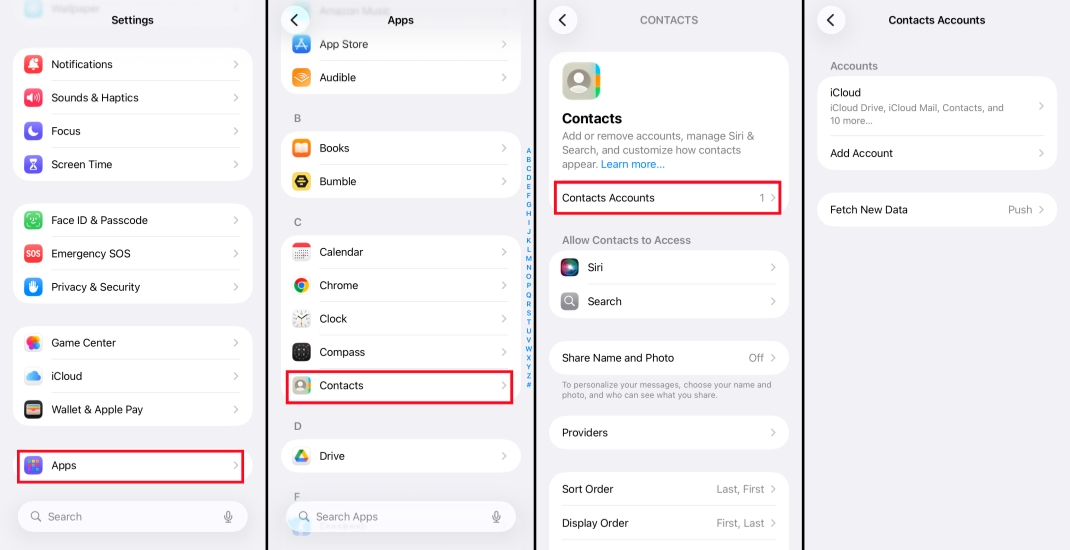
Step 1. Head for iPhone Settings > Apps > Contacts.
Step 2. Tap Contacts Account and check if you have logged in to the correct account..
Method 5. Check iCloud Sync
iCloud sync abnormalities are one of the most common reasons why iPhone contacts are disappearing. When iCloud Contacts is turned off, syncing is interrupted, or not refreshed properly, the contacts are still saved in the cloud but don't appear on the device. By re-enabling syncing, you can often get the contact to reappear.
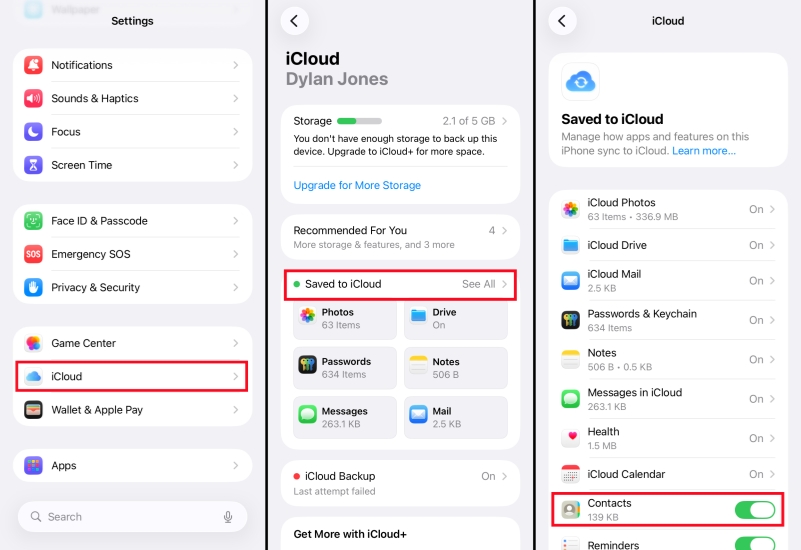
Step 1. Launch Settings on iPhone and find iCloud at the bottom.
Step 2. Tap Save to iCloud. Disable Contacts and choose Keep on My iPhone.
Step 3. Then toggle on Contacts again to resync the contacts from iCloud.
Method 6. Sign Out and Sign Back into Apple ID
If there is a sync error with iPhone contacts, signing out and signing back in to your Apple ID can force a refresh of your account's connection to iCloud.
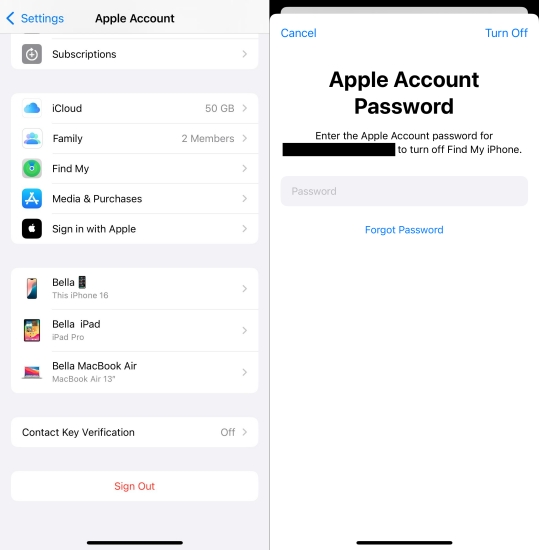
Step 1. Open iPhone Settings and tap your Apple ID.
Step 2. Scroll to the bottom and tap Sign Out.
Step 3. Choose Sign Out But Don't Erase > Continue and enter your Apple ID password to turn off activation lock. Then tap Confirm and Sign Out to sign out.
Step 4. Tap Sign In and enter your Apple account credentials to sign back in.
Method 7. Reset Network Settings
iPhone Contacts load relies on a stable network environment. When the Wi-Fi or cellular network configuration is abnormal, the synchronization and loading may not complete. Resetting network settings can resolve hidden network conflicts that lead to iPhone contacts missing.
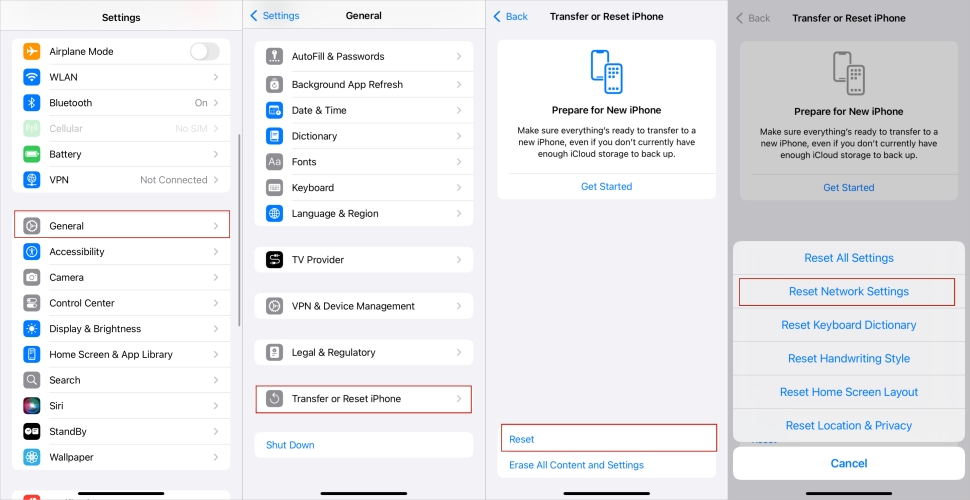
Step 1. Head to iPhone Settings > General > Transfer or Reset iPhone.
Step 2. Choose Reset > Reset Network Settings.
Step 3. Enter your iPhone passcode and tap Reset Network Settings to confirm the operation.
Method 8. Update iOS System
Software bugs in iOS can sometimes cause contacts to disappear or sync incorrectly. Updating your iPhone to the latest version of iOS often includes fixes for these issues.

Step 1. Open iPhone Settings and tap General.
Step 2. Tap Software Update to check if there is a newer software version.
Step 3. Tap Download Now or Install Now to update your iPhone system to the latest version.

MagFone iOS System Recovery
Fix iOS system error that leads to iPhone contacts disappearing, without data loss.
Part 3. How to Restore Disappeared Contacts on iPhone
If your contacts are still missing after trying the quick fixes above, they may have been deleted or lost from your device. The good news is that you may still be able to restore them from your iPhone's internal data, iCloud, or an iTunes backup.
Method 1. Restore Contacts on iPhone without Backup
It can be puzzling when there are a large number of contacts on your iPhone, and you can't figure out which contact is missing. Don't worry, you can utilize a recovery tool to restore contact data. MagFone iPhone Data Recovery is a helpful data management tool to help you get lost contacts back on your iPhone. It can scan your iPhone data under your permission and allows you to access detailed contact information, helping you figure out the missing contacts on your iPhone. So, you can re-add them to your contact list. Just follow the steps below to restore disappeared contacts on iPhone:

MagFone iPhone Data Recovery
Recover data from iPhone and iPad in three recovery modes without data overwritting and device reset.
Step 1 Launch MagFone iPhone Data Recovery

Download and install MagFone iPhone Data Recovery on your computer. Connect your iPhone to the computer using a data cable for further operation. Then launch the tool after installation.
Step 2 Scan iPhone Data

Click iPhone/ iPad Data Recovery on the main interface. Then choose the data you want to recover and click Scan to scan the selected data from your iPhone.
Step 3 Restore iPhone Disappeared Contacts
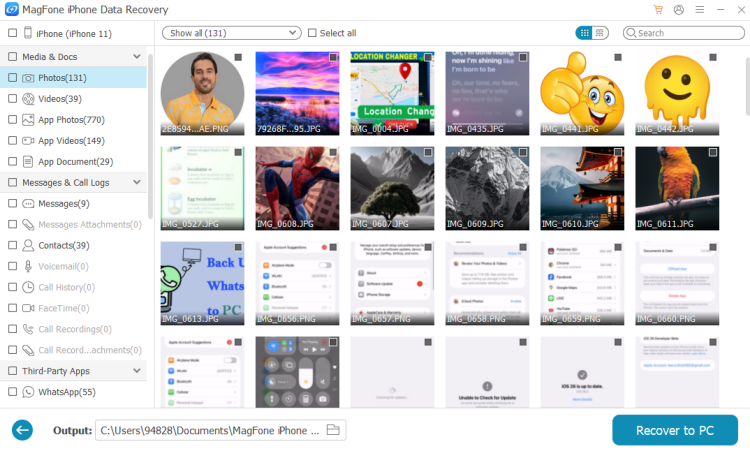
After scanning, you can view all your iPhone data on the next page. Select Contacts in the left directory. Then click Recover to PC to restore the disappeared contacts on iPhone. Then you can add the disappeared contacts manually to your iPhone Contacts list.
Method 2. Restore iPhone Contacts from iCloud Backup
If you regularly sync or back up your contacts with iCloud, you can restore them from a previous version through the Data Recovery service. The limitation is that you don't know exactly which contacts are included until after the restore is complete, and the process will overwrite the current contacts' data on your iPhone. So it's suggested that you export the iPhone contacts in case of data loss.
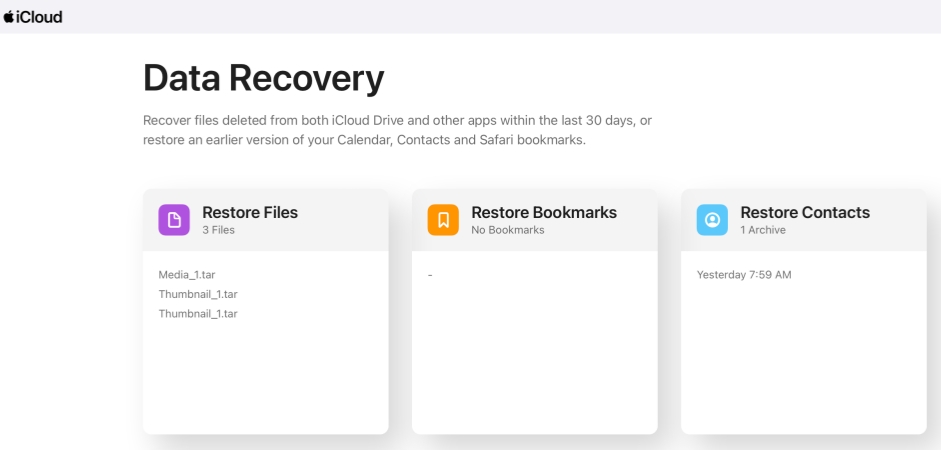
Step 1. Log in to your account at https://www.icloud.com/recovery.
Step 2. Click Restore Contacts and click the Restore option next to the archived contact you want to restore.
Method 3. Restore iPhone Contacts from iTunes Backup
If you have previously backed up your iPhone to a computer using iTunes or Finder, you can recover missing contacts by restoring from iTunes backup. After the restore, your iPhone will be reverted to the state it was in when the backup was made, bringing back the contact list that was saved at that time. You should be aware that this process may also replace newer data with older information from the backup.

Step 1. Connect your iPhone to your computer via a data cable and launch iTunes.
Step 2. Click the device icon and click Summary.
Step 3. Click Restore Backup to restore the backup, including the disappeared contact to your iPhone.
Part 4. Conclusion
Whether your iPhone contact name disappeared or iPhone contact numbers disappeared, you can get them back following the methods in Part 2. If the contacts from your iPhone are missing due to accidental deletion, then you can use MagFone iPhone Data Recovery to restore them effectively. Taking a few preventative steps, like enabling regular iCloud backups, can greatly reduce the chances of facing missing contacts again in the future.

Olivia Wood
Editor in chief




