








Accidentally deleting important notes on your iPad can be frustrating, especially when they contain work details, study materials, or personal information you don't want to lose. Fortunately, there are several ways to recover deleted notes on iPad. In this guide, we'll walk you through different methods, from checking the Recently Deleted folder to restoring from iCloud or iTunes backups, and even using professional data recovery tools, so you can choose the solution that best fits your situation.
- Part 1. Can You Recover Deleted Notes on iPad?
- Part 2. How to Find Deleted Notes on iPad
- Part 3. How to Recover Deleted Notes on iPad without Backup
- Part 4. How to Retrieve Deleted Notes on iPad with Backup
- Part 5. Conclusion
Part 1. Can You Recover Deleted Notes on iPad?
Yes, you can recover deleted notes on your iPad. If the notes were deleted within the last 30 days, you can usually find and restore them from the Recently Deleted folder in the Notes app. However, if the notes were removed more than 30 days ago and are no longer in that folder, you may need to restore them from an iPad backup, such as an iCloud or iTunes backup, or use a professional iPad data recovery tool to try to retrieve them. We will detail each method to help you find and retrieve deleted notes on iPad in the following parts.
Part 2. How to Find Deleted Notes on iPad
Once you know that some deleted notes can still be recovered, you can directly find them using the options Apple provides. With just a few taps or clicks, you can get the deleted notes on iPad back.
Method 1. Find Deleted Notes on iPad Device Directly
When you delete notes on your iPad, they are moved to the Recently Deleted folder and kept there for 30 days before being permanently removed. If you regret deleting some important notes, you can:
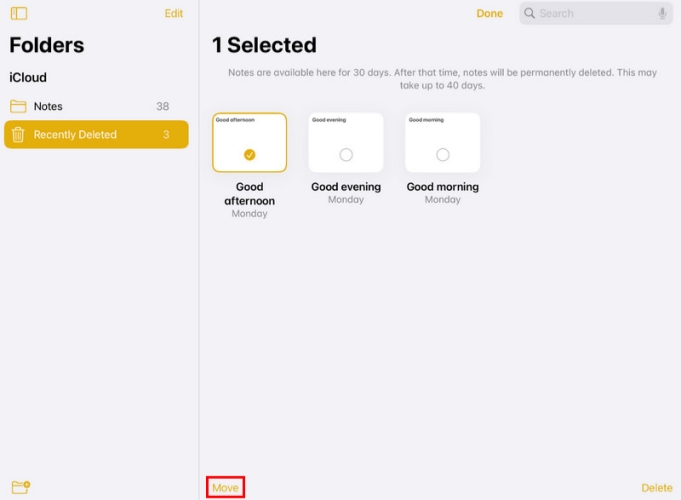
Step 1. Open the Notes app and stay on the folder page.
Step 2. Access the Recently Deleted folder if you can see it.
Step 3. Long-press the deleted note on iPad and get it back to its original location.
Method 2. Find Deleted Notes on iPad at iCloud Web
If you can't find your deleted notes on the iPad itself, they may still be available through iCloud. When Notes sync is turned on, your notes are stored in your iCloud account and can sometimes be recovered from the iCloud website, even if they no longer appear on your device.
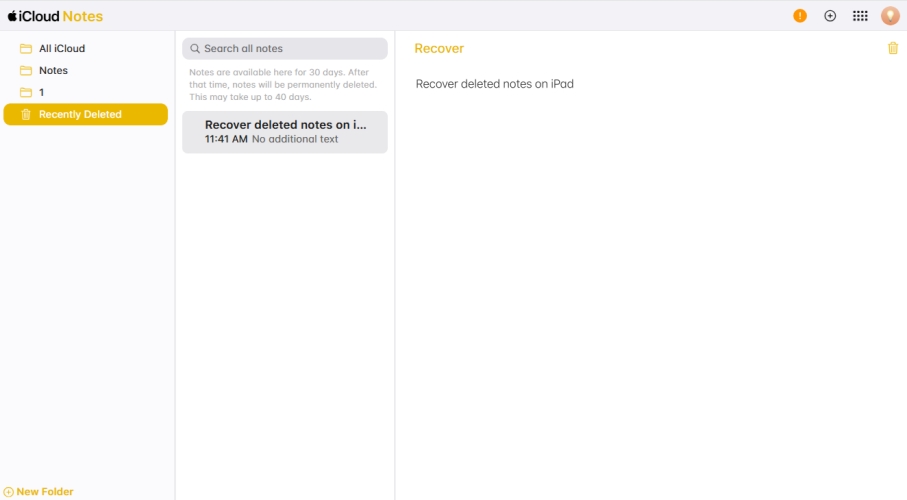
Step 1. Sign in to your Apple account at iCloud website.
Step 2. Click Notes in the app list and access the Recently Deleted folder in the folder list.
Step 3. Find the target deleted note and click Recover to restore it to your iPad.
Part 3. How to Recover Deleted Notes on iPad without Backup
If your deleted notes have been in the Recently Deleted folder for more than 30 days, they are permanently removed and can no longer be restored directly from the Notes app or iCloud. In this case, the most effective way to recover permanently deleted notes on iPad is to use a professional data recovery tool.
MagFone iPad Data Recovery stands out as a reliable option. It's a powerful data management and recovery program designed specifically for iPhone and iPad users. Whether your notes were accidentally deleted, lost, or disappeared due to an unknown reason, MagFone can scan your device and help you get them back. Simply follow the steps below to recover deleted notes on iPad with MagFone iPad Data Recovery.

MagFone iPhone Data Recovery
Recover data from iPhone and iPad in three recovery modes without data overwritting and device reset.
Step 1 Open MagFone iPhone Data Recovery

Download and install MagFone iPhone Data Recovery on your computer, then connect your iPhone using a USB cable. Once connected, launch the software to begin.
Step 2 Scan for Deleted Notes on iPad

On the main interface, choose iPhone/iPad Data Recovery. Select the types of data you want to retrieve, then click Scan to search for deleted notes on iPad. If requested, enter your iPhone passcode to authorize the scan.
Step 3 Restore Notes from iPhone
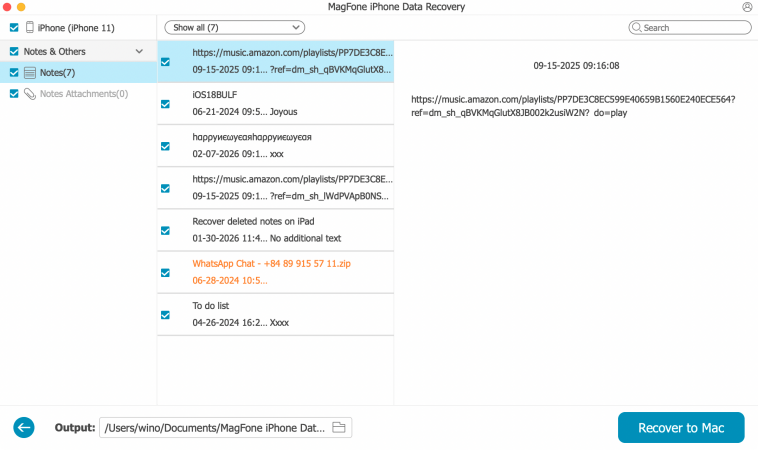
After scanning, you can view the notes detected by the program. Check whether the notes you deleted appear in the list. Mark the notes you wish to recover and click Recover to PC to export them to your computer.
Part 4. How to Retrieve Deleted Notes on iPad with Backup
It's pretty convenient and quite easy for you to recover deleted notes on iPad without backup using MagFone iPad Data Recovery. On the other hand, if you have a backup of these deleted notes, you can also recover them from a backup. You should note that the two methods will both remove and overwrite current data on your iPad, so you can create a backup first to keep your existing data safe.
Method 1. Restore Deleted Notes on iPad from iCloud Backup
If you have upgraded your iCloud storage and enabled iCloud Backup for your iPad, you can restore deleted notes on iPad from an iCloud backup. However, the main limitation of this method is that you need to wipe your iPad and must restore the entire device from a backup, rather than recovering Notes data selectively.
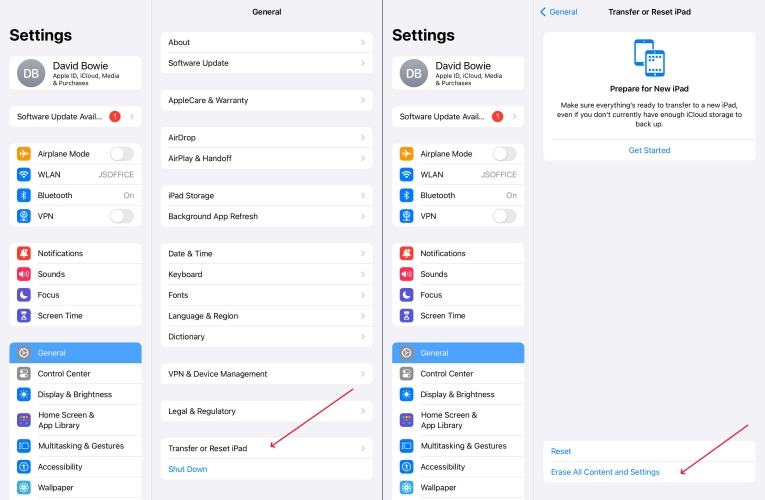
Step 1. Head for iPad Settings > General.
Step 2. Tap Transfer or Reset iPad > Erase All Content and Settings.
Step 3. Tap Continue, tap Erase iPad. Then enter your iPad passcode or Apple ID password to wipe data on iPad if asked.
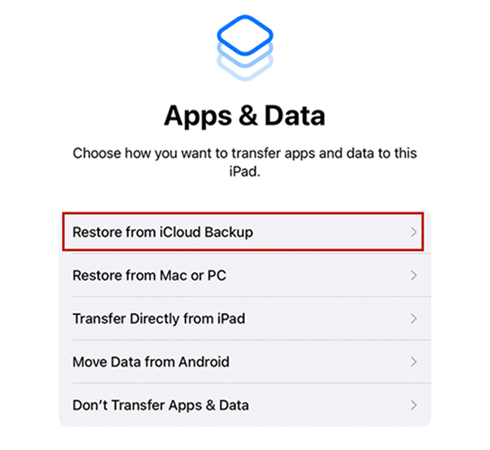
Step 4. After the iPad data is wiped, restart your iPad and set it up. When you see the Apps & Data screen, choose Restore from iCloud Backup.
Step 5. After restoring data from iCloud and setting up your iPad, you can open the Notes App to find the deleted notes.
Method 2. Restore Deleted Notes on iPad from iTunes Backup
If you have created backups of your iPad using iTunes, you can also retrieve deleted notes by restoring from one of your previous backups. But it will replace the current data on your iPad with the data from the selected backup.
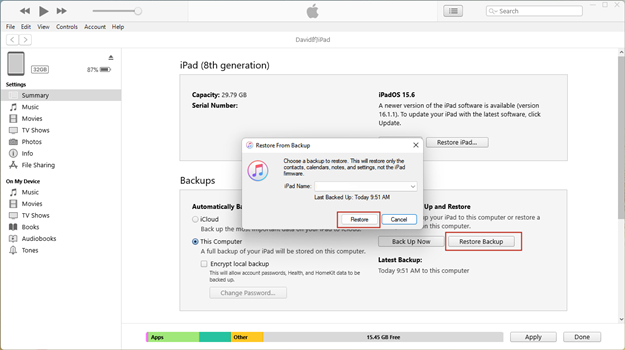
Step 1. Connect your iPad to a computer that has an iTunes backup.
Step 2. Launch iTunes and click the device icon.
Step 3. Click Summary, then click Restore Backup to restore the data to your iPad, including the deleted notes on your iPad.
Part 5. Conclusion
When you need to recover deleted notes on iPad, checking the Recently Deleted folder on the device or in iCloud Notes is often the quickest way to get them back. If the notes have been permanently deleted, you can still try to retrieve them with MagFone iPad Data Recovery in an efficient manner. To reduce the risk of future data loss, it's suggested that you enable iCloud sync and regular backups, and consider creating additional backups to a computer as well.

Edgar Davis
Editor in chief





