








Finding that files are being deleted accidentally can be frustrating, especially when you are not sure when they were deleted and whether they can still be recovered. The good news is that whether a recently deleted file or a permanently deleted file on iPhone, you still have a chance to find and recover it. In this guide, we will explain where deleted files go on iPhone and how to find and recover deleted files on iPhone.
- Part 1. Where Do Deleted Files Go on iPhone?
- Part 2. How to Find Recently Deleted Files on iPhone
- Part 3. How to Recover Permanently Deleted Files on iPhone
- Part 4. Conclusion
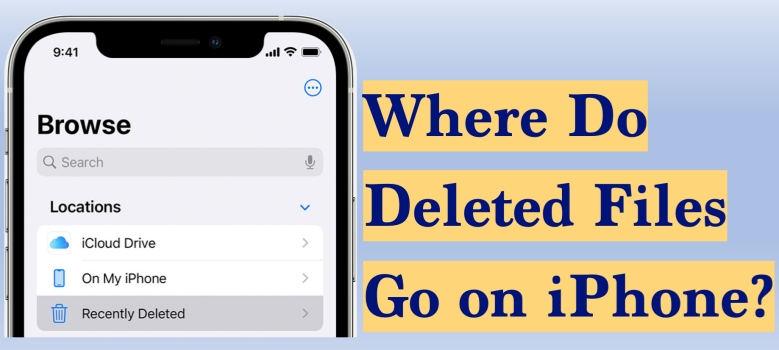
Part 1. Where Do Deleted Files Go on iPhone?
Deleted files on an iPhone can generally be divided into two categories based on how long ago they were removed. If a file was deleted within the past 30 days, it will usually be moved to the Recently Deleted folder, where it can still be viewed and restored. If more than 30 days have passed, the file will normally be removed from that folder and will no longer appear on your device.
Part 2. How to Find Recently Deleted Files on iPhone
Thanks to Apple's Recently Deleted feature, the recently deleted files within the past 30 days will be kept for 30 days in the Recently Deleted folder. Depending on the location where your deleted files are stored, there are several places you can find recently deleted files.
Option 1. View Recently Deleted Files on iPhone Device
If the deleted file was stored under the On My iPhone location or iCloud Drive location, the easiest place to start is the Recently Deleted folder inside the Files app.
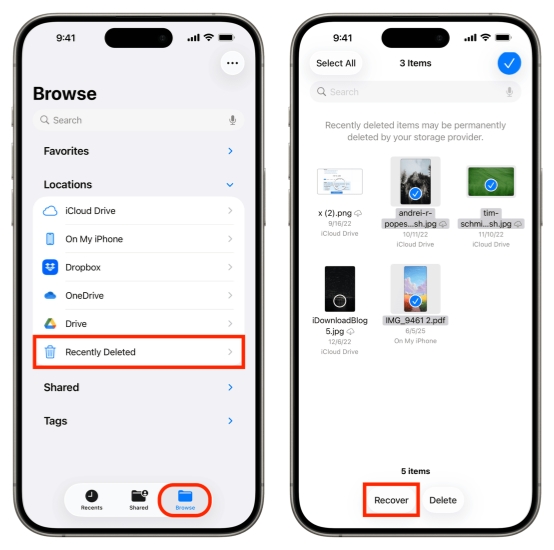
Step 1. Open Files on your iPhone and go back to the Browse page.
Step 2. Tap Recently Deleted under Locations.
Step 3. Tap the triple-dot icon to select deleted files and tap Recover or Move to restore them.
Option 2. View Recently Deleted Files on iCloud Drive Web
If your files are stored under the iCloud Drive location, iCloud Drive will sync your iPhone files, and you can find and view recently deleted files online.
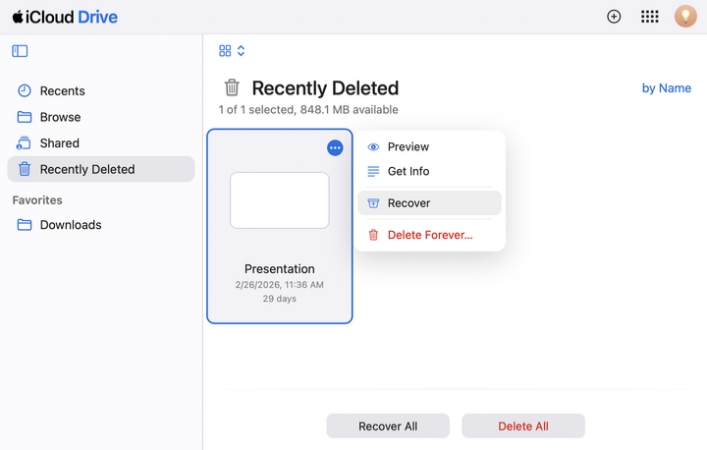
Step 1. Head to the iCloud Drive website and log in to your account.
Step 2. Access the Recently Deleted folder.
Step 3. To recover recently deleted files, just select and choose Recover to recover them.
Note:
Some deleted files may also be connected to third-party cloud storage services such as Google Drive, Dropbox, OneDrive, or Box, rather than being saved only on the iPhone or iCloud Drive. In these cases, the file usually does not appear in Apple's Recently Deleted folder and instead depends on the recycle bin or trash folder of the specific cloud app. That means you may need to open the related app or sign in to its website to check whether the deleted file is still stored there temporarily.
Part 3. How to Recover Permanently Deleted Files on iPhone
For deleted files that are no longer in the Recently Deleted folder, the recovery is usually harder, but still possible in some situations, depending on whether you have a backup or use a reliable data recovery tool. Below are three common methods that may help you restore deleted files on an iPhone.
Method 1. Restore Deleted Files from iPhone Device
Though the permanently deleted files are no longer visible on your iPhone, there are data recovery tools that can scan deep into your iPhone and recover the permanently deleted files on iPhone. Using tools like MagFone Files Data Recovery is a safe and reliable option for users who want to recover specific deleted files without restoring the entire iPhone. Besides, it can also extract files from an iTunes backup and restore files from iCloud. So you have multiple options when you want to recover deleted files on iPhone.

MagFone iPhone Data Recovery
Recover data from iPhone and iPad in three recovery modes without data overwritting and device reset.
Step 1 Launch MagFone iPhone Data Recovery

First, download and install MagFone iPhone Data on your computer, then use a data cable to connect your iPhone to the computer.
Step 2 Scan Deleted Files on iPhone

Click iPhone/iPad Data Recovery, then mark App Documents and click Scan. Also, enter the passcode on your iPhone to give full permission to this operation.
Step 3 Recover Permanently Deleted Files on iPhone
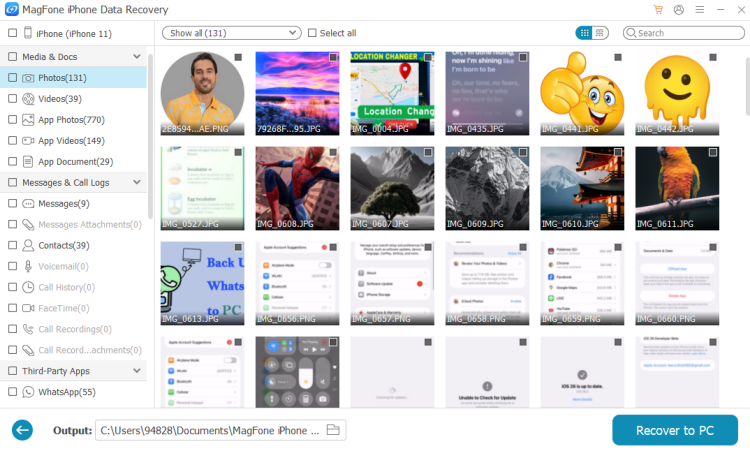
After scanning files on iPhone, you can preview the scanned data. If you want to restore them, just select and click Recover to PC or Recover to Mac.
Method 2. Restore Deleted Files from iCloud Backup
If your iPhone was backed up to iCloud before the files were deleted, you may be able to restore them from an earlier backup. This method can help recover deleted files by returning the device to a previous backup state. However, because restoring from iCloud backup requires erasing all data on your iPhone and replacing the current data on your iPhone, it is important to make sure the backup contains the files you need before proceeding.

Step 1. Navigate to iPhone Settings > General > Transfer or Reset iPhone.
Step 2. Choose Erase All Content and Settings > Continue > Erase iPhone.
Step 3. Enter the iPhone passcode to proceed and enter the Apple ID password to turn off Find My, then your iPhone will be erased.

Step 4. Open the iPhone and follow the onscreen instructions to set it up. When you see the Quick Start screen, tap Set Up Manually. And when you see the Transfer Your Apps & Data screen, choose From iCloud Backup.
Step 5. Sign in to your Apple ID and choose an iCloud backup to restore to your iPhone. Then keep and finish setting up.
Step 6. When data in iCloud backup has been loaded on your iPhone, you can open Files to check.
Method 3. Restore Deleted Files from iTunes Backup
Another possible way to recover permanently deleted files is by restoring an iTunes backup stored on your computer. If you previously backed up your iPhone with iTunes, you can restore that backup to bring back deleted files. This method restores the device from an older backup version, so it works best when you know the deleted files were included in that backup.

Step 1. Link your iPhone to the computer using a data cable, then open iTunes.
Step 2. Click the iPhone icon, click Summary on the left menu.
Step 3. Click Restore Backup and choose an iTunes backup for your iPhone.
Part 4. Conclusion
Deleting files on an iPhone does not always mean they are gone forever. In many cases, deleted files can still be found in the Recently Deleted folder, recovered through iCloud Drive, or restored from an earlier backup. In addition, professional tools like MagFone iPhone Data Recovery also offer a chance to retrieve important data. By understanding where deleted files go and knowing which recovery method fits your situation, you can get your files back quickly and with less stress.

Edgar Davis
Editor in chief




