








Apple's drag-to-select feature in the Photos app makes it easy to delete multiple photos at once, but it can also lead to accidental swipes or taps. You might later scroll through your library only to realize that some of your favorite memories have been deleted by mistake. The good news is that, in many cases, you can still locate and restore them. In this guide, we'll walk you through several proven methods to recover deleted photos on iPhone, whether they were removed recently or erased from the Recently Deleted album.
- Part 1. Can You Recover Deleted Photos on iPhone?
- Part 2. How to Find Recently Deleted Photos on iPhone
- Part 3. How to Recover Permanently Deleted Photos on iPhone
- Part 4. FAQs about Deleted Photos on iPhone
- Part 5. Conclusion
Part 1. Can You Recover Deleted Photos on iPhone?
Yes, deleted photos on an iPhone can be recovered, but success largely depends on how much time has passed after they're deleted. When you delete photos from the Photos app, they are not immediately erased from your device. Instead, iOS moves them to the Recently Deleted album, where they are kept for up to 30 days before being permanently removed.
Even after photos disappear from the Recently Deleted folder, recovery may still be possible. If your iPhone was backed up to iCloud or a computer before the photos were deleted, you can restore them from a previous backup. In situations where no backup is available, there is still a chance to retrieve deleted photos using a professional data recovery app.
| Method | Need Backup? | Success Rate | Notes |
|---|---|---|---|
| Recently Deleted Folder | ❌ | Moderate | Only available to recover photos deleted within 30 days |
| iCloud Recovery | ✔️ | Low | Need to erase iPhone and reset it up |
| iTunes Recovery | ✔️ | Low | Need to restore entire backup to the iPhone & Data overwritten |
| iPhone Photo Recovery | ❌ | High | Support deleted photos preview and restore |
Part 2. How to Find Recently Deleted Photos on iPhone
Under normal circumstances, iPhones don't immediately delete photos; instead, they temporarily save them in the Recently Deleted album. If your photos were recently deleted, this is often the fastest, simplest, and most successful way to recover them.

Step 1. Open the Photos app and tap Collections or Albums at the bottom.
Step 2. Scroll down to the Utilities stack and tap Deleted.
Step 3. Tap View Album, enter your Face ID or passcode to access it.
Step 4. Tap Select to select the deleted photos, tap the triple dot icon, and tap Recover to get them back to your library.
Part 3. How to Recover Permanently Deleted Photos on iPhone
If you can't find the target photo in the Recently Deleted album, or discover that the photo was automatically deleted by the system more than 30 days ago, don't despair immediately. As long as your iPhone had a backup before deletion, or the data after deletion hasn't been overwritten, there's still a possibility of recovery. Next, we'll explain how to recover completely deleted photos on iPhone.
Method 1. Retrieve Deleted Photos on iPhone from iCloud Backup
If you have enabled iCloud Backup for the Photos app and your iPhone was successfully backed up at least once before the photos were permanently deleted, those photos are likely still stored in your iCloud backup. In this case, you have a good chance of restoring the deleted photos from the backup. However, note that using this method will overwrite the current data on your iPhone with the contents of the backup.

Step 1. Head for iPhone Settings > General > Transfer or Reset iPhone.
Step 2. Tap Erase All Content and Settings, tap Continue, then tap Erase iPhone.
Step 3. Enter your iPhone passcode, then enter the Apple ID password to forward.

Step 4. When your iPhone restarts, just open it and follow the on-screen instructions to set it up. When you see the Transfer Your Apps & Data screen, choose From iCloud Backup to restore iPhone data from iCloud.
Step 5. When you complete setting, you can launch the Photos app to find the deleted photos.
Method 2. Retrieve Deleted Photos on iPhone from iTunes Backup
If you have backed up your iPhone on a computer with iTunes, then retrieving deleted photos on iPhone can be another feasible method. However, it's important to know beforehand that this method also cannot restore a single photo, and it will restore the entire backup content.

Step 1. Plug your iPhone into the computer you previously backed up to.
Step 2. Launch iTunes and click the device icon.
Step 3. Click Summary, then click Restore Backup and choose a previous backup to restore to your iPhone. After restoring, you can check the permanently deleted photos on your iPhone.
Method 3. Retrieve Deleted Photos on iPhone without Backup
If you've never created any backups, don't give up. There is still another way to retrieve deleted photos on iPhone without backup, which is to use an iPhone data recovery tool. Here, MagFone Photos Data Recovery is recommended to you. With MagFone, you can access and restore deleted photos on iPhone easily. It helps scan iPhone data, allows you to preview scanned data from iPhone, and recoverdeleted iPhone photos without data overwriting. Here's how to retrieve deleted photos on iPhone using MagFone:

MagFone iPhone Data Recovery
Recover data from iPhone and iPad in three recovery modes without data overwritting and device reset.
Step 1 Download and Install MagFone iPhone Data Recovery

Download and install MagFone iPhone Data Recovery on your computer. Connect your iPhone using a USB cable. Once the connection is established, launch the program to get started.
Step 2 Scan Deleted Photos from iPhone

On the home screen, click iPhone/iPad Data Recovery. Choose the types of data you want to recover, then click Scan to search your iPhone for the selected items.
Step 3 Recover Permanently Deleted Photos
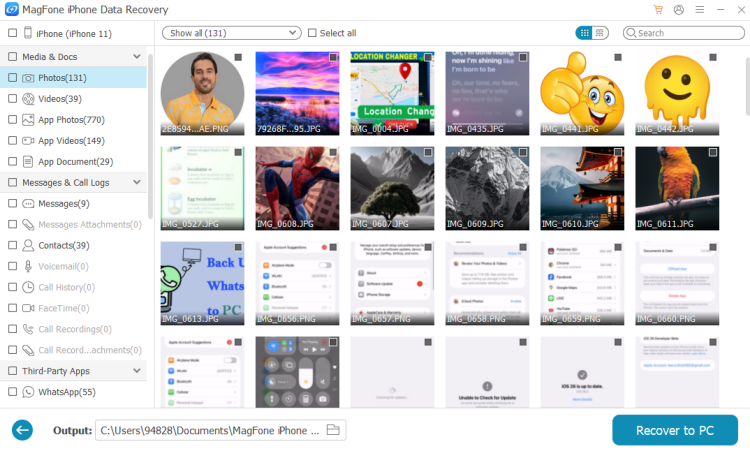
When the scan finishes, you can preview your iPhone data. Click Photos, select the images you want to restore, and then click Recover to PC or Recover to Mac. After that, you can transfer the recovered photos back to your iPhone.
Part 4. FAQs about Deleted Photos on iPhone
Can I delete photos from iPhone and keep on iCloud?
No. If you turn on iCloud Photo Library, deleted photos on your iPhone are deleted from iCloud at the same time because iCloud Photos stays in sync with your device.
Can you recover deleted photos on iPhone after 30 days?
By default, the Recently Deleted album on your iPhone keeps photos for 30 days, and after 30 days, the system will automatically empty them. In this case, you can recover deleted photos on iPhone from iCloud backup, iTunes backup, or use MagFone iPhone Data Recovery without backup.
Can you recover permanently deleted photos on iPhone?
Yes. If you have a backup of these permanently deleted photos, then you can recover them from the backup. If you don't have a backup, then you can use MagFone iPhone Data Recovery to get them back.
Part 5. Conclusion
While accidentally deleting photos can be stressful, it doesn't always mean your memories are gone forever. By checking the Recently Deleted folder, restoring from an iCloud or computer backup, or using a professional recovery tool, you often have multiple chances to get your photos back. Of all the options, MagFone iPhone Data Recovery stands out as the best way to recover deleted photos on iPhone. With MagFone, you can significantly improve your chances of recovering the photos that matter most.

Edgar Davis
Editor in chief





