








Accidentally deleting precious videos from your iPhone while clearing storage can be frustrating. The good news is that you still have several ways to get them back, whether they were removed recently or deleted permanently. In this guide, we'll walk you through step-by-step methods to recover deleted videos on iPhone, from simple on-device options to more advanced recovery solutions.
- Part 1. How Do You Recover Deleted Videos on iPhone
- Part 2. How to Recover Recently Deleted Videos on iPhone
- Part 3. How to Recover Permanently Deleted Videos on iPhone
- Part 4. Conclusion
Part 1. How Do You Recover Deleted Videos on iPhone
Depending on the deletion time and whether a backup is available, there are several methods to recover deleted videos on iPhone. When a video is deleted on an iPhone, it doesn't always disappear immediately and permanently. For a limited time, deleted videos are moved to the Recently Deleted album in the Photos app, where they stay for about 30 days before being removed automatically. You can recover recently deleted videos on iPhone during this period. Beyond this period, you can restore videos from iCloud backup, iTunes backup, or a professional recovery tool.
| Recovery Method | Recently Deleted Folder | iCloud Backup | iTunes Backup | MagFone iPhone Data Recovery |
|---|---|---|---|---|
| Best For | Recently deleted videos | Full device restore | Full device backup recovery | Selective or deep recovery |
| Time Limit | 30 days | No limit | No limit | No limit |
| Data Overwritten | ❌ | ✔️ | ✔️ | ❌ |
| Device Reset | ❌ | ✔️ | ❌ | ❌ |
| Selective Recovery | ✔️ | ❌ | ❌ | ✔️ |
| Difficulty Level | Very Easy | Medium | Medium | Easy |
| Data Loss Risk | ❌ | High | High | ❌ |
Part 2. How to Recover Recently Deleted Videos on iPhone
If you deleted a video within the last 30 days, your chances of getting it back are very high because it is likely still in the Recently Deleted folder. Apple designed this feature specifically to prevent accidental permanent loss. You can restore videos from this folder with just a few taps, and they will reappear in your Photos library.
Method 1. Recover Deleted iPhone Video on Device
As long as the video was deleted within the past 30 days or up to 40 days in some regions, it should still be available in the Recently Deleted album. You can check the Recently Deleted folder to get them back.
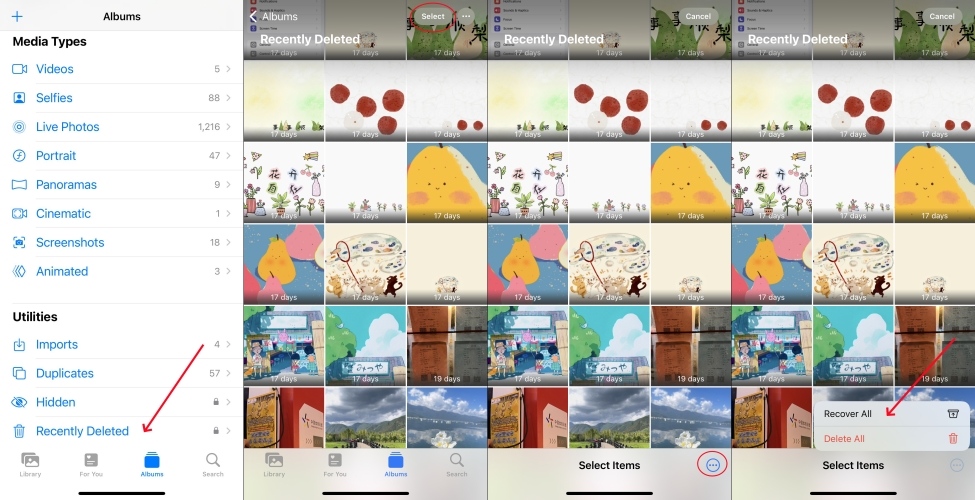
Step 1. Open the Photos app and tap Collections or Albums at the bottom.
Step 2. Tap the Recently Deleted folder under Utilities.
Step 3. Find the deleted iPhone video and long-press to get it back to your iPhone.
 Pros
Pros- Free
- No computer required
- No data overwritten
- Very fast

- Only available within 30 days
- Won't work after permanent deletion
 Best For:
Method 2. Recover Deleted iPhone Video from iCloud Photos
If you use iCloud Photos, your videos are synced across your Apple devices and stored in iCloud. When you delete a video from one device, it's moved to the Recently Deleted folder in iCloud as well. You may be able to recover the video from iCloud even if you don't have your iPhone with you.

Step 1. Log in to your Apple Account at iCloud.com.
Step 2. Click Photos, then click Recently Deleted under Collections.
Step 3. Find the target deleted iPhone video, right-click the mouse, and click Recover to restore it to your iPhone.
Pros- No device reset needed
- Free and built-in Apple devices
- Accessible from anywhere
- No data overwrite
- 30-day time limit
- Require iCloud Photos to be enabled
- Limited storage space
- Not work for permanent deletion
Best For:
Part 3. How to Recover Permanently Deleted Videos on iPhone
If your video is no longer findable in the Recently Deleted album, it may seem like it's permanently deleted, or you emptied the Recently Deleted album without knowing. Though you still have options to recover them. Here are three methods to recover permanently deleted videos on iPhone.
Method 1. Restore Deleted Videos on iPhone from iCloud Backup
Restoring from an iCloud backup can bring back permanently deleted videos as long as the backup was created before the videos were deleted. This requires you to erase your iPhone and be aware that restoring an iCloud backup will replace the current data on your iPhone with the data from the backup date.

Step 1. Head for iPhone Settings > General > Transfer or Reset iPhone.
Step 2. Choose Erase All Content and Settings at the bottom, tap Continue > Erase iPhone.
Step 3. Enter a phone number and Apple ID password if prompted.

Step 4. After the erasure and iPhone restarting, follow the instructions to configure your iPhone.
Step 5. When you see the Transfer Your Apps & Data screen, choose From iCloud Backup to restore iPhone data, as well as the deleted iPhone videos.
Step 6. After setting up the device, you can open the Photos app to see if the deleted videos on iPhone are restored.
Pros- No computer required
- Works remotely
- Restore older deleted videos
- Must erase iPhone first
- Cannot preview videos
- Require stable internet
- iCloud storage limitations
Best For:
Method 2. Restore Deleted Videos on iPhone from iTunes Backup
If you happened to have backed up your iPhone using iTunes, you may be able to recover deleted iPhone videos by restoring an iTunes backup. This operation will also replace the current data on your iPhone with data from the chosen backup. Be cautious when you decide to restore.

Step 1. Link your iPhone to the computer you used to back up your iPhone.
Step 2. Run iTunes and click the device icon once your iPhone is linked.
Step 3. Click Summary and click Restore Backup to restore a previous backup to your iPhone, including the deleted videos on iPhone.
Pros- Free
- Work even after 30 days
- Restore permanently deleted videos
- Must restore the entire device
- Overwrite current data
- Cannot preview videos before restoring
- Time-consuming
Best For:
Method 3. Restore Deleted Videos on iPhone Using MagFone
Restoring deleted iPhone videos from iCloud backup or iTunes backup can be risky in terms of data overwriting. To recover deleted videos on iPhone more effectively and safely, it's suggested that you use an iPhone data recovery tool. MagFone iPhone Data Recovery stands out here. Whether it's lost videos, old videos, or deleted videos on iPhone, MagFone Videos Data Recovery can help you get them back. Without any backup or data loss, you can preview and restore deleted videos on iPhone at any time.
Besides, it can also help you extract deleted videos from iTunes backup or iCloud, so you can also use it to figure out if the deleted videos on iPhone are included in those backups. Here's how to recover deleted videos on iPhone directly.

MagFone iPhone Data Recovery
Recover data from iPhone and iPad in three recovery modes without data overwritting and device reset.
Step 1 Launch MagFone iPhone Data Recovery

First to download and install MagFone iPhone Data Recovery on your computer. Connect your iPhone using a USB cable. Once the connection is established, launch the program to get started.
Step 2 Scan for Deleted Videos on iPhone
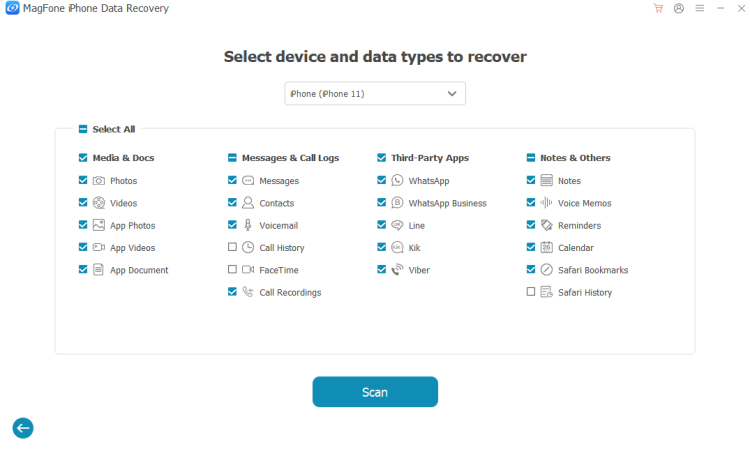
Once your iPhone is connected successfully, click iPhone/iPad Data Recovery. Then choose the target data you want to recover from the iPhone and click Scan to prompt.
Step 3 Recover Deleted Videos on iPhone
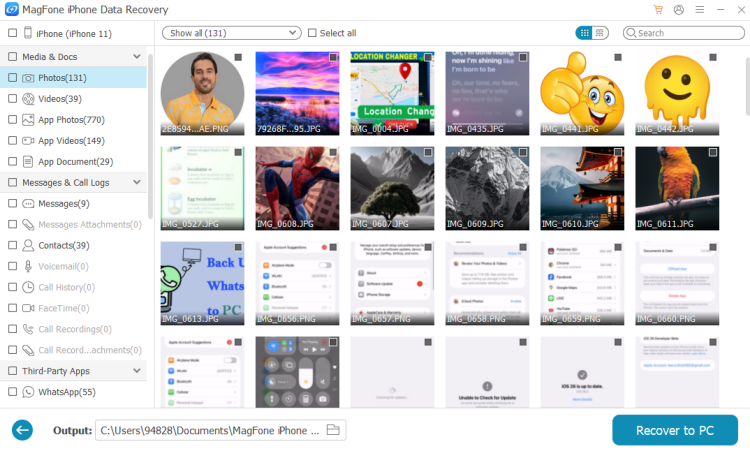
After scanning the iPhone, you can see the result. Just select the permanently deleted videos from iPhone and click Recover to PC/ Recover to Mac to export them to your computer. Then you can get these deleted videos back to your iPhone.
Pros- No need to erase device
- Selective recovery
- Preview before recovery
- Recover from iPhone directly
- Support recovery from iTunes & iCloud backups
- Paid software
Best For:
Part 4. Conclusion
Recovering deleted videos on iPhone is easy if you deleted them recently. But if they're permanently deleted, you can also try restoring them from an iCloud backup or iTunes backup. When no backup is available, MagFone iPhone Data Recovery can be extremely helpful, letting you recover deleted videos on iPhone without overwriting existing data. Give it a try and you may be pleasantly surprised by what you can get back!

Edgar Davis
Editor in chief





