







WhatsApp is a convenient and widely used messaging app, but many users are not fully aware of how some of its features work. As a result, it's easy to accidentally delete WhatsApp messages, whether it's a few messages within a chat or an entire conversation. If this has happened to you, don't worry. This guide will walk you through the practical ways to recover deleted WhatsApp messages on iPhone, helping you find the optimal recovery option.
- Part 1. How Can I Recover Deleted WhatsApp Messages on iPhone?
- Part 2. How to Retrieve Deleted WhatsApp Messages on iPhone [With Backup]
- Part 3. How to Restore Deleted WhatsApp Messages on iPhone [Without Backup]
- Part 4. Conclusion
Part 1. How Can I Recover Deleted WhatsApp Messages on iPhone?
Due to different delete features and whether you have a WhatsApp backup, the possibility of retrieving deleted WhatsApp messages varies.
| Feature | WhatsApp Backup | iCloud Backup | iTunes Backup | MagFone iPhone Data Recovery |
|---|---|---|---|---|
| Backup Required | ✔️ | ✔️ | ✔️ | ❌ |
| Apple ID Required | ❌ | ✔️ | ❌ | ❌ |
| Internet Connection | ✔️ | ✔️ | ✔️ | ❌ |
| Preview Before Recovery | ❌ | ❌ | ❌ | ✔️ |
| Selective Recovery | ❌ | ❌ | ❌ | ✔️ |
| No Data Overwrite | ❌ | ❌ | ❌ | ✔️ |
| Recover without Reset | ✔️ | ❌ | ✔️ | ✔️ |
| Recovery Speed | Moderate | Slow | Slow | Fast |
| Ease to Use | Moderate | Complex | Moderate | Easy |
| Success Rate | Moderate | Lower | Lower | High |
| Recommendation | ⭐⭐⭐ | ⭐⭐ | ⭐⭐ | ⭐⭐⭐⭐⭐ |
| Details | Read More | Read More | Read More | Read More |
If you have a WhatsApp backup and the messages are already included in the backup, then it's possible to restore the deleted WhatsApp messages. If the messages are not included in the backup, then you can't recover them. It's important to figure out that the operation of deleting WhatsApp messages is later than the backup time.
Part 2. How to Retrieve Deleted WhatsApp Messages on iPhone [Backup Required]
Ensuring that the deleted WhatsApp messages have been backed up, things get easier to retrieve deleted WhatsApp messages on iPhone. You can choose to restore deleted WhatsApp messages from your WhatsApp backup in iCloud, restore entire iPhone data from iCloud, or restore from an iTunes backup. You should note that the messages sent and received after the latest backup will not be included after the restore.
Method 1. Retrieve Deleted WhatsApp Messages from WhatsApp Backup
WhatsApp itself supports chat history backup via iCloud. If you enabled WhatsApp's automatic backup feature before deleting messages, you will be prompted to restore your chat history from the backup after reinstalling WhatsApp and signing in with the same Apple ID. However, the data after the backup will not show after the restore.
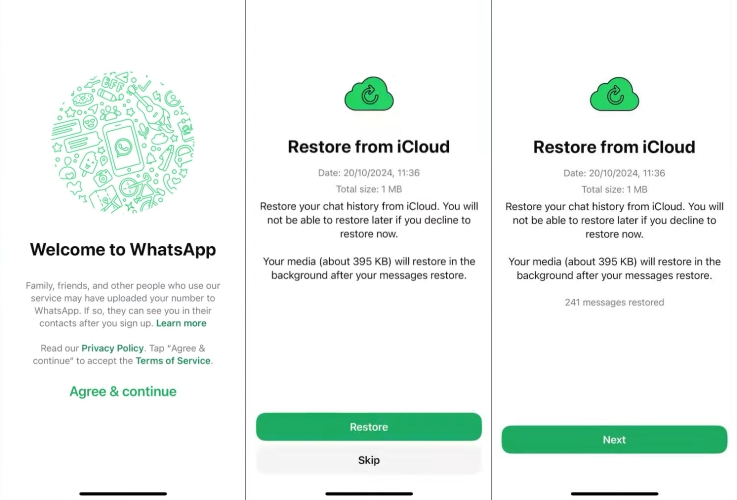
Step 1. Uninstall WhatsApp from your iPhone, then reinstall it in the App Store.
Step 2. Open WhatsApp and follow the on-screen instructions to enter your WhatsApp account and verify your identity.
Step 3. When prompted with the Restore from iCloud screen, choose Restore to retrieve deleted WhatsApp messages on iPhone.

MagFone Chats Transfer
Efficiently back up your WhatsApp content without loss or hassle — everything moves with you, just as it was.
Method 2. Retrieve Deleted WhatsApp Messages from iCloud Backup
If you haven't enabled automatic backup in WhatsApp before, but you enabled iCloud backup for WhatsApp in iPhone Settings, then you can restore your WhatsApp chat history to your iPhone by restoring the iCloud backup. This requires you to erase your iPhone data, and the newer data will not exist.

Step 1. Navigate to iPhone Settings > General > Transfer or Reset iPhone.
Step 2. Tap Erase All Content and Settings, then tap Continue.
Step 3. Tap Erase iPhone and enter your lock screen passcode to confirm the performance.

Step 4. Switch on your iPhone after it restarts, and follow the on-screen instructions to set it up. When you are asked to Transfer Your Apps & Data, choose From iCloud Backup.
Step 5. Then sign in to your Apple account to choose a backup to restore. Continue to set up your iPhone. When it's completed, you can check the deleted messages in WhatsApp.
Method 3. Retrieve Deleted WhatsApp Messages from iTunes Backup
In addition to iCloud backup, if you have backed up your iPhone with iTunes, and the deleted WhatsApp messages are included in the iTunes backup, then you can try retrieving deleted WhatsApp messages from an iTunes backup. This operation will overwrite the newer data on your iPhone, so be cautious when trying.

Step 1. Use a USB cable to connect your iPhone to your computer, and then open iTunes.
Step 2. Click the device icon and click Summary.
Step 3. Click Restore Backup to restore the entire backup data to your iPhone. Then you can check the deleted WhatsApp messages after the restore.
Part 3. How to Restore Deleted WhatsApp Messages on iPhone [Without Backup]
There are strict time limits when restoring deleted WhatsApp messages on iPhone from a backup. If you're not sure whether the deleted messages are included in your backup, here is an alternative method to restore them without a backup. MagFone iPhone Data Recovery is designed to detect deleted data on your iPhone. It allows you to preview and restore deleted data from your device. If you don't have a WhatsApp backup, just follow the steps below to restore deleted WhatsApp messages on iPhone:

MagFone iPhone Data Recovery
Recover data from iPhone and iPad in three recovery modes without data overwritting and device reset.
Step 1 Download and Install MagFone iPhone Data Recovery

Download and install MagFone iPhone Data Recovery on your computer, then connect your iPhone using a USB cable. Launch the program to get started.
Step 2 Scan for Deleted WhatsApp Messages on iPhone

On the main interface, click iPhone/iPad Data Recovery. Then tick WhatsApp and click Scan to begin scanning your iPhone for WhatsApp data. Enter the screen passcode if you're asked to give permission.
Step 3 Restore Deleted WhatsApp Messages
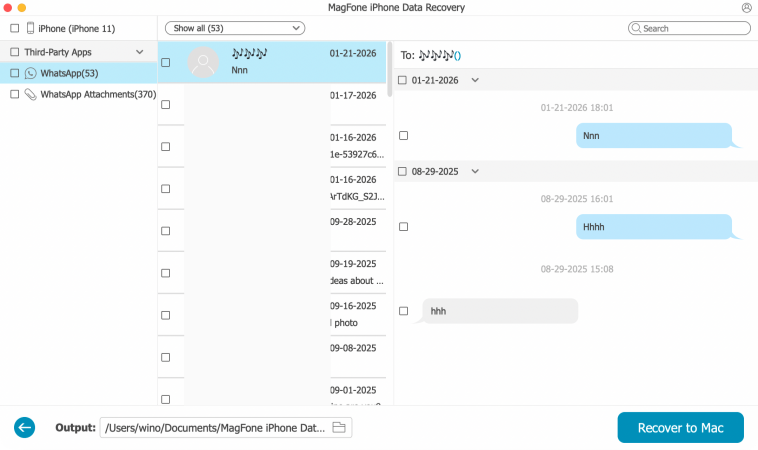
Once the scan finishes, you can preview your WhatsApp data. Choose to only show the deleted, then select and click Recover to PC to restore them.
Part 4. Conclusion
Whether it's possible to recover deleted WhatsApp messages on iPhone depends largely on whether you created a backup beforehand, and the timing of that backup. This article introduces different methods to help you choose the most suitable recovery approach based on your individual circumstances, avoiding unnecessary operational risks. If you don't want any data overwritten, then MagFone iPhone Data Recovery is the best choice. In addition, regularly backing up your WhatsApp chat history is the best practice to prevent the loss of important information.

Olivia Wood
Editor in chief




