







In everyday use, iPhone users rarely notice right away when photos go missing. You might only realize that certain pictures have disappeared when you try to open a specific photo, look back on a memorable moment, or sort images into albums. By then, it can feel confusing and frustrating, especially if the photos seem to have vanished without any clear reason. In this guide, we'll explain why photos disappeared from iPhone and how to fix the issue and get the disappeared photos back.
- Part 1. Why Are Photos Disappearing from My iPhone?
- Part 2. What to Do When Photos Disappeared from iPhone?
- Part 3. How to Recover Photos That Disappeared from iPhone
- Part 4. Conclusion
Part 1. Why Are Photos Disappearing from My iPhone?
Many users are reporting that photos on iPhone disappeared, and they don't know the reason. In reality, photo disappearances are often related to changes in display or storage, system state, or operating behavior. Here are a few of the most common and overlooked reasons.

iCloud Sync Issue
If you use iCloud Photos, your pictures are synced across all devices signed in with the same Apple ID. When this sync process is interrupted or misconfigured, some photos may not appear on your iPhone.
iPhone Storage Issue
Limited storage space on your iPhone can also lead to missing photos or incomplete photo libraries.
System Glitches
A bug in the current iOS version can temporarily cause photos or entire albums to disappear from the Photos app.
Unexpected Manual Operation
Sometimes, photos disappear simply due to accidental actions or changes in settings, including accidental deletion and hiding photos.
Part 2. What to Do When Photos Disappeared from iPhone?
Knowing the reasons why photos disappeared from iPhone, here we will introduce several methods for you to fix the issue.
Method 1. Check the Recently Deleted Album
One possible reason that photos disappeared from iPhone is that you accidentally delete them unconsciously. Luckily, the deleted photos will be moved to the Recently Deleted album for 30 days. So, you may find the disappeared photos there.
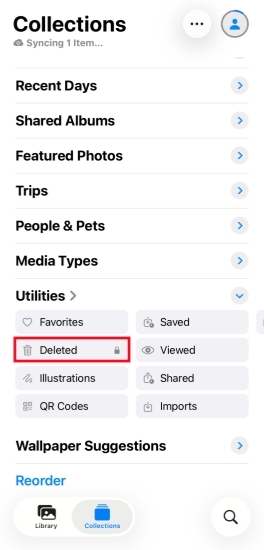
Step 1. Open Photos on your iPhone and tap Collections.
Step 2. Scroll down to the Utility stack and access the Deleted album.
Step 3. Enter your iPhone passcode or Face ID to view the recently deleted photos in this album. Then you can select and recover the disappeared photos to your iPhone Library.
Method 2. Check the Hidden Album
If you can't find certain photos in your main library, they might have been hidden instead of deleted. Hidden photos are moved to a separate Hidden album and won't appear in All Photos.

Step 1. Open Photos and tap Collections.
Step 2. Scroll down to the Utility section and access the Hidden album.
Step 3. Enter your iPhone passcode or your Face ID to view the hidden photos.
Step 4. Check if the disappeared photos are here and unhide them if needed.
Note:
If you can't find the Hidden album under the Utility section, go to iPhone Settings > Apps > Photos to enable Show Hidden Album.
Method 3. Sync iCloud Photos
When iCloud Photos is enabled, your images are stored in iCloud and synced across all Apple devices. If the sync is paused, disabled, or interrupted, some photos may not show on your iPhone. So make sure that you have allowed iCloud to sync photos.
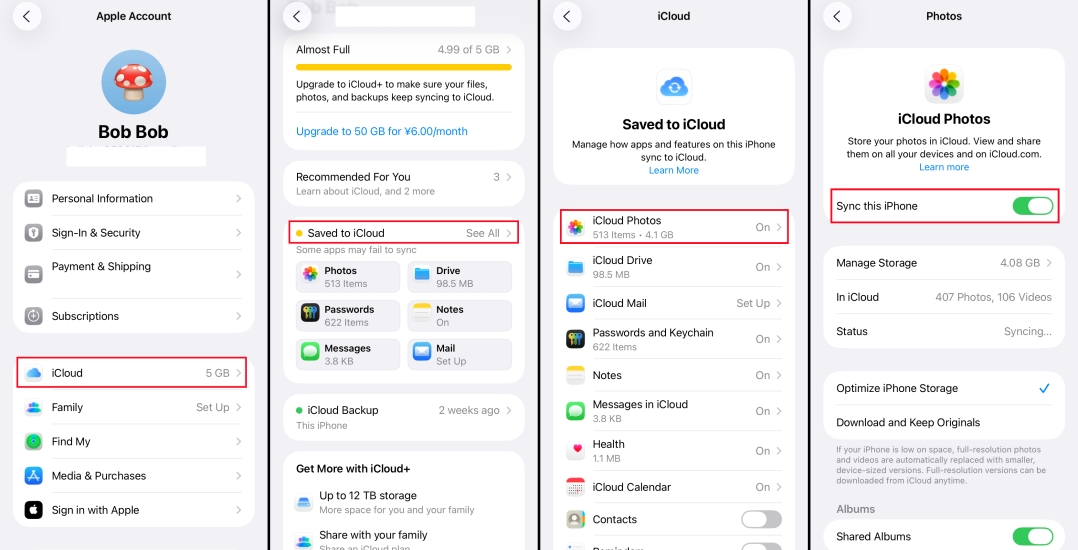
Step 1. Go to iPhone Settings and tap your Apple ID.
Step 2. Tap iCloud > Photos and make sure Sync this iPhone is turned on.
Method 4. Check iCloud Shared Photos Library
If you have created or joined an iCloud Shared Photo Library, some images might be stored in the shared library instead of your personal library. It's also possible that the missing photos were removed by other participants.
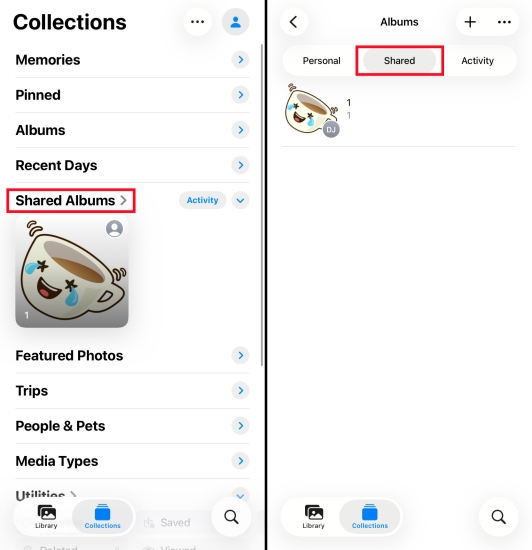
Step 1. Open the Photos app and tap Collection.
Step 2. Scroll down to the Shared Albums and check if the disappeared photos are in this folder.
Method 5. Restart Your iPhone
Temporary device glitches can cause the Photos app or the system to fail to display images correctly. Performing a simple restart often clears minor bugs and refreshes your photo library.
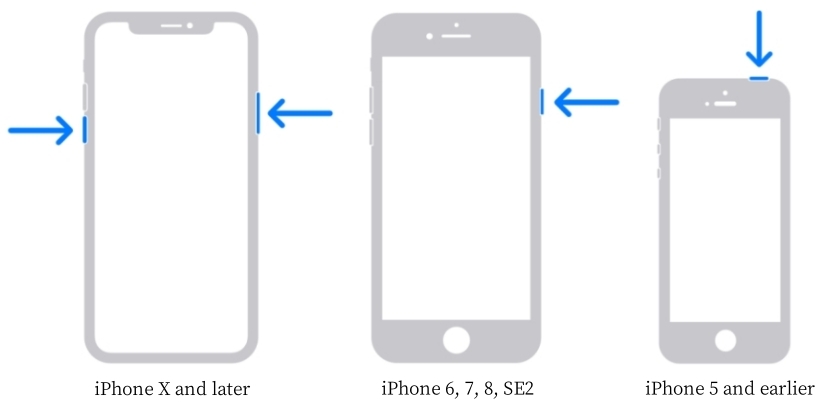
For iPhone X and later:
Step 1. Press and hold the side button and either the volume up or volume down button at the same time.
Step 2. When you see the power-off slider, drag it to the right to shut down the phone.
Step 3. After the screen goes completely black, press and hold the side button again until the Apple logo appears.
For models earlier than iPhone X:
Step 1. Press and hold the power button and the home button together.
Step 2. When the power slider appears, slide it to the right to power off your iPhone.
Step 3. Once the device is off, press and hold the power button until you see the Apple logo to turn it back on.
Method 6. Sign Out and Back In the Same Apple Account
Account abnormality can prevent iCloud from syncing photos to your device completely. Signing out of your Apple ID and then signing back in can re-establish a fresh connection to iCloud and re-sync the photos. You also need to make sure that you are signing in with the same Apple account on all devices so that the photos will appear normally.
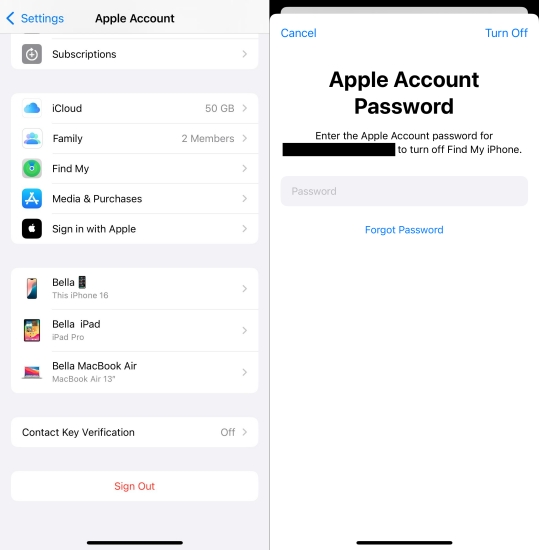
Step 1. Go to iPhone Settings and tap the Apple ID.
Step 2. Swipe to the bottom and tap Sign Out, choose Sign Out But Don't Erase, and choose Continue twice.
Step 3. Enter your Apple ID password to disable Find My. Then sign back in with the same Apple account, and the disappeared photos will be back.
Method 7. Update iOS System
Many users face the issue that photos disappeared from iPhone, and they were advised by Apple Support to update the iOS version. A timely software update can fix the known issue related to the missing photo.

Step 1. Access iPhone Settings and tap General.
Step 2. Tap Software Update to check if your iPhone is waiting for an update.
Step 3. Tap Download Now or Install Now to update the iPhone system.

MagFone iOS System Recovery
Fix iOS system error that leads to iPhone photos missing, without data loss.
Part 3. How to Recover Photos That Disappeared from iPhone
If you've tried the basic checks and settings in Part 2 but your photos are still missing, they may have been removed from your device or affected by more serious issues. The good news is that you may still be able to recover them from your iPhone's storage, iCloud Photos, or a previous backup. Go ahead and check the details.
Option 1. Recover Missing Photos on iPhone Using Recovery Tool [No Backup]
If you don't have an iCloud or iTunes backup, a professional iPhone data recovery tool can be your best chance to get missing photos back. Here, MagFone iPhone Data Recovery appears in your eyes. It can scan your iPhone's internal storage for disappeared photo data that has not yet been overwritten. After scanning, you can preview the found photos and selectively restore the ones you need to your computer and device. This option is ideal when photos disappeared from iPhone unexpectedly, and there is no recent backup to restore from. If you face the same situation, follow the steps below to recover missing photos on iPhone:

MagFone iPhone Data Recovery
Recover data from iPhone and iPad in three recovery modes without data overwritting and device reset.
Step 1 Install MagFone and Connect Your iPhone

Download and install MagFone iPhone Data Recovery on your computer. Use a USB cable to attach your iPhone to the computer, then launch the software once the device is recognized.
Step 2 Scan Your iPhone for Disappeared Photos
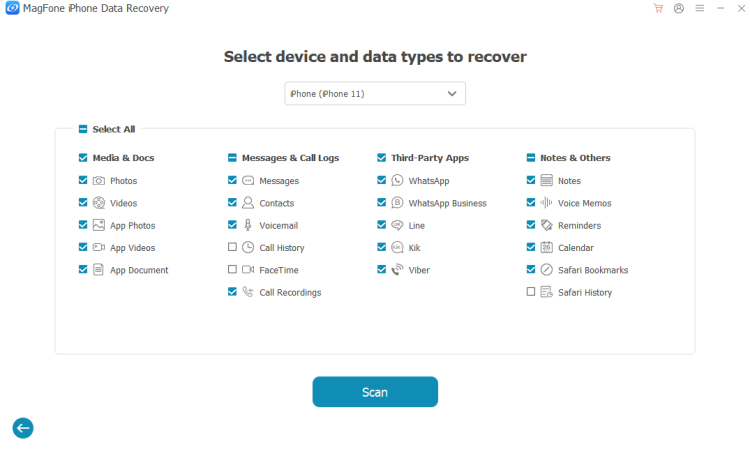
Choose iPhone/iPad Data Recovery on the main interface. Select the data categories you want to recover and click Scan so the program can search your iPhone for those items.
Step 3 Recover Missing Photos on iPhone

When the scan finishes, you'll see all recoverable data. Go to Photos, preview, and choose the disappeared pictures you want back, then click Recover to PC. Afterward, transfer the recovered photos from your computer back to your iPhone.
Option 2. Recover Missing Photos on iPhone in iCloud Photos
When iCloud Photos is turned on, your images are stored in iCloud and synced across devices. If some photos are missing from your iPhone but still exist in iCloud, you can download them from iCloud Photos and recover them to your iPhone.

Step 1. Log in to your account at the iCloud website.
Step 2. Click Photos to see if the disappeared photos exist in iCloud Photos.
Step 3. Click the Download icon to download them to your computer, then recover the missing photos to your iPhone.
Option 3. Recover Missing Photos on iPhone from iCloud Backup
If you regularly back up your device to iCloud, you may be able to restore the disappeared photos from an earlier iCloud backup. This method involves erasing your iPhone and then restoring data from iCloud backup.

Step 1. Open Settings on your iPhone, then go to General > Transfer or Reset iPhone.
Step 2. Tap Erase All Content and Settings, then tap Continue.
Step 3. Select Erase iPhone and enter your passcode to confirm.

Step 4. When the erase is complete, power on your iPhone and follow the setup prompts. On the Transfer Your Apps & Data screen, choose From iCloud Backup.
Step 5. Sign in with your Apple ID, pick the backup you want to restore, complete the setup, and then check whether the disappeared photos have been restored.
Option 4. Recover Missing Photos on iPhone from iTunes Backup
For users who back up their iPhone using iTunes, an older local backup can also be used to bring missing photos back. You can try this method if the photos were deleted or disappeared after your last successful iTunes backup, as the backup may still contain them. However, this operation will overwrite the whole iPhone data. Be cautious before performing.

Step 1. Connect your iPhone to your computer using a USB cable, then open iTunes.
Step 2. Click the iPhone icon in iTunes and go to the Summary tab.
Step 3. Click Restore Backup to recover the missing photos to your iPhone.
Part 4. Conclusion
Photos disappearing from your iPhone is frustrating, but the methods in this guide can help you resolve the issue. If you still can't find the missing photos on your iPhone, try restoring them from iCloud Photos, an iCloud backup, or an iTunes backup. Or you can use MagFone iPhone Data Recovery to recover missing photos on iPhone without a backup.

Olivia Wood
Editor in chief




