








It is a common misconception that you can delete the App Store from your iPhone. In reality, Apple classifies the App Store as a "core system application," meaning it is hard-coded into the operating system. If the icon is missing, it hasn't been uninstalled; it has simply been restricted, hidden, or moved. No matter, there are some straightforward ways to bring it back. Also, we will explore the common reasons behind the App Store app missing from iPhone issue and tell you how to restore it in no time.
- Part 1. Why Is My App Store Gone from iPhone?
- Part 2. How to Find Missing App Store Icon on iPhone
- Part 3. How to Fix App Store Missing from iPhone
- Part 4. FAQs about App Store Missing on iPhone
- Part 5. Conclusion
Part 1. Why Is My App Store Gone from iPhone?
It can be perplexing and frustrating to find that the App Store is suddenly missing from your iPhone. This issue can happen for several reasons. Before diving into the fixes, it helps to understand the why. Generally, a missing App Store falls into one of these four categories.

Reason 1. User Error
The App Store icon may accidentally get placed into a folder or removed from the Home screen but kept in the App Library. It may lead you to think the App Store is missing.
Reason 2. System Restrictions
Screen Time restrictions or Parental Controls have been toggled to "Don't Allow" app installations. This will block the App Store's visibility on your Home screen.
Reason 3. External Management
A work or school profile has disabled the store for security reasons. For those cooperate-issued or school-issued devices, it is common that the App Store is gone.
Reason 4. System Glitches
After an iOS update, some icons may be hidden due to system changes or tweaks. Occasionally, system glitches or bugs can also hide the App Store icon.
Part 2. How to Find Missing App Store Icon on iPhone
Sometimes, the App Store icon is simply hidden or removed, making it hard to find. If it is not immediately visible on the Home screen, it might be tucked away in a folder or out of sign in other ways. Following are the methods to locate it, no need to reset or change device settings.
Method 1. Use the App Library to Find Hidden Icons
With the introduction of the App Library, it's easier than ever to accidentally remove an app icon from the Home Screen without deleting the app itself.
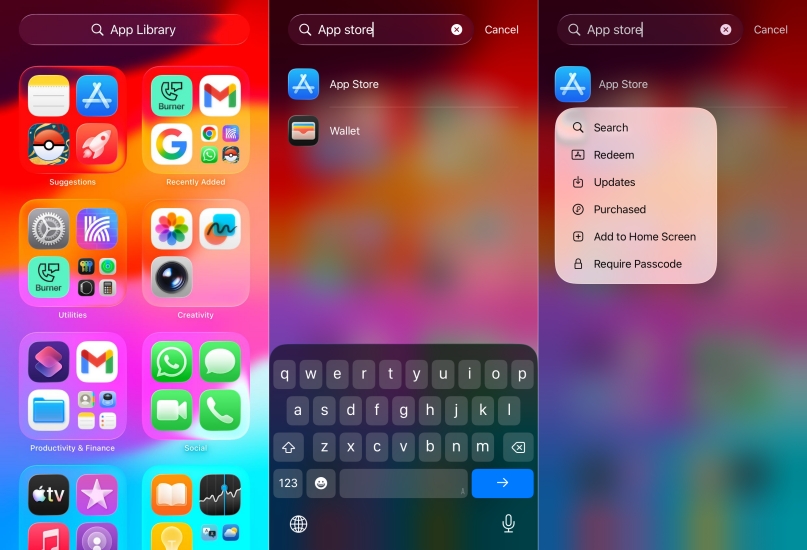
Step 1. Swipe left through all your Home Screen pages until you reach the App Library.
Step 2. Type "App Store" into the search bar at the top.
If the App Store icon appears, long-press it and select Add to Home Screen. Go back to the Home screen to check whether the icon goes back.
Method 2. Use Spotlight Search to Find Hidden Icons
Sometimes the App Store is just buried deep inside a folder you forgot you created. In this case, you can use Spotlight Search to find the hidden App Store app.
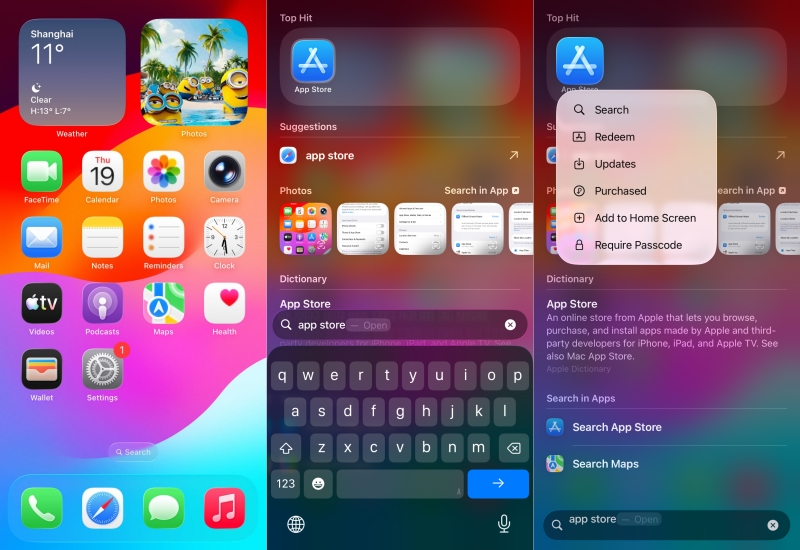
Step 1. Swipe down from the middle of any Home Screen to open Spotlight Search.
Step 2. Type "App Store" into the search bar in the middle.
If it's in a folder, the name of the folder will appear to the right of the app icon. And after finding the app, long-press it to tap Add to Home Screen.
Part 3. How to Fix App Store Missing from iPhone
If you have searched thoroughly and still cannot find the App Store icon, there could be incorrect settings or software glitches. Here are several methods to try when the App Store is missing from your iPhone. First, you can watch a step-by-step video; then, try the methods below one by one to resolve the issue.
Method 1. Disable Screen Time Restrictions
If the App Store is missing from your search results entirely, your iPhone likely has a restriction enabled that hides the store entirely.Screen Time is usually the culprit that allows users or parents to disable app installations.

Step 1. Open Settings > Screen Time and tap Content & Privacy Restrictions.
Step 2. If this is on, tap iTunes & App Store Purchases.
Step 3. Look at Installing Apps. If it says "Don't Allow," change it to Allow.
Pro Tip:
If it already says "Allow" but the store is still missing, try toggling the switch to "Don't Allow" and then back to "Allow." This often forces the OS to refresh the icon's visibility.
Method 2. Check for MDM Profiles
Many companies and schools use MDM profiles to ensure devices stay productive. If your iPhone is a work or school-issued device, your organization may disables the App Store app to prevent unauthorized downloads.
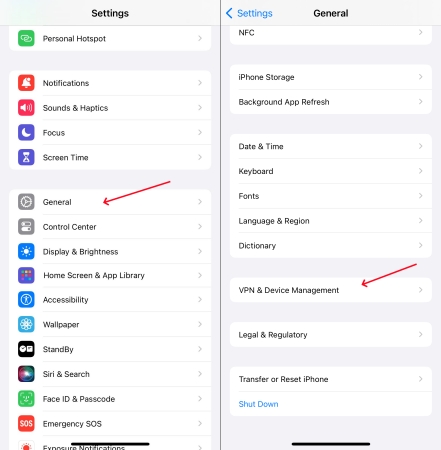
Step 1. Go to Settings > General.
Step 2. Tap VPN & Device Management.
Step 3. Check if there is a profile installed.
Pro Tip:
If "App Installation" is restricted by your administrator, you will need to contact your IT department to have it re-enabled. Or you can use an MDM removal to bypass MDM on your iPhone without a password. Then you can use the App Store app freely.
Method 3. Reset the Home Screen Layout
If you've looked everywhere and still can't find the icon, you can return your Home Screen to its factory-fresh look. This won't delete any of your data or apps, but it will put the App Store back in its original position on the first page.
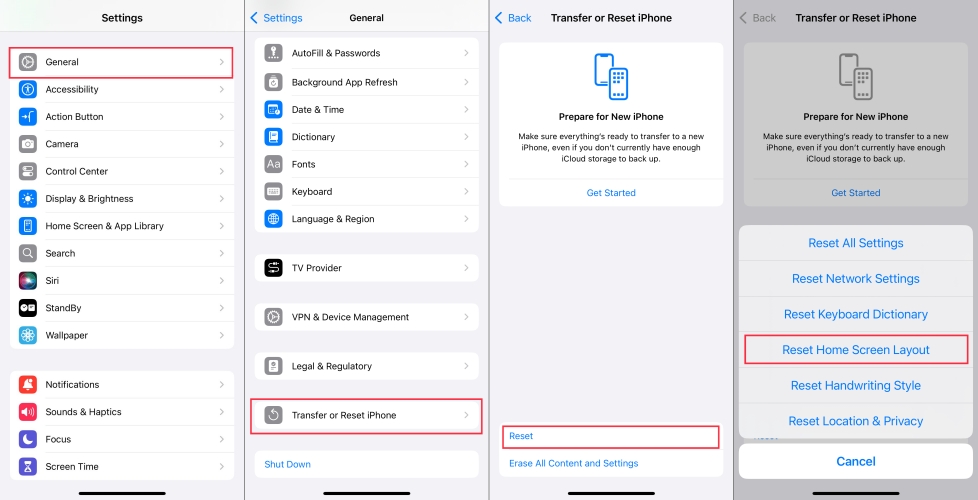
Step 1. Go to Settings > General.
Step 2. Scroll to the bottom and tap Transfer or Reset iPhone.
Step 3. Tap Reset, then select Reset Home Screen Layout.
Method 4. Choose Reset All Settings
Perhaps you've tried resetting the home screen layout, then consider resetting all settings. Resetting can fix minor issues with system configurations. It restores the device's settings to default without deleting any data.

Step 1. Access Settings.
Step 2. Choose General, and then scroll down to select Transfer or Reset iPhone.
Step 3. After pressing Reset, tap the Reset All Settings option.
Method 5. Update Your iOS Software
Occasionally, a system bug can cause system icons to glitch out. Apple frequently releases "point updates" like iOS 18 or iOS 26 to fix these specific user interface bugs. Make sure that your iPhone has been updated to the latest iOS software.

Step 1. Go to Settings > General > Software Update.
Step 2. Tap Download and Install to download the update.
Step 3. After downloads, tap Install Now.
Step 4. Enter the screen passcode and tap Update to confirm.
Method 6. Repair iOS Issues
When standard troubleshooting fails to restore a missing App Store, the cause is often a corrupted system file or a deep-seated iOS glitch. MagFone iOS System Recovery is a specialized utility designed to repair the operating system itself without wiping your personal data, making it a powerful alternative to a factory reset. With this program, you can quickly restore the App Store to the Home screen, allowing you to download and update apps without a hitch.

MagFone iOS System Recovery
Fix various iOS and iPadOS system issues, such as black screen, boot loop, frozen screen, or stuck on Apple logo, without data loss.
Step 1 Connect iPhone and Launch MagFone

Firstly, link your iPhone and your computer using a USB cable. Once connected, open MagFone iOS System Recovery. On the main interface, select the iOS System Recovery option and click the Start button to proceed.
Step 2 Enter iPhone into Recovery or DFU Mode
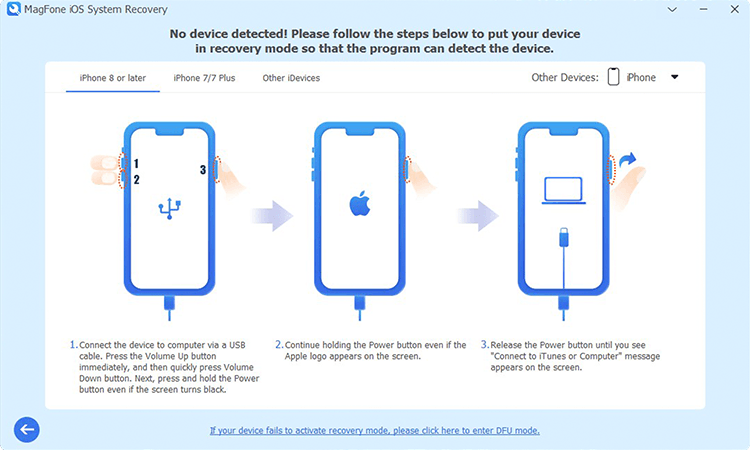
Next, choose your preferred repair mode. If preserving your data is a priority, opt for Standard Mode. Follow the on-screen instructions to put your iPhone into recovery mode, preparing it for the repair process.
Step 3 Download the Correct Firmware Package

Once your device information appears on the screen, verify that the details match your iPhone model. If everything looks correct, click the Download button to retrieve the appropriate firmware package onto your computer.
Step 4 Fix the Missing App Store Icon

After successfully verifying the firmware, click the Start Standard Repair button to initiate the repair process. Once the repair is complete, restart your iPhone, and the App Store icon should reappear, ready for use.
Part 4. FAQs about App Store Missing on iPhone
-
Can I delete the App Store by accident?
No. Apple does not allow the deletion of the App Store. It can be removed, hidden, or restricted from the Home screen.
-
Why is my App Store restricted even though I didn't change anything?
This sometimes happens after an iOS update. System glitches can occasionally trigger Screen Time restrictions or move icons into the App Library automatically.
-
Does Reset All Settings bring the App Store back?
Yes, but it also resets your Wi-Fi passwords and wallpaper. We recommend trying Reset Home Screen Layout first, as it is much less invasive.
Part 5. Conclusion
Losing access to the App Store can be a hassle, but in most cases, the solution is straightforward. Whether the icon is hidden in a folder, restricted by settings, or affected by a software glitch, this guide provides clear methods to help you fix the issue. With these solutions, you'll be able to get the lost App Store app on iPhone back, allowing you to continue enjoying new apps and updates.

Dylan Jones
Editor in chief




