








Have you ever deleted an important voice memo on your iPhone, an interview, a lecture, a precious message, only to realize too late that you still needed it? Don't panic just yet. Whether you have a backup or not, there are still several ways to get deleted recordings back. In this guide, we'll walk you through four ways to recover deleted voice memos on iPhone.
- Part 1. Can You Recover Deleted Voice Memos on iPhone?
- Part 2. How to Recover Deleted Voice Memos on iPhone without Backup
- Part 3. How to Recover Deleted Voice Memos on iPhone with Backup
- Part 4. Conclusion
Part 1. Can You Recover Deleted Voice Memos on iPhone?
Definitely yes, you can recover deleted voice memos on iPhone. You can first check the Recently Deleted folder to get them back. Or use an iPhone Data Recovery tool to help you recover deleted voice memos without backup. If you have an iCloud or iTunes backup, it's also possible to recover deleted iPhone voice memos. You can choose the fit solution based on your situation.
| Recovery Method | Recently Deleted | MagFone iPhone Data Recovery | iCloud Backup | iTunes Backup |
|---|---|---|---|---|
| Need Backup? | ❌ | ❌ | ✔️ | ✔️ |
| Require Erase | ❌ | ❌ | ✔️ | ❌ |
| Data Overwriting | ❌ | ❌ | ✔️ | ✔️ |
| Process & Difficult | Quick & Easy | Quick & Easy | Time-consuming & Difficult | Time-consuming & Moderate |
| Selective Recovery | ✔️ | ✔️ | ❌ | ❌ |
| Recommendation | ⭐⭐⭐⭐⭐ | ⭐⭐⭐⭐ | ⭐⭐ | ⭐⭐ |
Part 2. How to Recover Deleted Voice Memos on iPhone without Backup
In most cases, recovering deleted voice memos directly from your iPhone is more convenient and safer than restoring from a backup, because you don't have to reset your device or risk overwriting current data. Without backup, you can retrieve deleted voice memos on iPhone by checking the Recently Deleted folder or using an iPhone data recovery tool.
Option 1. Recover Deleted Voice Memos from Recently Deleted
When you notice that voice memos are missing from your iPhone, they may have been moved to the Recently Deleted folder by mistake. The quickest way to get them back is to check this folder first. As long as the deleted voice memos are still within the retention period, you can restore them to your library with just a few taps.
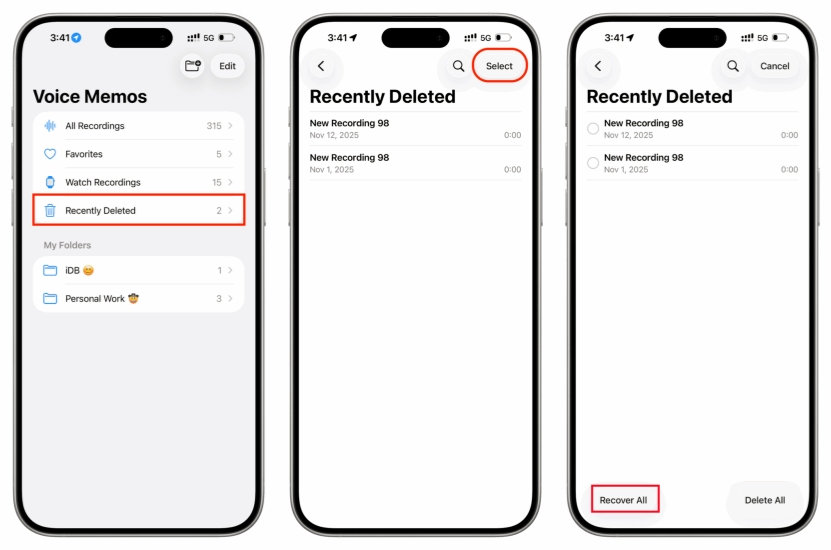
Step 1. Open Voice Memo and tap Recently Deleted.
Step 2. Tap Select and select the deleted voice memos you want to get back, then tap Recover > Recover Recording to get them back.
Note:
Some users may not be able to find the Recently Deleted folder in the Voice Memos app. This is often related to your Voice Memos settings. By default, once you delete a voice memo on your iPhone, the Recently Deleted folder appears and stores the recording for a certain period. If you don't see this folder, the Clear Deleted option is likely set to Immediately, which permanently deletes memos as soon as you remove them. To avoid accidental data loss, you can change this setting and extend the retention period for deleted memos.
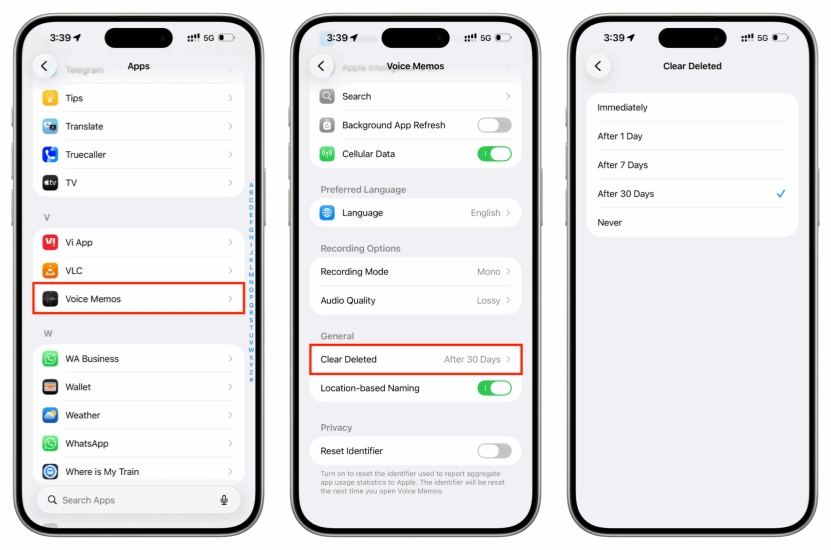
Step 1. Go to iPhone Settings > Apps > Voice Memo.
Step 2. Tap Clear Deleted and choose the duration you prefer.
Option 2. Recover Deleted Voice Memos Using MagFone
If you can't find the voice memo you want in the Recently Deleted folder, you can try using a data recovery tool. MagFone iPhone Data Recovery helps you restore a wide range of iPhone data, from Apple's built‑in apps to third‑party apps such as WhatsApp and LINE. After scanning your iPhone with MagFone, you can preview the recoverable voice memos and selectively restore them to your computer and your device. Just follow the simple steps below to recover deleted voice memos on iPhone without backup:

MagFone iPhone Data Recovery
Recover data from iPhone and iPad in three recovery modes without data overwritting and device reset.
Step 1 Open MagFone iPhone Data Recovery

Download and install MagFonr iPhone Data Recovery on your computer. At the same time, connect your iPhone to the computer using a data cable. Open MagFone once installed successfully.
Step 2 Scan iPhone Deleted Voice Memos

Click iPhone/iPad Data Recovery, select Voice Memo under Notes & Others. Then click Scan to scan deleted voice memos on iPhone. Enter the passcode on your iPhone when prompted.
Step 3 Retrieve Deleted Voice Memos on iPhone
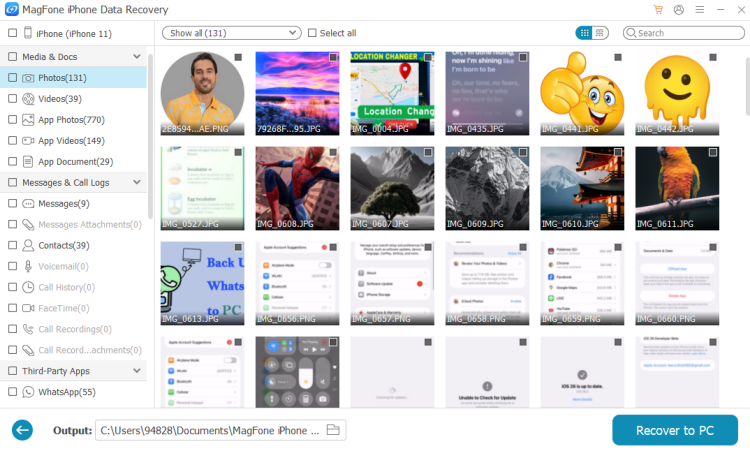
After scanning data, you can view all iPhone voice memos, as well as the deleted voice memos, on the computer. Select and click Recover to PC or Recover to Mac. Then you can import and restore them to your iPhone.
Part 3. How to Recover Deleted Voice Memos on iPhone with Backup
Check the Recently Deleted folder, or use MagFone iPhone Data Recovery, and you can easily get back deleted voice memos on iPhone. Besides the effective methods, there are two more options you can apply, useful but risky. That's to restore deleted voice memos from a previous backup, either an iCloud Backup or iTunes backup. Both methods will cause data overwriting. Be cautious when you are considering.
Method 1. Restore Deleted Voice Memos on iPhone from iCloud Backup
If iCloud Backup is enabled on your iPhone, you may be able to recover deleted voice memos by restoring a backup made before the deletion. This requires you to factory reset your iPhone and choose an older iCloud backup during setup, which can bring back the missing recordings, along with all other data from that backup point.
Requirements & Limitations:
- Existing iCloud Backup required
- Must erase iPhone before restoring
- Stable Wi-Fi connection required
- Apple ID and password needed
- Cannot selectively restore Voice Memos only

Step 1. Access Settings on iPhone and tap General.
Step 2. Tap Transfer or Reset iPhone > Erase All Contents and Settings.
Step 3. Tap Continue > Erase iPhone and enter your iPhone passcode and Apple ID password to wipe iPhone data.

Step 4. Once the iPhone restarts, follow the on-screen instructions to get started and set it up. When you reach the Transfer Your Apps & Data screen, choose From iCloud Backup.
Step 5. After setting up and all data from iCloud synced on your iPhone, you can open the Voice Memos app to check deleted voice memos.
Method 2. Restore Deleted Voice Memos on iPhone from iTunes Backup
For users who have backed up iPhone with iTunes, they can also restore deleted voice memos on iPhone from the iTunes backup. After connecting your iPhone to the computer, you select the relevant backup and restore it, which can recover the memos that existed when that backup was created.
Requirements & Limitations:
- Existing iTunes backup required
- Computer required
- Must disable Find My iPhone before restoring
- No selective recovery
- All current data will be overwritten

Step 1. Open iTunes and connect your iPhone to the computer via a data cable.
Step 2. Click the device icon, then click Summary in the left directory.
Step 3. Click Restore Backup to restore the iTunes backup to your iPhone.
Part 4. Conclusion
Losing an important recording without a backup can feel final, but it doesn't have to be. By following the methods outlined in this guide, checking the Recently Deleted folder, restoring from iCloud or iTunes backup, or using a professional recovery tool like MagFone, there is a strong chance of getting deleted voice memos back on your iPhone. To reduce the risk of future data loss, it's recommended that you set the Clear Deleted option to Never, so you don't have to worry about accidental deletion and can review removed recordings in the Recently Deleted folder at any time.

Edgar Davis
Editor in chief





