








Unable to watch YouTube videos due to restrictions? This restriction can come from your school or company network, regional access restrictions, or even screen time or MDM management policies on your own devices. In this guide, no matter where the restrictions are, we will introduce 10 methods to help you watch YouTube unblocked videos smoothly on your device.
- Part 1. Why Is YouTube Blocked?
- Part 2. How to Get YouTube Unblocked for Network Restrictions
- Part 3. How to Get YouTube Unblocked for Device Restrictions
- Part 4. Conclusion
Part 1. Why Is YouTube Blocked?
Before trying to unblock YouTube, it's important to understand the cause. Different blocks require different solutions. The YouTube being blocked typically lies in three main ways: network restrictions, content restrictions, and geographic restrictions.
Situation 1. YouTube Blocked at School or Work
In a school or workplace, YouTube is often actively blocked by network administrators to avoid distractions or comply with internal management policies. These restrictions typically come from LANs, firewalls, or routing rules.
Situation 2. YouTube Blocked for Country or Region
Some countries or regions directly restrict access to YouTube for policy, copyright, or regulatory reasons. In this case, even if you're using a personal network, you may still not be able to open videos or load content properly.
Situation 3. YouTube Blocked for MDM or Screen Time
If you're using a work device, school device, or device with parental controls turned on, YouTube may be directly disabled by a system-level restriction operation.
Part 2. How to Get YouTube Unblocked for Network Restrictions
Knowing why YouTube is being blocked, in this part, we will address the possible solutions to watch any YouTube video unblocked link caused by network or region restrictions.
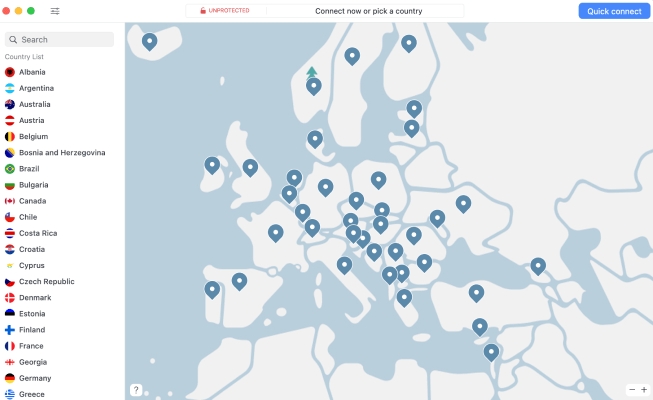
Method 1. Use a VPN to Unblock YouTube
A VPN configuration can encrypt your network traffic and forward your access request to servers in other countries or regions. So if YouTube is blocked on your device, you can apply a VPN and adjust the VPN configuration to a certain area to modify your network address, and then you can watch unblocked YouTube videos beyond the region restrictions.
Method 2. Watch YouTube at Unblocked YouTube Sites
You can also use a web proxy or unblocked YouTube sites to access YouTube. A proxy acts as an intermediary between you and the blocked website, helping to mask your IP address and letting you reach sites that are blocked, including YouTube. There are many full-featured proxy services that allow you to visit a wide range of restricted sites while maintaining a high level of privacy.
Method 3. Change DNS Settings to Unblock YouTube
In certain networks, access to YouTube is blocked at the DNS level. By switching your DNS settings to a public DNS service, you can bypass these DNS-based restrictions.
On Windows:
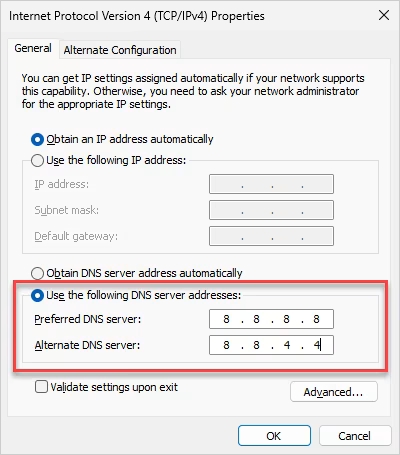
Step 1. Launch the Control Panel and click Network and Internet.
Step 2. Click your connected network name. Click Internet Protocol Version 4 (TCP/IPv4) and then click Properties.
Step 3. Input a DNS address you want to apply and click OK to save.
On Mac:
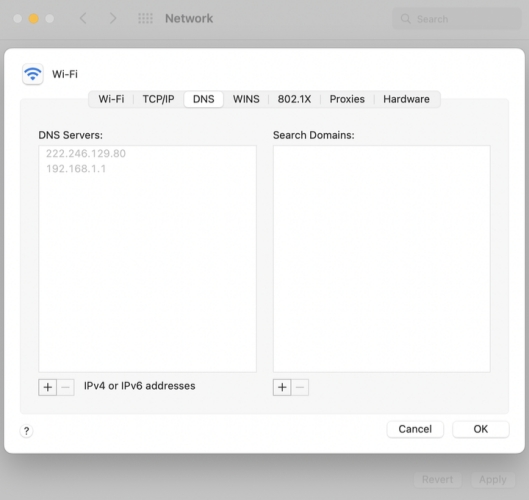
Step 1. Launch System Preferences and click Network.
Step 2. Click Advanced in the connected Wi-Fi page. Click DNS.
Step 3. Click the + icon under DNS Servers stack and input a public DNS address like 8.8.8.8 or 8.8.4.4. Then click OK to save the update.
Method 4. Use Mobile Data or Hotspot to Unblock YouTube
If YouTube is blocked under a certain public network, such as a network at school or workplace, using mobile data or a hotspot can bypass the restrictions with ease. Just disable the Wi-Fi connection and connect to cellular data or a hotspot. Once you switch the network source from the restricted public network, YouTube may return to normal, and you can watch unblocked videos again.
Method 5. Install YouTube Unblocked Extensions
Some browser extensions help users get around basic network restrictions by changing how requests are sent, altering access routes, or embedding alternative video players. These tools are especially useful if you're using a desktop browser to watch unblocked YouTube videos. For example, the YouTube Unblocked Chrome extension can bypass certain IP and firewall-based blocks, allowing you to access YouTube more smoothly and consistently.
Method 6. Add JavaScript Bookmark on Browsers
JavaScript bookmark is a method that leverages the browser to run scripts that reload or embed YouTube content. It provides a flexible workaround when normal permissions are limited or restricted.
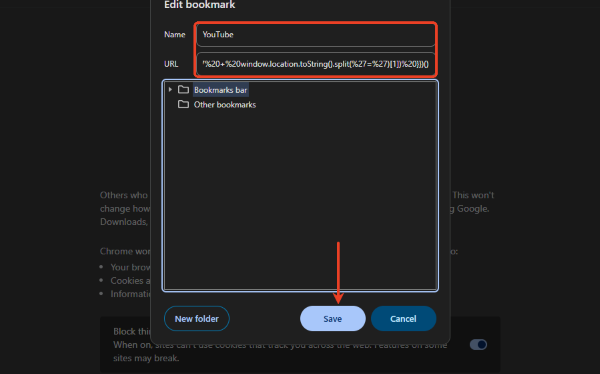
Step 1. Launch the Control Panel and click Network and Internet.
Step 2. Right-click the Bookmark bar and click Add page.
Step 3. Edit the Name and input the following JavaScript in the URL box:

Step 4. Click Save to save the bookmark. Load the YouTube video page and tap the bookmark. It will switch to another page, and you can watch YouTube unblocked videos.
Part 3. How to Get YouTube Unblocked for Device Restrictions
Apart from network or geographic restrictions, there is another case where YouTube is blocked due to MDM or Screen Time restrictions. In this part, we will detail four methods to get YouTube unblocked for device restrictions.
Method 1. Turn off YouTube Restricted Mode
If YouTube isn't completely inaccessible, but some content is blocked, it might be in Restricted Mode. Some mature content will be blocked under Restricted Mode. If you want to get full access to all YouTube content, you can adjust and turn off this filter.
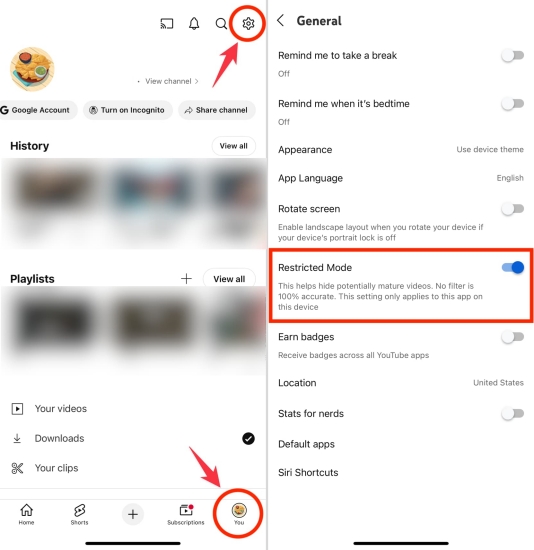
Step 1. Open the YouTube app and tap your profile icon.
Step 2. Tap Settings > General and turn off Restricted Mode.
Method 2. Disable Screen Time Restrictions
When YouTube is included in Screen Time content restrictions, it cannot be used even with a normal network connection. Disabling the relevant restrictions will restore access to YouTube.
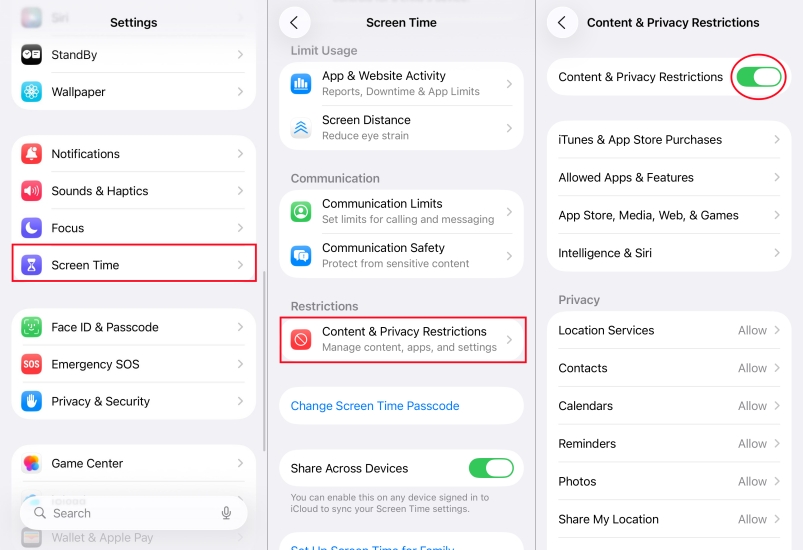
Step 1. Go to Settings > Screen Time > Content & Privacy Restrictions.
Step 2. Turn off Content & Privacy Restrictions.
Method 3. Watch YouTube in Browsers
On some devices, though the YouTube app is disabled, Safari or other browsers remain available. Accessing the YouTube web version through a browser can bypass app-level restrictions.
Method 4. Remove MDM Restrictions
If you are using an iPad or iPhone that is under an MDM system, YouTube is likely to be blocked by the administrator. If you want to watch blocked YouTube videos on your device, you need to remove the restrictions. In most cases, you are not able to access the Apple ID password. Here, MagFone iPhone Unlocker is a top pick to bypass the MDM control. As a comprehensive MDM removal, MagFone iPhone Unlocker can help you remove various screen locks from your iPhone, iPad, and iPod. If you are restricted by Screen Time or MDM locks, it can also be dealt with. Now follow the steps below to remove MDM restrictions from your device without data loss.

MagFone iPhone Unlocker
Unlock various locks on iOS devices, including screen locks, MDM, Apple ID, and Activation Lock without needing a password.
Step 1 Launch MagFone iPhone Unlocker
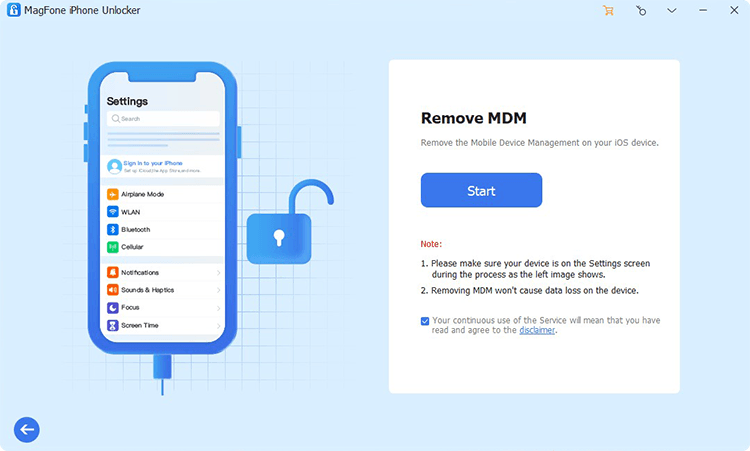
Download and install MagFone iPhone Unlocker on your computer. Connect your iPhone to the computer with a USB cable. Once everything is set up, launch the software and choose Remove MDM to continue.
Step 2 Take MDM Restrictions off the Device
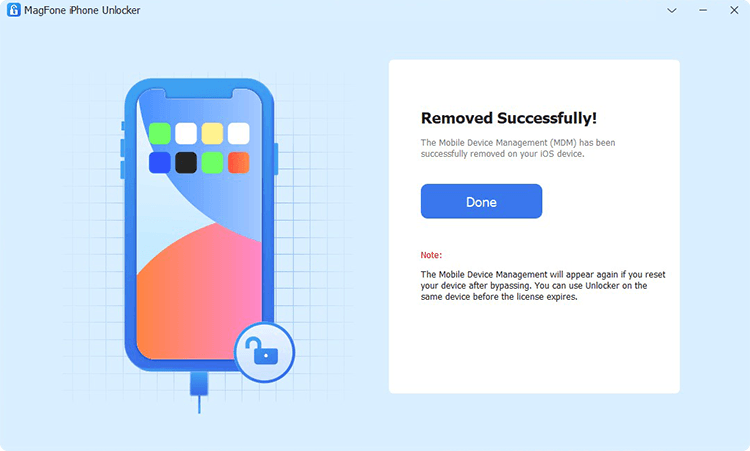
On your iPhone, open Settings and tap your Apple ID to confirm that Find My is turned off. In the MagFone tool, click Start, then select Unlock to remove the MDM restrictions from your device.
Part 4. Conclusion
In summary, there are 10 effective ways to regain access to YouTube when it is restricted by a network or device. Whether it's blocked from what aspect, by choosing the approach that best fits your situation, you can reliably restore access to YouTube and watch YouTube unblocked videos unlimitedly. If you want to remove the MDM or Screen Time restriction on your device, MagFone iPhone Unlocker is the way to go.

Dylan Jones
Editor in chief





