








If you've ever tried to save an age-restricted YouTube video, you've probably noticed it's not as straightforward as downloading a regular one. Sometimes YouTube asks you to sign in to confirm your age, and that can make the whole process a bit confusing. The good news is that there are still a few ways people try to download these videos. In this guide, we'll go over both official ways and third-party methods to download age-restricted YouTube videos.
- Part 1. Can You Download Age-restricted Videos on YouTube?
- Part 2. How to Download Age-restricted Videos on YouTube [Official]
- Part 3. How to Download Age-restricted Videos on YouTube [Third-party]
- Part 4. Conclusion
Part 1. Can You Download Age-restricted Videos on YouTube?
Yes, age-restricted videos on YouTube can be downloaded, but it depends on the method you use. If an age-restricted YouTube video is allowed to be downloaded by the creator, then you can download it with a YouTube Premium membership.
In addition, you can also use a YouTube video downloader to download age-restricted videos. Since these videos are limited by YouTube's age verification rules, in most cases, you'll need to verify your YouTube account to download them safely and properly.
Part 2. How to Download Age-restricted Videos on YouTube [Official]
If you want to download an age-restricted YouTube video through YouTube directly, you'll need to be signed in to a YouTube Premium account. And age-restricted content may still require age verification before it can be accessed. Once those requirements are met, downloading the video becomes much easier.
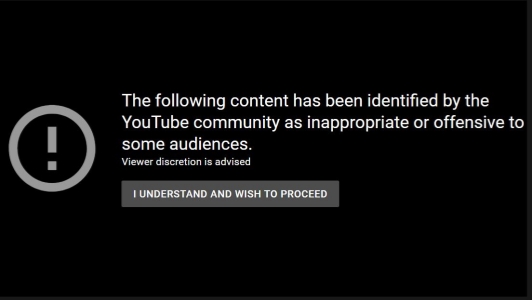
Step 1. Load the age-restricted video on YouTube.
Step 2. Click "I understand and wish to proceed" if you are required to verify your identity.
Step 3. After verifying, you can watch the age-restricted video, and the Download option will also be available. You can click the Download icon to download the age-restricted YouTube video.

MagFone iPhone Unlocker
Remove Screen Time restrictions to unlock full YouTube access on iPhone & iPad.
Part 3. How to Download Age-restricted Videos on YouTube [Third-party]
If you do not have YouTube Premium or prefer not to use YouTube's official download feature, third-party tools are often the next option people look at. These tools may offer greater flexibility for downloading age-restricted videos.
Note:
No matter which tool you use, you still need a supported YouTube account to access age-restricted videos.
-
How to download age-restricted YouTube videos without signing in?
In most cases, YouTube requires users to sign in and verify their age before accessing or downloading age-restricted videos. There is no official way to download these videos without signing in and verifying. If a video is available to your account, you can use the methods in the following section to download it.
Option 1. 4K Video Downloader Plus
4K Video Downloader Plus is a desktop application that allows users to download videos from YouTube and other platforms in various formats and quality levels. It is known for its simple interface, support for high-resolution downloads, and ability to download playlists, channels, and subtitles. If you regularly need to download age-restricted YouTube videos, it can be a practical option to consider.
Step 1. Download and install 4K Video Downloader Plus on your computer.
Step 2. Launch this software and click the Settings in the upper-right area.
Step 3. Click Tools > Preferences > Authorization.
Step 4. Click Log In to log in to your YouTube account.
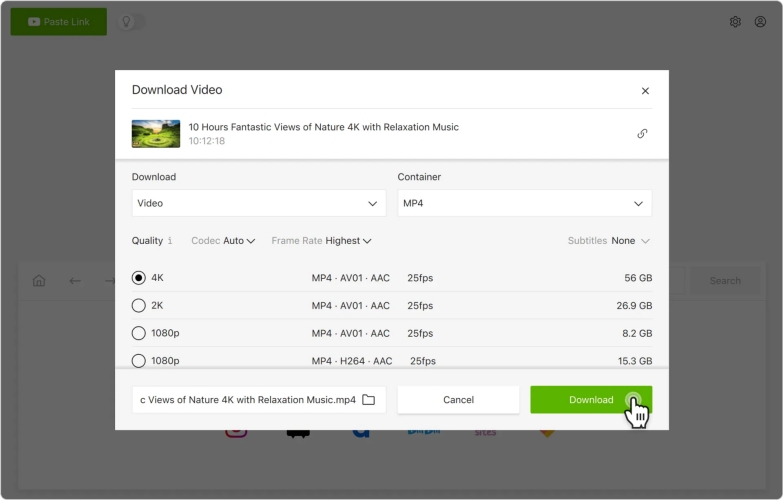
Step 5. Copy the age-restricted video link from YouTube, and click Paste Link in the main interface to load the video.
Step 6. Choose the download parameters and click Download to download the age-restricted YouTube video to your computer.
Option 2. Tubly Downloader Extension
Tubly Downloader Extension is a browser-based tool designed to make video downloading quicker and more convenient while you browse. It's compatible with Chrome, Edge, and Firefox. Instead of copying and pasting links into a separate program, it adds a direct download option through the browser experience.
Step 1. Download Tubly Downloader zip file.
Step 2. Unzip the Tubly zip file, and you will see a file with a .crx affix.
Step 3. Open chrome://extensions/ and enable Developer mode in the upper-right area.
Step 4. Drag the CRX file to the Chrome extensions page and click Add extension to add Tubly to your Chrome.
Step 5. Click the Extensions icon and run Tubly Downloader.
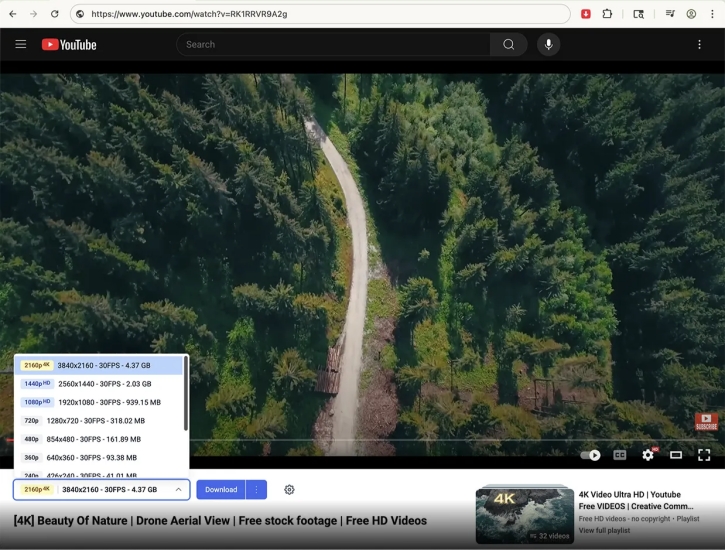
Step 6. Refresh the age-restricted YouTube video page, then click the Download icon under the video player.
Step 7. Choose the video version you want and click Download to save it to your computer.
Option 3. yt-dlp
yt-dlp is a command-line tool that can be used to download age-restricted YouTube videos on your computer. Since this method requires working with commands, if you are not familiar with this, you can ignore this method and use other methods to download age-restricted YouTube videos.
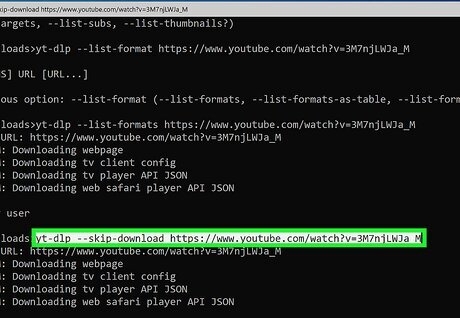
Step 1. Download the appropriate yt-dlp file from GitHub.
Step 2. Move the downloaded yt-dlp file to a new folder, such as one named Video.
Step 3. Download FFmpeg to your computer. This tool helps yt-dlp download videos in higher quality.
Step 4. Unzip the downloaded FFmpeg file, then locate ffmpeg.exe and ffprobe.exe. Move both files to the Video folder.
Step 5. Press Win + R to open the Run dialog box, type cmd, and press Enter to open Command Prompt.
Step 6. Enter yt-dlp --cookies-from-browser chrome "YouTube video link" and press Enter. The video will then be downloaded to the Video folder.
Option 4. Stacher
If you are not comfortable using the command line, a third-party GUI can be a more user-friendly alternative. There are several interfaces built for yt-dlp, and Stacher is one of the more popular options. In our testing, it worked well for downloading age-restricted YouTube videos. To download these videos successfully with Stacher, you need to use cookies that can verify your identity and age.
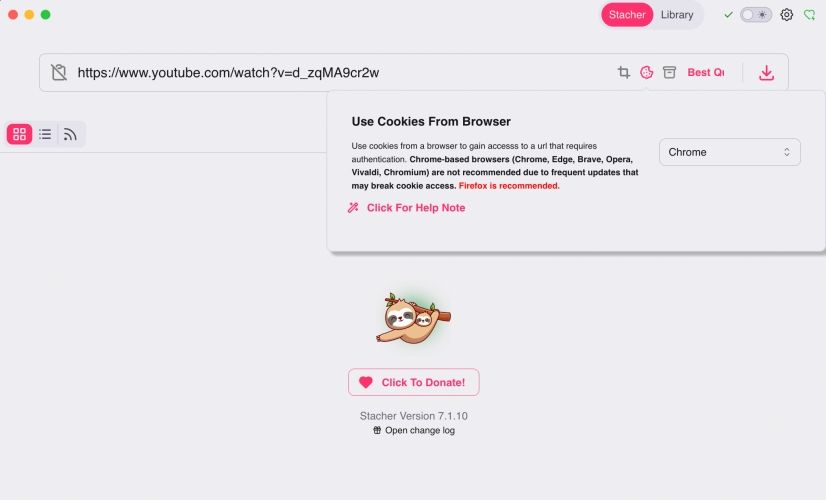
Step 1. Download and install Stacher on your computer.
Step 2. Open Stacher and you'll be asked to install yt-dlp and FFmpeg. Just choose Install yt-dlp for me (Recommended), and choose Install FFmpeg for me (Recommended).
Step 3. Click Looks good, let's go button to finish the setup.
Step 4. Copy the age-restricted YouTube video link and paste it in Stache.
Step 5. Click the cookies icon to choose the browser you used to verify your YouTube account to give cookies access to Stacher.
Step 6. Click the Download icon to download the age-restricted YouTube video to your computer.
Part 4. Conclusion
It's easier to download age-restricted YouTube videos if you have a premium membership and you are beyond the restricted age. But if you can't meet either of the requirements, you may need to utilize some third-party tools to save age-restricted videos on YouTube. You should always be aware that verifying your account and age is required to download an age-restricted YouTube video.

Dylan Jones
Editor in chief





