








Struggling to stream your favorite playlists because your school network blocks music sites? School administrators frequently restrict streaming media like Spotify to preserve network bandwidth and minimize classroom distractions. However, listening to music can actually help many students focus while studying. If you are facing Spotify blocking, this guide will offer 6 feasible ways to get Spotify unblocked at school.
- Part 1. How Can I Unblock Spotify At School?
- Part 2. How to Unblock Spotify at School
- Part 3. Bonus Tip to Unblock Spotify on Managed iPhone/iPad
- Part 4. Conclusion
Part 1. How Can I Unblock Spotify At School?
When a school network blocks Spotify, it usually does so through DNS filtering, URL blacklisting, Deep Packet Inspection, or Device Management. To bypass these roadblocks, you need a method that either encrypts your internet traffic, routes your connection through an unblocked server, uses an alternative network connection, or bypasses device-level restrictions. Below is a quick overview of the methods that may work.
| Method | Reliability & Speed | Setup Difficulty |
|---|---|---|
| Web Player | High | Easy |
| Mobile Hotspot | High | Very Easy |
| VPN Service | Moderate | Moderate |
| Web Proxy | Moderate | Easy |
| Offline Mode | Highest (100%) | Very Easy |
| MagFone iPhone Unlocker | High | Easy |
Part 2. How to Unblock Spotify at School
The solution to get Spotify unblocked at school depends on how your school blocked Spotify. Follow the methods below to test and find a way to unblock Spotify on your device.
Method 1. Use Unblocked Spotify Web Player
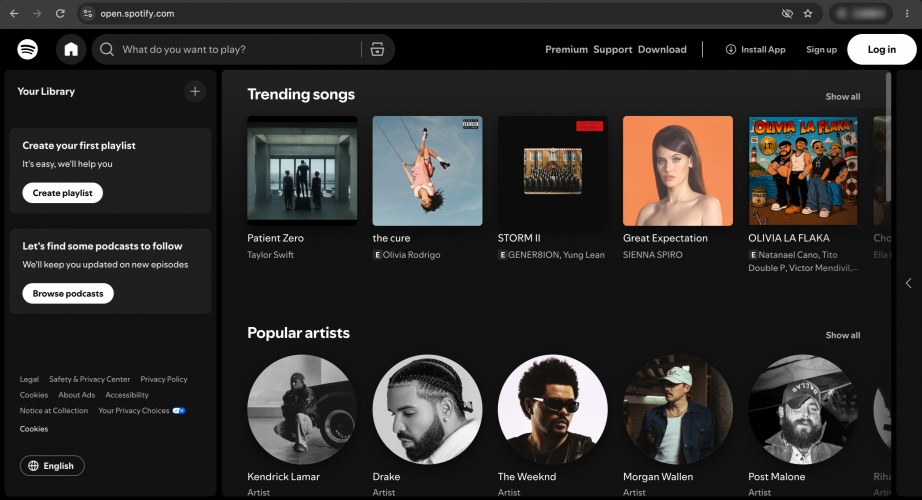
A Spotify web player may let you listen without installing the desktop or mobile app. In some cases, schools block the desktop or mobile app but overlook the web player domains or browser permissions. Open your web browser and navigate directly to open.spotify.com. If you can load this page, then you can start playing your playlist.
 Pros
Pros- No app installation required
- Easy to use

- May still be blocked
Method 2. Use Mobile Hotspot or Cellular Data
Schools often block Spotify because it consumes large bandwidth. So if Spotify is blocked on the school Wi-Fi network, you can consider switching to cellular data. You can turn off Wi-Fi and use your phone's mobile connection, or create a personal hotspot for another device if your mobile plan supports it.
Pros- Easy to access
- Bypasses school Wi-Fi restrictions
- Consumes mobile data
- May be slower or costly
Method 3. Use A VPN Service
A VPN routes your internet traffic through a separate server, which may help when a school network blocks Spotify by domain or service category. Since there are lots of VPN servers online, you can first try a free VPN service online to check if a VPN works to bypass the blocking.
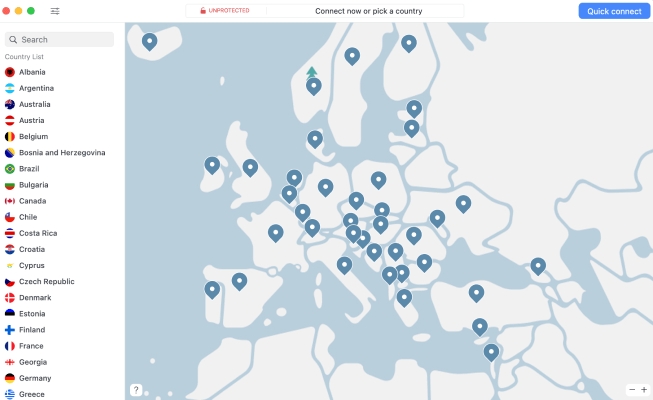
Step 1. Download and install a reputable VPN tool on your device.
Step 2. Launch the VPN and choose a location to connect to.
Step 3. Open Spotify and check if you can load the Spotify player.
Pros- Switch region to access Spotify
- Bypasses network-based restrictions
- Stable VPN usually costs money
- Affects connection speed
Method 4. Use Web Proxy
A web proxy may allow the Spotify Web Player to load when direct access is restricted. There are many free web proxies online, and some may be blocked if detected, so you can test them one by one; there should be one that works on your device. Below is a list of free web proxies that may help you access Spotify at school.
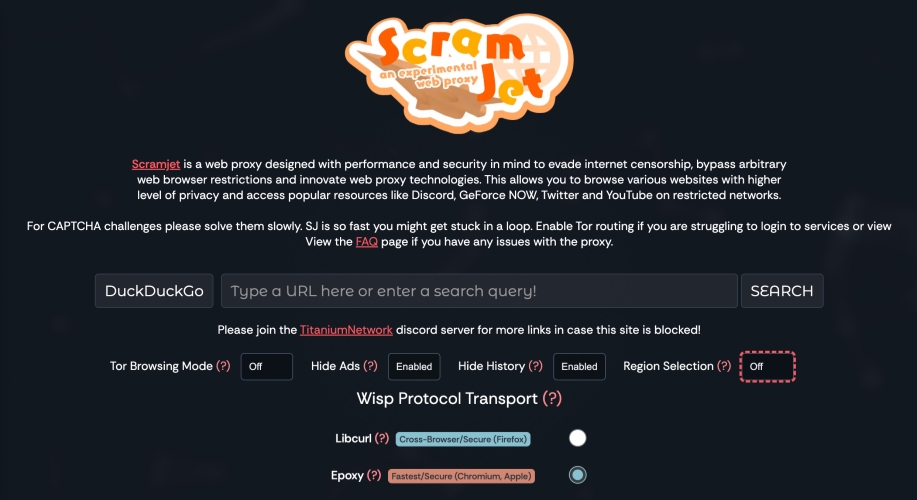
Step 1. Open a web proxy website in any browser.
Step 2. Enter open.spotify.com in the text box and go to the result. Then you may be able to access the Spotify website without being blocked.
Pros- Multiple web proxies to choose from
- Hides your activity and traces
- Easy to access through a browser
- The performance may be unstable
- Loading speed may be slow
- Frequently-used proxy may be detected and blocked
Method 5. Listen Offline
Spotify Premium allows eligible users to download songs, albums, and playlists for offline playback through the official app. If you want to enjoy music at school, you can also consider upgrading to Spotify Premium and downloading music before leaving home or while connected to an approved network. After that, you can listen to the downloaded music at school.
Step 1. Open Spotify on your mobile device or personal laptop at home.
Step 2. Go to your favorite playlists or albums.
Step 3. Toggle the Download button to download music.
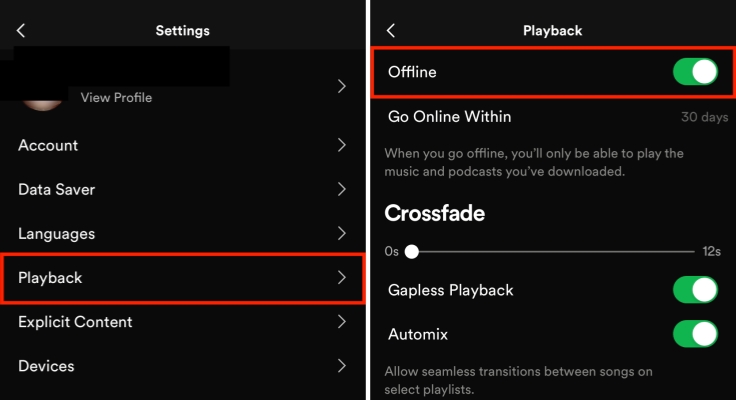
Step 4. Go to Spotify Settings > Playback and turn on Offline Mode. Then you can play your downloaded music without needing an active internet connection at school.
Pros- Reliable playback without school Wi-Fi
- Avoids streaming interruptions
- Requires an active Premium subscription
- Music must be downloaded in advance
Part 3. Bonus Tip to Unblock Spotify on Managed iPhone/iPad
Managed iPhones and iPads may have restrictions set by a school administrator, mobile-device-management system, or content-filtering profile. If Spotify cannot be installed or opened, you can consider using MagFone iPhone Unlocker to remove these restrictions. It is a comprehensive tool to remove remote device management and Screen Time from iOS devices without a passcode or password. If you want to listen to music on your managed iPhone or iPad, follow the steps below to get Spotify unblocked quickly.

MagFone iPhone Unlocker
Remove Remote Device Management and Screen Time on iPhone and iPad without needing a password.
Step 1 Install MagFone iPhone Unlocker
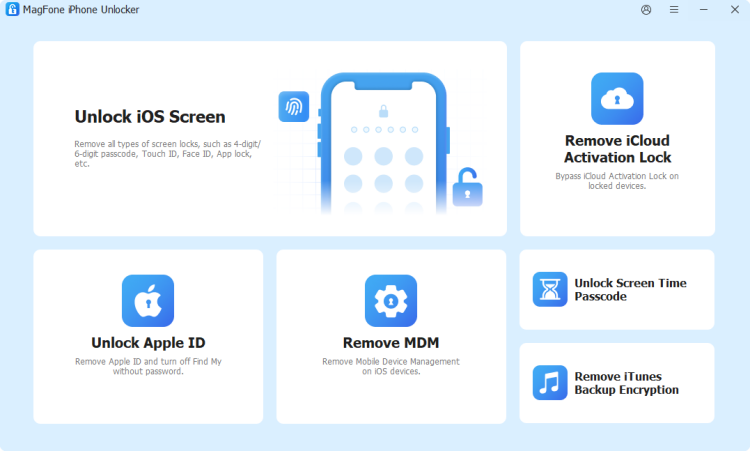
First, download and install MagFone iPhone Unlocker on your computer. Then use a data cable to link your iPhone or iPad to the computer. Afterwards, launch MagFone to start.
Step 2 Remove MDM or Screen Time without Password
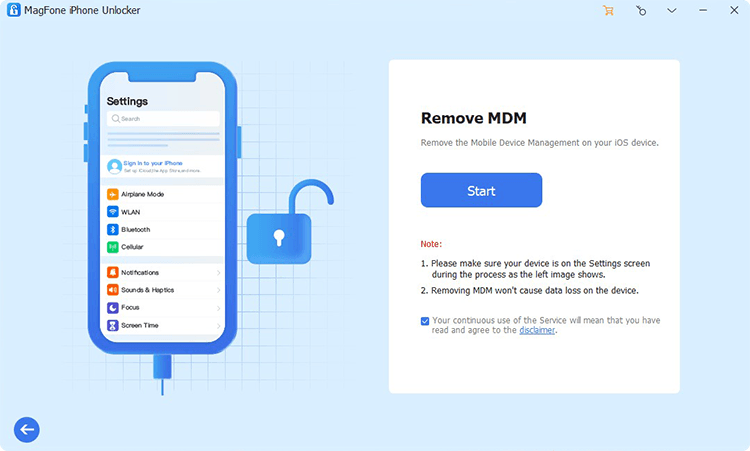
Click Remove MDM or Unlock Screen Time Passcode on MagFone's interface, then click Start to remove the MDM restrictions or Screen Time restrictions on your device.
Pros- Helps users remove device management
- Bypasses Screen Time restrictions
- Needs a computer
Part 4. Conclusion
When Spotify is blocked at school, you may have several options, including the official Web Player, cellular data, a reputable VPN, a web proxy, or Premium offline playback. By selecting the method that fits your device and network conditions, you can enjoy your favorite background music and stay focused throughout the school day.

Dylan Jones
Editor in chief





