








The iPhone lock screen is your first line of defense, keeping your personal data safe from prying eyes. Apple gives you multiple ways to secure your device, including a passcode, Touch ID, and Face ID. On iPhone X and later, Face ID takes center stage, letting you unlock your phone with just a glance. But what happens when your Face ID suddenly stops working, and you can't remember your passcode? It can feel like you're locked out for good. Don't worry. In this article, we'll walk you through practical steps to unlock iPhone without passcode or Face ID.

- Part 1. Can You Unlock an iPhone without Passcode or Face ID?
- Part 2. How to Open iPhone without Passcode or Face ID [No Data Loss]
- Part 3. How to Unlock iPhone without Passcode or Face ID [Using Apple ID]
- Part 4. How to Unlock iPhone without Face ID or Passcode [Using Computer]
- Part 5. FAQs about Unlocking iPhone without Passcode and Face ID
- Part 6. Conclusion

Part 1. Can You Unlock an iPhone without Passcode or Face ID?
When you are using an iPhone, it's not uncommon to forget the lock screen passcode or Face ID not recognized. Even strange issues like iPhone keeps going to lock screen happens randomly, which may lead to your iPhone been disabled or unavailable. Many users will ask can I unlock an iPhone without passcode or Face ID? Of course, you can unlock an iPhone without passcode or Face ID under certain conditions. Next, we will introduce how to unlock iPhone without passcode or Face ID in different conditions.
Part 2. How to Open iPhone without Passcode or Face ID [No Data Loss]
Generally, when you forget your iPhone passcode and Face ID is not working, most unlock methods will erase your data. However, there are a few methods that can help you unlock your iPhone without a passcode or Face ID and keep your data intact. Curious how it works? Read on to find out!
Method 1. Open iPhone Using Previous Passcode
With iOS updates, Apple has introduced a Passcode Reset feature, available on iOS 17 and later, that lets you unlock your iPhone using a previous passcode. This can be helpful if you've changed your passcode and forgotten the new one, but still remember the old one. As long as your passcode is changed within 72 hours, you can follow the steps below:
📝Requirements:
You know the old iPhone passcode.
You have changed the iPhone passcode within 72 hours.
iPhone is running iOS 17 or later.
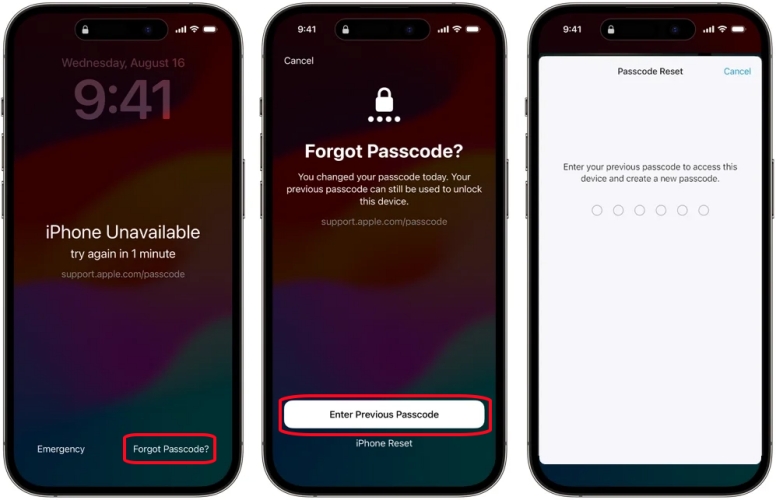
Step 1. On the iPhone Unavailable screen, tap the Forgot Passcode? option.
Step 2. Tap Enter Previous Passcode and enter your old passcode.
Step 3. Follow the onscreen instructions to set a new passcode for your device, then you can get into iPhone without passcode or Face ID.
Method 2. Open iPhone Using Calculator
Unlocking an iPhone with the Calculator app is a trick from TikTok. In some older versions of iOS, there was a vulnerability that allowed you to unlock iPhone only with the Calculator app, while neither entering the passcode or using Face ID.
📝Requirements:
You have added Calculator to the iPhone Control Center.
iPhone running iOS 17.5 or below
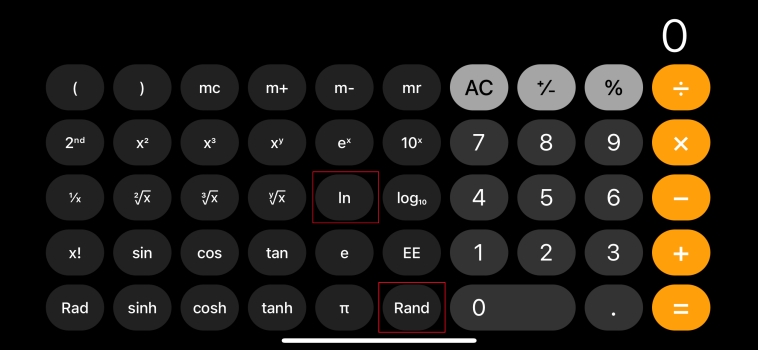
Step 1. On your iPhone, swipe down from the top-right edge to open Control Center.
Step 2. Turn off WiFi, Bluetooth, and Data in Control Center, then turn on Airplane Mode.
Step 3. Scroll down to tap Calculator and head to open Science Mode.
Step 4. Press In and Rand subsequently, then swipe up to unlock your iPhone.
Note:
It is important to note that this method is not an official unlocking method, and Apple has fixed the relevant vulnerabilities in subsequent systems. Therefore, it may only take effect on very limited devices and system versions, and the success rate is not stable, only as a trial scenario.
Method 3. Open iPhone Using Voice Control
Another method to help you unlock your iPhone without passcode or Face ID is to turn to Siri. If you have enabled Voice Control on your iPhone, then you can activate Siri and send a voice command to help you unlock your device. Do the following steps.
📝Requirements:
Voice Control must be enabled in advance.

Step 1. Press and hold the side button to activate Siri on your iPhone.
Step 2. Just say "Hey Siri, go to Home screen".
Part 3. How to Unlock iPhone without Passcode or Face ID [Using Apple ID]
In rare cases, it may be possible to unlock an iPhone using the Calculator or Siri. If you can remember your Apple ID password, you can directly erase your iPhone on the Security Lockout screen to unlock your device. Or you can use the Find My app or sign into iCloud to remotely delete the screen lock passcode on your iPhone. However, all of these methods will erase all data and settings on your iPhone.
Method 1. Unlock iPhone on Security Lockout Screen
When you have attempted to enter the wrong passcode up to ten times, you will see a prompt - iPhone Unvailable. It generally happens on those devices running iOS 15.2 or later. On the iPhone Unavailable screen, you can enter your Apple ID password to sign out and then erase your device. If you cannot unlock iPhone with passcode or Face ID, you can make use of Security Lockout.
On iPhone with iOS 15.2~17:
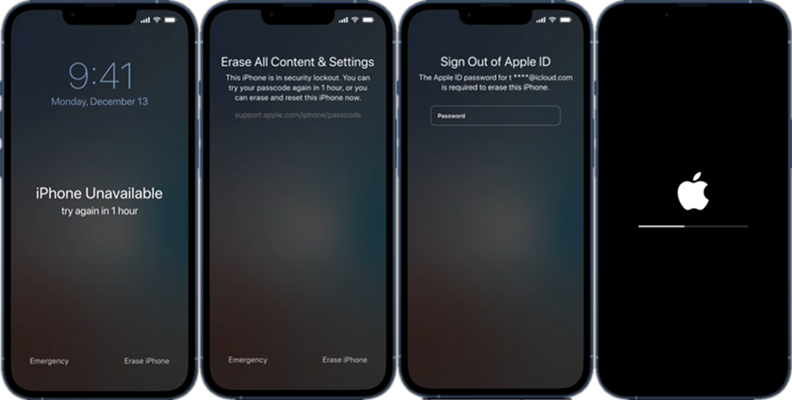
Step 1. On the iPhone Unavailable screen, tap Erase iPhone in the bottom right corner.
Step 2. Tap Erase iPhone again on the warning page.
Step 3. Then enter your Apple ID password to log out of your Apple ID.
Step 4. Tap Erase to confirm and start the removal process of the screen lock.
On iPhone with iOS 17 and later:
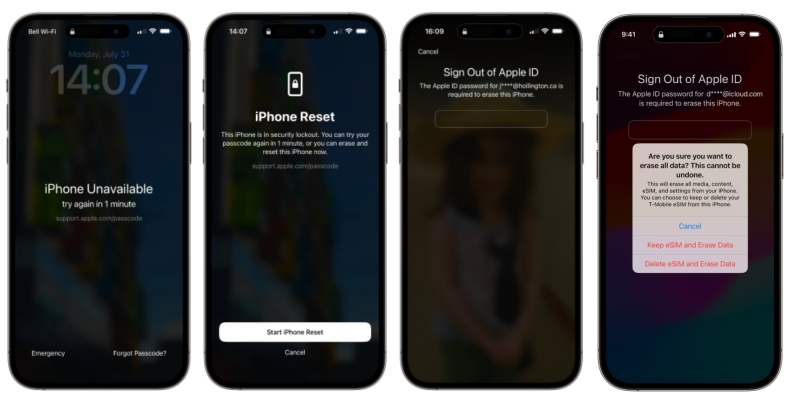
Step 1. On the iPhone Unavailable screen, tap the Forgot Passcode? button at the bottom right corner.
Step 2. On the next screen, tap Start iPhone Reset to confirm.
Step 3. Enter your Apple ID password to sign out of your Apple ID on your iPhone.
Step 4. Tap Erase iPhone to start deleting all the data and settings. Then you can set up your device again and create a new passcode.
Method 2. Unlock iPhone on iCloud.com
Another useful way is to delete the former screen lock passcode and Face ID on your iPhone on iCloud. Provided that you have enabled Find My on your iPhone, you can remotely erase your device to the factory default settings. Then you set up your device and create a new passcode for unlocking your iPhone. Go directly to iCloud.com, and you'll get your iPhone back to normal within minutes.
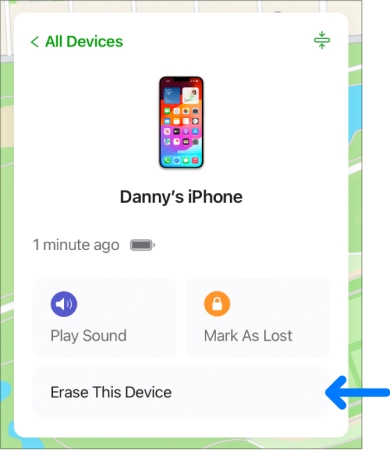
Step 1. Log in to iCloud with your Apple ID that you have used on your locked iPhone.
Step 2. Head to the Find My section and click All Devices at the top of the screen.
Step 3. Find and enter your locked iPhone's detail page.
Step 4. Click on the Erase This Device button, then click on the Next button.
Step 5. Enter your Apple ID password and two-factor authentication.
Step 6. Click on the Erase button to start erasing your iPhone.
Method 3. Unlock iPhone via Find My App
If you have more than one device where you log in with the Apple ID used on your locked iPhone, you can use the Find My app on all Apple devices like iPhone, iPad, and iPod touch to remotely wipe the screen lock. Make sure that you have Find My enabled on your locked iPhone. Or you cannot erase your locked iPhone through the Find My app.
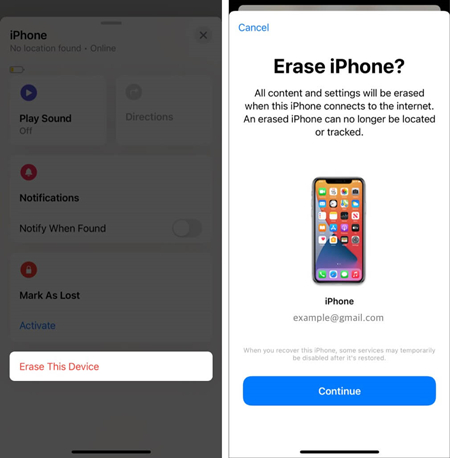
Step 1. Turn to the Find My app on your other Apple device and tap Devices at the bottom of the screen.
Step 2. Select your locked iPhone in the list and scroll down to tap Erase This iPhone.
Step 3. Tap Continue and enter your trusted phone number used for your Apple ID.
Step 4. Tap Erase iPhone and start remotely wiping all the data and settings.
Part 4. How to Unlock iPhone without Face ID or Passcode [Using Computer]
With your Apple ID password, you can unlock your iPhone without using Face ID or passcode by signing in to iCloud or using the Find My app. However, if you can't remember your Apple ID password, you won't be able to erase your iPhone this way. In that case, you can use an iPhone unlocker tool or iTunes to unlock your iPhone without Face ID or a passcode.
Method 1. Get into iPhone via MagFone iPhone Unlocker
No need for both Apple ID and iTunes, MagFone iPhone Unlocker can help you unlock your iPhone without passcode or Face ID. MagFone iPhone Unlocker is a multifunctional tool that specializes in removing various locks like the screen lock, Screen Time passcode, and Apple ID password on Apple devices, including iPhone, iPad, and iPod touch. The whole process of unlocking an iPhone without passcode or Face ID via MagFone software will only take a few minutes, so it is rather convenient and fast.

MagFone iPhone Unlocker
Unlock various locks on iOS devices, including screen locks, MDM, Apple ID, and Activation Lock without needing a password.
Step 1 Run MagFone iPhone Unlocker and Connect iPhone

Download and install MagFone iPhone Unlocker, then open it on your computer. Go to connect your iPhone to the computer through a USB cable. On the main interface of the MagFone software, select Remove Lock Screen and click on the Next button.
Step 2 Put Locked iPhone into Recovery Mode or DFU Mode
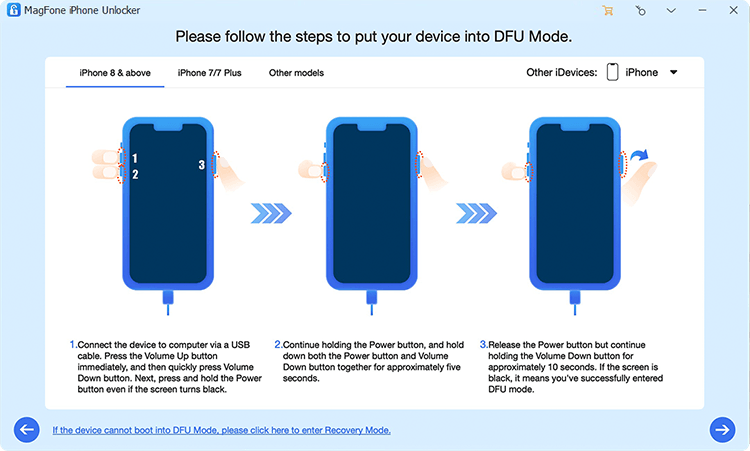
After your device is detected by the MagFone software, you will need to put your locked iPhone into recovery mode by following the onscreen instruction. If you fail to put your device into recovery mode, you have to make it enter DFU mode.
Step 3 Download and Verify the Firmware Package for iPhone

When your device is in recovery mode or DFU mode, your device will be displayed on the screen with the information. Check whether the device information is right or not. If the information is wrong, correct it and then click on the Download button.
Step 4 Start to Unlock iPhone without Passcode or Face ID

Once the firmware is downloaded to your computer, you can click on the Unlock button to start removing the screen lock. MagFone iPhone Unlocker will delete the screen lock in several minutes. Keep your device connected to the computer until the process ends.
Option 2. Open iPhone without Face ID or Passcode via iPhone Unlocker
iTunes restore is a great option to remove the screen lock on all Apple devices like iPhone, iPad, and iPod touch. If you cannot unlock your iPhone with a passcode or Face ID, you can use iTunes on a Windows PC or Finder on a Mac to restore your locked in recovery mode. After restoring it, you can set it up and create a new passcode.

Step 1. Connect your iPhone to your computer through a USB cable.
Step 2. Power off your device and put it into recovery mode.
Step 3. Open iTunes or Finder on your computer, then click on the Restore button.
Step 4. Wait for an iPhone to complete restoration. Then you can reset your device.
Part 5. FAQs about Unlocking iPhone without Passcode or Face ID
How to reset iPhone without Face ID or passcode?
To reset an iPhone without Face ID or a passcode, you can sign in to iCloud or use the Find My app with your Apple ID password to operate. If you've also forgotten your Apple ID password, MagFone iPhone Unlocker is an alternative option to help you reset your device.
How to unlock iPhone without passcode using Camera?
It is impossible to unlock iPhone using Camera. Unlocking iPhone without passcode using Camera is just a trick from TikTok.
How to bypass iPhone passcode without losing data?
If you meet the requirements in Part 2, then it's possible to bypassing iPhone passcode without losing data. All other methods will erase all the settings and data on the iPhone during the process of deleting the passcode.
How to unlock iPhone with Apple Watch without passcode?
You can unlock iPhone with Apple Watch without passcode. If you have set up Apple Watch on your iPhone, then you can remotely unlock your iPhone without entering a passcode.
Part 6. Conclusion
All the methods we provided in this guide are proven to be useful, but their requirements differ. Some solutions need your Apple ID and password, while others require access to another device or a computer. If you have trouble following the steps or fail to unlock iPhone without Face ID or passcode, MagFone iPhone Unlocker can help you out quickly. With just a few clicks, you can remove the lock screen and regain access to your device. Have a try and tell us your ideas.

Teresa Miller
Editor in chief





