








Can someone use my face to unlock my iPhone 13 Pro Max while I am sleeping?"
—— From the Apple Community
In the same way that Touch ID revolutionized authentication using fingerprints, Face ID revolutionizes authentication using facial recognition. Face ID lets you securely unlock your iPhone or iPad, authenticate purchases, sign in to apps, and more, all with a single glance. However, when it comes to unlocking iPhone with Face ID, lots of users have many questions about Face ID. Does Face ID work with eyes closed? Can you unlock Face ID while sleeping? How to unlock iPhone Face ID while sleeping? In this article, we will form a response to these questions.
- Part 1. Can You Unlock an iPhone with Face ID While Sleeping?
- Part 2. How to Prevent iPhone from Unlocking While Sleeping
- Part 3. How to Unlock iPhone Face ID While Sleeping [No Passcode]
- Part 4. FAQs about Unlocking iPhone with Face ID
- Part 5. Conclusion
Part 1. Can You Unlock an iPhone with Face ID While Sleeping?
Whether an iPhone can be unlocked with Face ID while sleeping depends on your Face ID settings. By default, you cannot unlock an iPhone with Face ID while sleeping because the iPhone requires users to pay attention to the camera sensor for recognition. However, this can be adjusted in Settings. If you disable Require Attention for Face ID on your iPhone, then your iPhone can be unlocked with Face ID while sleeping.
Part 2. How to Prevent iPhone from Unlocking While Sleeping
In this case, iPhone users want to avoid someone unlocking their iPhone when sleeping. If you want extra security to prevent someone from unlocking your iPhone while sleeping, you can enable Require Attention for Face ID on your iPhone. With Require Attention for Face ID enabled, your iPhone can only be unlocked when you look at the camera of your iPhone. Here's how to set up Face ID and enable Require for Face ID on the iPhone.
Step 1. Go to Settings on your iPhone, then tap Face ID & Passcode.
Step 2. Tap Set Up Face ID, then tap Get Started and start to enroll your face.
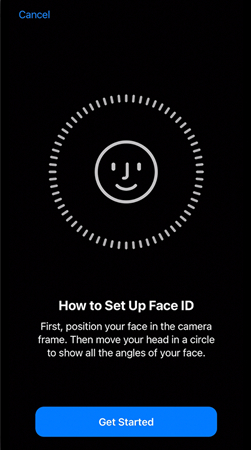
Step 3. When you finish the first Face ID scan, tap Continue, then enroll your face again.
Step 4. Tap Done and go back to Face ID & Passcode, then scroll down to find Require Attention for Face ID.
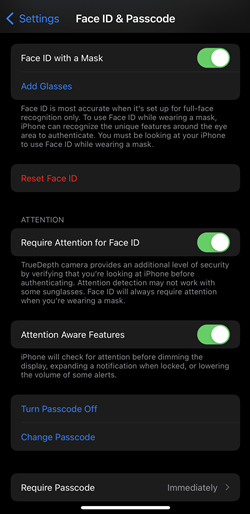
Step 5. After turning Require Attention for Face ID, turn Attention Aware Features on.
Now, someone cannot unlock your iPhone with your face while you're sleeping. When enabling Require Attention for Face ID, you need to pay attention to the camera for unlocking iPhone with Face ID. Or you cannot unlock your iPhone only with your face.
Part 3. How to Unlock iPhone Face ID While Sleeping [No Passcode]
With passcode or Require Attention disabled on iPhone, you can easily unlock iPhone Face ID while sleeping. But what if the Require Attention feature is enabled and you cannot remember the passcode? Here are 5 methods to help you unlock iPhone Face ID while sleeping without a passcode.
Method 1. Unlock iPhone Face ID using MagFone iPhone Unlocker
MagFone iPhone Unlocker is a remarkable unlocking tool designed for iPhone, iPad, and iPod touch. It features in unlocking screen locks, such as Face ID, Touch ID, and digit passcode, in different scenarios, whether you forgot the passcode or Face ID is not working. Besides, it supports removing Apple ID, Screen Time passcode, and MDM restrictions. Now follow the steps below to unlock iPhone Face ID without a passcode.

MagFone iPhone Unlocker
Unlock various locks on iOS devices, including screen locks, MDM, Apple ID, and Activation Lock without needing a password.
Step 1 Connect iPhone to Computer and Run MagFone

Download and Install MagFone iPhone Unlocker, then open it on your computer. Connect your iPhone to your computer through a USB cable. On the interface of MagFone software, select Unlock iOS Screen and click the Start button.
Step 2 Proceed to Enable iPhone into Recovery Mode
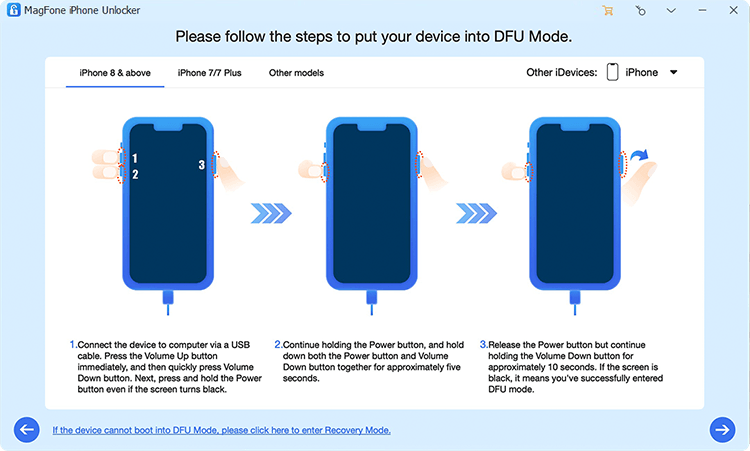
Then you have to put your iPhone into recovery mode by following the onscreen instructions. Then, proceed to click the Next button.
Step 3 Download the Firmware Package for iPhone

Next, carefully check the device information of your iPhone shown on the software. If there is something wrong, you can manually correct it according to your device. Then you can click the Download button to download the firmware package.
Step 4 Remove Face ID and Passcode from iPhone

Finally, you can click the Unlock button to start unlocking your iPhone after the firmware package is downloaded. In the whole process, keep your device connected to your computer. When the process is over, you can set up your device.
Method 2. Unlock iPhone Face ID with iTunes
You can also use iTunes to restore your iPhone to unlock iPhone Face ID. With iTunes, you can completely reset your device, including deleting the screen lock passcode. Afterwards, you can restore iPhone from an iTunes backup if there is one.

Step 1. Get your iPhone into recovery mode and link it with a computer.
- iPhone 8 and later: Press the volume up button, volume down button in sequence. Then keep pressing the power button until a computer icon appears on the screen.
- iPhone 7 series: Hold the power button and the volume up button at the same time until a computer icon appears on the screen.
- iPhone 6s and earlier: Hold the power button and the home button at the same time until a computer icon appears on the screen.
Step 2. Open iTunes and click the device icon.
Step 3. A window will pop up, choose Restore to restore the iPhone to the factory settings, as well as unlock iPhone Face ID.
Method 3. Unlock iPhone Face ID from Lock Screen
When the iPhone is running a system version after iOS 15, there is an option to erase the iPhone directly from the lock screen. So, if you want to unlock iPhone Face ID while sleeping, this is also an available option.
On iOS 15.2 ~ iOS 16:
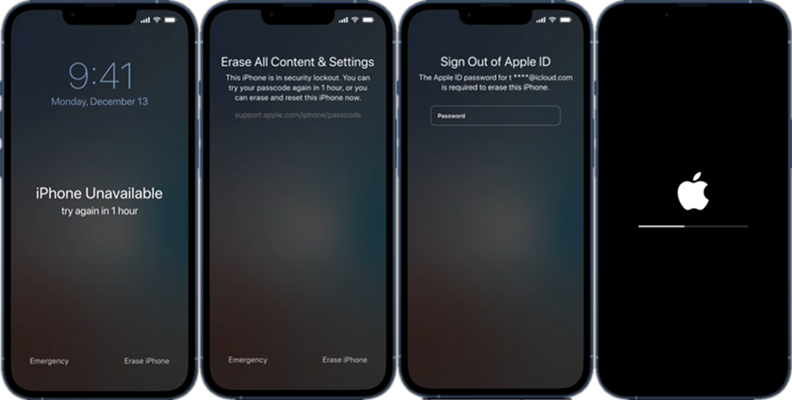
Step 1. Enter the wrong passcode 5 times to enter the iPhone Unavailable screen.
Step 2. Tap Erase iPhone option at the bottom right.
Step 3. Enter the linked Apple ID password to erase iPhone.
On iOS 17 and later:
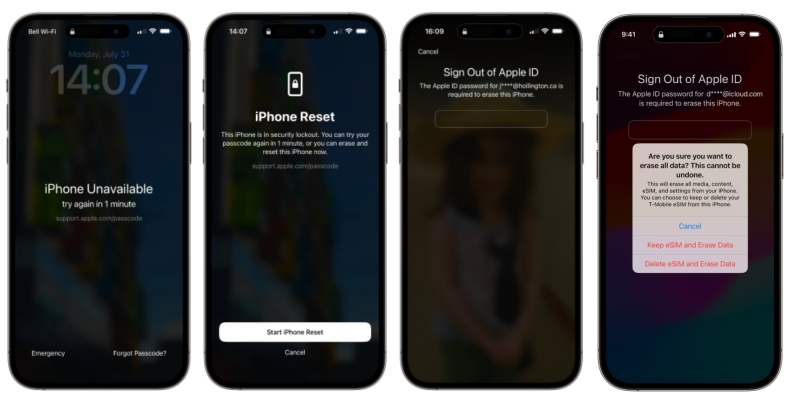
Step 1. Input the wrong passcode 5 times to enter the iPhone Unavailable screen.
Step 2. Tap Forgot Passcode? option and tap Start iPhone Reset.
Step 3. Enter the Apple ID password to proceed with erasing the iPhone.
Method 4. Unlock iPhone Face ID at iCloud.com
With Apple ID password and Find My iPhone enabled on the iPhone, iCloud enables all users to remotely manage and control their Apple devices. When you cannot unlock your iPhone with Face ID or passcode, you can erase your device at iCloud website to delete the screen lock passcode.
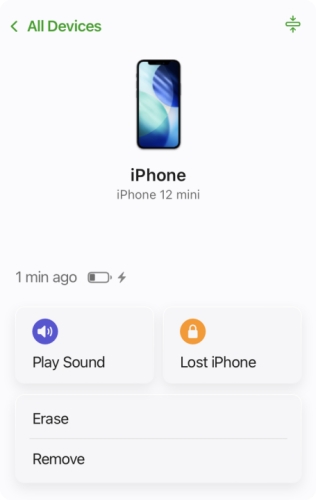
Step 1. Log in to iCloud.com with your Apple ID and password.
Step 2. Click the target iPhone from the device list.
Step 3. Click Erase > Next. Then enter a phone number and Apple ID password and click the Erase iPhone button to confirm.
Method 5. Unlock iPhone Face ID in Find My App
Provided that you have more than one Apple device, you can use the Find My app to wipe your iPhone to delete the screen lock passcode. By wiping your device in the Find My app, you can set it up and create a new screen passcode.
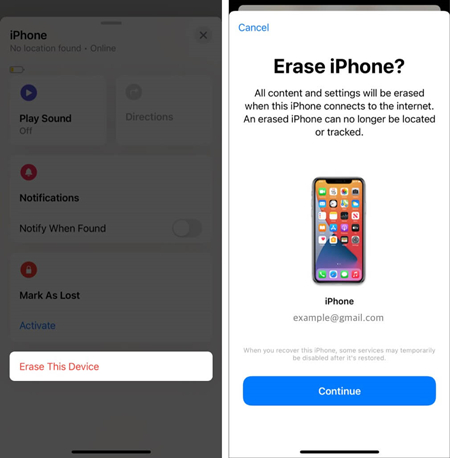
Step 1. Launch the Find My app on your Apple device and tap Devices.
Step 2. Find and select your iPhone to delete the screen lock passcode.
Step 3. Tap Erase This Device, then enter your trusted phone number.
Step 4. Tap Erase iPhone to confirm that you want to erase your device.
Part 4. FAQs about Unlocking iPhone with Face ID
Does Face ID work with eyes closed?
By default, Face ID works with eyes staring at the camera. But if you have turned off Require Attention for Face ID on your iPhone, Face ID can work with eyes closed.
Can you unlock an iPhone with a picture?
No, you cannot unlock iPhone Face ID with picture as Apple uses the TrueDepth camera to capture accurate Face date.
Does Face ID work with a mask?
Yes, Face ID works with a mask. To make it, you need to enable the feature of unlocking iPhone with a mask on your iPhone in advance.
Part 5. Conclusion
It is possible to unlock iPhone Face ID while sleeping if the Require Attention for Face ID is not started. To avoid someone unlocking your iPhone when sleeping, you can enable Require Attention for Face ID on your iPhone. While you can't unlock an iPhone with Face ID, you can use MagFone iPhone Unlocker to remove Face ID and passcode quickly.

Teresa Miller
Editor in chief





