








My iPad was lost then found. I don't have a computer or access to one with iTunes. I don't have an Apple Store close by that I cant get too. I have everything including box and original receipt for the iPad. How can I get the screen unlocked since it will not go online without me connecting it to WiFi for the erase to even work."
Have you encountered the same issue as described above? Many iPad users cannot unlock their device due to a forgotten iPad screen passcode or other reasons. While Apple's advanced security makes unlocking your iPad without a passcode or computer challenging, there are still some practical solutions you can try. In this guide, we will walk you through up-to-date methods to help you regain access to your iPad, even without a computer.
- Part 1. How Do You Unlock an iPad without a Computer?
- Part 2. How to Unlock iPad Passcode without Computer [No Data Loss]
- Part 3. How to Unlock iPad without Passcode or Computer [Need Apple ID Password]
- Part 4. How to Unlock iPad Passcode with Computer [No Apple ID Password]
- Part 5. How to Restore iPad from Backup after Unlocking
- Part 6. Conclusion
Part 1. How Do You Unlock an iPad without a Computer?
Absolutely, you can unlock your iPad passcode without using a computer, which mainly relies on the Find My feature. To help you gain a clear understanding of each method, we have compared them from different perspectives. In addition, we will share some other methods to get your iPad unlocked with a computer.
| Methods | Supported OS | Apple ID & Password | Find My iPad | Data Loss | Easy to Use | Recommendation |
|---|---|---|---|---|---|---|
| Siri | iPadOS 8.0 to iPadOS 10.1 | ❌ | ❌ | ❌ | Complex | ⭐⭐⭐ |
| Previous Passcode | iPadOS 17 and later | ❌ | ❌ | ❌ | Easy | ⭐⭐⭐ |
| Security Lockout | iPadOS 15.2 and later | ✔️ | ✔️ | ✔️ | Easy | ⭐⭐⭐⭐ |
| iCloud | All iPadOS | ✔️ | ✔️ | ✔️ | Complex | ⭐⭐⭐ |
| Find My App | All iPadOS | ✔️ | ✔️ | ✔️ | Complex | ⭐⭐⭐ |
| MagFone iPhone Unlocker | All iPadOS | ✔️ | ❌ | ✔️ | Easy | ⭐⭐⭐⭐⭐ |
| iTunes | All iPadOS | ✔️ | ❌ | ✔️ | Easy | ⭐⭐⭐⭐ |
Part 2. How to Unlock iPad Passcode without Computer [No Data Loss]
To unlock an iPad passcode without a computer and without data loss, the only thing you can do is to use the previous passcode. To use this method to unlock the iPad passcode, make sure the following requirements are met, then you can follow the steps below to unlock the iPad.
📝Requirements:
iPad is running iPadOS 17 and later.
The iPad passcode has been changed in the past 72 hours.
You know the previous iPad passcode.
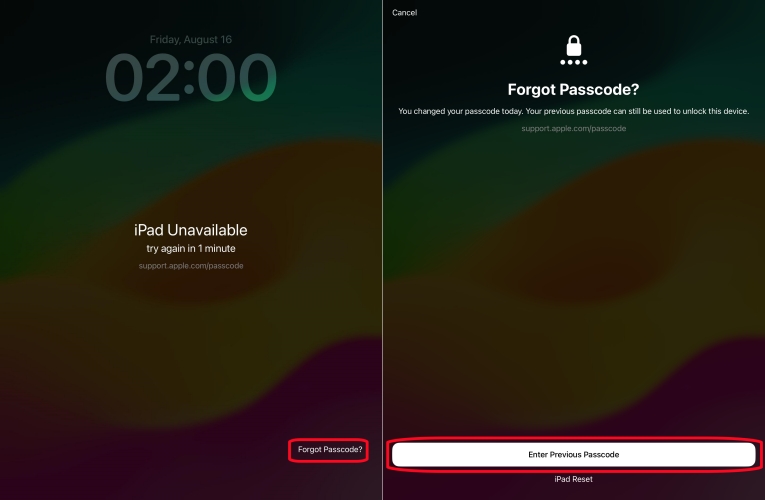
Step 1. On the iPad Unavailable screen, tap the Forgot Passcode? at the bottom.
Step 2. Tap the Enter Previous Passcode button on the Forgot Passcode screen.
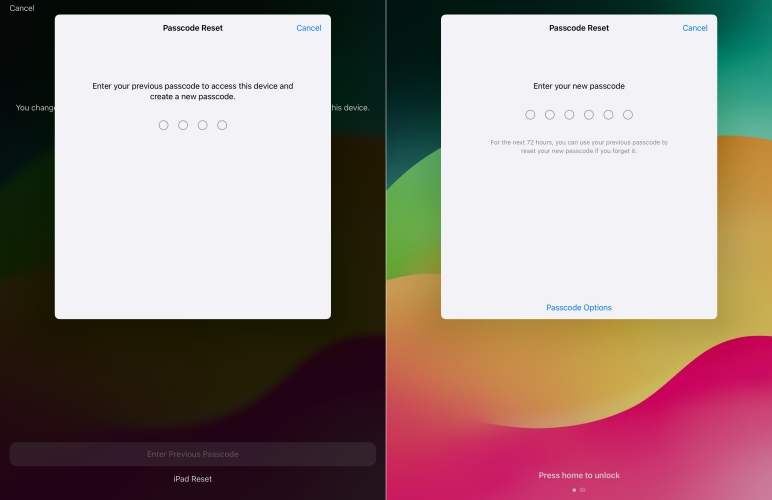
Step 3. Enter your old passcode used before and set a new passcode.
Part 3. How to Unlock iPad without Passcode or Computer [Need Apple ID Password]
The Find My feature allows you to unlock iPad without passcode or computer. When Find My is enabled on iPad, you can erase the iPad via the lockout screen, iCloud website, and Find My app. These methods require the linked Apple ID password on iPad. If you know it, follow the steps below to unlock iPad passcode.
Method 1. Erase iPad on Security Lockout Screen
When your iPad has been updated to iOS 15.2 or later, you can directly wipe all the settings and data, including the screen passcode on your iPad, on the Security Lockout screen.
📝Requirements:
iPad is running iPadOS 15.2 or later.
Find My is enabled on iPad.
You know the linked Apple ID password.
iPad is connected to a network.
iPadOS 15.2 and iPadOS 16:
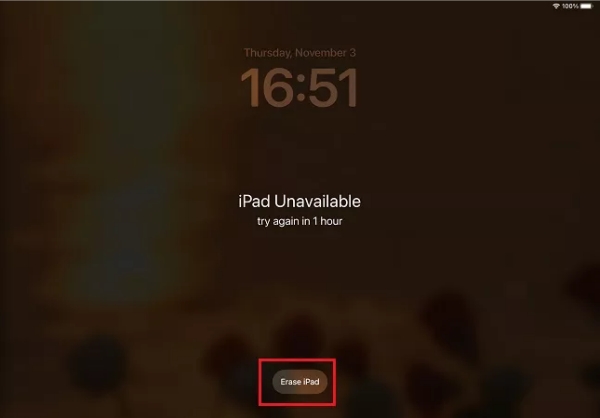
Step 1. Enter the wrong passcode on your iPad until the Security Lockout screen appears.
Step 2. Tap the Erase iPad button in the bottom corner of the screen, then tap it again.
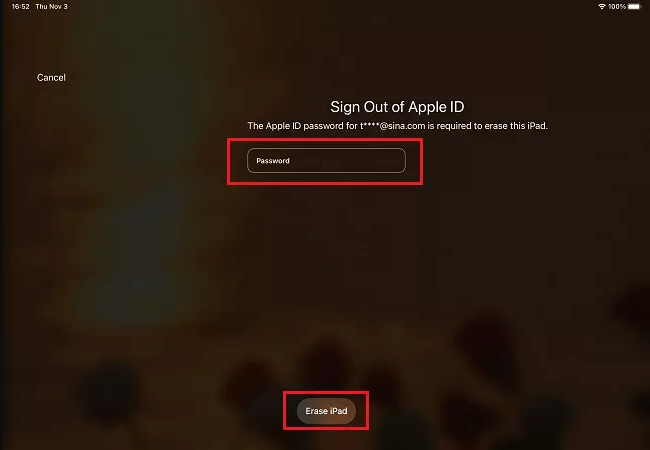
Step 3. Enter your Apple ID password to sign out of your Apple ID on your disabled iPad.
Step 4. Tap the Erase iPad button to permanently wipe all the data and settings on the device.
iPadOS 17 or later:
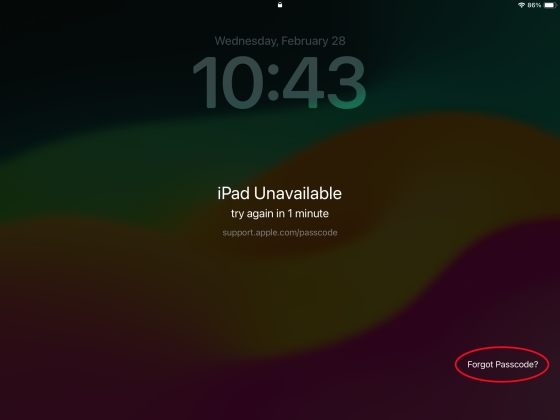
Step 1. Enter the wrong passcode on your iPad until the iPad Unavailable screen appears.
Step 2. Tap Forgot Passcode? at the bottom and tap Start iPad Reset.
Step 3. Enter the linked Apple ID password and tap Erase iPad to erase all content and settings on the iPad.
Method 2. Reset iPad to Delete Passcode at iCloud
iCloud is another option to restore your disabled iPad to factory settings, then you have the chance to set up your device. When the Find My feature is enabled on your iPad, you can log into iCloud and reset your device.
📝Requirements:
Find My is enabled on your iPad.
You know the linked Apple ID password.
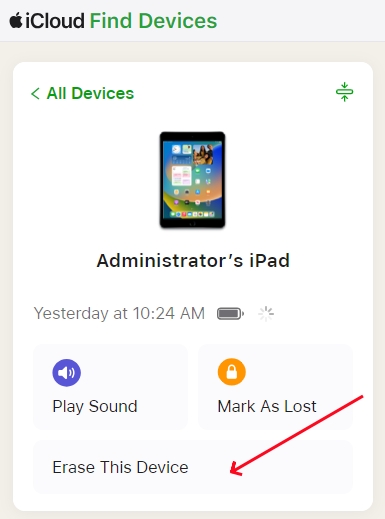
Step 1. Visit www.icloud.com and log into iCloud with your Apple ID and password.
Step 2. Select your disabled iPad and click Erase This Device or the Erase option.
Step 3. Click Next and enter the Apple ID password to proceed. If you are required for 2FA verification, enter the verification code you receive to confirm.
Method 3. Wipe iPad Passcode via the Find My App
If you have more than one Apple device, you can use the Find My app on your Apple device to remotely manage your disabled iPad. When you sign in to the same Apple ID on your Apple device, you can remotely erase another Apple device by entering your Apple ID password and trusted phone number.
📝Requirements:
Find My is enabled on iPad.
You know the linked Apple ID password.
You have another Apple device.

Step 1. Fire up the Find My app on any Apple device you own and tap the Devices button.
Step 2. Then select your disabled iPad in the device list and tap the Erase This Device button.
Step 3. Tap the triple-dot icon and tap the Erase option.
Step 4. Tap Continue and tap Erase.
Step 5. Enter your Apple ID password, then tap the Erase button to confirm.
Part 4. How to Unlock Locked iPad with Computer [No Apple ID Password]
With the above methods, you can unlock an iPad without a computer. Here you can also try unlocking a disabled iPad on your computer. There are two options, respectively, using an iPad unlocker and using iTunes, for you to choose from. The process of unlocking an iPad with a computer is easy. Let's dive into the details.
Method 1. Use iPad Unlocker to Unlock Disabled iPad
Undoubtedly, using an iPad unlocker is the quickest way to unlock your iPad when it is disabled. Here MagFone iPhone Unlocker is a great option if you want to unlock a disabled iPad in no time. MagFone iPhone Unlocker is designed to help users to unlock iPad, iPhone, and iPod touch in different situations. It can remove various screen locks, such as 4-digit passcode, 6-digit passcode, Touch ID, and Face ID.
The functions of MagFone iPhone Unlocker go beyond that. It can also be used to delete Apple ID and MDM restrictions without a password, and get rid of Screen Time without a passcode. Besides passcode removal, it can also find saved passwords on iPhone, making it a versatile password tool.

MagFone iPhone Unlocker
Unlock various locks on iOS devices, including screen locks, MDM, Apple ID, and Activation Lock without needing a password.
Now perform the steps below to unlock iPad passcode without a computer.
Step 1 Connect iPad to Computer and Launch MagFone
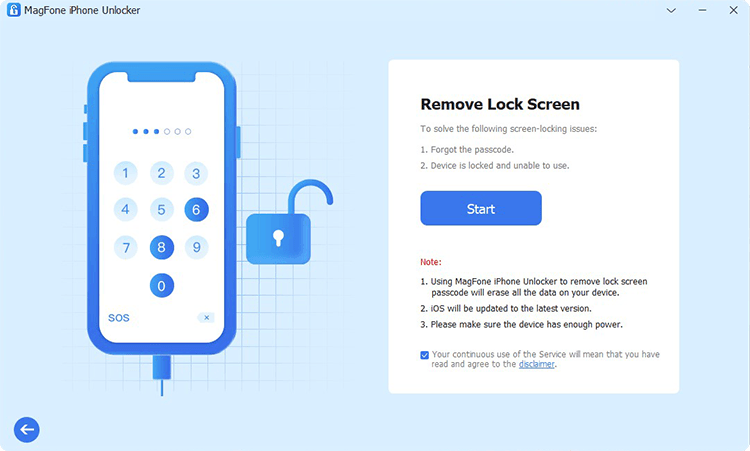
Use a USB cable to connect your iPad to a computer and launch MagFone iPhone Unlocker on the computer. Then select the Unlock iOS Screen option and click the Start button.
Step 2 Boot Disabled iPad into Recovery Mode or DFU Mode
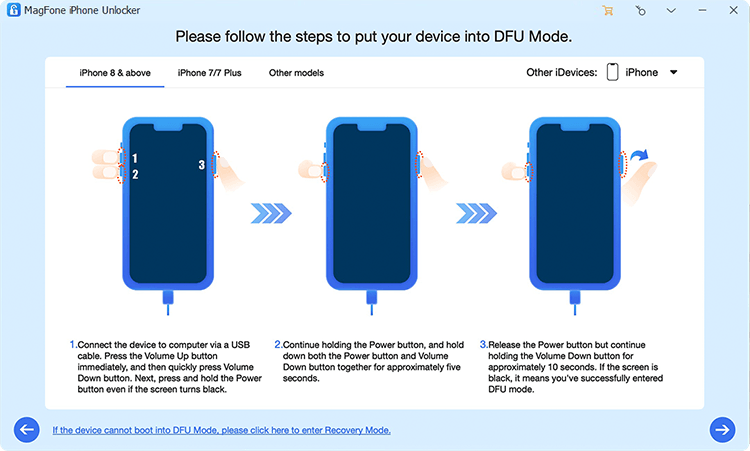
Then follow the onscreen instructions to put your disabled iPad into recovery mode. If you cannot get it done, you can click the link on the software to boot it into DFU mode.
Step 3 Check the Device Info and Download the Firmware Package

Go to check the device information of your device. Simply correct the wrong information, then click the Download button to download the matching firmware package for your device.
Step 4 Start to Remove Passcode from Disabled iPad
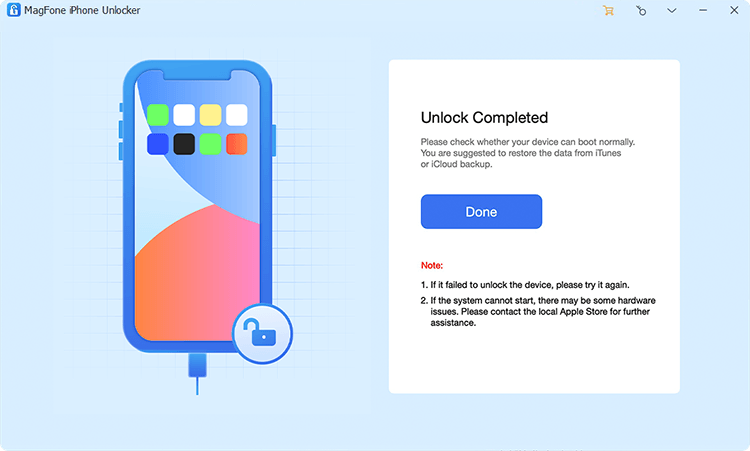
Now click the Unlock button at the bottom right corner of the software. MagFone iPhone Unlocker will immediately remove the screen passcode from your iPad.
Method 2. Restore Disabled iPad with iTunes/Finder
When you forgot the iPad passcode, iTunes can help you restore the locked iPad. You can use iTunes on a PC or the Finder on a Mac to restore your disabled iPad to the normal status for use again.
Option 1. Unlock iPad with iTunes Restore
If you have connected your iPad to your computer before, you can directly get your disabled iPad to the computer with a USB cable. Then you can directly restore your device on iTunes.
📝Requirements:
The Find My iPad is disabled.
The computer is trusted by the iPad.
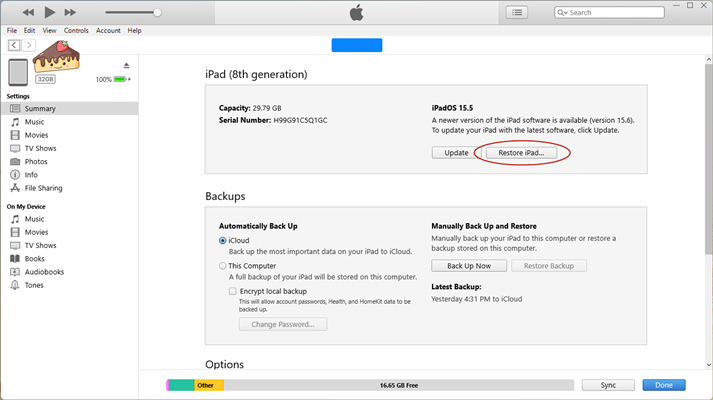
Step 1. Get your iPad connected to a computer that you've synced with before.
Step 2. Launch iTunes and click your device icon, then go to the Summary tab.
Step 3. Under Summary, click the Restore iPad button and click it again to confirm.
Option 2. Unlock iPad in Recovery Mode
If you try to connect your disabled iPad to a computer that is not trusted by your device, you need to put your device into recovery mode. Then you can restore your iPad for use again.
📝Requirements:
The Find My iPad is disabled.
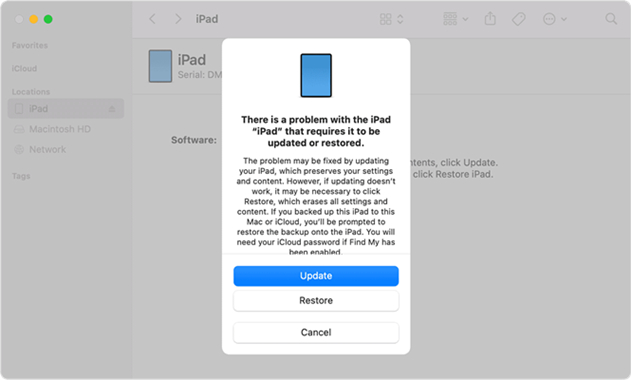
Step 1. Turn off your disabled iPad and enable your device into recovery mode while connecting it to a computer.
Step 2. Open iTunes on a Windows PC or the Finder on a Mac, then click your device icon.
Step 3. In the pop-up window, select the Restore option to reset your device to the original factory settings.
Part 5. How to Restore iPad from Backup after Unlocking
After resetting your disabled iPad to the default settings, you will lose all the data and settings on your device. But don't worry, you can recover your iPad from a backup. If you have turned on iCloud backup on your iPad, you can find all the data and settings when setting up your device. Or you can connect your iPad to your computer to recover the data if your iPad was synced with your computer before. Let's see how to.
Option 1. Restore iPad from a Backup in iCloud
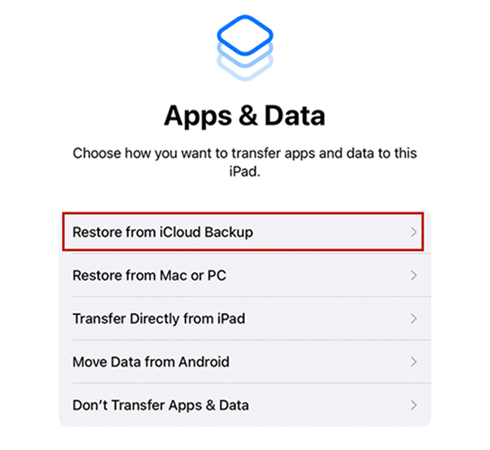
Step 1. Power on your iPad and follow the onscreen setup steps.
Step 2. On the Transfer Your Apps & Data screen, select the Restore from iCloud Backup option.
Step 3. Enter your Apple ID and password to sign in to iCloud, then choose a backup.
Step 4. Stay connected to Wi-Fi and wait for the iCloud backup to be synced. Step 5. Keep finishing the setup steps.
Option 2. Restore iPad from a Backup on Computer
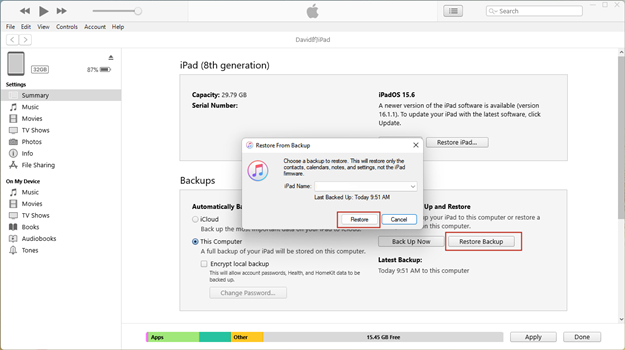
Step 1. Power on your iPad and follow the onscreen setup steps.
Step 2. On the Transfer Your Apps & Data screen, select the Restore from Mac or PC option.
Step 3. Select your iPad in the Finder or iTunes and click the Restore Backup button.
Step 4. Look at the date of each backup and pick the most relevant in the pop-up window.
Step 5. Click Restore and wait for the restore to finish. If asked, enter the password for your encrypted backup.
Part 6. Conclusion
All in all, the aforementioned methods can help you unlock a disabled iPad no matter whether you have a computer. When you don't have a computer or cannot borrow a computer, you can choose to unlock your iPad by using iCloud or the Find My app. If the screen passcode still cannot be removed, you can use MagFone iPhone Unlocker.

Teresa Miller
Editor in chief




