








Hello everyone. I charged my phone overnight, and when I wake up I saw ‘iPhone Unavailable try again in 3 hours', so I waited until it got stuck on 2 hour 8 minutes. I tried restarting my phone and it started on 3 hours again. Can anyone help me with these kind of issues?
—— From the Apple Community
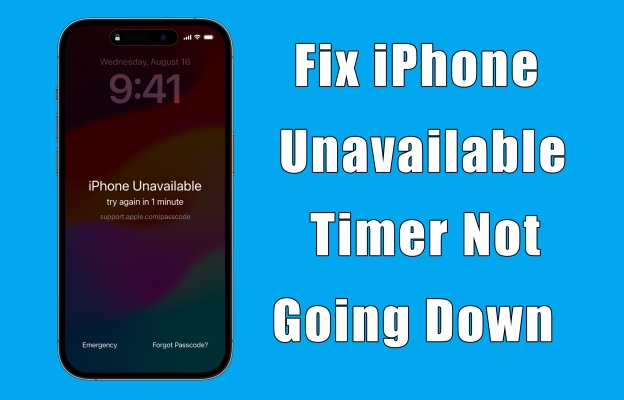
If you've ever been locked out of your iPhone and found the iPhone Unavailable timer not going down, you're not alone. In the Apple community, we've found lots of threads about iPhone Unavailable timer stuck. This issue can be frustrating, especially when you're trying to get back into your device after several incorrect passcode attempts. In this article, we'll walk you through why this happens and how you can fix iPhone Unavailable timer not going down.
- Part 1. Why Is My iPhone Unavailable Timer Not Going Down?
- Part 2. What to Do When iPhone Unavailable Time Not Changing?
- Part 3. How to Bypass iPhone Unavailable Timer Not Going Down
- Solution 1. Fix iPhone Unavailable Timer Stuck via Erase iPhone
- Solution 2. Fix iPhone Unavailable Timer Stuck via iPhone Unlocker
- Solution 3. Fix iPhone Unavailable Timer Stuck via iTunes/Finder
- Solution 4. Fix iPhone Unavailable Timer Stuck at iCloud.com
- Solution 5. Fix iPhone Unavailable Timer Stuck via Find My App
- Part 4. FAQs about iPhone Unavailable Timer
- Part 5. Conclusion
Part 1. Why Is the iPhone Unavailable Timer Not Going Down?
When you enter the wrong passcode multiple times in a row, your iPhone will be temporarily disabled to protect your data from unauthorized access. This is called the "iPhone Unavailable" state. The timer starts counting down, and after a certain number of incorrect attempts, your device will be locked for a specific period. However, the timer doesn't always go down as expected, and this can be due to:
Reason 1. Software Bugs and Glitches
Sometimes, the timer fails to reset because of a bug in your iPhone's operating system. This could be caused by outdated software or a malfunctioning app.
Reason 2. Connection Issues with Apple Servers
Another reason the timer may not go down is a connection issue with Apple's servers, especially when attempting to unlock the device through iCloud or Find My iPhone.
Reason 3. Reach the Ultimate Failed Attempts
When you have attempted to enter an incorrect passcode 10 times, your iPhone will say iPhone Unavailable and there is no timer or count down.
Part 2. What to Do When iPhone Unavailable Time Not Changing?
When your iPhone is locked with an "iPhone Unavailable" message, but the timer isn't decreasing, it may mean there's an issue preventing the reset. The issue, which arose from system glitches to SIM-related bugs, can be resolved with the following solutions. Afterwards, you can enter the correct passcode to unlock your device. Avoid entering a wrong passcode to trigger a longer iPhone Unavailable timer!
Method 1. Wait it Out
If you're dealing with a locked iPhone and the timer won't go down, sometimes the only thing you can do is wait. The timer should eventually reset, allowing you to enter the correct passcode after the designated time passes. While this may be the easiest fix, it might not always be the quickest. So, wait longer, then check whether there still exist the issue.
Method 2. Plug Your iPhone into a Computer
Another feasible method is to plug your iPhone into a computer through a USB cable. This method has effectively helped some iPhone users out of trouble. After connecting your device to a computer, it will be detected and charged by the computer. Meanwhile, the iPhone Unavailable screen would become normal, then the timer starts going down.
Method 3. Reinsert SIM Card into your iPhone
If waiting and connecting to a computer aren't good options, you can reinsert the SIM card into your iPhone. Only if you have an active cellular or WiFi network connection, the iPhone Unavailable timer on your iPhone can normally change. In this case, you can remove and reinsert the SIM card into the SIM tray of your iPhone. Follow the steps below to start.
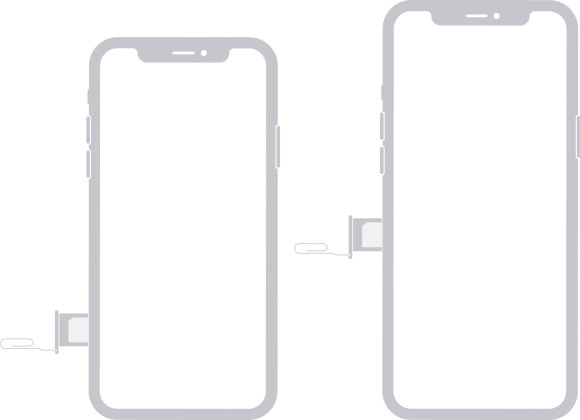
Step 1. Locate the SIM tray and insert a paper clip into the hole beside the tray.
Step 2. Push in, towards your iPhone, and pop open the SIM tray.
Step 3. Check the SIM card and place it into the tray.
Step 4. Insert the tray into the device completely.
Method 4. Force Restart Your iPhone
If your iPhone is stuck on the iPhone Unavailable screen and the timer isn't going down, a simple but effective method to make the iPhone Unavailable timer change is to force reboot your device. A force reboot can fix lots of system bugs on the iPhone. The steps to force-reboot your iPhone are a bit different for different models, and here's how to restart your iPhone.
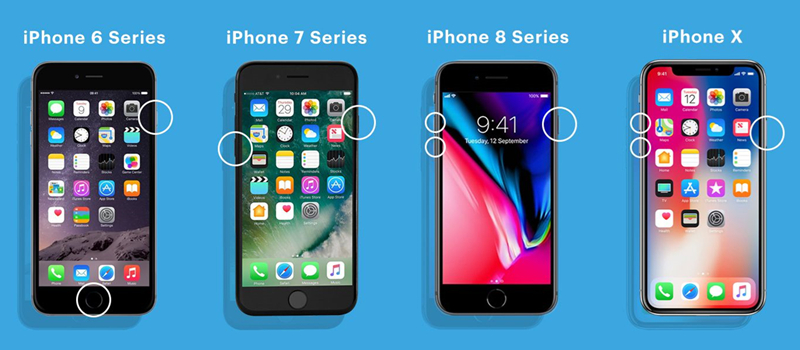
- iPhone 8 and later: Press the volume up button, volume down button in sequence. Then press and hold the power button until the Apple logo appears.
- iPhone 7 series: Press and hold both the power button and the volume down button until the Apple logo appears.
- iPhone 6 and earlier: Press and hold the power button and the home button until the Apple logo appears.
Note:
According to some iPhone users, the iPhone unavailable timer will be reset to its original timer and may get stuck during the countdown process. If the timer is stuck, check part 3 to bypass the iPhone Unavailable screen.
Method 5. Use Emergency to Dial
Dialing an invalid emergency number that is not available in your region may help you refresh the iPhone screen and update the countdown. After calling an invalid number, go back to the lock screen to check if the iPhone unavailable timer has changed.
Part 3. How to Bypass iPhone Unavailable Timer Not Going Down
After the iPhone Unavailable timer counts down, you can try entering the correct screen lock passcode to unlock your device. However, if your iPhone is still stuck on the iPhone Unavailable screen or you cannot remember the screen lock passcode, you can restore your device with the Erase iPhone feature directly. Or you can try some other methods to get rid of the iPhone Unavailable timer not changing issue.
Solution 1. Fix iPhone Unavailable Timer Stuck via Erase iPhone
All iPhones running iOS 15.2 and later can be restored using the Erase iPhone feature when the iPhone Unavailable timer doesn't change. To use this feature, you need an Apple ID password. And this would completely erase all the data and settings on the device. After erasing everything, you can set up your device and create a new screen lock passcode.
Works When:
- The iPhone is connected to a cellular or Wi-Fi network.
- Find My iPhone is enabled.
- The iPhone is running iOS 15.2 or a later system version.
Option 1. Erase iPhone Running from iOS 17.2 or Later
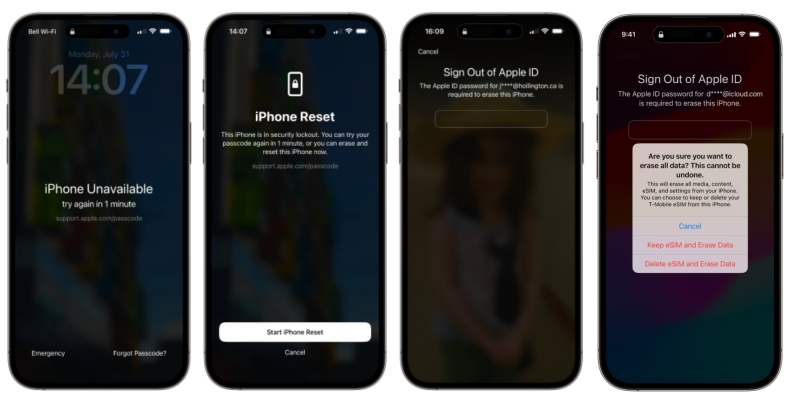
Step 1. On the iPhone Unavailable screen, tap the Forgot Passcode? option in the bottom corner of the screen.
Step 2. Tap Start iPhone Reset to confirm on the Security Lockout screen.
Step 3. Before erasing your device, enter your Apple ID password to sign out of your Apple ID.
Step 4. Tap Erase iPhone to delete all data and settings on your device. If you use an eSIM with iOS 17 or later, select Keep eSIM and Erase Data. Then you can restart your device and set it up.
Option 2. Erase iPhone Running from iOS 15.2 to 16
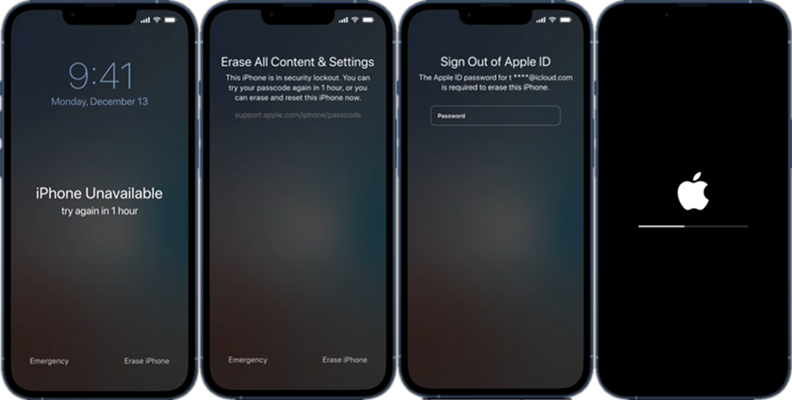
Step 1. On the iPhone Unavailable screen, tap Erase iPhone at the bottom right corner.
Step 2. Tap Erase iPhone again and enter your Apple ID password to sign out of your Apple ID.
Step 3. After signing out of your Apple ID, tap Erase iPhone to erase all content and settings. Then you can set up your device and create a new passcode.
Solution 2. Fix iPhone Unavailable Timer Stuck via iPhone Unlocker
With your Apple ID password, you can sign out of your Apple ID and erase your device on the iPhone Unavailable screen. But using a professional unlocking tool could be another effective way of getting your device out of iPhone Unavailable. Here we recommend MagFone iPhone Unlocker to you. This powerful unlocking tool can not only remove the screen lock passcode but also delete Apple ID, Screen Time passcode, and MDM restrictions without a password. Here's how to use MagFone iPhone Unlocker to bypass the iPhone Unavailable timer not changing issue.

MagFone iPhone Unlocker
Unlock various locks on iOS devices, including screen locks, MDM, Apple ID, and Activation Lock without needing a password.
Step 1 Connect iPhone to Computer and Launch MagFone

Launch MagFone iPhone Unlocker on your computer, and meanwhile, connect your iPhone to the computer using a USB cable. On the main interface of MagFone software, you can select the Unlock iOS Screen option and click the Start button in the next window.
Step 2 Go to Put iPhone into Recovery Mode or DFU Mode
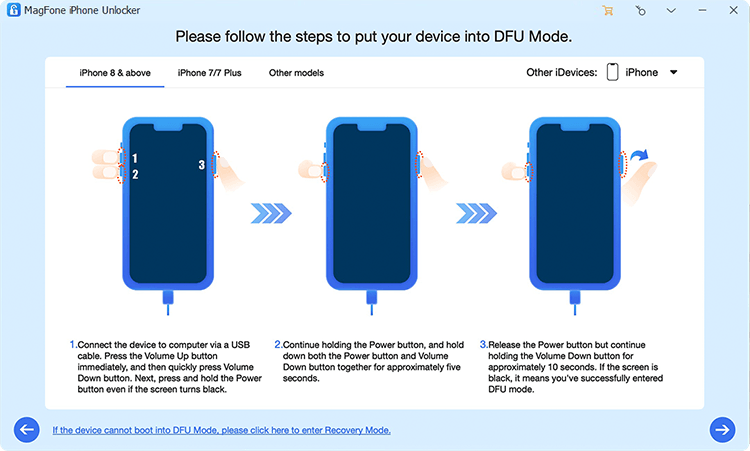
Before starting to remove passcode from your iPhone, you need to put it into DFU mode or recovery mode first. If you don't know how to, you can follow the onscreen steps to put it into DFU mode. After putting it into recovery mode, proceed to the next step.
Step 3 Download and Verify the Matching Firmware Package

Then you need to check all the device information of your iPhone, including the device, device model, and serial number. If there is something wrong, you need to correct it manually. Then select the version of the firmware package to download.
Step 4 Start to Fix iPhone Unavailable Timer Not Changing

After verifying the firmware package, you can click on the Unlock button to unzip the firmware package. MagFone iPhone Unlocker will immediately remove passcode from iPhone and unlock it. Keep your device connected to the computer until the process ends.
Solution 3. Fix iPhone Unavailable Timer Stuck via iTunes/Finder
iTunes is another option to restore your iPhone if you forgot your screen lock passcode and Apple ID password. With iTunes, you can restore your device in recovery mode. After erasing all the contents and data, including the screen lock passcode, you can easily take control of your iPhone again. The following steps can help you restore your iPhone with iTunes.

Step 1. Power off your iPhone and connect it to your computer through a USB cable.
Step 2. Press and hold the correct button for your device to put it into recovery mode.
- iPhone 8 or later: Quickly press and release the Volume Up button, then the Volume Down button. Hold the Side button until the Recovery Mode screen appears.
- iPhone 7/7 Plus: Hold the Volume Down and Side button simultaneously until the Recovery Mode screen appears.
- iPhone 6s or earlier: Hold the Home and Top buttons simultaneously until the Recovery Mode screen appears.
Get an iPad, iPhone, or iPod touch into recovery mode with one click for free.
Step 3. Open iTunes or the Finder on the computer, then click on the Restore button in the pop-up window.
Step 4. Wait for the process to finish and keep your device connected to the computer.
Solution 4. Fix iPhone Unavailable Timer Stuck at iCloud.com
With your Apple ID password, you can not only directly erase your iPhone on the Unavailable screen but also remotely erase it on iCloud. Make sure that you have previously enabled Find My iPhone. Then you can sign in to iCloud with your Apple ID and password to erase your iPhone. Here's how to.
Step 1. Open iCloud.com/find in a browser on your device and sign in with your Apple ID and password.
Step 2.After successfully signing in, click the unavailable iPhone.
Step 3. In the pop-up device information window, click on the Erase option.
Step 4. Proceed to click on the Next > Erase button, and enter the required phone number and Apple ID password, then your device will be erased to the factory settings.
Solution 5. Fix iPhone Unavailable Timer Stuck via Find My App
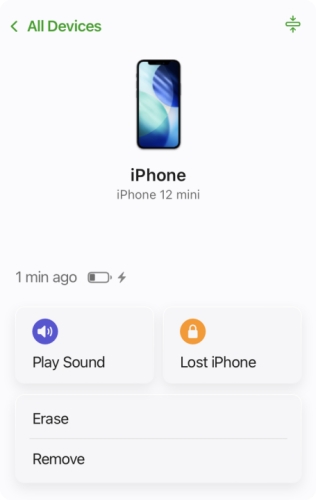
If you have more than one Apple device and use one Apple ID on all devices, you can use the Find My app on your device to remotely erase your disabled iPhone for use again. You should be sure that the Find My iPhone feature is enabled on your disabled iPhone. Then you can remotely restore your device by following the steps below.
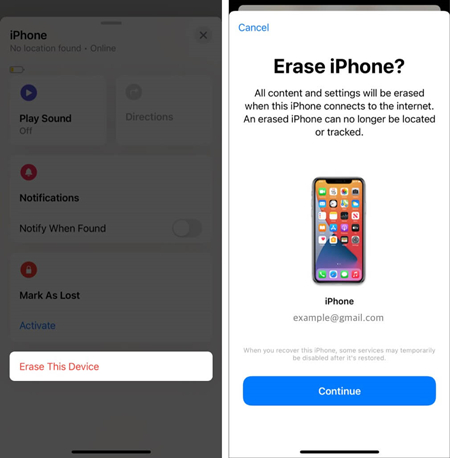
Step 1. Find an Apple device where you use the same Apple ID as your disabled iPhone.
Step 2. Open the Find My app and tap on Devices at the bottom of the screen.
Step 3. Select your disabled iPhone and tap on Erase This Device or Erase.
Step 4. Tap on Continue and enter your Apple ID password, then tap on Erase to confirm.
Part 4. FAQs about iPhone Unavailable Timer
How to fix when the iPhone Unavailable timer keeps resetting?
If the iPhone Unavailable timer keeps resetting and never finishes counting down, the only reliable solution is to restore your iPhone to factory settings and set it up again. This removes the lock screen issue but will erase all data on the device. If you have an iCloud or computer backup, you can restore your data after the reset during setup.
What to do when iPhone says unavailable without timer?
If your iPhone is unavailable without a timer, you can connect it to a computer and restore it in recovery mode with iTunes. Or use an unlocking tool like MagFone iPhone Unlocker to unlock it without Apple ID password.
How long does iPhone Unavailable last?
The timer duration depends on how many incorrect passcode attempts you've made. It can last from one minute to several hours, even for years, on your iPhone unless you enter the correct screen lock passcode.
Part 5. Conclusion
When the iPhone Unavailable timer is not counting down, the direct way to fix the issue is to force restart your iPhone and reinsert the SIM card in your device. If this cannot be resolved, you can directly erase and reset your iPhone from the lock screen. In addition, you can consider using MagFone iPhone Unlocker, iTunes, or other methods to get your device out of the Unavailable screen. Then you can set up your device and recover all the data and settings from iTunes or iCloud.

Teresa Miller
Editor in chief





