








Face ID is one of the most distinct features in the iPhone and iPad Pro. With the setup of Face ID on the iPhone, users can easily and conveniently unlock iPhone with their face. As well, users can authenticate purchases, sign into apps, and more on the iPhone with Face ID. However, some users have reported issues with Face ID in the Apple community. Specifically, some users receive a pop-up message saying: Face ID Is Not Available. Try setting up Face ID later. In this article, we are going to show you how to fix Face ID Is Not Available.

- Part 1. Why Is My Face ID Not Available?
- Part 2. Physical Diagnosis of Face ID Before Fix
- Part 3. How to Fix Face ID Not Available
- Solution 1. Clean the TrueDepth Camera
- Solution 2. Restart Your iPhone
- Solution 3. Check Face ID Settings
- Solution 4. Reset Face ID
- Solution 5. Add an Alternate Appearance
- Solution 6. Update to the Latest iOS Version
- Solution 7. Reset All Settings
- Solution 8. Restore via iTunes or Finder [Data Loss]
- Part 4. Bonus Tip: Unlock iPhone without Face ID or Passcode
- Part 5. Conclusion
Part 1. Why Does It Say Face ID Not Available?
Face ID is Apple's facial recognition technology that unlocks your device, authorizes payments, and secures apps. Available on iPhones starting with the iPhone X and newer iPads, it uses a TrueDepth camera to map your facial features in 3D.
When you see the following messages on your iPhone, it usually indicates that Face ID cannot function due to hardware, software, or environmental issues.
- A problem was detected with the TrueDepth camera. Face ID has been disabled.
- Face ID is Not Available. Try setting up Face ID later.
- Face ID is not available at this time. Go to Settings for more information.
Reason 1. Hardware Issues
A damaged TrueDepth camera can render Face ID unusable.
Cracks or damage to the screen may interfere with the camera's operation.
Reason 2. Software Glitches
Running an outdated iOS version might cause compatibility issues.
Corrupted system settings can also disrupt Face ID functionality.
Reason 3. Environmental Factors
Poor lighting or wearing accessories like sunglasses can confuse Face ID.
Dirt or smudges on the camera can block accurate face detection.
Part 2. Physical Diagnosis of Face ID Before Fix
Face ID not available can be caused by either a hardware problem or a system/software issue. Before you start changing system settings or restoring your iPhone, it's wise to first check whether the TrueDepth camera hardware is working properly.
Option 1. Check the Proximity Sensor
- Operation: Make a phone call and hold your iPhone to your ear.
- Diagnose: If the screen turns black, the sensor is working.
- Operation: Set brightness to maximum. And go to a dark place and see if the screen dims automatically.
- Diagnose: If the screen doesn’t turn off in calls or the brightness doesn’t change, the proximity sensor may be faulty.
Option 2. Check the IR Camera
- Operation: Try using Face ID in a dark room.
- Diagnose: If it only fails in the dark, the IR camera may have a problem.
Option 3. Check the Dot Projector
- Operation: Open Camera, switch to Portrait mode, and use the front camera to take a Portrait selfie.
- Diagnose: If the background blurs and your face is clear, it’s likely working. If you always see "Move closer" or "Move further away" and Portrait never works, the dot projector or depth sensing may be faulty.
If any of these hardware checks fail, the issue is likely hardware‑related. In that case, you need to contact Apple Support or an Apple Authorized Service Provider for repair.
Part 3. How to Fix Face ID Not Available
If your tests in Part 2 do not indicate any hardware issue, the problem is more likely related to software or settings. In that case, proceed with the following 8 methods to fix the issue.
Solution 1. Clean the TrueDepth Camera
If Face ID is unavailable on your iPhone, then check that nothing is covering the TrueDepth camera. Remove anything that might be covering the TrueDepth camera, like a smudge, case, or screen protector.
Solution 2. Restart Your iPhone
The easiest fix is to restart your iPhone and enter your passcode. Then try using Face ID on your iPhone again. Face ID is only available on the series of iPhone X and later. Follow the steps below to reboot your iPhone.
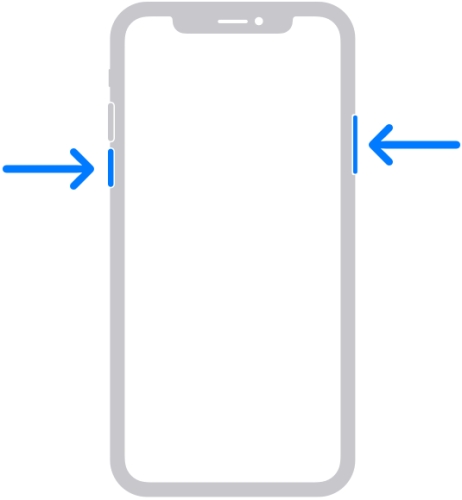
Step 1. Long-press the Power button and the volume up button at the same time until the screen changes.
Step 2. Drag the slide to power off the iPhone.
Step 3. Long-press the Power button to restart.
Solution 3. Check Face ID Settings
The iPhone allows you to choose the features that can use Face ID. If the Face ID is not available for some features, you can check if you have allowed the permission.
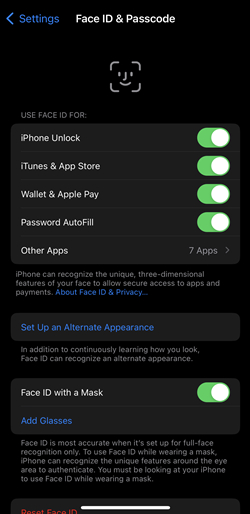
Step 1. Go to Settings on your iPhone, then tap Face ID & Passcode.
Step 2. Under Use Face ID for, turn on all features.
Solution 4. Reset Face ID
Besides checking the Face ID settings, you can also go to reset Face ID on your iPhone. If Face ID is unavailable, it's possible that you need to disable Face ID and set it up again. Here's how to reset Face ID on your iPhone by following the steps below.
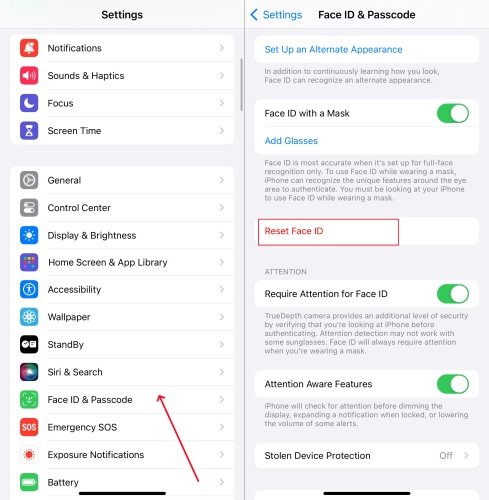
Step 1. Locate Settings on your iPhone and tap Face ID & Passcode.
Step 2. Tap Reset Face ID, then tap Set Up Face ID and follow the onscreen instructions.
Solution 5. Add an Alternate Appearance
For most users, Face ID will continuously learn as they change. If you have an appearance that can look vastly different, you can add an alternate appearance so Face ID still recognizes you. Perform the below steps to set up an alternate appearance.
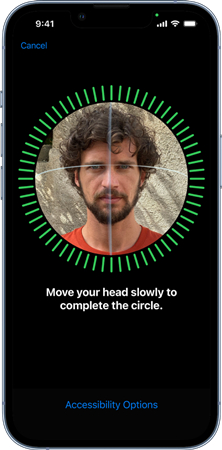
Step 1. Open the Settings app on your iPhone and tap Face ID & Passcode.
Step 2. Tap Set Up an Alternate Appearance, then follow the onscreen instructions.
Solution 6. Update to the Latest iOS Version
You should keep your iPhone system up to date to ensure the performance of Face ID. Apple will fix well-known bugs as it pushes a new iOS version. So updating the iOS may help resolve the Face ID not available issue.

Step 1. Head over to Settings on your iPhone and tap General.
Step 2. Select Software Update, then tap Download and Install to download the updates.
Step 3. Enter the passcode for your iPhone and tap Install Now.
Solution 7. Reset All Settings
Resetting all settings can clear hidden or conflicting system preferences that might be interfering with Face ID, even if you're not aware of them.

Step 1. Go to iPhone Settings and tap General.
Step 2. Go to Transfer or Reset iPhone > Reset All Settings.
Step 3. Enter the iPhone passcode and tap Reset All Settings again.
Solution 8. Restore via iTunes or Finder [Data Loss]
If the issue persists, you may need to perform a more thorough operation. Back up your data and restore your iPhone using iTunes on a Windows PC or Finder on a Mac. This can fix most issues on your iPhone, including Face ID not available.
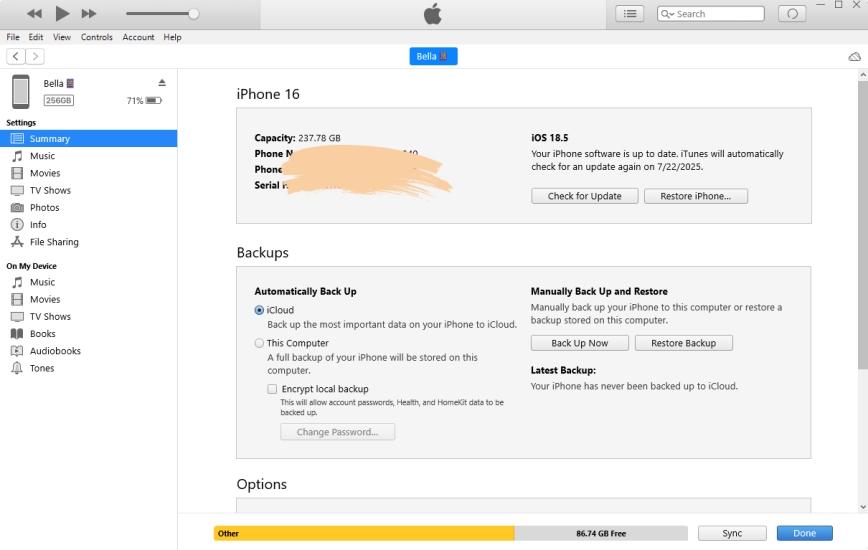
Step 1. Connect your iPhone to a computer through a USB cable, then run iTunes.
Step 2. Click the Device button and go to the Summary section.
Step 3. Click the Back Up Now button to back up your iPhone to the computer first.
Step 4. After backing up, click the Restore iPhone button to confirm.
Part 4. Bonus Tip: Unlock iPhone without Face ID and Passcode
Apart from the issue of Face ID not available, some users have the problem of being unable to unlock iPhone with Face ID or passcode. What to do if your Face ID is not available and you cannot unlock your iPhone? You just need a professional unlocking tool that can fix various locking issues related to the iPhone, iPad, and iPod touch. When it comes to using an iPhone unlocking tool, we do recommend MagFone iPhone Unlocker to you.
MagFone iPhone Unlocker is a comprehensive unlocking tool that is designed for the iPhone, iPad, and iPod touch. It features in removing screen passcode, deleting Screen Time passcode, unlinking Apple ID, and bypassing MDM restrictions. If you're looking for a way to unlock iPhone without Face ID or passcode, you can use MagFone iPhone Unlocker to fix it with four simple steps. Here's how to unlock iPhone without Face ID or passcode.

MagFone iPhone Unlocker
Unlock various locks on iOS devices, including screen locks, MDM, Apple ID, and Activation Lock without needing a password.
Step 1 Connect iPhone to Computer and Run MagFone

Start by connecting your iPhone and computer through a USB cable, then launch MagFone iPhone Unlocker on the computer. On the interface of MagFone software, enter the Unlock iOS Screen mode and click the Start button.
Step 2 Boot iPhone into Recovery Mode or DFU Mode
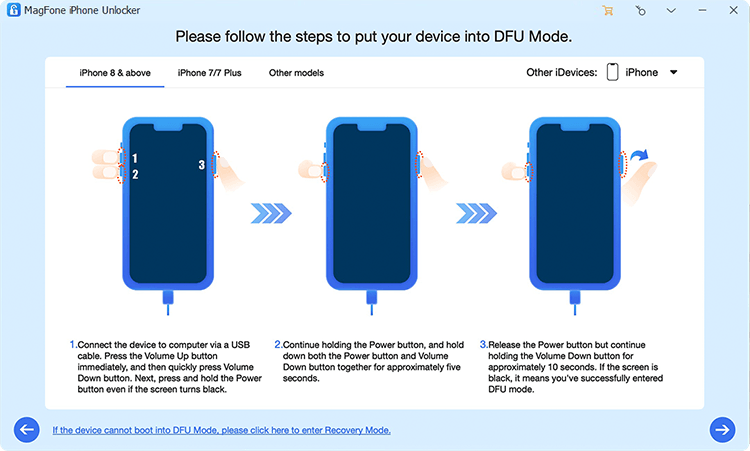
Then, you have to boot your iPhone into recovery mode by following the onscreen instructions. If it fails to put your device into recovery mode, you can click the link at the bottom left corner. Proceed to click the Next button.
Step 3 Go to Download the Firmware Package for iPhone

Next, you need to check the device information of your iPhone shown on the screen of MagFone software. Make sure that the information is correct, and manually correct the wrong information. Then click the Download button to get the firmware package.
Step 4 Start to Solve Face ID Is Not Available on the iPhone

Finally, the firmware package is downloaded to your computer. Now you can click the Unlock button to unlock iPhone without passcode and Face ID. Keep your device connected to your computer until the problem is fixed.
Part 5. Conclusion
Now you can fix the issue that Face ID is not available on your iPhone with the above solutions. To quickly and efficiently solve this problem, you can use MagFone iOS System Recovery. If you need to unlock your iPhone, MagFone iPhone Unlocker is recommended. Thanks for your reading, and if you have other solutions to fix Face ID is not available, then leave your thoughts on Face ID in the comments section below.

Dylan Jones
Editor in chief





