








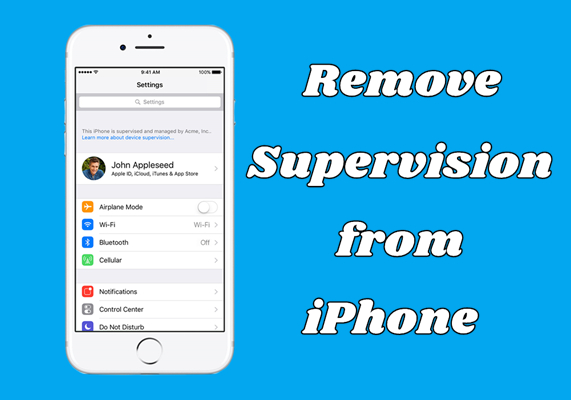
If your employer or school issues you an iPhone or iPad, it might be supervised. You can find a supervision text message at the top of Settings - "This iPhone is supervised and managed by your organization". When your iPhone is supervised by Apple School Manager, Apple Business Manager, or a third-party MDM, you don't have full access to the device. If you are given a supervised iPhone, don't worry. In this article, we'll show you how to remove device supervision from iPhone with or without password.
- Part 1. What Is Device Supervision on iPhone?
- Part 2. How to Remove Supervision on iPhone with Password
- Part 3. How to Get Rid of Device Supervision on iPhone without Password
- Part 4. Which Is the Best Way to Remove Device Supervision from iPhone?
- Part 5. Conclusion
Part 1. What Is Device Supervision on iPhone?
Device supervision on iPhone is a special management mode designed for organization-owned devices, such as those used in businesses or schools. When your iPhone is supervised, the organization has the ability to control what features your device has access to. Before removing device supervision from your iPhone, you have to figure out what device supervision is on iPhone and when you can remove supervision on iPhone.
How to Check If Your iPhone Is Supervised?
If you are not sure whether your iPhone is supervised, you can quickly check it in Settings. Just open the Settings app and see whether there is a supervision message at the top of the screen. You can also go to General > VPN & Device Management or Profiles & Device Management to check which management profiles have been installed on your iPhone. In addition, you can tap the installed profile to view the supervision details and learn which aspects of your iPhone are being supervised or restricted.
When Can You Remove Supervision?
You can remove supervision from an iPhone via official methods only when you have the proper authorization and the device management setup allows it. For example, if the organization administrator may be able to remove supervision through MDM, Apple Business Manager, or you can remove supervision in the device settings using the correct password or credentials. But for users who are given a supervised iPhone, you may need to apply third-party methods to do it.
Part 2. How to Remove Supervision on iPhone with Password
When your iPhone is supervised by Apple School Manager, Apple Business Manager, or a third-party MDM solution, you cannot fully control your device. In fact, it is not easy to remove device supervision from iPhone. Here are the steps to get rid of device supervision on iPhone with an MDM password. Let's dive into the details.
Method 1. Remove Device Supervision from iPhone in Settings
The first and simplest way to remove device supervision on iPhone is to directly delete MDM profile in Settings. With an MDM password, you can remove an MDM profile from an iPhone and then use it unsupervised. Here's how to.
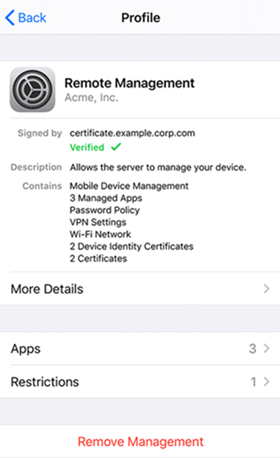
Step 1. Go to Settings > General > VPN & Device Management on your iPhone.
Step 2. Select the MDM profile on the device and tap Remove Management.
Step 3. Enter the password for MDM and follow the on-screen instructions to remove it.
 Pros
Pros- No data loss
- Directly operation in iPhone Settings

- Requires MDM profile password
- May face issues, like no delete option
Method 2. Remove Supervision via Apple Business Manager/Apple School Manager
For organization-owned iPhones enrolled through Apple Business Manager or Apple School Manager, supervision can also be removed by the administrator. However, access to the organization's management account and proper administrative authority are required to complete this process.
📝Requirements:
An administrator
Login ID and password
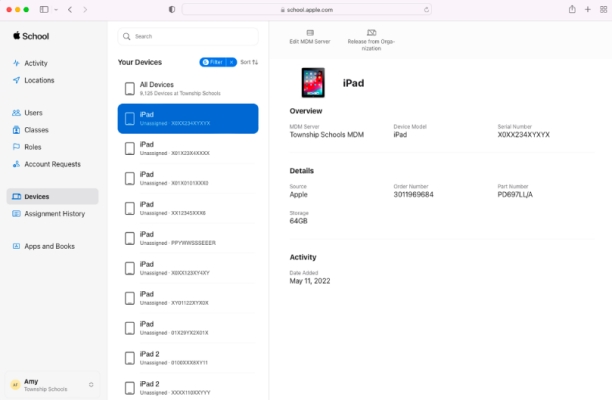
Step 1. Open Apple School Manager or Apple Business Manager on your device, then sign in with the administrator or site manager.
Step 2. Click on the Devices button in the sidebar and search for your supervised iPhone in the search field.
Step 3. Select your device from the device list and click on the Release button after checking the box "I understand that this cannot be undone."
Pros- Completely unenroll a supervised iPhone with password
- Requires admin access to Apple Business Manager/School Manager
Part 3. How to Get Rid of Device Supervision on iPhone without Password
However, if you are not an administrator or don't know the MDM removal password, you cannot remove device supervision on iPhone. Fortunately, you can benefit from using an MDM removal tool that can help you disable supervision on iPhone. In addition to using a professional MDM removal tool, you can use Apple Configurator 2 to factory reset your iPad or directly jailbreak your iPad, which can delete device supervision on iPhone without password.
Method 1. Remove Device Supervision on iPhone via iPhone MDM Removal
There are lots of MDM removal tools on the internet, but MagFone iPhone Unlocker is highly recommended to you if you want to get rid of device supervision from iPhone and iPad without password. As an all-in-one tool, MagFone iPhone Unlocker gives you the ability to crack screen locks like Face ID and Touch ID on Apple mobile devices like iPhone and iPad.
With this unlocking tool, you can also remove Apple ID without password and get rid of MDM locks with ease. If you have set up Screen Time passcode, you can use this tool to delete it without passcode and data loss. The steps for using MagFone iPhone Unlocker to remove device supervision on iPhone are the following.

MagFone iPhone Unlocker
Unlock various locks on iOS devices, including screen locks, MDM, Apple ID, and Activation Lock without needing a password.
Step 1 Open MagFone and Connect iPhone to Computer
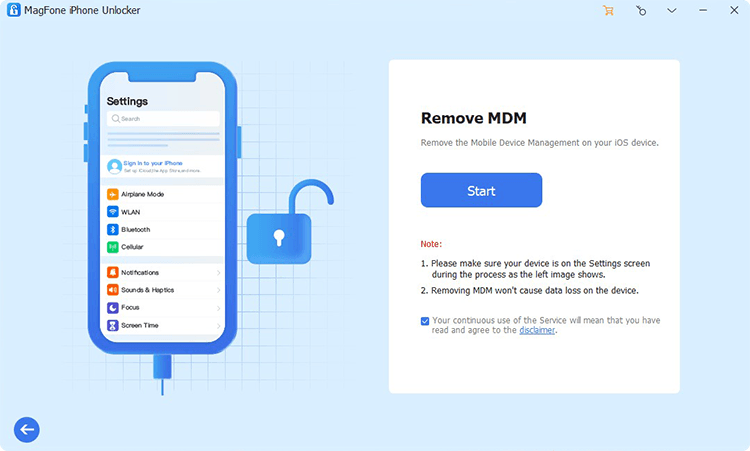
First of all, connect your iPhone to your computer through a USB cable. After your device is detected on the computer, open MagFone iPhone Unlocker and select the Remove MDM option then click the Start button.
Step 2 Start to Remove Device Supervision from iPhone
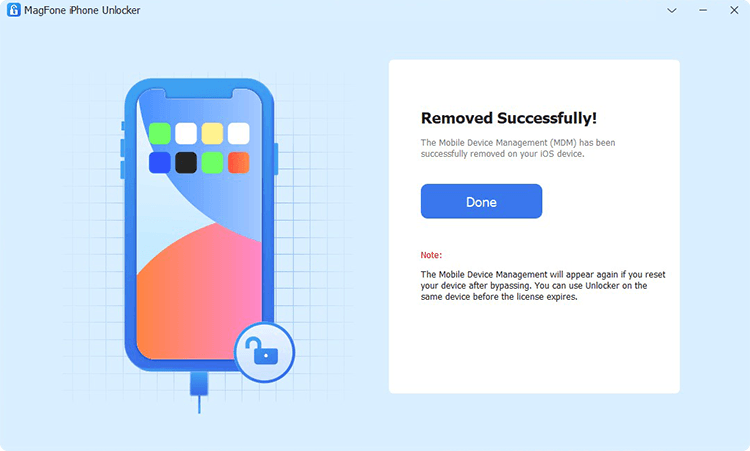
Go to see if the Find My iPhone feature is disabled on your device. If not, go to turn the Find My feature off. Now click the Unlock button to let MagFone iPhone Unlocker remove device supervision on iPhone without losing data.
Pros- No data loss
- No password needed
- Relatively quick remove
- Costs money
Method 2. Remove Device Supervision on iPhone via Apple Configurator 2
An MDM removal tool can help you easily and instantly get rid of iPhone device supervision without losing data. Apple Configurator 2 is another tool that you can take advantage of to remove iPhone supervision. It is a free tool only available on Mac computers. By using Configurator 2, you can fix this iPhone is supervised by another computer with ease. Here's how to remove device supervision from iPhone.
📝Requirements:
A Mac
Apple Configurator 2
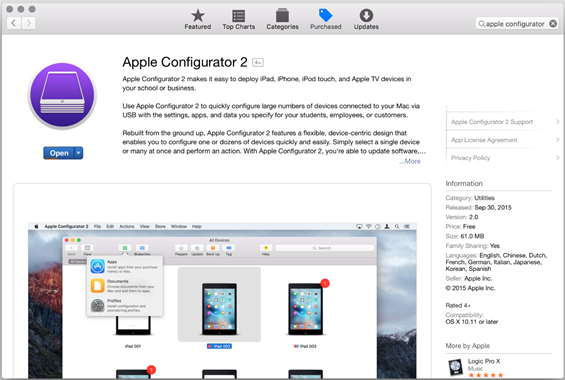
Step 1. Open Apple Configurator 2 on your Mac computer and connect your iPhone to the Mac using a data cable.
Step 2. Choose your iPhone from the device screen.
Step 3. Click Actions > Advanced > Erase all content and settings.
Pros- Free and official Apple tool
- Safe and reliable
- Require no password
- Requires Mac computer
- Complete data loss
- Time-consuming
Method 3. Remove Device Supervision on iPhone by Jailbreaking
If your iPhone is supervised by another computer and you don't have the MDM removal password, you can also remove device supervision by jailbreaking your device. Jailbreaking a supervised iPhone can delete the MDM profile, but it will erase all the content and settings. Here's how to take off device supervision on iPhone by jailbreaking.
📝Requirements:
A computer running macOS or Linux
Checkra1n software
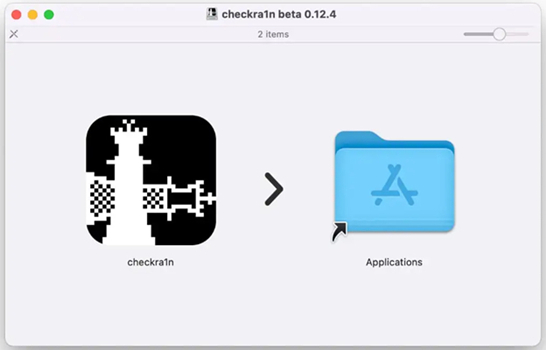
Step 1. Download and install a compatible jailbreaking tool on your computer. Here we use Checkra1n.
Step 2. After the installation, run the jailbreaking tool and connect your iPhone to the computer via a USB cable.
Step 3. Allow to SHH into it and run "cd../../" to get your device into the root directory.
Step 4. Run "cd /private/var/containers/Shared/SystemGroup/" and find the MDM profile files.
Step 5. Restart your device and start setting it up. Then you'll get an unsupervised iPhone.
Pros- Require no password
- May brick your device
- Violates Apple's terms
- May still not remove supervision
- Data loss risk
Part 4. Which Is the Best Way to Remove Device Supervision from iPhone?
The above approaches are fine for the problem that this iPhone is supervised and managed by another computer. There are some advantages and disadvantages of the ways to remove device supervision from iPhone. From the following comparison table, you will know what the differences are.
| Methods | MDM Account & Password | Authorization | Data Loss | Ease-to-use | Success Rate |
|---|---|---|---|---|---|
| Settings | ✔️ | ❌ | ❌ | Easy | 100% |
| Apple School Manager | ✔️ | ❌ | ❌ | Easy | 100% |
| MagFone iPad MDM Removal | ❌ | ❌ | ❌ | Easy | 100% |
| Apple Configurator 2 | ❌ | ❌ | ✔️ | A little complex | 80% |
| Jailbreak | ❌ | ❌ | ✔️ | A little complex | 70% |
Part 5. Conclusion
This article is intended for those who use a supervised iPhone from their employer or school. With an MDM removal password, you can easily get rid of supervision on iPhone in Settings or by logging into Apple School Manager. It doesn't matter if you don't know the password. You can try using MagFone iPhone Unlocker or Apple Configurator 2 to remove device supervision. Or choose to jailbreak your supervised iPhone to delete device supervision. Download and install MagFone iPhone Unlocker, and give it a try!

Dylan Jones
Editor in chief




