








The iPhone, known for various robust security features, comes with features like Remote Management. For better management of the organization's devices, Apple releases two kinds of Remote Management, such as Apple School Manager and Apple Business Manager. Once your iPhone or iPad is enrolled in Apple School Manager or Apple Business Manager, you lose full control of your device. In the Apple Community, we found lots of postings looking for advice on how to remove remote management from iPhone as follows.
Why did Metro T-Mobile sell me a business account iPhone? I want to remove remote management and have more privacy. My iPhone is not on any contract so how do I unlock and access my rightful freedom from this spying."
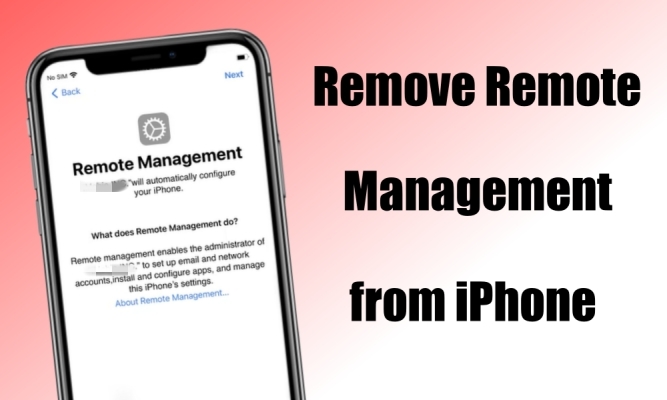
Do you have the same problem with your iPhone? If you cannot make sure whether your iPhone is controlled by Remote Management, you can go to Settings and find a supervision text message at the top of Settings - "This iPhone is supervised and managed by your organization". This means that your iPhone is under the control of Remote Management. Don't fret! Luckily, in this article, we will explain what Remote Management on iPhone is and how to remove Remote Management from iPhone without password.
- Part 1. What Is Remote Management on iPhone?
- Part 2. How to Remove Remote Management from iPhone with Password [No Data Loss]
- Part 3. How to Remove Remote Management from iPhone without Password [No Data Loss]

- Part 4. How to Bypass Remote Management on iPhone without Password [Data Loss]
- Part 5. FAQs about Remote Management for iPhone
- Part 6. Conclusion
Part 1. What Is Remote Management on iPhone?
Remote Management is a feature that allows administrators to configure and manage the iPhone and iPad remotely. This can be useful in corporate settings where IT administrators need to control and secure devices. Once your iPhone is enrolled in Remote Management, the administrator can remotely configure your device. While Remote Management serves a purpose in organizational settings, some users may find it intrusive on their personal devices.
So, some iPhone users have a question - is it possible to remove Remote Management from iPhone? The answer is sure! There are several methods to remove Remote Management from iPhone regardless of whether you have the removal password. The following are the feasible methods to get rid of Remote Management on iPhone.
| Methods | Require MDM Password? | Need Computers | Ease-to-use | Data Loss |
|---|---|---|---|---|
| iPhone Settings | ✔️ | ❌ | Easy | ❌ |
| Apple School Manager | ✔️ | ❌ | Easy | ❌ |
| MagFone iPhone MDM Removal | ❌ | ✔️ | Easy | ❌ |
| Apple Configurator 2 | ❌ | ✔️ | Complex | ✔️ |
| Jailbreak iPhone | ❌ | ✔️ | Complex | ✔️ |
Part 2. How to Remove Remote Management from iPhone with Password [No Data Loss]
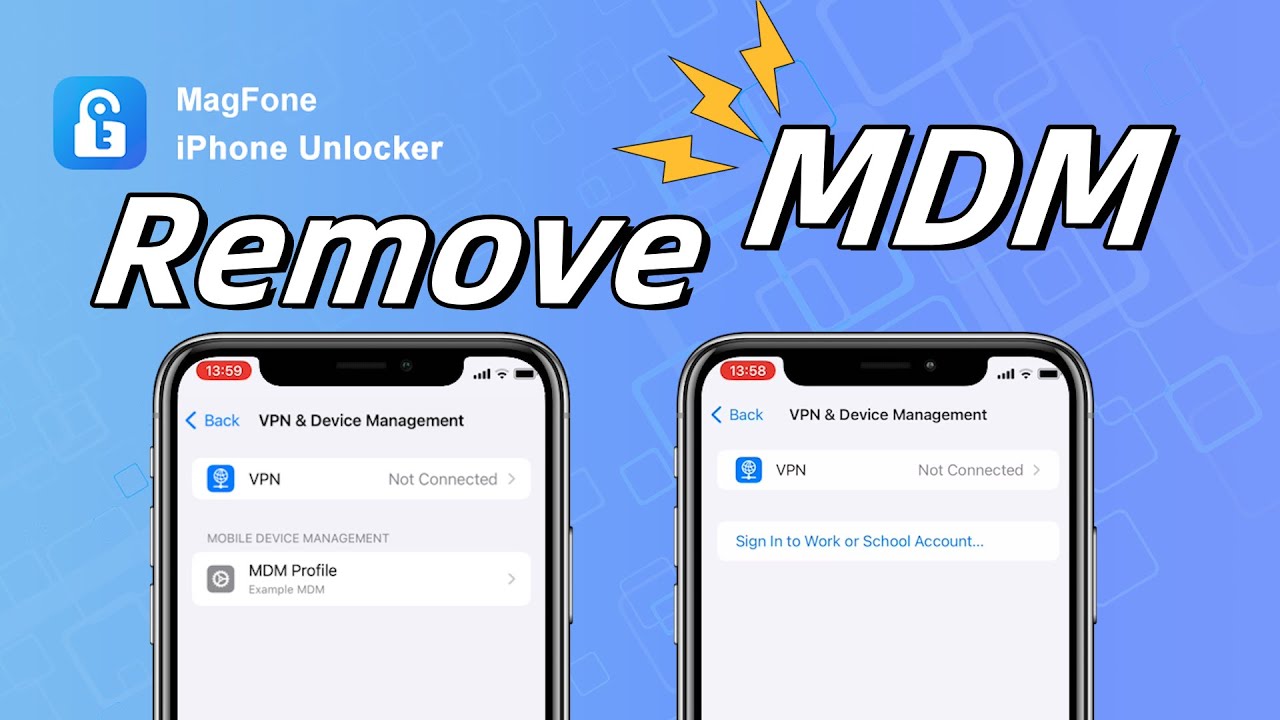
If you know the password of Remote Management or you can get in touch with the administrator, you can try to remove the MDM from your iPhone with the following methods.
Method 1. Remove Remote Management from iPhone in Settings
Use if: You are given the remote management credentials, and the Remove option is available in Settings.
With the MDM credentials, and if the MDM is removable in Settings, you can remove it in your iPhone Settings.
📝Requirements:
An MDM account and password
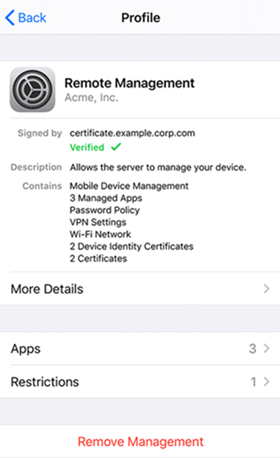
Step 1. On your iPhone, tap Settings > General and select VPN & Device Management.
Step 2. Find the remote management profile and tap the Delete Profile button.
Step 3. Enter the account and password, then tap the Remove button to confirm.
Method 2. Disable Remote Management via ABM/ASM
Use if: You are the IT administrator of the organization, or you can contact the administrator.
The supervised iPhone can be removed from Apple School Manager or Apple Business Manager. To remove Remote Management from your iPhone, just log in to Apple School Manager.
📝Requirements:
A device connected to the network
An MDM account and password
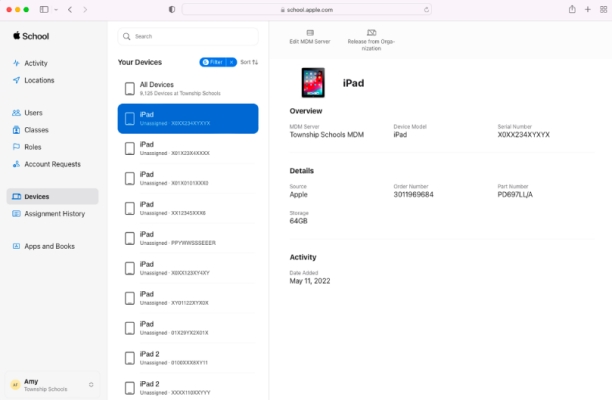
Step 1. Navigate to Apple School Manager or Apple Business Manager, then enter the MDM administrator credentials to log in.
Step 2. In the sidebar, click on the Devices button and search for your supervised iPhone.
Step 3. From the device list, select your device and read the pop-up prompt.
Step 4. Check the box "I understand that this cannot be undone," then select Release.
Part 3. How to Remove Remote Management from iPhone without Password [No Data Loss]
Use if: You don't have the MDM credentials, and you don't want any data loss.
If you bought a second-hand iPhone or iPad and encounter the Remote Management screen during setup, you may only see the “Enroll this iPhone” option. In this case, some features on the device may be restricted. If you can't unenroll the iPhone from the remote management organization, removing the MDM lock becomes necessary.
MagFone iPhone Unlocker is a dedicated iOS unlocking tool that can remove MDM lock, lock screen passcode, Screen Time passcode, Apple ID, and Activation Lock from an iPhone without a password. If you need to remove the management lock from your device, follow the steps below:

MagFone iPhone Unlocker
Unlock various locks on iOS devices, including screen locks, MDM, Apple ID, and Activation Lock without needing a password.
Step 1 Connect iPhone to Computer and Run MagFone Software
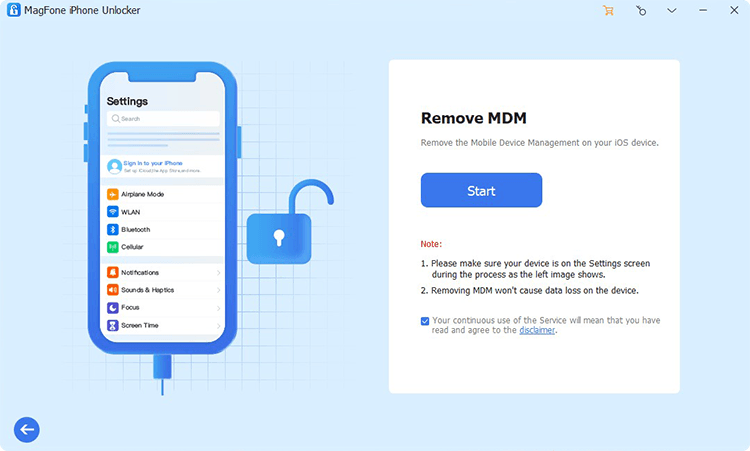
First up is to connect your iPhone to your computer by using a USB cable. Open MagFone iPhone Unlocker on the computer and select the Remove MDM option, then click on the Start button.
Step 2 Remove Remote Management from iPhone without Password
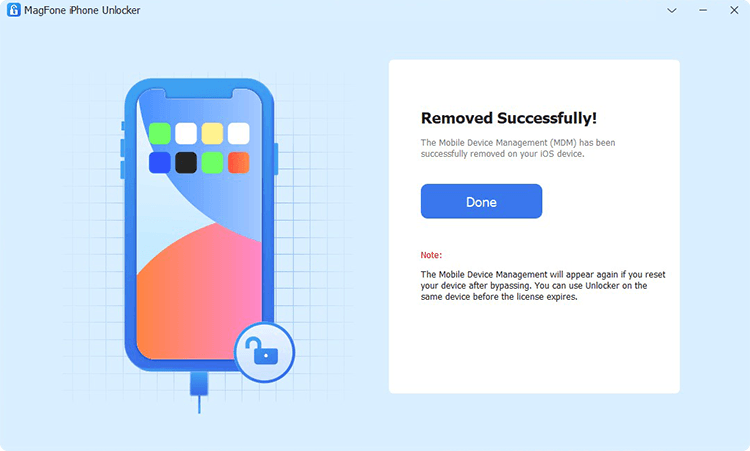
Make sure that the Find My iPhone feature is disabled on your iPhone. If not, go to turn the Find My iPhone feature off. Go back to the computer and click on the Unlock button to let MagFone software delete Remote Management from iPhone.
Part 4. How to Remove Remote Management from iPhone without Password [Data Loss]
If your iPhone is under remote management, you can first try asking the administrator to remove the MDM profile or provide the account credentials. You can also use a MDM removal tool like MagFone iPhone Unlocker to remove MDM without data loss. Apart from that, there are two methods available to remove the MDM on iPhone, though these will lead to data loss.
Method 1. Bypass Remote Management on iPhone via Apple Configurator 2
Use if: iPhone was enrolled in ABM or ASM via Apple Configurator.
Apple Configurator makes it easy to deploy iPad and iPhone devices in your school or business. If your iPhone is supervised by Remote Management, you can use Apple Configurator to factory reset your supervised device to delete the MDM profile without a password.
📝Requirements:
An iMac or Mac with Apple Configurator 2
Apple ID and password
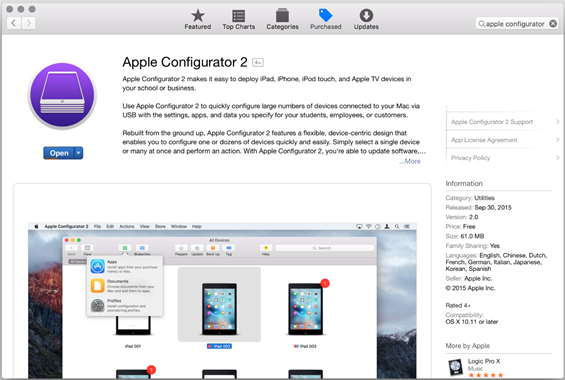
Step 1. On your Mac, download and install Apple Configurator, then open it.
Step 2. Select your iPhone and click Actions > Advanced > Erase all content and settings.
Method 2. Bypass Remote Management on iPhone by Jailbreaking iPhone
Use if: You don't care about any data loss, as it is the least recommended method.
Jailbreaking is an available but not recommended method for removing Remote Management from an iPhone. While it may help bypass the MDM profile, the process is more complicated and comes with significant risks. Before choosing this method, make sure you understand the potential consequences.
📝Requirements:
A Windows PC or Mac
Apple ID and password
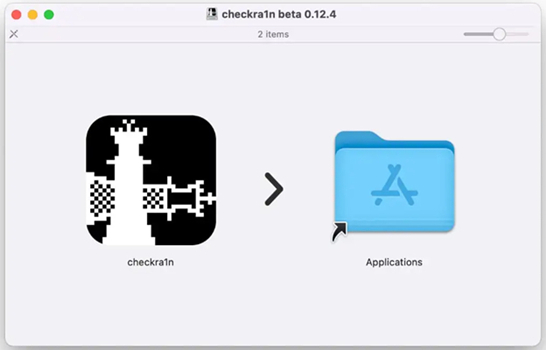
Step 1. Download and install Checkra1 software on your Mac, then expose the port of your iPhone with iProxy.
Step 2. Go to allow SHH access to your device through a USB cable and run "/cd../.." to enter the root directory of the device.
Step 3. Go to SHH into it and start the whole process by running "cd../../". Then your iPhone will be in the root directory.
Step 4. Proceed to run "cd /private/var/containers/Shared/SystemGroup/", and you'll find MDM files in the folder.
Step 5. Restart and set up your iPhone, then go back to Remove Management.
Note:
This method is only available for iPhone X and earlier models running iOS 14 or earlier. If you want to learn more about jailbreaking an iPhone, you can visit: https://ios.cfw.guide/.
Part 5. FAQs about Remote Management for iPhone
How to remove Remote Management from iPhone during setup?
You usually can't remove Remote Management during setup unless the device is released by the organization that manages it. The proper way is to contact the administrator or seller and ask them to remove the iPhone from Apple Business Manager/School Manager or delete the MDM profile from their system. If they do that, you can set up the iPhone normally. Alternatively, you can finish the setup procedure, then use MagFone iPhone Unlocker to remove the MDM.
How to remove Remote Management from iPhone after factory reset?
To remove Remote Management on iPhone after factory reset, you can consider using Apple Configurator. It can restore your supervised iPhone to the factory default settings and delete the MDM profile at the same time.
How to remove Remote Management iPhone free?
To remove Remote Management on iPhone free, you can try the methods introduced in Part 4 or Part 3 whether you have the account and password of the MDM profile.
How to factory reset iPhone with Remote Management?
To remove Remote Management on iPhone for free, you can enter the removal password in the Settings or use Apple Configurator 2 when you don't have the removal password.
Part 6. Conclusion
Following the above steps, you should have removed Remote Management from your iPhone, regardless of whether you know the MDM credentials. Just be aware that if you use the methods in Part 4, make a backup of your device in advance. To remove Remote Management from your iPhone without a password and data loss, MagFone iPhone Unlocker is highly recommended. With the help of MagFone software, you can easily turn off Remote Management on your iPhone.

Dylan Jones
Editor in chief




