








My parents just installed Qustodio on my new iPhone running iOS 15. Previously, they had Covenant Eyes on my old Android phone and I would use Safe Mode to get around it. What would be a similar way to get around Qustodio on iPhone? By the way, I don't watch unhealthy content, so I don't even know why they installed it. Thanks in advance!"
Qustodio is a great family parental and screen time app. With the ability of Qustodio, parents can easily set daily screen time limits and monitor various apps, including YouTube, TikTok, Snapchat, and more, on the children's iPhone. But how to disable Qustodio without parent knowing? This question is proposed and discussed in lots of places, such as Reddit, Quora, and Apple Support Community. If you're having trouble removing Qustodio, here's everything you need to know. Let's see how to remove Qustodio on the iPhone, iPad, and Mac.
- Part 1. What Is Qustodio?
- Part 2. How to Remove Qustodio with Password
- Part 3. How to Disable Qustodio without Password
- Part 4. Frequently Asked Questions about Qustodio
- Part 5. Conclusion
Part 1. What Is Qustodio?
Qustodio is a parental control software designed to help parents monitor and manage their children's online activities. The software is designed to allow parents to set limits on the amount of time their children spend online, block inappropriate content, and track their online activity across multiple devices. Qustodio offers a range of features, including web content filtering, social media monitoring, screen time control, and location tracking. It can be installed on a wide range of devices, including smartphones, tablets, and computers. Qustodio is designed to help parents keep their children safe and protected while using the internet.
Part 2. How to Remove Qustodio with Password
With Qustodio account credentials, you can unlock Qustodio's restrictions, turn off protection, and uninstall the app or profiles directly from your device. In this part, we will respectively introduce how to remove Qustodio in the Qustodio app and Apple devices' Settings.
Option 1. Remove Qustodio in Qustodio App
The easiest way to remove Qustodio from a controlled device is directly through the Qustodio app using the account. After signing in as the parent or administrator, you can remove the device from your Qustodio account. Once it's removed, Qustodio will stop monitoring and restricting activities on that device.
On Mac:
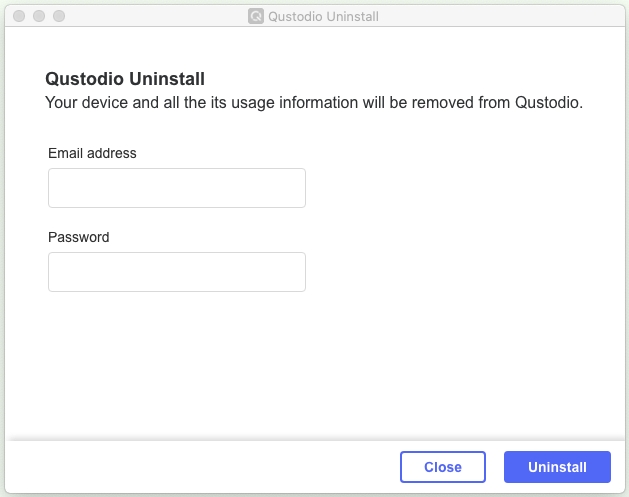
Step 1. Navigate to https://qustodio.com/downloads to download and install Qustodio.
Step 2. After installing Qustodio, close the installer and go to uninstall Qustodio.
Step 3. Enter the users name and password in the pop-up window, then click OK.
Step 4. Continue to enter your email address and password used on Qustodio.
Step 5. Click the Uninstall button to remove Qustodio from your computer.
On iPhone/iPad
Step 1. Launch the Qustodio app on your iPhone.
Step 2. Enter the password of your Qustodio account and tap Log in.
Step 3. Tap Disable protection > Remove Qustodio.
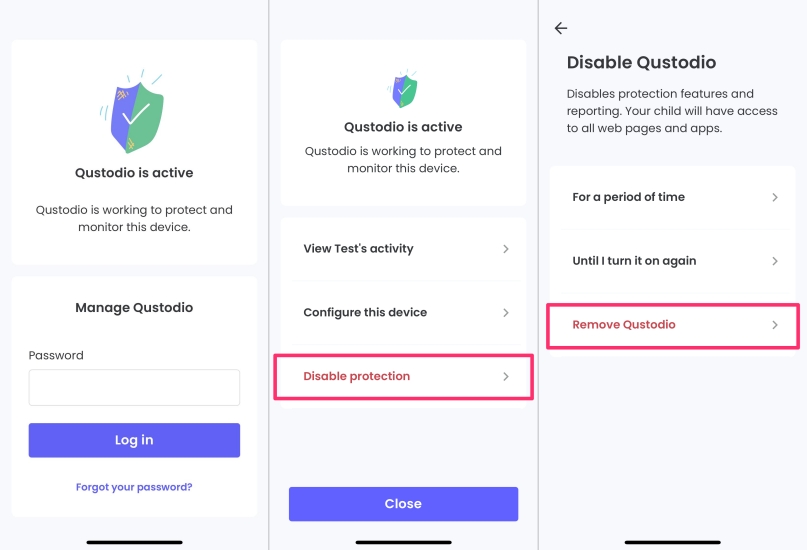
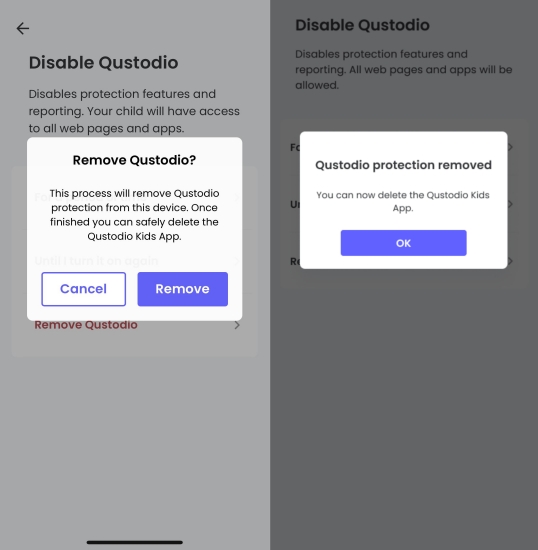
Step 4. In the confirmation window, tap Remove and press OK to confirm.
Step 5. Head to the home screen and hold the Qustodio app icon to delete it.
Once you have completed the above steps, Qustodio should be uninstalled from the iPhone, iPad, and Mac. Keep in mind that this will also remove all the monitoring and control features provided by Qustodio. Then the child will be able to use the device without any restrictions.
Option 2. Remove Qustodio Profiles in Settings
When Qustodio is installed on your device, it may install a configuration profile in the device's Settings. You can sometimes remove the profile from your iPhone to disable Qustodio control. This may trigger a notification indicating that one device is no longer using Qustodio.
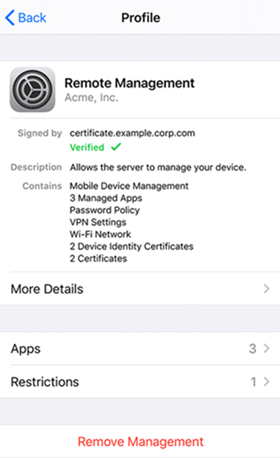
Step 1. Open the Settings app and tap General > VPN & Device Management on your iPhone.
Step 2. Select the Qustodio Configuration Profile and tap Remove Management.
Step 3. If you are required to enter the profile password, enter and tap Remove.
Part 3. How to Disable Qustodio without Password
It's easy to delete Qustodio on a Mac, iPhone, or iPad with a password. However, lots of users don't know the account and password of Qustodio Configuration Profile. No worry, there are still some methods to help you remove Qustodio without a password. Let's see the details.
Method 1. Remove Qustodio under Screen Time
On iOS, Qustodio's restrictions may integrate with the device's built‑in Screen Time or parental controls. According to experience shared on Reddit, by adjusting or turning off these settings, you can sometimes bypass Qustodio in the Screen Time entry.
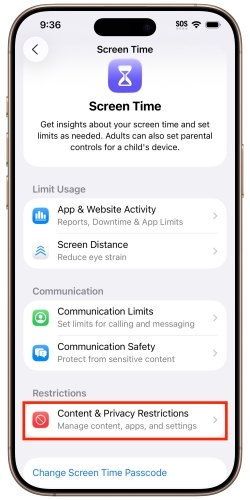
Step 1. Go to Settings > Screen Time on your device.
Step 2. Tap Content & Privacy Restrictions > View Device Management.
Step 3. Tap Remove Management and tap Remove to remove Qustodio from your iPhone or iPad.
Method 2. Disable Qustodio Using Qustodio Blocker [For Mac]
Qustodio Blocker is an open‑source file from GitHub and is designed to interfere with how Qustodio runs on Mac. By installing and configuring this tool, you may be able to stop Qustodio's background processes, prevent it from enforcing restrictions, and regain normal access to your device.
Step 1. Download the Qustodio Blocker from GitHub.
Step 2. Run Terminal on your Mac, and type "sudo bash ./install.sh" to run install.sh.
Step 3. Enter "sudo qustodio-blocker" to disable Qustodio on your Mac.
If you want to regain access to Qustodio, you can enter "sudo uninstall" to let Qustodio work again.
Method 3. Remove Qustodio with MagFone Qustodio Removal
If you're looking for a quick and hassle‑free way to get rid of Qustodio without dealing with complicated system settings, MagFone Qustodio Removal is a reliable choice. This dedicated tool is designed specifically to remove device management and Screen Time restrictions on iPhone and iPad, even if you forgot the password or passcode. This solution is quite guided and user-friendly for users. In just a few clicks, MagFone can automatically bypass Qustodio's restrictions, delete its profiles, and restore full control of your device. Just try the steps below to disable Qustodio on your device quickly.

MagFone iPhone Unlocker
Unlock various locks on iOS devices, including screen locks, MDM, Apple ID, and Activation Lock without needing a password.
Step 1 Select Remove MDM on MagFone Software
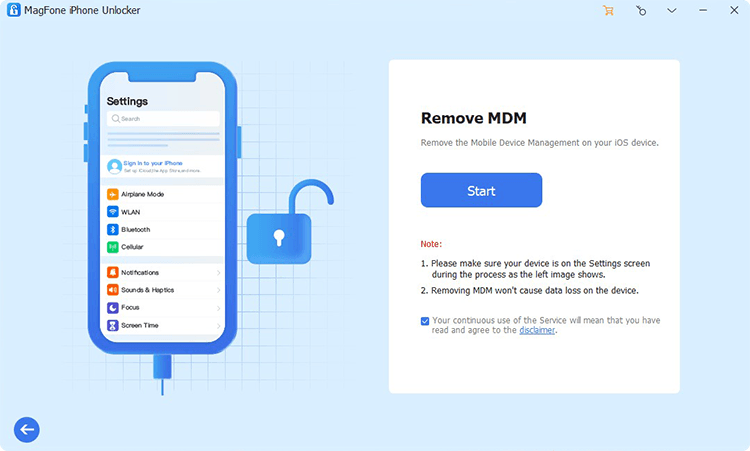
Download and launch MagFone iPhone Unlocker on your computer and select Remove MDM. Then connect your iPhone to the computer through a USB cable and click the Start button after your device is detected by MagFone software.
Step 2 Remove Qustodio from iPhone without Password
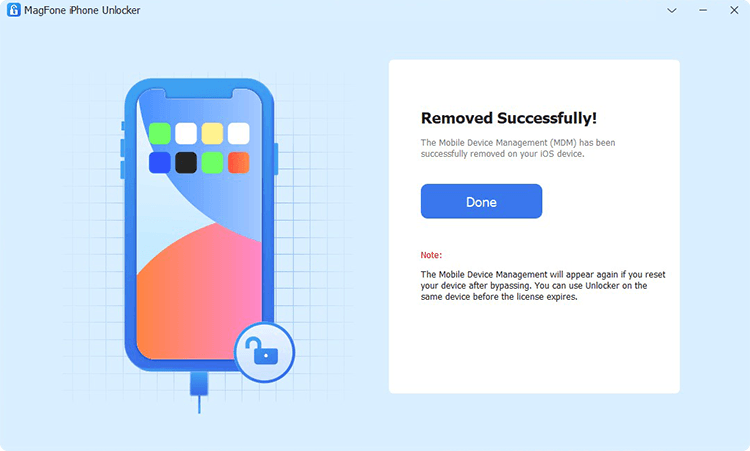
To remove Qustodio from iPhone, you have to turn the Find My iPhone feature off by tapping Settings > Your Apple ID > Find My. Then go back to your computer and click the Unlock button to delete Qustodio Configuration Profile on your iPhone.
Part 4. Frequently Asked Questions about Qustodio
Can Qustodio see deleted messages?
No, Qustodio cannot see deleted messages on the device. Once a message is deleted from the device, it is no longer accessible or visible to any app, including Qustodio. This includes both SMS messages and iMessages.
Can Qustodio monitor private browsing?
To some extent, Qustodio can monitor private browsing, but it has certain limitations. Private browsing is called Private Browsing Mode designed to prevent the browser from saving any browsing history or cookies. Qustodio cannot directly monitor the browsing activity in Private Browsing Mode. So, Qustodio can still monitor some aspects of private browsing.
Can Qustodio monitor text messages on iPhone?
Qustodio can monitor text messages on an iPhone to some extent, but not all messages can be tracked. Qustodio for iOS can track SMS messages that are sent and received through the built-in Messages app on the device. However, it cannot monitor iMessages sent between Apple devices, which are encrypted and cannot be accessed by third-party apps like Qustodio. Additionally, Qustodio for iOS requires access to the iCloud account associated with the iPhone in order to monitor messages. This means that if the iCloud account is not set up or the backup feature is not turned on, Qustodio may not be able to monitor messages.
How to hide Qustodio on iPhone?
Due to technical limitations, it is not yet possible to hide Qustodio on mobile devices like iOS, Android, and Kindle devices.
Part 5. Conclusion
If you followed these steps correctly, you should now have removed Qustodio from your device. You can directly delete the Qustodio Configuration Profile in Parental Dashboard or Settings with a password. When forgetting or not knowing the account and password for Qustodio Configuration Profile, you can use MagFone iPhone Unlocker to disable Qustodio on an iPhone and iPad or use the Qustodio blocker to disable Qustodio on a Mac.

Dylan Jones
Editor in chief





