








When it comes to securing your Apple devices, using iTunes to encrypt iPhone backup plays a significant role. However, if you forgot iTunes backup password, it can create a major roadblock, preventing access to important files and personal data. Since Apple doesn't provide an option to recover a forgotten iTunes encrypted backup password. Don't worry—this guide will provide you with several step-by-step approaches to recovering or removing your forgotten iTunes encryption backup password.
- Part 1. What If I Forgot My iTunes Backup Password?
- Part 2. What to Do If You Forgot iTunes Backup Password?
- Part 3. FAQs about iTunes Backup Password
- Part 4. Conclusion
Part 1. What If I Forgot My iTunes Backup Password?
If you forgot your iTunes backup password, you will not be able to access or restore the encrypted backup. Since Apple does not provide a direct way to recover a forgotten backup password, restoring the iTunes backup can become difficult unless you remember the password or find it saved on your device.
Part 2. What to Do If You Forgot iTunes Backup Password?
If you forgot your iTunes backup password, the right solution depends on what you want to do next. If your goal is to restore and use the encrypted backup again, you can first try methods like testing your commonly used passwords, checking Keychain Access on Mac, or restoring data from an iCloud backup instead. On the other hand, if you no longer need the old encrypted backup and simply want to remove the password restriction for future backups, resetting your iPhone settings or removing backup encryption directly from the device may be more practical. Below are five methods you can try based on your situation.
Method 1. Find iTunes Backup Password in Keychain Access [Mac]
If you use a Mac, Keychain Access may help you recover the backup password. In some cases, macOS stores passwords that have been used for iTunes or Finder backups. This is one of the most useful methods for Mac users because it can help you recover the password without erasing settings or giving up access to the encrypted backup.
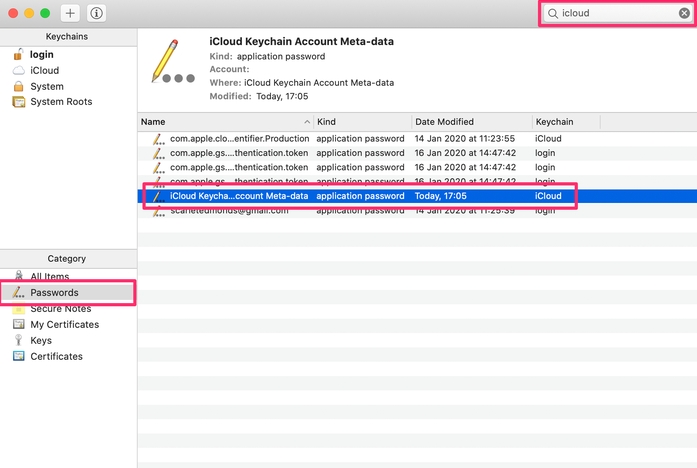
Step 1. Open the Finder and click Applications > Utilities > Keychain Access.
Step 2. In the search bar, type iPhone Backup.
Step 3. Locate the relevant entry and double-click it.
Step 4. Check the Show password box. Then enter your login password to view the iTunes backup password.
Method 2. Try All Your Passwords
Many users unknowingly set their backup password to something they frequently use. It's worth trying some common passwords you might have used, like:
- Your Apple ID password
- Your macOS or Windows administrator password
- Your old iPhone passcode
- Commonly used passwords like 123456
Note:
If you are a Mac user, you can also open Keychain Access in Method 1 to view passwords saved on your Mac. Checking Keychain Access may give you other likely passwords to try.
Method 3. Restore from iCloud Backup
If you cannot remember the iTunes backup password but have an iCloud backup available, restoring from iCloud can be a practical alternative. The iCloud backup doesn't require a backup password, as it's not encrypted with one by default. But this method will restore your device to the state it was in during the setup, including all of your data and settings. Here's how to reset your iPhone and restore from iCloud backup.

Step 1. Go to Settings > General and tap Transfer or Reset iPhone.
Step 2. Tap Erase All Settings and Content, then complete the resetting.
Step 3. Turn on your iPhone, and you'll see a Hello Screen.
Step 4. Follow the onscreen instructions to set up your device.
Step 5. On the Transfer Your Apps & Data screen, tap From iCloud Backup.
Step 6. Sign in with your Apple ID and choose a backup to restore to your device.
Method 4. Reset All Settings on iPhone
If you no longer need the encrypted backup and just want to create new backups without the old password, resetting all settings on your iPhone may help. This process does not delete your personal files, such as photos, messages, or apps, but it does reset system settings like Wi-Fi passwords, display preferences, and network settings.

Step 1. Open the Settings app on your iPhone and tap General.
Step 2. Tap Transfer or Reset iPhone > Reset and select Reset All Settings.
Step 3. Enter your device passcode and tap Reset All Settings to confirm.
Step 4. Connect your iPhone to the computer and click the device icon in iTunes.
Step 5. Go to Summary and select the Encrypt local backup option.
Step 6. Create a new backup and set a new encryption password.
Method 5. Remove iTunes Backup Encryption from iPhone
Another solution for users who do not need the old encrypted backup is to remove backup encryption from the iPhone itself. There are several popular third-party iTunes backup password removing tools that can help you remove iTunes backup password. MagFone iPhone Unlocker is a reliable tool for removing iTunes backup password while not modifying any data on the device. This tool works by attempting to crack the password, then you can create a new iTunes backup password. Follow these steps to remove backup password on iTunes.

MagFone iPhone Unlocker
Remove or turn off iPhone backup encryption without needing a password.
Step 1 Connect iPhone and Run MagFone iPhone Unlocker
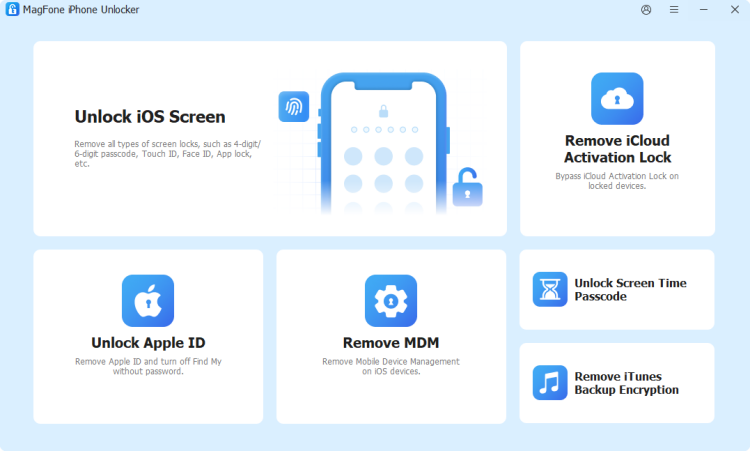
Connect your iPhone to your computer through a USB cable, then launch MagFone iPhone Unlocker. On the main interface of the MagFone software, select the Remove iTunes Backup Encryption option and click the Next button.
Step 2 Start to Remove iTunes Backup Encryption Password
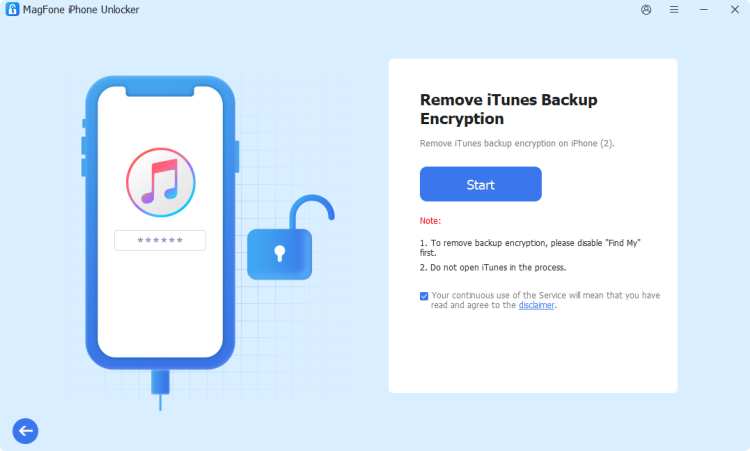
On the next screen, you can click the Start button. If you have Find My iPhone enabled on your iPhone, you will be prompted to turn it off. After turning off Find My iPhone, MagFone software will immediately remove iTunes backup encryption password from your device.
Part 3. FAQs about iTunes Backup Password
How to unlock encrypted iTunes backup without password?
You cannot unlock an encrypted iTunes backup without the correct password. Apple does not offer a way to bypass backup encryption, so the backup cannot be restored or accessed unless the password is entered. If you still need the data, one possible alternative is to use a trusted iPhone data recovery tool such as MagFone iPhone Data Recovery to scan and extract content from the backup.
How do I reset my iTunes backup password?
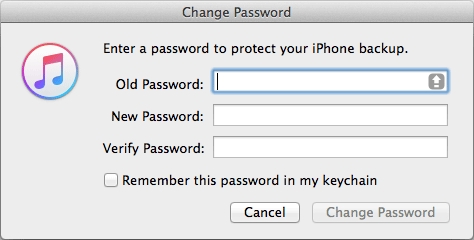
It's easy to reset your iTunes backup password when you have the current password. Follow the steps below to reset iTunes backup password.
Step 1. Connect your iPhone to your computer with a USB cable.
Step 2. Open iTunes and click the device icon in iTunes.
Step 3. Go to Summary and click Change Password next to Encrypt local backup.
Step 4. In the pop-up window, enter the old password and create a new one.
How to change iTunes backup password if forgotten?
If you forget your iTunes backup password, you cannot change it. But you can try removing the forgotten iTunes backup password by using the methods introduced in Part 3. Then you can create a new backup password for iTunes.
What is the default encryption password for iTunes backup?
There is no default encryption password for iTunes backup. When enabling Encrypt local backup, you're required to create an encryption password for iTunes backup.
Part 4. Conclusion
Recovering or removing your forgotten iTunes backup password doesn't have to be a stressful task. By following the methods outlined in this guide, you can either recover your iTunes backup password through Keychain Access or commonly used password. If recovery is impossible, removing your forgotten iTunes backup password and creating a new encrypted backup password ensures you regain control of your backup.

Dylan Jones
Editor in chief





