








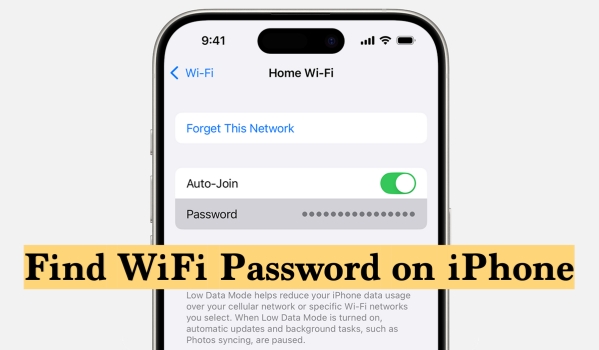
It's very common to forget a WiFi password when you need to connect a new device. Once an iPhone has joined a network successfully, most people never think about the password again. So, can you actually view a connected WiFi password on an iPhone? In this guide, we'll walk you through how to find WiFi password on iPhone, whether or not your iOS version lets you see them directly.
- Part 1. Can You See WiFi Password on iPhone?
- Part 2. How to Find WiFi Password on iPhone
- Part 3. All-in-one Solution to Extract WiFi Password from iPhone [All iOS Versions]
- Part 4. Conclusion
Part 1. Can You See WiFi Password on iPhone?
Whether you can see the WiFi password on your iPhone largely depends on which iOS version you're using. On older versions before iOS 16, Apple did not provide any built‑in way to view the password of a WiFi network after you had connected to it. Starting with iOS 16, Apple introduced a native option to view and copy saved WiFi passwords directly in the Settings app. On even newer versions like iOS 17 and iOS 18, Apple has continued to refine this experience, making it easier to manage and share WiFi passwords across your devices.
In the following sections, we will show you exactly how to check WiFi passwords on iPhone and provide an all-in-one solution to find WiFi passwords on both newer and older iOS versions.
Part 2. How to Find WiFi Password on iPhone
If your iPhone and iOS version support viewing saved WiFi passwords, there are several ways to access them. Even if one option isn't available on your device, you can usually try another to get the password you need.
Method 1. Access iPhone WiFi Password in Settings [iOS 16+]
This is the most direct way to see WiFi passwords on an iPhone running iOS 16 or later. You can view the password for the network you're currently connected to, as well as other saved networks.
Current connected WiFi password:
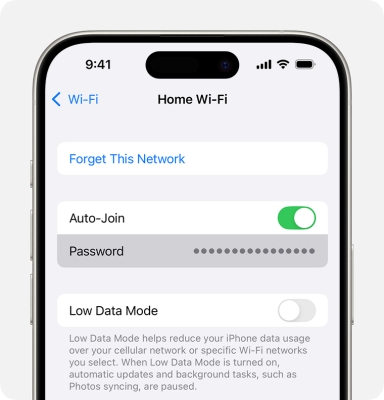
Step 1. Open iPhone Settings and tap WLAN.
Step 2. Tap the WiFi you are currently connected to.
Step 3. Tap the Password field, and enter your iPhone passcode to see the WiFi password.
All WiFi passwords:
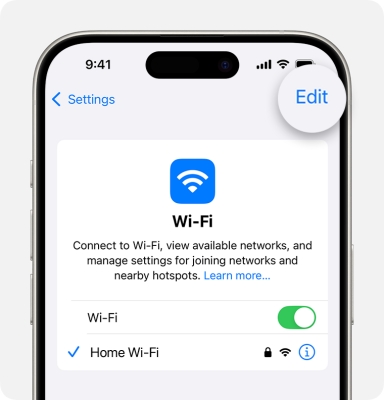
Step 1. Open iPhone Settings and tap WLAN.
Step 2. Tap Edit, and enter the iPhone passcode to access all previously connected passwords on this iPhone.
Step 3. Tap the i icon of the WiFi you want to view, then tap the Password area to check the password.
Method 2. Access iPhone WiFi Password in Passwords App [iOS 18+]
On iOS 18 and later, Apple launches the Passwords app to help centralize your saved passwords on iPhone, including WiFi passwords. You can find any WiFi passwords you have connected to before in the app.
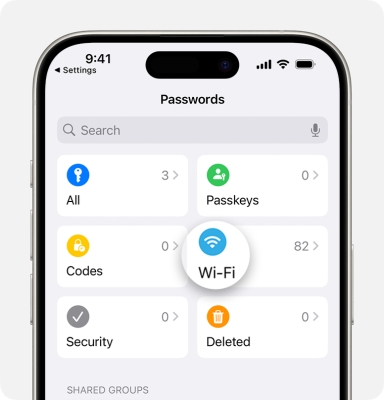
Step 1. Open the Passwords app and unlock with your Face ID or iPhone passcode.
Step 2. Access Wi-Fi, and here you can see all saved WiFi passwords on your iPhone.
Step 3. You can directly search for the network name to find a WiFi.
Step 4. Tap the network, then tap the Password field to view the WiFi password.
Method 3. Access iPhone WiFi Password in Keychain Access [Mac]
If you use a Mac with the same Apple ID and have iCloud Keychain enabled, your WiFi passwords can sync between your iPhone and Mac. With Keychain Access on macOS, you can look up saved WiFi entries, reveal their passwords, and then use or share them from your computer.
Sync iCloud Passwords & Keychain:
To view and manage WiFi passwords across your Apple devices, turn on iCloud Passwords & Keychain.
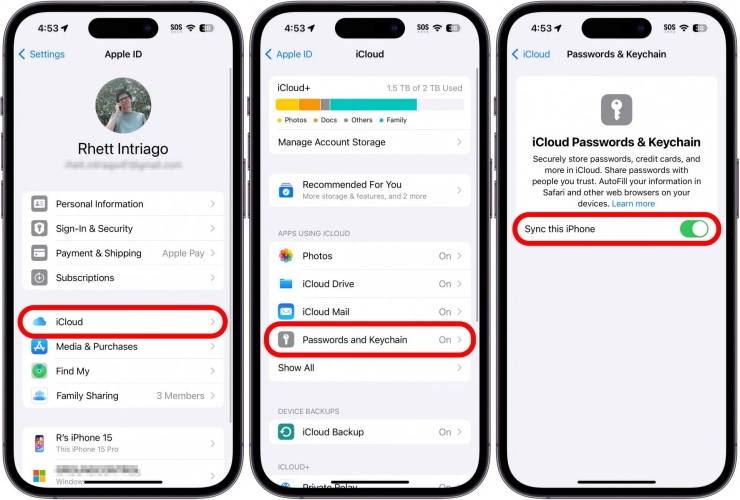
Step 1. Go to iPhone Settings and tap your Apple ID.
Step 2. Tap iCloud > Saved to iCloud > Passwords & Keychain.
Step 3. Enable Sync this iPhone, so passwords that are saved on this iPhone will sync to your Mac.
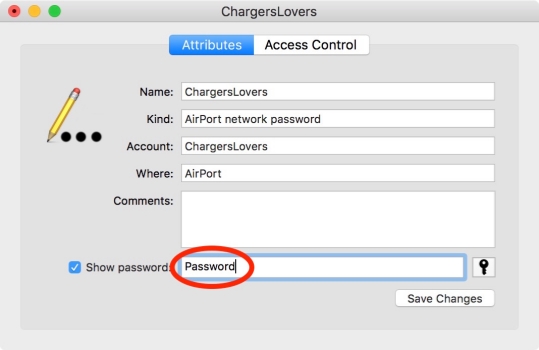
Step 1. Open Keychain Access on your Mac.
Step 2. Type network to filter the network passwords or directly search for the network name you want to check.
Step 3. Double-click the result and check Show password.
Step 4. Enter your login credentials to see the WiFi password.
Method 4. Access iPhone WiFi Password on Router Admin Page
Besides the Apple-built-in methods to access the WiFi password on the iPhone, you can also find a WiFi password from the router's admin page. But this requires the administrator password, so it's only available if you have administrator access.
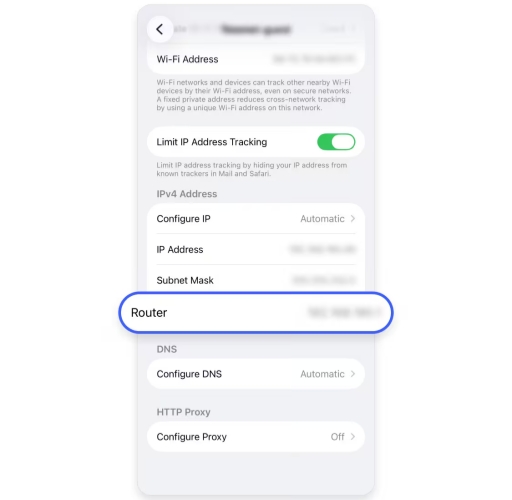
Step 1. Go to iPhone Settings > WLAN.
Step 2. Copy the router address of one saved WiFi and load it in the browser.
Step 3. Enter the administrator password, and then you can check the WiFi password.
Part 3. All-in-one Solution to Extract WiFi Password from iPhone [All iOS Versions]
By using the methods in Part 2, you can view WiFi passwords on an iPhone in most situations. However, if your device doesn't support showing WiFi passwords, the network was removed, or you've tapped Forget This Network, you may still need another way to see the password. This is where MagFone iPhone Unlocker can help. As a professional iOS password manager, it can scan your iPhone for saved WiFi passwords and let you selectively recover them, even if they no longer appear on the device.
Besides managing WiFi and other saved passwords, MagFone iPhone Unlocker is also widely used as an unlocking tool. It can help remove forgotten lock screen passcodes, Screen Time passcodes, MDM restrictions, Apple ID passwords, and even iTunes backup passwords.
Follow the steps below to extract WiFi passwords from your iPhone using MagFone iPhone Unlocker:

MagFone iPhone Unlocker
Unlock various locks on iOS devices, including screen locks, MDM, Apple ID, and Activation Lock without needing a password.
Step 1 Launch MagFone iPhone Unlocker
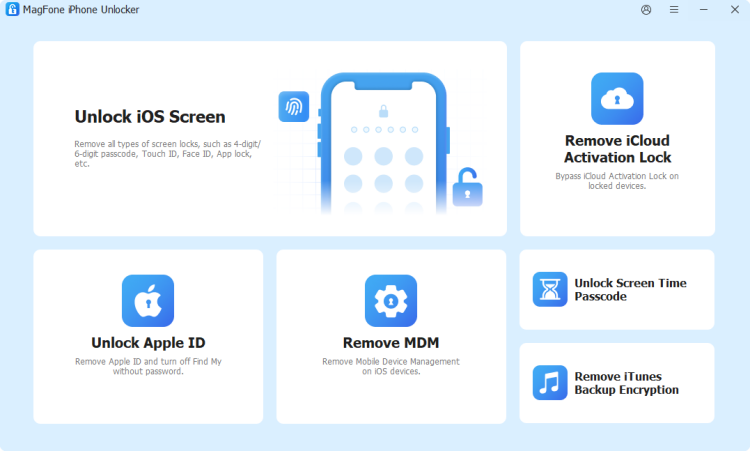
Start by downloading and installing MagFone iPhone Unlocker on your computer. At the same time, use a data cable to connect your iPhone to the computer. Then launch the tool.
Step 2 Scan Saved WiFi Passwords on iPhone
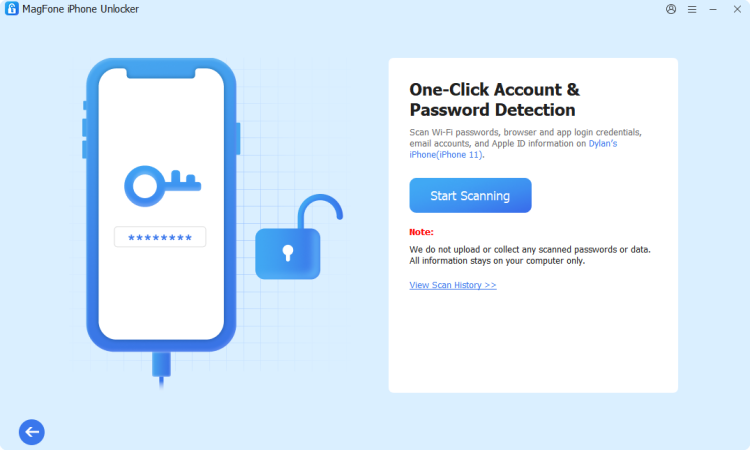
Choose Password Manager from the main interface. Click Start Scanning to allow the tool to find saved WiFi passwords on your iPhone.
Step 3 Extract WiFi Passwords from iPhone
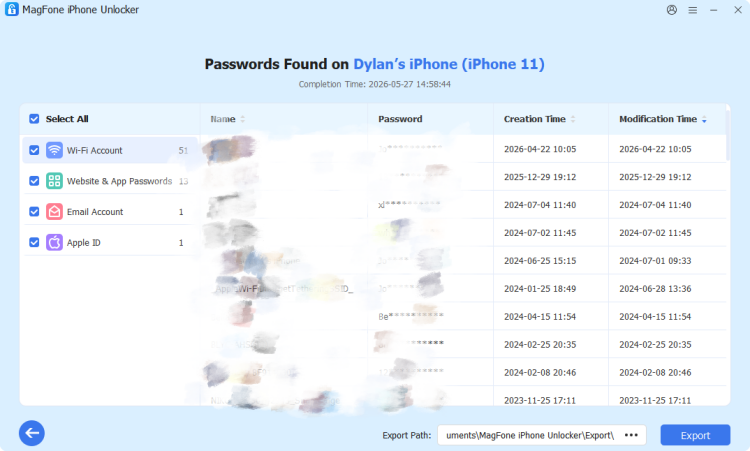
After scanning, you can check the WiFi passwords on the computer. Select the wanted network and click Export to extract the WiFi passwords from the iPhone to the computer.
Part 4. Conclusion
Finding WiFi passwords on an iPhone is now quite easy for you if you have read this guide. Whether in the Settings app, Passwords app, or Keychain Access, there is a chance that WiFi passwords are stored there. And if your iPhone doesn't show the password or you've forgotten a network, an all-in-one tool like MagFone iPhone Unlocker offers a practical way to recover and manage WiFi passwords across all iOS versions.

Dylan Jones
Editor in chief





