








Locking a note on your iPhone helps protect private information. But when you lock a note on iPhone, you may not haven't imagined that you can't unlock and access it one day. Many users run into this exact problem and start looking for practical ways to unlock their notes again. In this guide, we'll explain what happens if you forget locked Notes password, walk through possible methods that may help you regain access, and share tested tricks that can be used to unlock notes without the password.
- Part 1. What If I Forgot My Notes Password?
- Part 2. How to Unlock Notes Password If Forgotten [May Work]
- Part 3. Tricks to Unlock Notes without Password [Real Tested Case]
- Part 4. Bonus Tip: Recover Deleted Notes on iPhone
- Part 5. Conclusion
Part 1. What If I Forgot My Notes Password?
Apple does not provide a way to recover the password for notes that have already been locked. If you forget your Notes password, you generally will not be able to access those locked notes unless you remember the correct password. It is also important to know that resetting your Notes password does not unlock notes that were locked with the old password.
However, there are still a few things worth trying. If you previously enabled Touch ID or Face ID for unlocking notes, you may still be able to open them using Touch ID or Face ID. And if you set a password hint when creating the password, that hint may help you remember it and regain access to your locked notes.
Part 2. How to Unlock Notes Password If Forgotten [May Work]
Depending on how you originally set up your Notes password, there are a few methods that may help you regain access to your locked notes.
Method 1. Unlock Notes Password with Touch ID or Face ID
If you have allowed Use Touch ID or Use Face ID to unlock notes when you set the Notes password, then you can directly use the Touch ID or Face ID to access the locked notes.
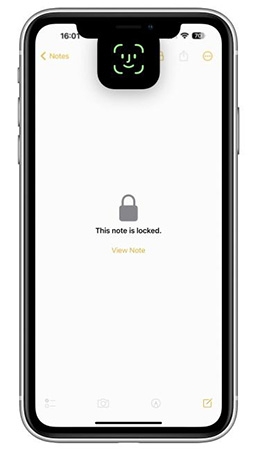
Step 1. Directly tap the locked note you want to get into.
Step 2. Tap View Note and enter the Touch ID or Face ID to get into it.
Method 2. Unlock Notes Password with Hint
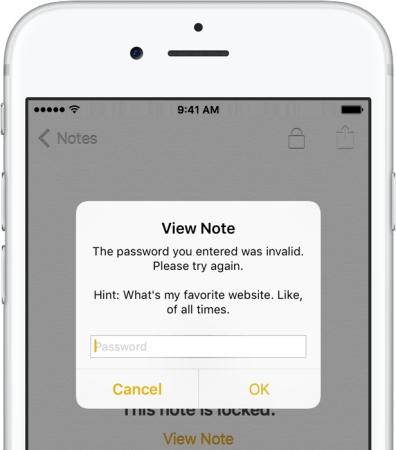
If you have created a clear enough hint when you set the Notes password, it may help you remember the correct password. To view the Notes password hint, enter the wrong password three times on the locked note screen, and then you can see the hint message. Then you can deduct the Notes password and access locked notes.
Note:
To avoid similar issues like this, we'd suggest that you create a helpful password hint when setting a custom Notes password next time.
Method 3. Unlock Notes Password with Used Passcode
If you can't figure out the Notes password based on the hint message, another option is to try passwords you have used in the past. Since there is no strict limit on password attempts for locked notes, you can test possible passwords one by one until you find the correct one.
Part 3. Trick to Unlock Notes without Password [Real Tested Case]
Even though you can't unlock the locked notes with the methods in Part 2, don't worry. We have tested and found two tricks that may help you access locked notes without the password.
Case 1. On iPhone 6 with iOS 12
We tested this method on an iPhone 6 running iOS 12, and it worked. If you are using an older iPhone model or iOS version, you can try the steps below for a chance to access your locked notes.
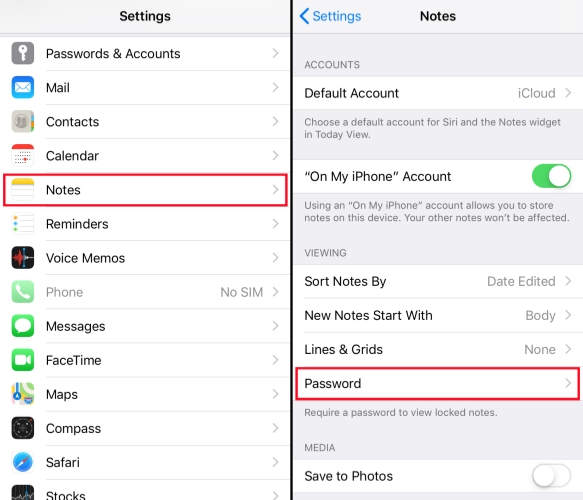
Step 1. Go to iPhone Settings and find Notes.
Step 2. Tap Passwords > Reset Password.
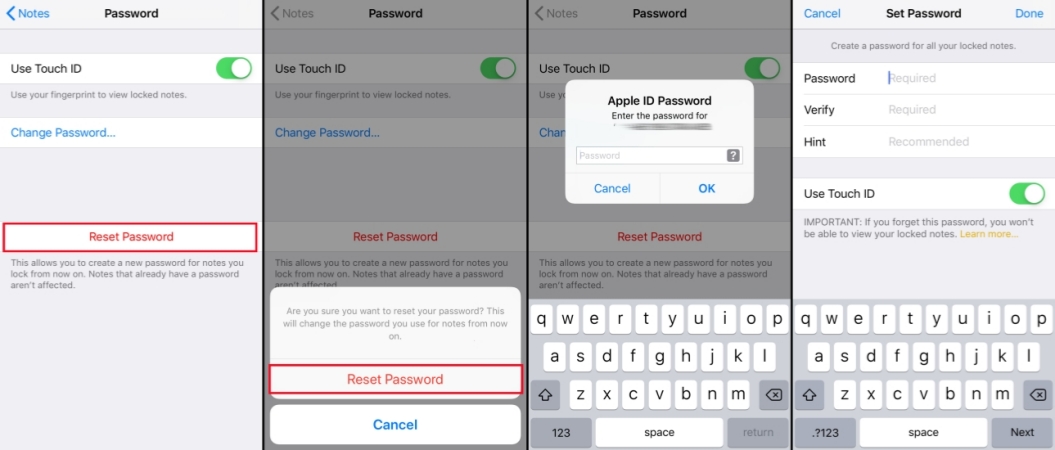
Step 3. Enter the required Apple ID password, then tap Reset Password to reset it.
Step 4. Create a new password for Notes and enable Use Touch ID or Use Face ID.
Step 5. Open Notes and access the locked note, tap View Note, and use your Touch ID or Face ID to unlock it.
Notice:
We also tested this method on an iPhone 11 running iOS 26, and it did not work. That means this trick may only work on older iPhone models or earlier iOS versions. Still, there is another method worth trying on newer iOS versions, especially iOS 16 and later.
Case 2. On iPhone 11 with iOS 26
Starting with iOS 16, Apple allows users to lock notes with either a custom password or the iPhone passcode. One possible workaround is to switch from a custom Notes password to the iPhone passcode. If your notes were locked with a custom password, this method may help in some cases.
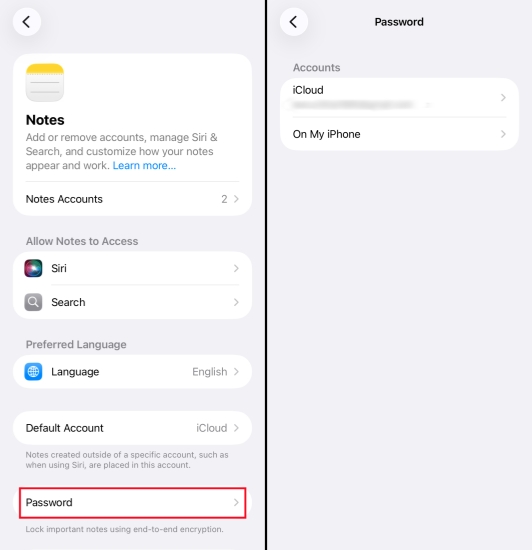
Step 1. Go to iPhone Settings > Apps > Notes.
Step 2. Tap Password and choose the Notes account that includes the locked note.
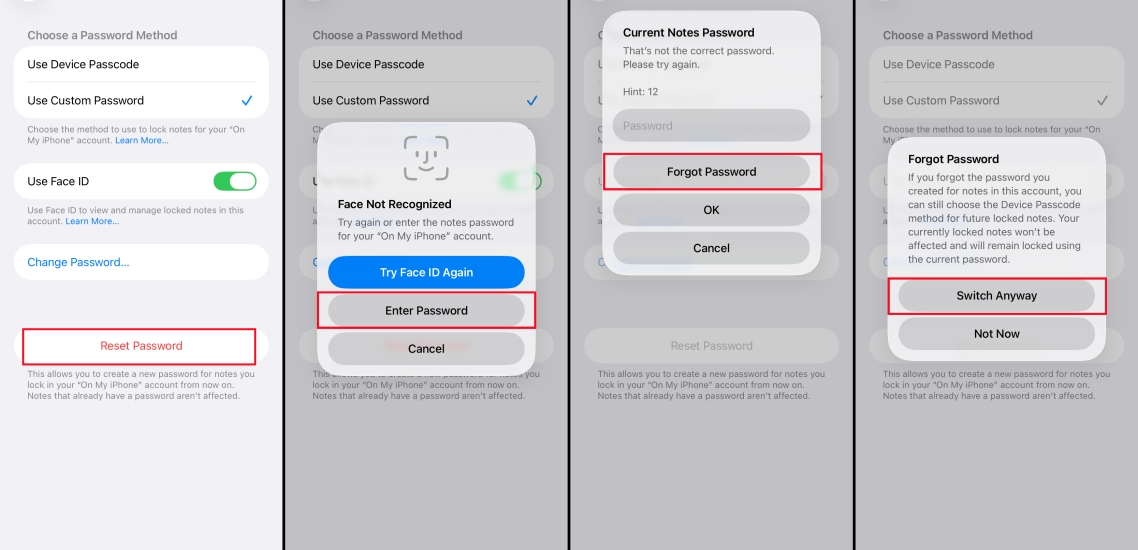
Step 3. Choose Use Device Passcode and tap Enter Password.
Step 4. Enter a wrong password, then tap Forgot Password.
Step 5. Choose Switch Anyway and enter your iPhone passcode for Notes. Then tap OK.
Step 6. Now you can open the Notes app and access your locked notes with the iPhone passcode.
Part 4. Bonus Tip: Recover Deleted Notes on iPhone
Hope you can unlock the forgotten Notes password after trying the methods we introduced before. Here, we would also like to recommend a Notes recovery tool when you have notes permanently deleted or lost. If you also need to recover deleted notes or other lost data on your iPhone, MagFone Notes Data Recovery is a tool worth considering. It is designed to help users restore deleted content from an iPhone in various data-loss situations. If you have similar needs in the future, you can follow the steps below to get your notes data back.

MagFone iPhone Data Recovery
Recover data from iPhone and iPad in three recovery modes without data overwritting and device reset.
Step 1 Download and Install MagFone iPhone Data Recovery

To recover deleted notes on iPhone, you need to first download and install MagFone iPhone Data Recovery on your computer. Then launch this software to start.
Step 2 Scan Deleted Notes on iPhone

Click iPhone/iPad Data Recovery from the main interface and use a data cable to link your iPhone to the computer. Then select Notes and click Scan to proceed.
Step 3 Recover Deleted Notes on iPhone
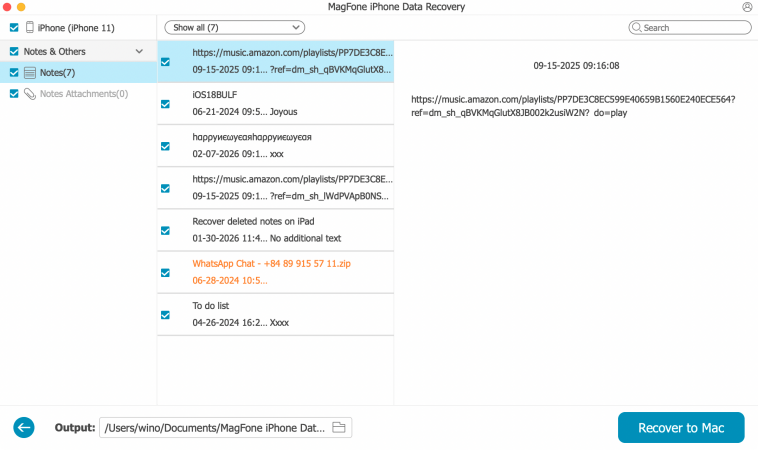
When the scan is finished, you can check the notes data on the computer. Choose the notes you need and click Recover to PC or Recover to Mac to restore them.
Part 5. Conclusion
We hope this guide has helped you better understand what to do if you forget your Notes password and how to access locked notes in possible situations. If you have found another method that worked for you, feel free to share your experience in the comments so it may help other users facing the same problem.

Edgar Davis
Editor in chief




