








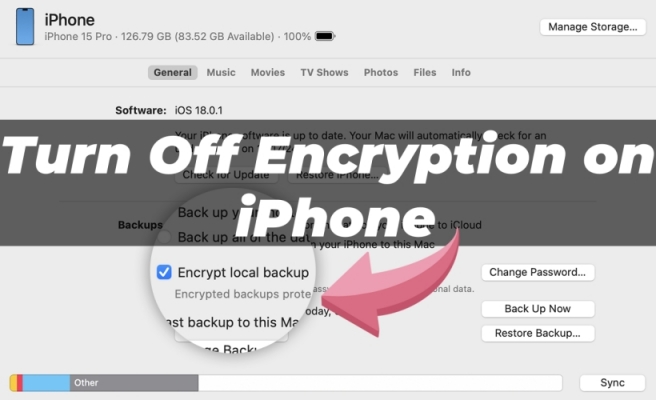
Encryption is an essential security feature in the Finder or iTunes that protects your personal data by locking and encoding it. However, there may be situations where you need to disable encryption, such as troubleshooting issues or preparing your device for a complete reset. In this detailed guide, we will walk you through how to turn off encryption on iPhone regardless of whether you can remember your encrypted backup password.
- Part 1. What Is iPhone Encryption?
- Part 2. How to Turn Off Backup Encryption on iPhone with Password
- Part 3. What to Do When You Forgot iPhone Encryption Password
- Part 4. How to Turn Off iTunes Encryption on iPhone without Password
- Part 5. Conclusion
Part 1. What Is iPhone Encryption?
Apple's encryption system is designed to protect your personal data by making it unreadable to unauthorized access. This feature isn't enabled by default in the Finder, Apple devices, and iTunes. But if you have enabled the encrypt local backup option in the Finder or iTunes, you're required to set a passcode, ensuring that data stored on the device is encrypted with advanced security measures.
How to turn on encryption on iPhone?
iPhone encryption needs to be manually checked when you back up your iPhone in iTunes. To encrypt your iPhone:
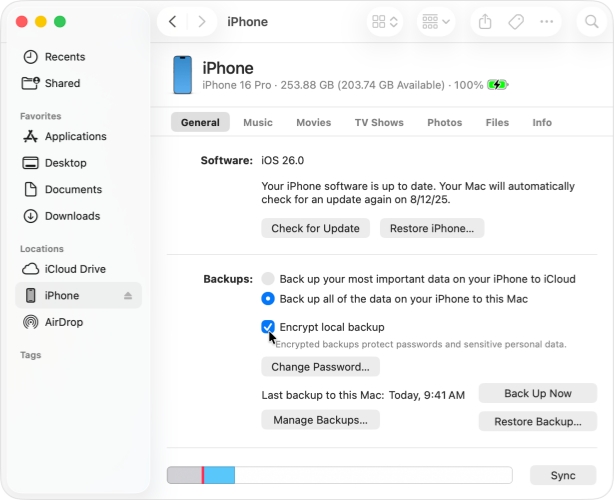
Step 1. Open the Finder or iTunes on your computer, then connect your iPhone.
Step 2. Click the device icon to view your device information.
Step 3. Go to select Encrypt local backup in the General tab or the Summary tab.
Step 4. Create a password for your encrypted backup, then click Back Up Now to encrypt your iPhone backup.
If you prefer a quicker and more visual explanation, the following video tutorial walks you through the key steps for managing iPhone backup encryption. It can help you better understand the process before trying the methods below.
Part 2. How to Turn Off Encryption on iPhone with Password
You can turn off encryption with ease if you know your encrypted backup password. Here's how to turn off backup encryption on iPhone with an encrypted backup password.
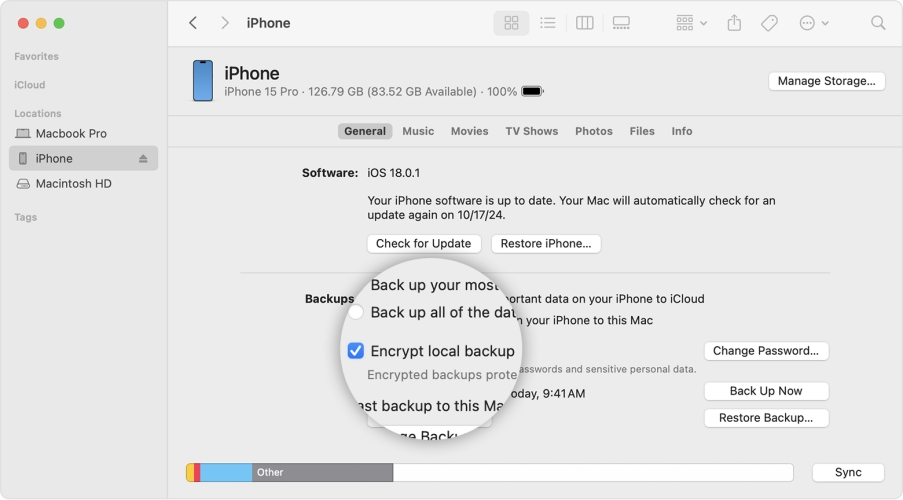
Step 1. Open the Finder or iTunes after connecting your iPhone to your computer.
Step 2. Click the device icon to locate your device on the computer.
Step 3. From the General tab or the Summary tab, uncheck the Encrypt local backup checkbox.
Step 4. Enter your encrypted backup password in the pop-up window and click the OK button.
Step 5. Select the Don't Encrypt option, then wait to turn off encryption on your device.
Part 3. What to Do When You Forgot iPhone Encryption Password
When you forget your iPhone encryption password, you need to know that it can't be restored. So you can't restore the encrypted iTunes backup to your iPhone further. If you want to take further options to store your iPhone data, there are two options available.
Option 1. Disable iPhone Encryption by Resetting All Settings
When forgot the encrypted backup password, you can reset all settings to disable the encryption on iPhone. This will erase settings like your encrypted password, but won't affect your user data or passwords. You should be aware that resetting all settings will not allow you to access the previous encrypted iTunes backup. After the reset, you can create a new backup and set a new encryption password if needed.

Step 1. On your iPhone, go to Settings > General > Transfer or Reset iPhone.
Step 2. Tap Reset and select Reset All Settings.
Step 3. Enter your device passcode and tap Reset All Settings to confirm.
Option 2. Use iCloud to Back Up and Restore Your iPhone
Another useful solution when you forget the iPhone encryption backup password is to back up your iPhone with iCloud. If you no longer have access to the old encryption password, iCloud backup can help you protect your iPhone data without requiring the iTunes backup password. Once you back up your iPhone with iCloud, you can restore it when necessary.
Back Up iPhone to iCloud:
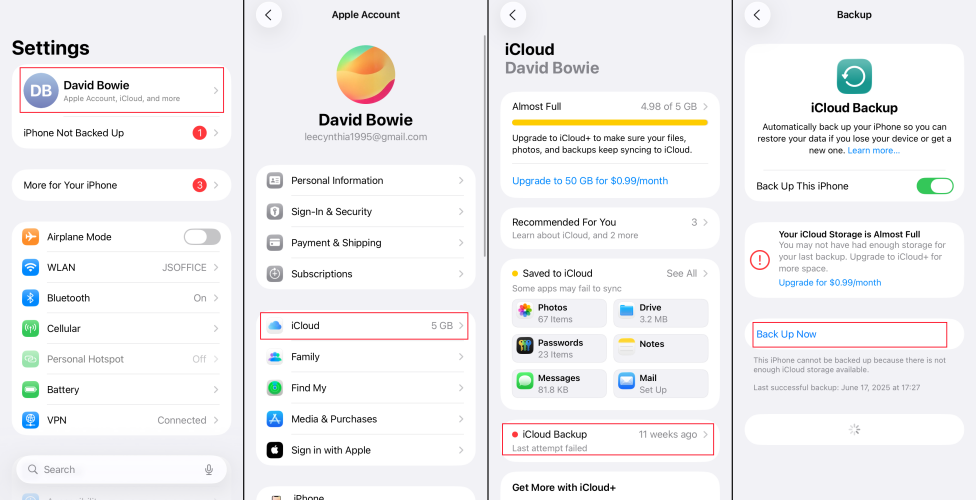
Step 1. Open iPhone Settings and tap your Apple ID.
Step 2. Tap iCloud > iCloud Backup, and tap Back Up Now to sync your iPhone to iCloud. Make sure there is sufficient iCloud storage and a stable network.
Restore iPhone from iCloud Backup:

Step 1. Open a new iPhone or an erased iPhone, and you should see the Hello Screen.
Step 2. Follow the onscreen setup steps until the Transfer Your Apps & Data screen appears.
Step 3. On the Transfer Your Apps & Data screen, select From iCloud Backup.
Step 4. Sign in to iCloud with your Apple ID, choose a backup to restore to your iPhone. Then finish setting up the iPhone.
Part 4. How to Turn Off iTunes Encryption on iPhone without Password
When you want to restore an iTunes backup to your iPhone, but you forgot the encrypted password, this can be tricky. But with MagFone iPhone Unlocker, you can easily remove the iTunes encrypted backup password from your iPhone. Removing an encrypted backup password with MagFone iPhone Unlocker is a straightforward process, ensuring the disabling of encryption on your iPhone and access to your iPhone backup. Follow the steps below to turn off iPhone encryption without password and iTunes.

MagFone iPhone Unlocker
Unlock various locks on iOS devices, including screen locks, MDM, Apple ID, and Activation Lock without needing a password.
Step 1 Connect iPhone and Run MagFone iPhone Unlocker
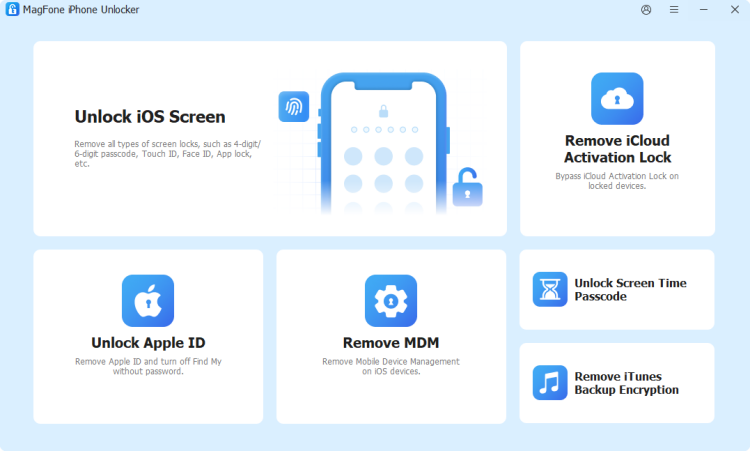
Connect your iPhone to your computer through a USB cable, then launch MagFone iPhone Unlocker. On the main interface of the MagFone software, select the Remove iTunes Backup Encryption option and click the Next button.
Step 2 Start to Remove iTunes Backup Encryption Password
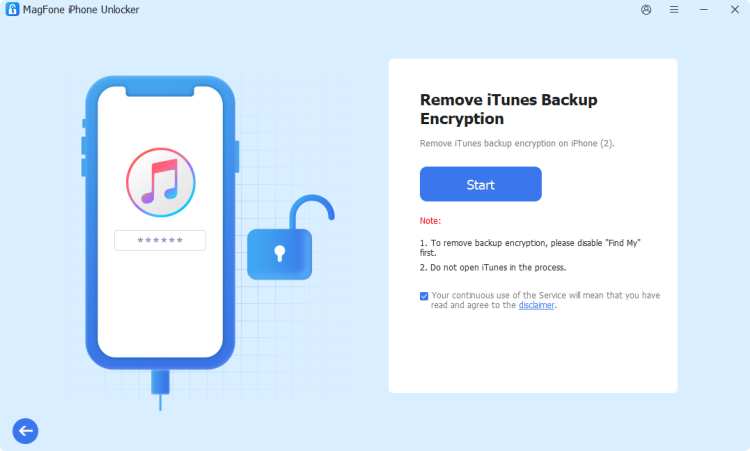
On the next screen, you can click the Start button. If you have Find My iPhone enabled on your iPhone, you will be prompted to turn it off. After turning off Find My iPhone, MagFone software will immediately remove iTunes backup encryption password from your device.
Part 5. Conclusion
Turning off encryption on your iPhone can be necessary for specific situations, but it's essential to understand the risks involved. All the methods introduced in this guide can help you turn off encryption on your iPhone no matter whether you can remember your encrypted backup password. If you want to turn off encryption on your iPhone without password or iTunes, you can consider MagFone iPhone Unlocker - an iTunes password decryptor to remove the encrypted backup password without deleting any data.

Dylan Jones
Editor in chief





