








Backing up your iPhone to your computer is one of the most reliable ways to protect your iPhone data, including photos, messages, contacts, app data, and device settings from unexpected loss. Whether you want a local copy for extra security or are preparing to upgrade or restore your device, a computer backup can be a practical solution. In this guide, we'll explain all you may wonder about backing up iPhone to computer, from what a computer backup does, and where to find iPhone backup on computer, to how to extract iPhone backup on computer.
- Part 1. What Does Back Up Your iPhone to Your Computer Do?
- Part 2. How to Back Up iPhone to Computer
- Part 3. Where Do You Find iPhone Backup on Computer?
- Part 4. Bonus Tip: Extract iPhone Backup on Computer
- Part 5. FAQs about Backing Up iPhone to Computer
- Part 6. Conclusion
Part 1. What Does Back Up Your iPhone to Your Computer Do?
Backing up your iPhone to your computer creates a local copy of all your data stored on your device, including photos, messages, contacts, app data, settings, and other personal information. This backup helps protect your data in case your iPhone is lost, damaged, reset, or replaced. A computer backup is stored directly on your PC or Mac, which can give you faster access, more storage control, and an extra layer of security. It is useful when switching to a new iPhone, restoring your device after a software issue, or when you have lost or deleted important data on your iPhone.
Part 2. How to Back Up iPhone to Computer
Backing up your iPhone to a computer is quite easy, but the steps can vary depending on the tool you use. Apple supports different backup methods for Windows PCs and Macs, and some users may also need third-party tools for added flexibility. The following options explain how to back up an iPhone to a computer using iTunes, Finder, and third-party tools.
Option 1. Back Up iPhone to Computer with iTunes (Windows & macOS Mojave-)
Using iTunes is the standard way to back up an iPhone on a Windows PC or a Mac running macOS Mojave or earlier.
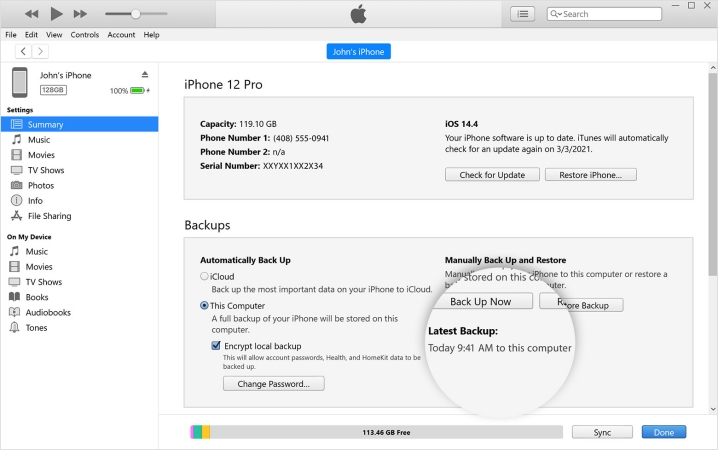
Step 1. Use a data cable to connect your iPhone to the computer and launch iTunes.
Step 2. Trust the computer on your iPhone, and when the iPhone is connected to iTunes, click the iPhone icon.
Step 3. Choose This Computer and click Back Up Now to back up your iPhone to the computer.
Option 2. Back Up iPhone to Computer with Finder (macOS Catalina+)
For Macs running macOS Catalina or later, Finder replaces iTunes as the built-in tool for managing and backing up iPhones.
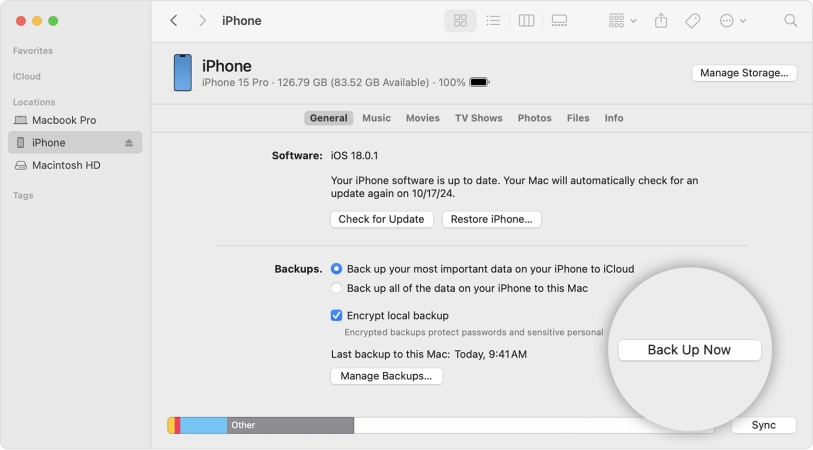
Step 1. Use a data cable to link your iPhone to your Mac and open Finder.
Step 2. Click your device under Locations.
Step 3. Choose Back up all of the data on your iPhone to this Mac and click Back Up Now to back up your iPhone to the computer.
Note: Encrypt Local Backup on Computer
If you want to encrypt your local backup on your computer, you can mark the Encrypt local backup option when you back up your iPhone.
Option 3. Back Up iPhone to Computer with Third-Party Tool
If you want more flexibility than Apple's official backup options, using a third-party backup tool can be a good choice. Tools like iMazing and CopyTrans can help back up your data to a computer more selectively, making it easier to manage your iPhone data. And you can even restore the backup data you need to the iPhone without restoring a full backup.
Part 3. Where Do You Find iPhone Backup on Computer?
After creating a local backup on the computer, you must be curious about where the backup is stored. The location of an iPhone backup depends on whether you are using a Windows PC or a Mac. Though you can find the backup file, you can't access the actual content in it. Below are the steps to find iPhone backup on a computer:
On Windows PC:
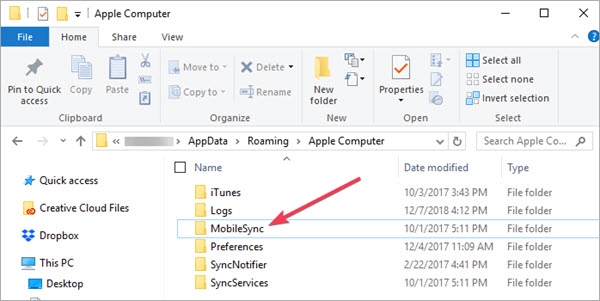
Step 1. Press the Windows key + R key to launch the Run dialog box.
Step 2. Type %USERPROFILE% and click Ok.
Step 3. Find the path: Apple Computer > MobileSync > Backup, and here you can find your iPhone backup.
On Mac:
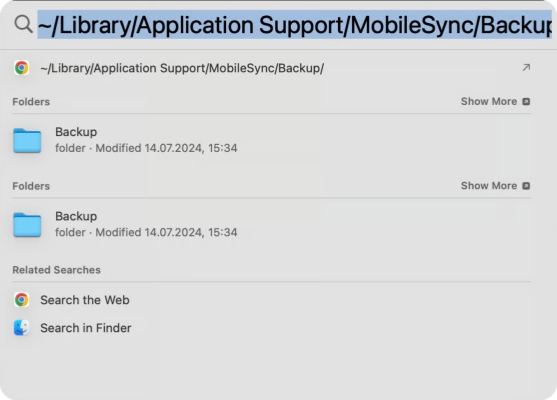
Step 1. Open Finder and click Go in the upper-left menu bar.
Step 2. Click Go to Folder, then paste the following path in the typing box.

Step 3. Double-click the result, and that's where your iPhone backup is stored on your Mac.
Part 4. Bonus Tip: Extract iPhone Backup on Computer
Although you can find where your iPhone backup is stored on a computer, the backup files themselves are not easy to read directly. In many cases, users may want to view or extract specific data from a backup instead of restoring the entire file to an iPhone. That is where backup extraction can be helpful, especially for those who need access to certain files, messages, or other saved information on a computer.
A reliable tool like MagFone iPhone Data Recovery can make this much easier. It allows you to extract data from an iTunes backup, whether you want to check the backup contents or recover lost and deleted data from a previous backup file. Follow the steps below to extract iPhone backup on computer:

MagFone iPhone Data Recovery
Recover data from iPhone and iPad in three recovery modes without data overwritting and device reset.
Step 1 Open MagFone iPhone Data Recovery

Download and install MagFone iPhone Data Recovery on your computer, then open the tool after successful installation.
Step 2 Choose Recover Data from iTunes
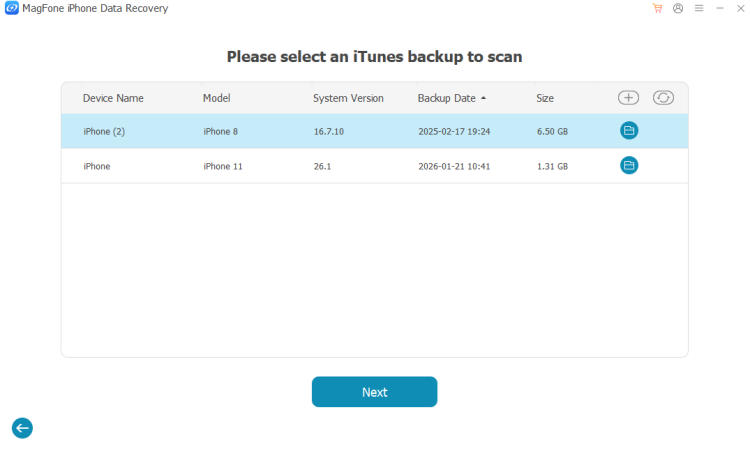
Click Recover Data from iTunes on the main interface, and the tool can detect your local backup on your computer. Choose an iTunes backup and click Next.
Step 3 Scan Data from iTunes Backup
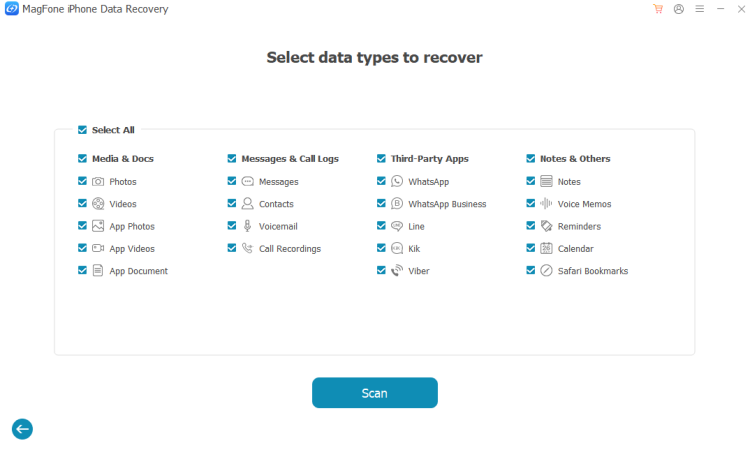
Select the data you want to access and click Scan to allow the tool to scan your iTunes backup. If the backup is encrypted, you need to enter the passcode to unlock it.
Step 4 Access iPhone Backup on Computer
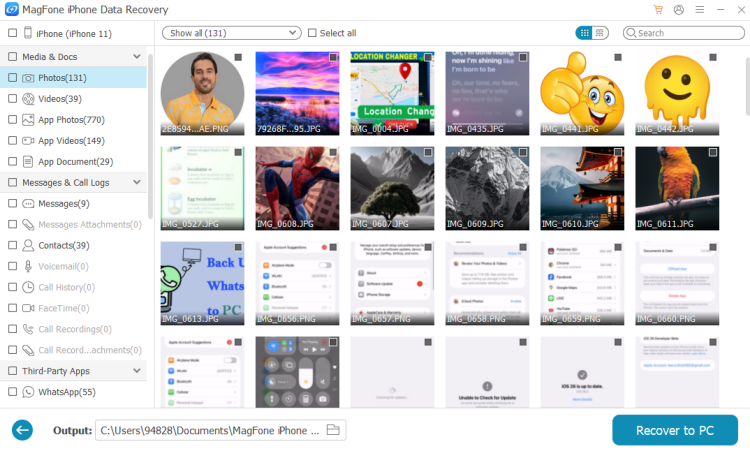
After scanning, you can preview the scanned data in the iTunes backup. You can also select items and click Recover to PC or Recover to Mac to export them to your computer.
Part 5. FAQs about Backing Up iPhone to Computer
Can I back up multiple iPhones to my computer?
Yes, you can back up multiple iPhones to the same computer. Each device creates its own backup, so the files are stored separately.
Can I access my iPhone backup on my computer?
You can't directly access your iPhone backup on your computer, but you can use an iTunes backup extractor to do this for you. To access your iPhone backup on a computer, you can check Part 4 in this guide.
How to restore backup from computer to an iPhone?
To restore a backup from your computer to an iPhone, connect the device to the computer you used for the backup. Open iTunes or Finder, select your iPhone, and click Restore Backup. Then choose the backup file you want to use and wait for the restore process to finish.
Part 6. Conclusion
Backing up your iPhone to a computer is a simple but important way to keep your data safe. Whether you choose iTunes, Finder, or a third-party tool, creating a backup can help protect your photos, messages, contacts, and other important information from unexpected loss. After reading this guide, you can manage your iPhone backup more effectively and avoid losing valuable data.

Olivia Wood
Editor in chief




