








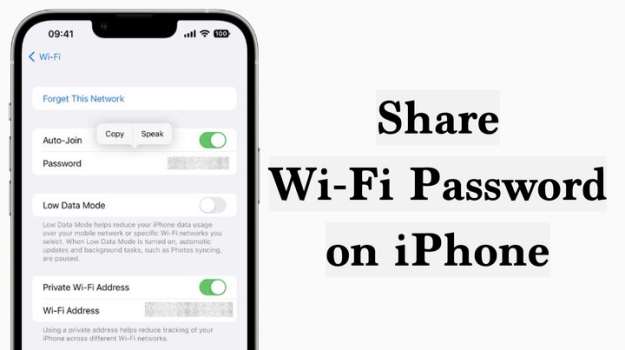
Sharing Wi-Fi password on iPhone is simple once you know the available options. Whether you just need to quickly give someone access to your current network or want to view and share saved Wi-Fi passwords in other ways, this guide will walk you through the most practical methods step by step. Just keep reading to get it!
- Part 1. How Do You Share Wi-Fi Password on iPhone?
- Part 2. How to Share Wi-Fi Password on iPhone
- Part 3. Bonus Tip: Export Wi-Fi Passwords on iPhone in Clicks [All iOS Versions]
- Part 4. Conclusion
Part 1. How Do You Share Wi-Fi Password on iPhone?
The way you view and share Wi-Fi passwords on an iPhone can vary depending on the iOS version you're using. To make things easier, you can check the table below to find the method that works best for your device.
| Method | iOS Version | Suitable For |
|---|---|---|
| Copy Wi-Fi Passwords | iOS 11 and later versions | Share single Wi-Fi password at one time |
| Move Closer | iOS 18 and later versions | Share single Wi-Fi password at one time |
| QR Code | iOS 18 and later versions | Share single Wi-Fi password at one time |
| MagFone iPhone Password Manager | All iOS version | Share multiple Wi-Fi passwords at one time |
Part 2. How to Share Wi-Fi Password on iPhone
As long as your device supports revealing the Wi-Fi password, there is a way to share it. Here are 3 options you can try. What to mention is that these methods are only available to share a single Wi-Fi password at a time. If you need to share all Wi-Fi passwords on an iPhone, you can check the method in Part 3.
Option 1. Share Wi-Fi Password on iPhone via Copy [iOS 11+]
On iOS 11 and later, you can reveal the Wi-Fi password in iPhone Settings, so a direct way to share a Wi-Fi password is to check it and share it manually.
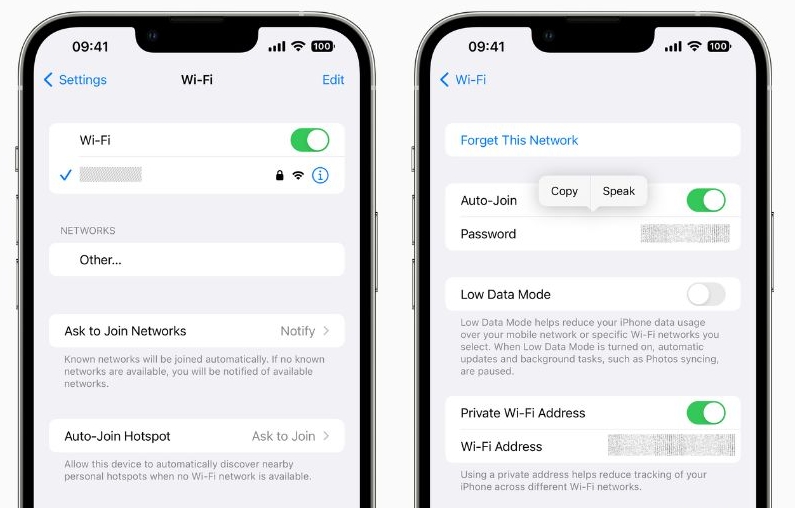
Step 1. Go to iPhone Settings > WLAN.
Step 2. Tap Edit to see all saved Wi-Fi passwords on your iPhone.
Step 3. Tap the WLAN you want to share and tap the Password stack to reveal it. Then you can long-press the password to copy and share it.
Option 2. Share Wi-Fi Password on iPhone via Bluetooth [iOS 18+]
You can share the current connected Wi-Fi password on your iPhone with another iPhone, iPad, or Mac if you meet the following requirements.
Requirements:
- Bluetooth is enabled on both Apple devices.
- One device is connected to the network.
- Hotspot is disabled on the receiver's device.
- Each device's account is in the other's contact list.
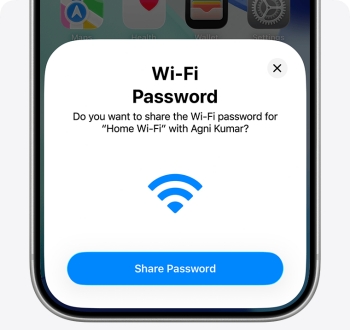
Step 1. On the receiver's device, go to Settings > WLAN and tap the Wi-Fi name.
Step 2. Get two devices close to each other.
Step 3. When a window pops up asking for password sharing on the sender's device, tap Share Password. Then tap Done.
Option 3. Share Wi-Fi Password on iPhone via QR Code [iOS 18+]
On iOS 18 and later versions, Apple launches the Passwords app to manage iPhone passwords, including Wi-Fi passwords. You can reveal and share iPhone Wi-Fi passwords as a QR code in the Passwords app, and then you can share the Wi-Fi QR code to invite others to join.
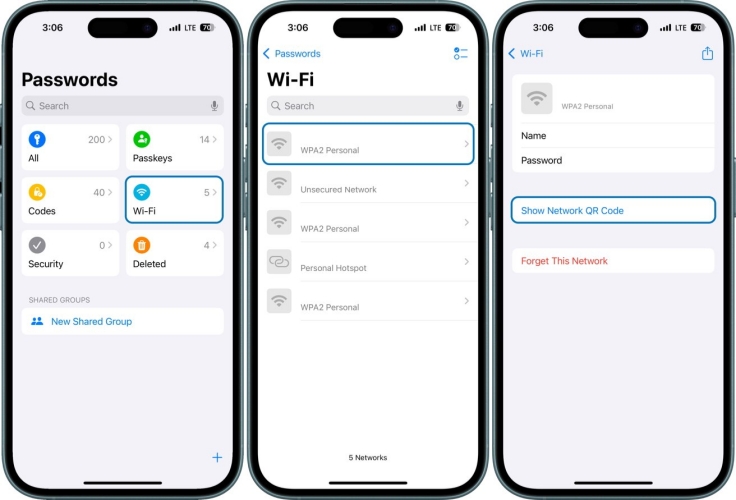
Step 1. Go to iPhone Passwords > WLAN.
Step 2. Tap the network you want to share.
Step 3. Tap the Show Network QR Code to generate the code and share it with your friends.
Part 3. Bonus Tip: Export Wi-Fi Passwords on iPhone in Clicks [All iOS Versions]
Methods in Part 2 work best when you only need to share a single Wi-Fi password at a time. For better iPhone Wi-Fi password management, we would like to share a useful iPhone password manager with you — MagFone iPhone Unlocker. It can manage not only Wi-Fi passwords on your iPhone, but also website and app credentials, email credentials, and Apple ID credentials on your iPhone. With MagFone, you can selectively export your Wi-Fi passwords in CSV format for easier checking and sharing. Just follow the steps below to share Wi-Fi passwords on your iPhone with any device.

MagFone iPhone Unlocker
Export and share Wi-Fi passwords on iPhone in a few clicks.
Step 1 Connect the iPhone to the Computer
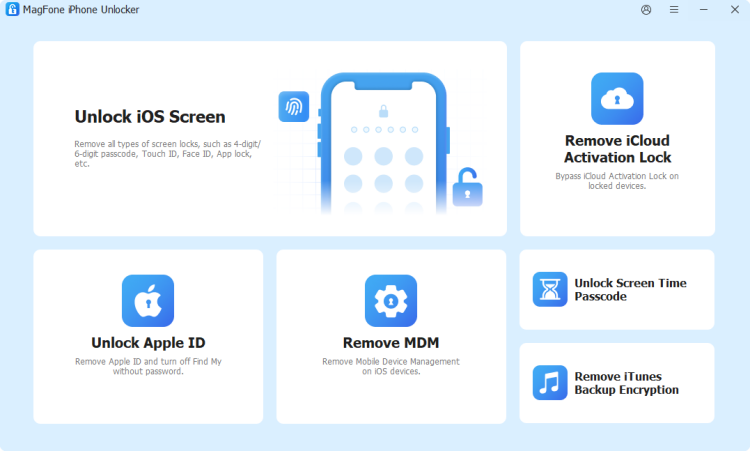
First, download MagFone iPhone Unlocker on your computer, then use a data cable to link your iPhone to the computer. When these are done, launch this tool to start.
Step 2Scan Wi-Fi Passwords on iPhone
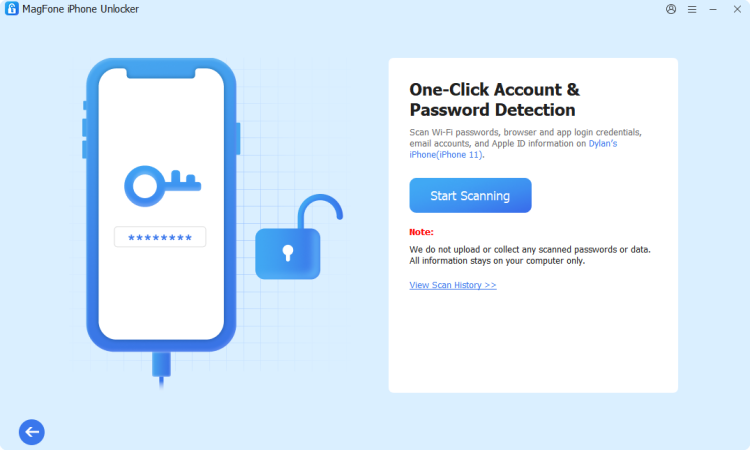
Click Password Manager on the main interface, then click Start Scanning to allow the tool to collect all Wi-Fi passwords on your iPhone. Get your iPhone unlocker when required.
Step 3 Export Wi-Fi Passwords on iPhone
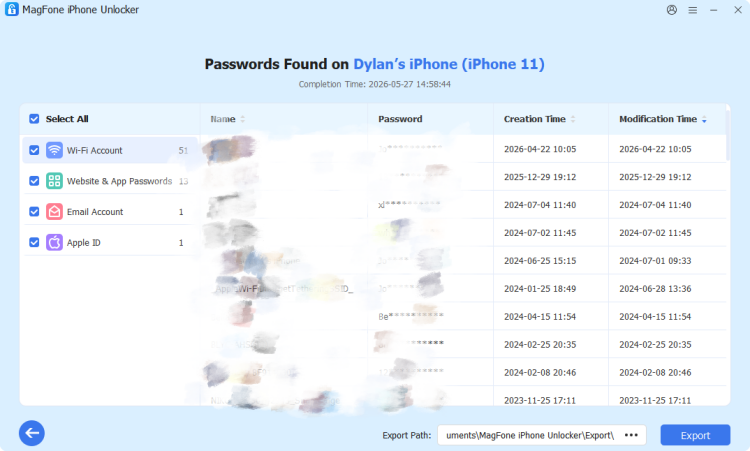
After scanning, you can select the Wi-Fi passwords and click Export to export the Wi-Fi passwords on iPhone to a CSV file. Then you can share the file with anyone or anywhere.
Part 4. Conclusion
Whether you want to share a Wi-Fi password from your iPhone to another iPhone, Android device, iPad, or Mac, you can choose the method in Part 2 that best fits your situation. If you'd like more flexibility in viewing, exporting, or managing saved passwords on your iPhone, MagFone iPhone Unlocker may also be a useful option to consider.

Dylan Jones
Editor in chief




