







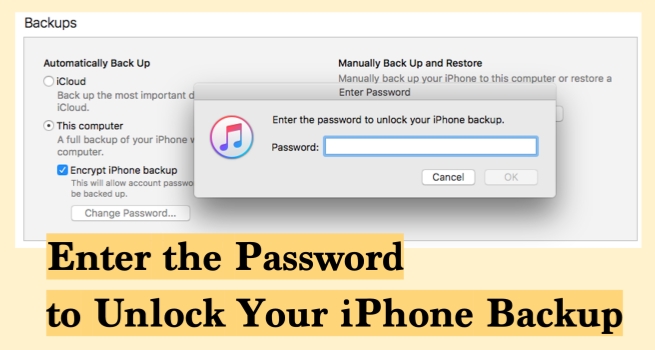
When you try to restore your data with iTunes and suddenly see a message asking for a password to unlock your iPhone backup, it can be confusing, especially if you don't remember ever setting one. This encrypted backup password is designed to protect your personal data, including photos, messages, health information, and more. However, once forgotten, it can become a real obstacle when you need to restore or transfer your iPhone. In this guide, we'll walk through why iTunes asks for this password, what you can do to enter or recover it, and how to manage iPhone backups more easily in the future.
- Part 1. Why Is iTunes Asking for a Password to Unlock Backup?
- Part 2. What to Do to Enter the Password to Unlock iPhone Backup
- Part 3. Bonus Tip: Back Up and Restore iPhone Backup without Password
- Part 4. Conclusion
Part 1. Why Is iTunes Asking for a Password to Unlock Backup?
When iTunes asks for a password to unlock an iPhone backup, it's because the backup has been encrypted for security reasons. Encrypted backups protect sensitive information stored on your device that unencrypted backups don't, such as:
- Your saved passwords
- Wi-Fi settings
- Website history
- Health data
- Call history
Once this option is enabled, every new backup of the iPhone created on that computer will require the same password to access or restore it. If you are unable to recall the password, keep reading to get a solution.
Part 2. What to Do to Enter the Password to Unlock iPhone Backup
If iTunes is asking you to enter a password to unlock your iPhone backup but you can't remember ever setting one, don't panic. Whether you're trying to turn off backup encryption or restore data from an encrypted backup, there are several practical methods you can try.
Option 1. Find iTunes Backup Password in Keychain/Credential Manager
If you ever allowed your Mac or Windows PC to save passwords, there's a chance your iTunes backup password is stored in the system's built‑in password manager, Keychain Access on Mac, while Credential Manager on Windows PC.
On Mac:
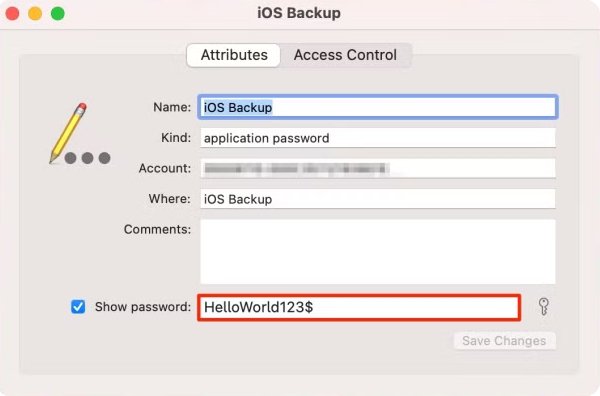
Step 1. Launch Keychain Access and search for backup in the Search box.
Step 2. You may see a list of results. Double-click the item named iOS Backup.
Step 3. Check the Show password, enter your login username and password. Then you can see the password, and you can unlock your iPhone backup now.
On Windows PC:
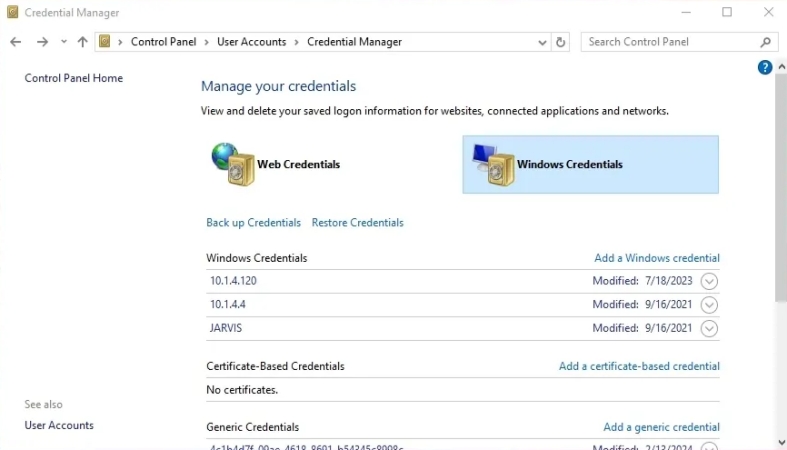
Step 1. Press Windows key + S, type Credential Manager, and press Enter.
Step 2. Click Windows Credentials to see passwords saved for apps and services on your PC.
Step 3. Look for anything related to Apple, iTunes, iPhone backup. Then click the arrow next to an entry to expand it.
Step 4. Click Show next to Password and enter your Windows account password when prompted. Then you can use the visible password to unlock your iTunes backup.
Option 2. Try Every Possible Password
If the password hasn't been recorded, you may need to rely on your memory and carefully test every password you commonly use. Many people set their backup password to something they use frequently, such as an Apple ID password, a computer login password, or an email or Wi‑Fi password. While this can be tedious, it's still worth trying if you don't have better options.
Option 3. Reset iPhone Backup Password
If you want to turn off iPhone backup encryption or change the encrypted backup password, you normally have to enter the current password. When you're stuck at the "Enter the password to unlock your iPhone backup" prompt and can't remember it, one workaround is to reset your iPhone backup settings by resetting all settings on your device. This doesn't erase your data, but it does reset system settings like Wi‑Fi, location, and privacy.
Since there is no exclusive entry to reset the iPhone backup password, you need to reset all settings instead.
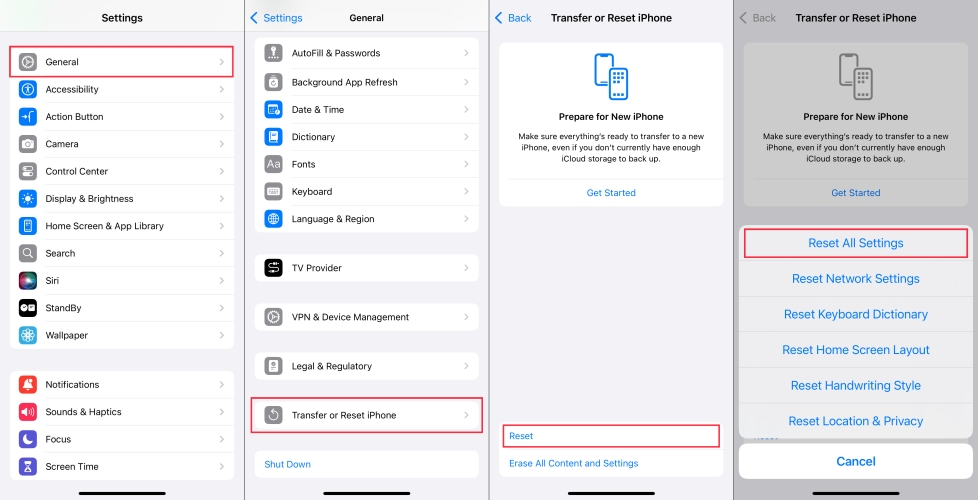
Step 1. Go to iPhone Settings and access General.
Step 2. Access Transfer or Reset iPhone > Reset > Reset All Settings.
Step 3. Enter the iPhone passcode and tap Reset All Settings again to confirm.
Afterwards, you can connect your iPhone to your computer and use iTunes or Finder to create a new encrypted backup with a new password. Note that this will not unlock old encrypted backups, but it lets you set a fresh password for future ones.
Option 4. Remove Encrypted iPhone Backup Using MagFone
If you can't access your backup and need a more direct way to remove encryption or start over, third‑party tools like MagFone iPhone Unlocker can help. The program is designed to remove various iOS passwords, such as lock screen passcode, Screen Time passcode, Apple ID password, MDM password, and iTunes backup encryption password. With MagFone iPhone Unlocker, you can remove the encryption settings from your iPhone and create new, unencrypted or re‑encrypted backups without needing the old password.

MagFone iPhone Unlocker
Unlock various locks on iOS devices, including screen locks, MDM, Apple ID, and Activation Lock without needing a password.
Step 1 Download and Install MagFone iPhone Unlocker
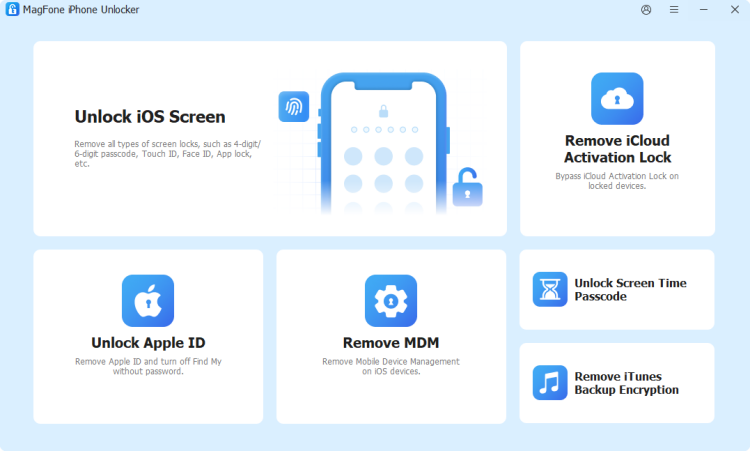
Start by downloading and installing MagFone iPhone Unlocker on your iPhone. Choose Remove iTunes Backup Encryption on the screen.
Step 2 Remove iPhone Backup Encryption
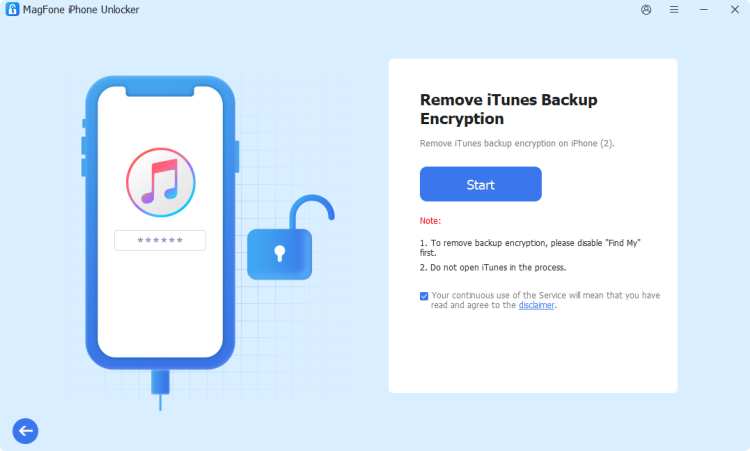
Click Start. Then follow the on-screen instructions to disable Find My on your iPhone. Then click Start again to remove the iPhone backup password from your iPhone.
Part 3. Bonus Tip: Back Up and Restore iPhone Backup without Password
iPhone data is very important to every user, especially for users who use an encrypted iPhone backup service. For better data management, we'd like to recommend an iPhone data management tool for iPhone users — MagFone iPhone Data Recovery. It's a tool designed to recover lost data on iPhone, back up iPhone data, restore iPhone data, extract data from iTunes backup, and access data in iCloud. It's compatible with both Windows and Mac, so you can effectively control your iPhone data. If you have this need, follow the steps below:

MagFone iPhone Data Recovery
Recover data from iPhone and iPad in three recovery modes without data overwritting and device reset.
Step 1 Connect iPhone to Computer
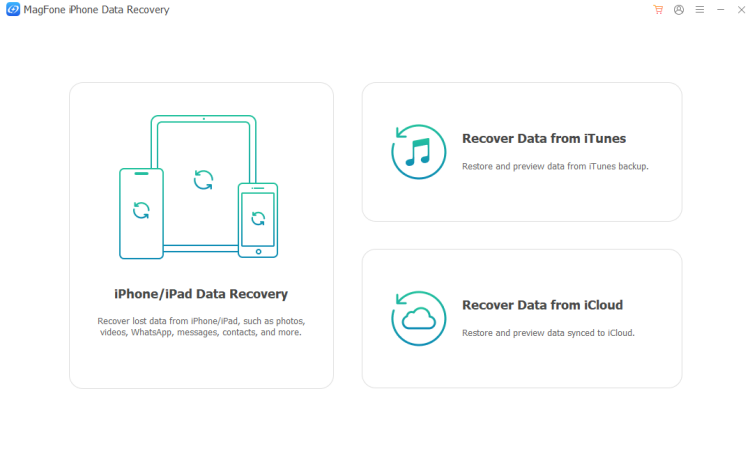
Download and install MagFone iPhone Data Recovery on your computer, then use a data cable to connect your iPhone to the computer.
Step 2 Back Up iPhone to Computer
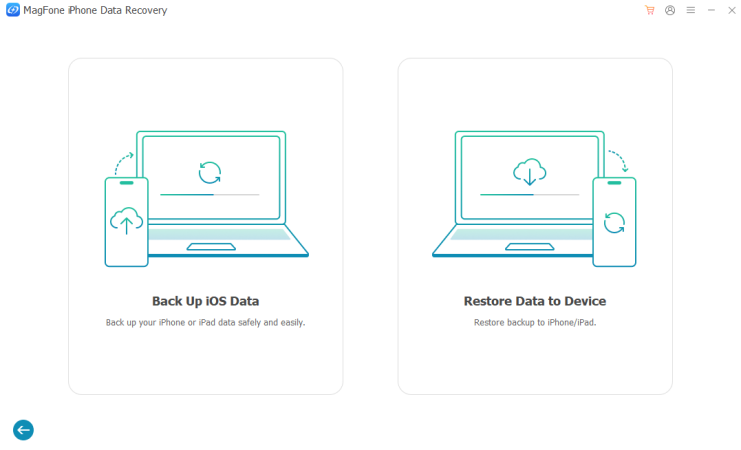
Click Backup & Restore > Back Up iOS Data, then click Start Backup to back up your iPhone to the computer. If you're required to enter the passcode on iPhone, follow the instructions.
Step 3 Restore iPhone Backup without Password
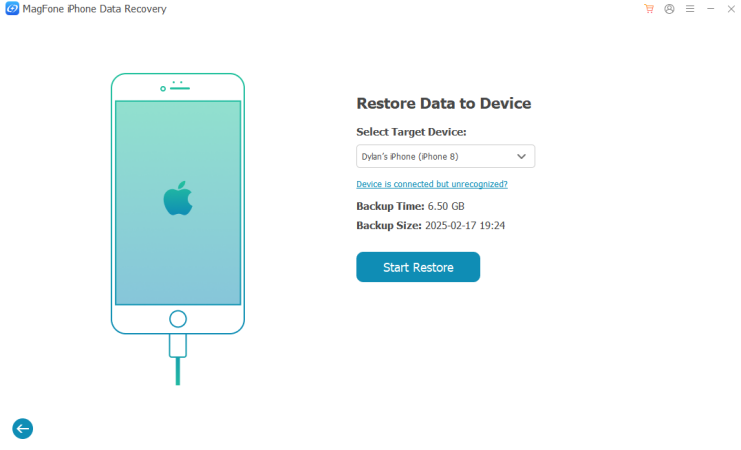
After backup, click Done. If you want to restore a backup, you can click Restore Data to Device. Choose a backup, click Next, and click Start Restore to restore it to your iPhone.
Part 4. Conclusion
Unable to unlock your iPhone backup can be frustrating if you want to restore a backup or disable the encrypted password. By checking saved passwords, trying your common logins, resetting the backup password via iPhone settings, or removing encrypted backups with tools like MagFone iPhone Unlocker, you still have several ways to move forward. With a new backup setup and better password management, you can keep your data secure and avoid this problem in the future.

Dylan Jones
Editor in chief





