








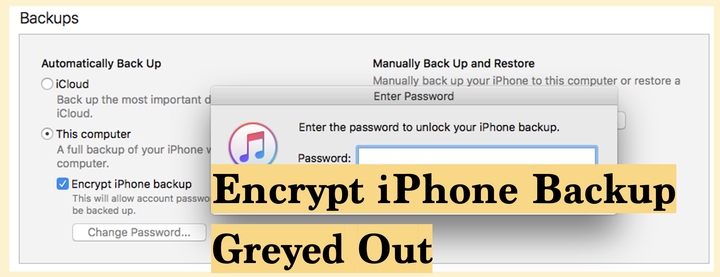
When you connect your iPhone to your computer, and you're going to create an encrypted backup with iTunes, but the Encrypt local backup or Encrypt iPhone backup option is unexpectedly greyed out, or it's stuck turned on, and you can't uncheck it. This can be worrying, especially if you're trying to safeguard sensitive data or simply want the flexibility to switch encryption on or off. In this guide, we'll explain why this happens and walk you through practical methods to fix both problems: when you can't enable encryption, and when you can't disable it.
- Part 1. Why is Encrypt Local Backup Greyed Out?
- Part 2. How to Fix Encrypt iPhone Backup Greyed Out
- Part 3. How to Fix Unable to Uncheck Encrypt iPhone Backup
- Part 4. Conclusion
Part 1. Why is Encrypt Local Backup Greyed Out?
When you try to back up your iPhone on your computer, you might notice that the Encrypt local backup option is greyed out and cannot be checked or unchecked. This can be confusing and frustrating, especially if you're trying to protect sensitive data with encryption or you want to turn off encryption on your iPhone. In most cases, this greyed‑out setting is caused by restrictions, outdated software, or an existing configuration that's locking the option in place behind the scenes.
Part 2. How to Fix Encrypt iPhone Backup Greyed Out
If the Encrypt local backup checkbox is unavailable, there's usually something on your iTunes or iPhone preventing changes to backup settings. Common culprits include outdated iTunes software or mobile device management profiles that enforce backup policies for work or school devices. You can update iTunes or remove the MDM to fix the issue.
Method 1. Update iTunes or Mac
If your PC computer is running an older version of iTunes or your Mac is running an older system software, it may not fully support the latest iOS backup features, which can sometimes lead to greyed‑out options in Finder or iTunes. Updating iTunes and macOS ensures that your system has the newest compatibility fixes.
Update iTunes on Windows:
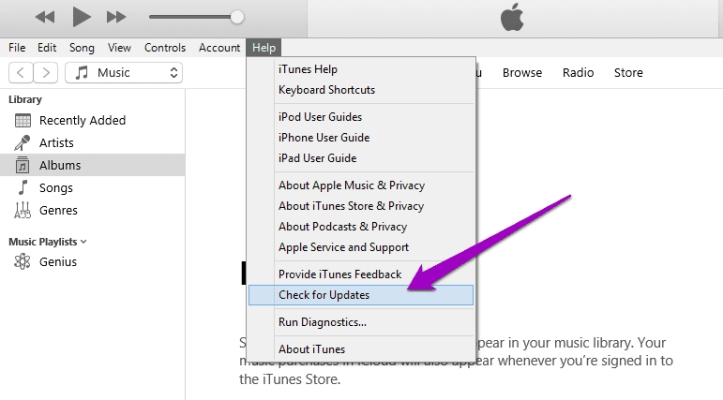
Step 1. Open iTunes and click Help on the main interface.
Step 2. Click Check for Updates, and click Download iTunes to upgrade it to the latest version.
Update System Software on Mac:
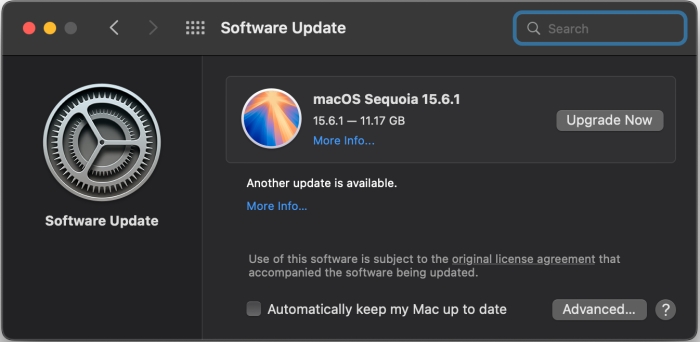
Step 1. Open System Preferences on your Mac.
Step 2. Click Software Update, then click Upgrade Now to update it to the latest version.
Method 2. Remove MDM Profiles
When there is a work profile or device management policy active on your iPhone, this Encrypt local backup setting will be greyed out. Generally, once restrictive profiles are removed, the Encrypt local backup setting should become available again.
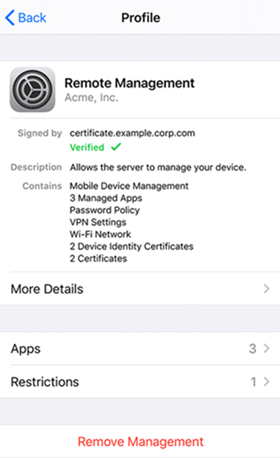
Step 1. Go to your iPhone Settings and tap General.
Step 2. Tap VPN & Device Management, then tap the work or school account, or installed MDM profiles.
Step 3. Tap Remove Management to disable it.
Part 3. How to Fix Unable to Uncheck Encrypt iPhone Backup
Sometimes the problem is that the Encrypt iPhone backup is greyed out, and you can't uncheck it. If you are stuck with encryption turned on and can't uncheck the box when the option is available, there are a few different approaches you can try. One of the following methods should help you regain control over your backup settings.
Method 1. Find iTunes Backup Password in Keychain Access [Mac]
If you previously set a password for an iPhone encrypted backup, your Mac might have stored it in Keychain Access. Checking there is often the fastest way to recover the password and regain control of the encryption setting.
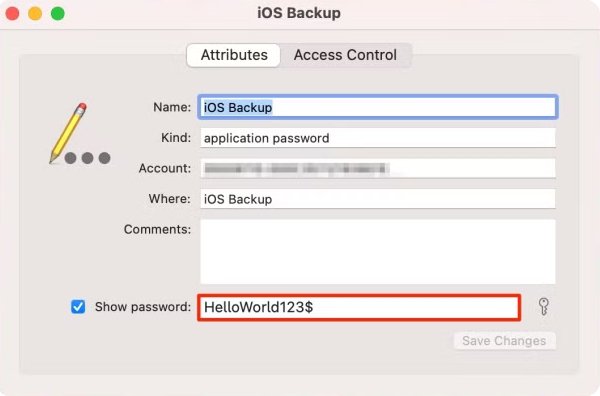
Step 1. Open Keychain Access on your Mac, and type iOS backup in the search box.
Step 2. Double-click the search result and check Show password.
Step 3. Enter your login password to reveal the iTunes encryption backup password.
Method 2. Reset All Settings on iPhone
If you can't locate the old backup password in Keychain, you may be able to clear the encryption settings by using Reset All Settings on your iPhone. This does not erase your personal data, but it does reset system settings such as Wi‑Fi networks, location services, and certain privacy settings. It can also remove the backup encryption password stored on the device.

Step 1. Head to iPhone Settings > General > Transfer or Reset iPhone.
Step 2. Tap Reset and choose Reset All Settings.
Step 3. Enter your iPhone Passcode and tap Reset All Settings again.
Method 3. Remove iTunes Encryption without Password
There is another option you can choose if you can't uncheck Encrypted iPhone Backup. That's to use an unlocking tool to uncheck Encrypt local backup without the password. MagFone iPhone Unlocker comes to help remove various passwords on iPhone, including iTunes encryption password, screen passcode, Screen Time passcode, MDM password, and Apple ID password. If you want to turn off encryption on iPhone with any data change, you can follow the steps below:

MagFone iPhone Unlocker
Quickly remove or turn off iPhone backup encryption without needing a password.
Step 1 Download and Install MagFone iPhone Unlocker
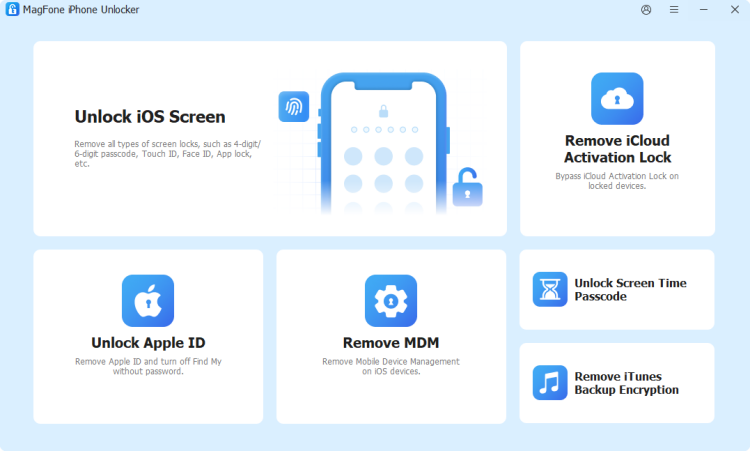
First, download and install MagFone iPhone Unlocker on your computer. And use a data cable to connect your iPhone to your computer. Then open the program.
Step 2 Remove iTunes Backup Encryption without Password
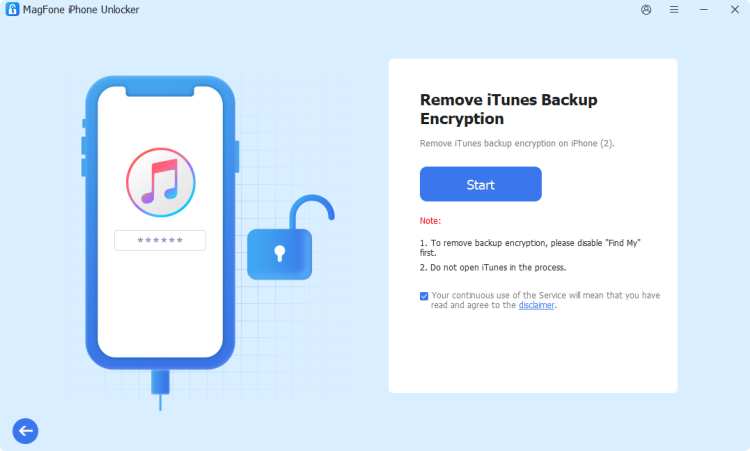
Choose Remove iTunes Backup Encryption from the main interface. Then click Start to turn off encryption from your device without the password and without data loss. Now you can open iTunes or Finder, and you will find that the Encrypt local backup option has been unchecked.
Part 4. Conclusion
Having the Encrypt local backup option greyed out, whether you're trying to turn it on or off, usually disturbs your user experience. If you work through the methods above, you should be able to regain control over your iPhone backup settings. And once everything is set up correctly, remember to store any new encryption password in a safe place, so your next backup or restore is as smooth as possible.

Dylan Jones
Editor in chief





