








Many iPhone users have encountered similar situations: accidentally deleting important content in Notes, only to find it gone by the time they realize it. This situation is actually quite common. Whether it's accidentally deleting study notes, work records, or suddenly disappearing important information, it's incredibly frustrating. So, can you recover deleted notes on iPhone? And if the notes have been deleted from Recently Deleted, how do you recover them? This guide will detail how to recover deleted notes on your iPhone with and without backups, and provide several practical methods to help you recover your deleted notes as much as possible.
- Part 1. Can You Recover Deleted Notes on iPhone?
- Part 2. How to Find Deleted Notes on iPhone
- Part 3. How to Recover Deleted Notes on iPhone without Backup
- Part 4. How to Recover Deleted Notes on iPhone with Backup
- Part 5. FAQs about Recovering Deleted Notes on iPhone
- Part 6. Conclusion
Part 1. Can You Recover Deleted Notes on iPhone?
It's possible to recover deleted notes on iPhone. When you delete a note on your iPhone, it's usually not immediately and permanently deleted by the system. Instead, it's moved to the Recently Deleted folder and stored there for 30 days. During this time, you can restore the note to its original folder at any time. However, once 30 days have passed, or if you manually clear the Recently Deleted folder, these notes are permanently deleted.
Even if a note has disappeared from the Recently Deleted folder, it doesn't mean it's completely unrecoverable. If you previously enabled iCloud backup or computer backup, you can still recover the deleted note by restoring the backup. Furthermore, some professional data recovery tools can scan the data on your device even without a backup, thus recovering the note. Next, we'll introduce several effective methods to help you recover deleted notes on your iPhone step by step.
Part 2. How to Find Deleted Notes on iPhone
As we mentioned before, the deleted notes will be removed to the Recently Deleted folder first, then will be permanently deleted from the device after 30 days. This allows you to get back notes when you accidentally delete them. Here are two options to find recently deleted notes on iPhone.
Option 1. Check Delete Notes on iPhone Device
All recently deleted notes can be accessed in the Recently Deleted folder. If the notes were deleted recently and accidentally, just:
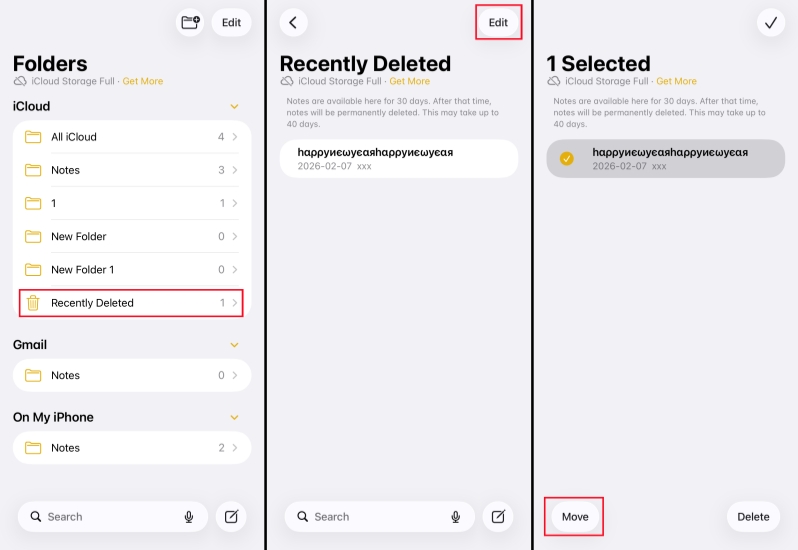
Step 1. Open Notes and head to the Folders page.
Step 2. Open the Recently Deleted folder, tap Edit, and select the deleted notes.
Step 3. Tap Move and choose a location to restore them to.
Option 2. Check Deleted Notes on iCloud Notes Web
If the deleted notes are stored in an iCloud account, they will be synced across your Apple device as well as the iCloud web. So you can also find the deleted iCloud notes from iCloud web.
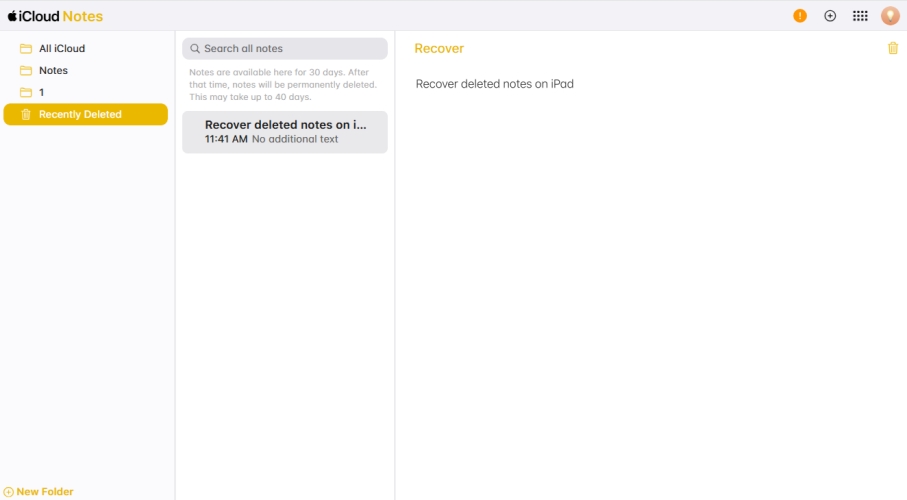
Step 1. Sign in to your Apple Account at the iCloud Notes website.
Step 2. Click the Recently Deleted folder.
Step 3. Right-click the deleted note and click Recover to get it back.
Part 3. How to Recover Deleted Notes on iPhone without Backup
When the deleted notes are permanently deleted, it's impossible to recover them from the Recently Deleted folder. In this case, MagFone Notes Data Recovery can make a difference. This data recovery tool can help scan your iPhone data, allowing you to preview recoverable notes and selectively restore without overwriting your iPhone data. Besides, you can use MagFone to extract the notes from iTunes backup. Here are the steps to recover deleted notes on iPhone without a backup.

MagFone iPhone Data Recovery
Recover data from iPhone and iPad in three recovery modes without data overwritting and device reset.
Step 1 Run MagFone iPhone Data Recovery

Click to download and install MagFone iPhone Data Recovery on your computer. Also, connect your iPhone to the computer via a data cable. Then run MagFone to start.
Step 2 Scan Deleted Notes on iPhone

Choose iPhone/iPad Data Recovery, then choose the data you want to recover. Click Scan to scan deleted notes on iPhone.
Step 3 Recover Deleted Notes on iPhone
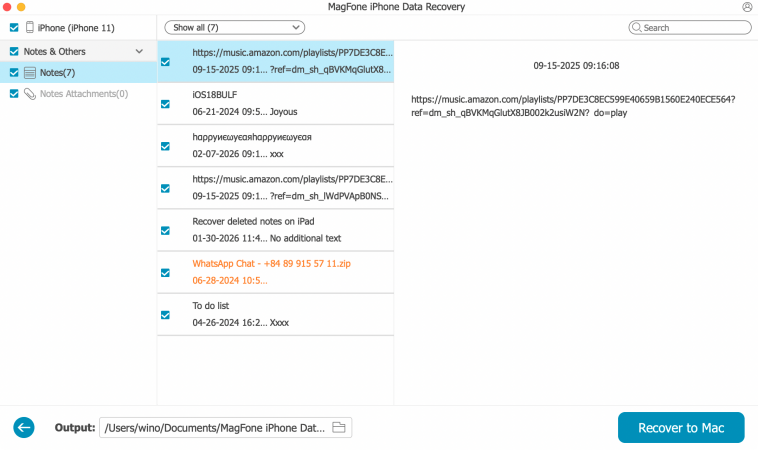
After MagFone scans your iPhone data, you can preview the scanning result on the computer. Select the deleted notes and click Recover to PC or Recover to Mac to restore the notes.
Part 4. How to Recover Deleted Notes on iPhone with Backup
It's also possible to recover deleted notes on iPhone from an iCloud or iTunes backup. However, the process can be time‑consuming, and the result depends on whether the backup was created before the notes were deleted.
Method 1. Retrieve Deleted Notes on iPhone from iCloud Backup
If iCloud Backup is turned on, your notes are included in iCloud backups. In this case, you may be able to recover deleted notes by erasing your iPhone and restoring it from a previous iCloud backup made before the notes were deleted.
Mention:
- Requires erasing iPhone before restoring
- Requires an iCloud backup that includes the deleted notes
- May face errors when restoring from iCloud

Step 1. Go to Settings > General > Transfer or Reset iPhone.
Step 2. Tap Erase All Content and Settings, then select Continue and confirm by choosing Erase iPhone.
Step 3. When prompted, type in your iPhone passcode, then enter your Apple ID password to proceed with the reset.

Step 4. Once your iPhone restarts, follow the setup prompts on the screen. When you reach the Apps & Data screen, select From iCloud Backup and select the backup that was created before the data was deleted.
Step 5. After the setup process is complete, open Notes and check whether the deleted notes have been restored.
Method 2. Retrieve Deleted Notes on iPhone from iTunes Backup
If you happened to back up your iPhone using iTunes, you may also retrieve deleted notes on iPhone from the iTunes backup created before the notes were deleted.
Mention:
- Requires an iTunes backup created before the notes were deleted
- Can't partially restore data in the backup
- Time-consuming and unguaranteed success rate

Step 1. Open iTunes and link your iPhone to the computer with a data cable.
Step 2. Click the iPhone icon, then click Summary in the left bar.
Step 3. Click Restore Backup to retrieve deleted notes on iPhone.
Part 5. FAQs about Deleted Notes on iPhone
How to recover permanently deleted notes on iPhone without iCloud?
If you don't have an iCloud backup, it's recommended that you use MagFone iPhone Data Recovery to recover permanently deleted notes on iPhone.
Can you recover deleted notes on iPhone after 30 days?
Yes. By restoring an iCloud backup or iTunes backup, or using a data recovery tool like MagFone iPhone Data Recovery, you can recover deleted notes on iPhone after 30 days.
How to recover deleted Gmail/Yahoo notes on iPhone?
Deleted Gmail or Yahoo notes will not be removed to the Recently Deleted folder in the Notes app. And the deletion will sync to your email account. So it's less likely to recover deleted Gmail or Yahoo notes on iPhone.
Part 6. Conclusion
Accidentally deleting notes on your iPhone can be dumbed and stressful, but they are often recoverable. You can first check the Recently Deleted folder. Then try restoring from iCloud or computer backups if available or using a professional recovery tool like MagFone iPhone Data Recovery. If successful, you can get the deleted notes on iPhone back.

Edgar Davis
Editor in chief




