








Finding that some or all of your iPhone notes have suddenly disappeared can be alarming. Before you panic, here's a helpful guide, which will walk you through the most common reasons why notes disappeared from iPhone, practical methods to find and restore them, and steps you can take to prevent it from happening again.
- Part 1. Why Did My Notes Disappear on My iPhone?
- Part 2. What to Do If Notes Disappeared From iPhone?
- Part 3. How to Recover Disappeared Notes on iPhone
- Part 4. Preventions to Notes Disappeared from iPhone
- Part 5. Conclusion
Part 1. Why Did My Notes Disappear on My iPhone?
Understanding the cause helps you choose the right fix. Here are the most common reasons notes disappear from an iPhone:

iCloud Sync Fails:
iCloud sync interruption due to internet disconnection or iOS updates may cause your iPhone notes to disappear.
Notes Were Accidentally Deleted:
You may have unintentionally swiped and deleted notes without realizing it. Once you delete a note on your iPhone, it moves to the Recently Deleted folder, where it stays for an additional 30 days before being permanently deleted.
Third-Party Account Settings Changed:
If you use notes through email or a third-party service instead of iCloud, and the account settings change, your notes may no longer appear in the Notes app.
Insufficient iCloud Storage:
If you don't have enough iCloud space, iCloud may fail to sync your notes. Notes saved locally may not be backed up and can appear missing after a device issue or app glitch.
App-Specific Glitches or Software Bugs:
Occasionally, the Notes app itself experiences display errors. For some people, it seems to be a temporary glitch that sorts itself out, and the notes appear shortly thereafter. A simple restart can sometimes resolve this.
Part 2. What to Do If Notes Disappeared From iPhone?
When notes disappeared from iPhone, start here before attempting any data recovery. These methods are quick, non-destructive, and resolve the majority of cases.
Method 1. Restart iPhone
Restarting your iPhone can refresh the system, clear temporary bugs, and restore proper syncing between your Notes app and your iCloud and email accounts.
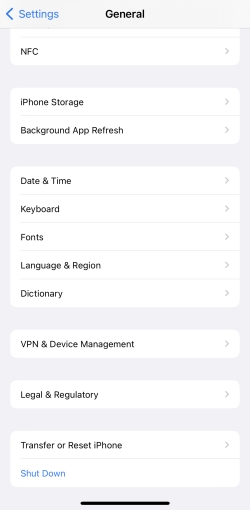
Step 1. Open Settings and tap General.
Step 2. Scroll to the bottom and tap Shut Down.
Step 3. Drag the power slider to the end to power off your iPhone.
Step 4. Keep holding the power button to restart the iPhone. Then open the Notes app and check if your notes have reappeared.
Method 2. Check the Recently Deleted Folder
If you accidentally deleted notes, they may still be recoverable from the built-in safety feature. You can open the Recently Deleted folder to check the disappeared notes on your iPhone.
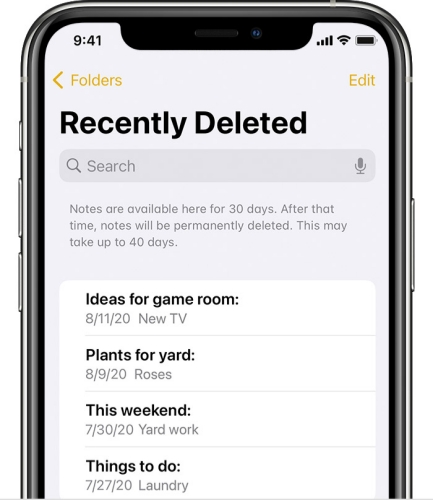
Step 1. Open Notes, then tap the back icon until you see your Folders list.
Step 2. Tap Recently Deleted and look for your note.
Step 3. If you find your note in the Recently Deleted folder, tap Edit, select the note that you want to move, tap Move, then select the folder you want to move it to.
Method 3. Find Disappeared Notes Using Search Bar
Sometimes notes are not deleted. Instead, they are simply stored in a different folder or hidden due to a display glitch. You can use the search bar to locate it quickly:
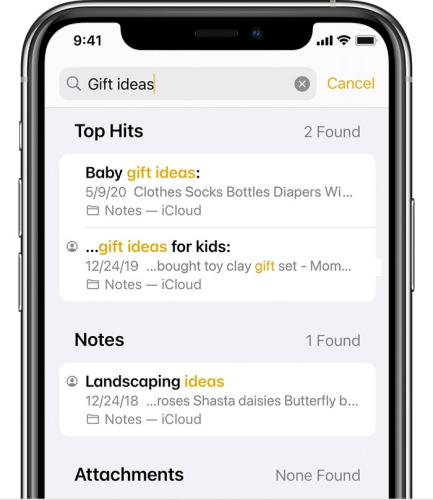
Step 1. Open Notes, then tap the back icon until you see your list of notes.
Step 2. Tap the Search bar and type a word, phrase, or the title from the note that you're looking for.
Method 4. Re-enable iCloud Sync for Notes
If the iCloud notes failed to load completely on your iPhone, you may consider it disappearing on your iPhone. Try refreshing the notes sync status:
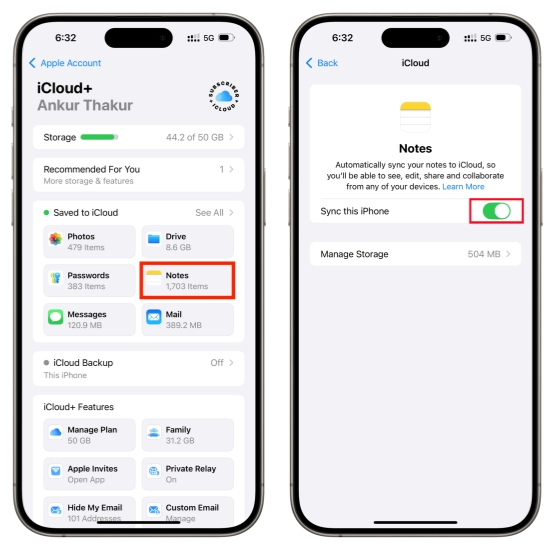
Step 1. Open Settings and tap your Apple ID.
Step 2. Tap iCloud > Saved to iCloud > Notes.
Step 3. Disable Sync this iPhone and choose Delete from My iPhone.
Step 4. After a while, re-enable Sync this iPhone for Notes.
Method 5. Enable On My iPhone Account
When the "On My iPhone" Account is disabled, any notes saved locally on the device may be hidden from view. Check if the On My iPhone account is disabled in Settings.
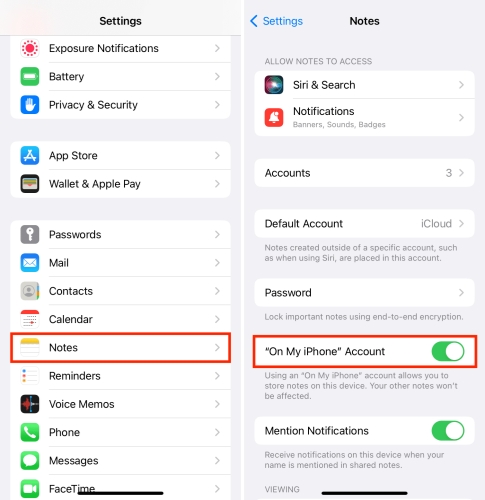
Step 1. Go to iPhone Settings > Apps > Notes.
Step 2. Enable the "On My iPhone" Account so that you can see notes saved under this location.
Method 6. Check Third-party Notes Account
If the disappeared notes are used to be stored under a third-party account, you can check if you have connected Notes to the account.
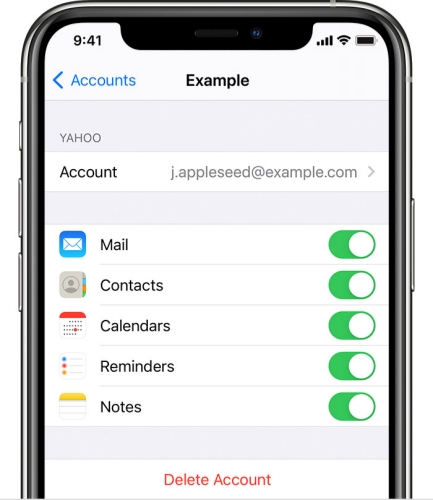
Step 1. Head for Settings > Apps > Notes.
Step 2. Tap Notes Accounts and access each account to check if the Notes app is allowed in each third-party account.
Part 3. How to Recover Disappeared Notes on iPhone
If none of the methods above worked, your notes may need to be recovered from a backup or local cache. These methods are more involved but can retrieve notes that are no longer accessible through the app.
Method 1. Recover Missing Notes on iPhone from iCloud Backup
If the disappeared notes are included in a previous iCloud backup, you can restore your iPhone from that backup to get them back. This requires you to reset the device to factory status and choose an older iCloud backup during setup. Keep in mind that restoring from iCloud backup will overwrite newer data, so be careful when applying this method and choosing the backup.

Step 1. Open Settings and access General.
Step 2. Access Transfer or Reset iPhone > Erase All Contents and Settings.
Step 3. Choose Continue > Erase iPhone and enter the required passcode and Apple ID password to proceed.

Step 4. After the iPhone data has been wiped and your iPhone restarts, follow the on-screen instructions to set it up. When you see the Transfer Your Apps & Data screen, choose From iCloud Backup.
Step 5. Enter your Apple ID details and choose an iCloud backup to restore to your iPhone. When the restore completes, open the Notes app and check if the disappeared notes are back.
Method 2. Recover Missing Notes on iPhone from iTunes Backup
If you are used to backing up your iPhone using iTunes and are sure the missing notes are stored in the iTunes backup. You can also connect your iPhone to the computer and restore from an earlier backup. This will also overwrite the current data on your iPhone, so be careful before restoring.

Step 1. Link your iPhone to the computer you used to make an iTunes backup using a data cable.
Step 2. Open iTunes, click the iPhone icon, then click Summary in the left column.
Step 3. Click Restore Backup to restore iPhone from a previous backup that contains the missing notes.
Method 3. Recover Missing Notes on iPhone Using Notes Retriever [No Backup]
Whether it's an iCloud backup or an iTunes backup, it's not guaranteed that the disappeared notes are findable in the backup, and it's likely that your iPhone data will be overwritten when you apply either method. So a more flexible and effective method is recommended. That's to use a notes retriever. MagFone iPhone Data Recovery is designed to recover various data for iPhone, iPad, and iPod users. Whether deleted notes or lost notes on iPhone, MagFone offers a secure and reliable solution for you. Just follow the simple steps to get missing notes on iPhone:

MagFone iPhone Data Recovery
Recover data from iPhone and iPad in three recovery modes without data overwritting and device reset.
Step 1 Open MagFone iPhone Data Recovery

Download and install MagFone iPhone Data Recovery on your computer and connect your iPhone to the computer using a data cable. Then open MagFone to get started.
Step 2 Scan Disappeared Notes from iPhone
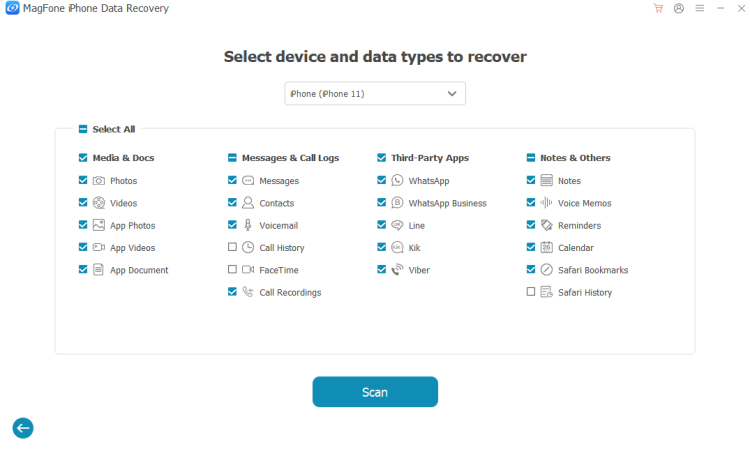
Click iPhone/iPad Data Recovery from the main interface. Select Notes and click Scan to scan for disappeared notes from iPhone. Enter your passcode on iPhone if required.
Step 3 Recover Missing Notes on iPhone
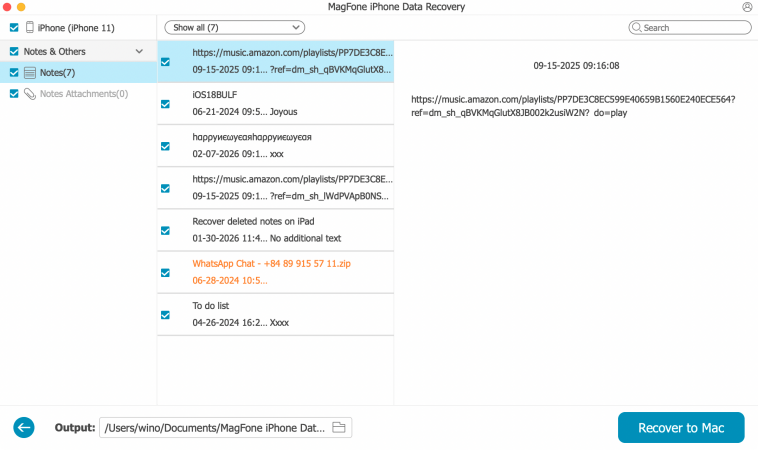
When the scanning is completed, you can check all notes data from your iPhone. Just select the disappeared notes and click Recover to PC or Recover to Mac to restore them to your computer.
Part 4. Preventions to Notes Disappeared from iPhone
With a reliable iCloud backup, iTunes backup, or MagFone iPhone Data Recovery, you can get disappeared notes on iPhone easily. Once your notes are recovered, take these prevention steps to prevent notes from disappearing from your iPhone:
Method 1. Enable iCloud Sync
Storing notes under iCloud location and keeping iCloud sync active for Notes ensures your notes are always backed up to Apple's servers and accessible across all your Apple devices. To enable it: Go to Settings > [Your Name] > iCloud > Notes and make sure the Sync this iPhone toggle is turned on. Also, ensure iCloud has sufficient storage to avoid partial sync issues.
Method 2. Back Up Your iPhone Regularly
Regular backups, whether to iCloud or your computer via Finder or iTunes, give you a reliable restore point if notes ever disappear again. You can also share important notes with the Files app or third-party apps for backup.
Part 5. Conclusion
Whether the notes disappeared from your iPhone due to an iOS update, iCloud sync issue, or accidental deletion, the 9 methods in this guide can help you fix the issue and recover missing notes on iPhone effectively. For the most efficiency and reliability, directly try MagFone iPhone Data Recovery. Going forward, keeping Notes sync enabled and regularly backing up your iPhone will greatly reduce the risk of losing valuable information again.

Olivia Wood
Editor in chief





