








How to recover accidentally deleted Notes app on iPhone? I accidentally deleted my notes app, how do I get it back? Easy explanations please. Siri made no sense to me. Thank you."
——From Apple Discussions
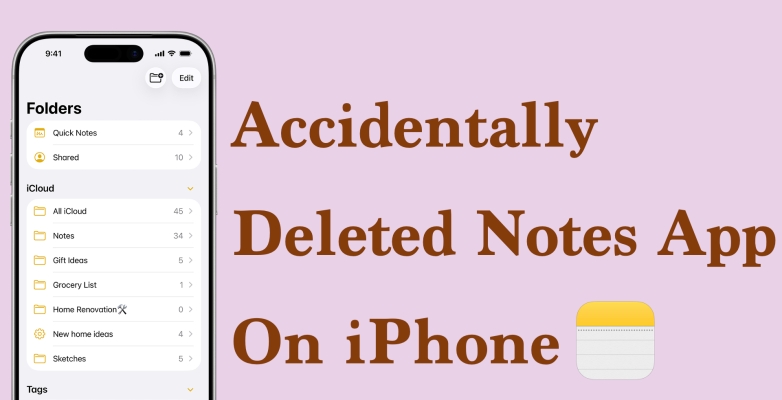
Many iPhone users panic when the Notes app suddenly disappears or is accidentally deleted, immediately assuming all their notes are gone forever. In reality, this is usually not the case. Often, the Notes app has only been removed from the Home Screen, and your notes remain untouched. They are typically still stored safely on the device, in iCloud, or in another linked account, such as Gmail or Outlook. In this guide, we'll take you through simple, step-by-step methods to restore accidentally deleted Notes app on iPhone and help you recover your notes.
- Part 1. Can I Recover If I Accidentally Deleted Notes App on iPhone?
- Part 2. How to Reinstall and Restore Notes App on iPhone
- Part 3. How to Recover Notes on iPhone After Accidentally Deleting Notes App
- Part 4. Conclusion
Part 1. Can I Recover If I Accidentally Deleted Notes App on iPhone?
Yes, you can recover notes if you accidentally delete the Notes app on iPhone. Next, we will provide respective solutions to different situations, whether the Notes app is just removed or permanently deleted.
01Check Whether the Notes App Is Actually Deleted
Sometimes, the Notes app is just removed instead of being permanently deleted from your iPhone. So before trying any recovery method, check if the Notes app is still on your iPhone.
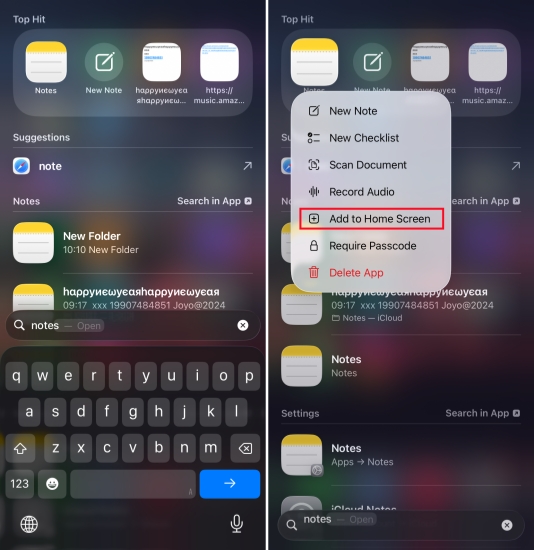
Step 1. Just swipe down from the middle of the screen and type Notes in the search box.
Step 2. Long-press the Notes app and choose Add to Home Screen to bring it back to your iPhone.
02Choose a Way to Restore Deleted Notes App on iPhone
If you confirm that the Notes app is no longer on your device, the next step is to restore it. You can reinstall the app from the App Store, restore it using iCloud or a backup, or use other account settings if your notes are synced with email services like Gmail or Outlook. In the following sections, we'll walk you through each option step by step.
| Method | Data Preview | Selective Recovery | Factory Reset iPhone | Data Overwriting | Ease of Use |
|---|---|---|---|---|---|
| iCloud Notes | ✔️ | ❌ | ❌ | ❌ | Easy |
| iCloud Backup | ❌ | ❌ | ✔️ | ✔️ | Complex |
| iTunes Backup | ❌ | ❌ | ❌ | ✔️ | Moderate |
| Notes Recovery App | ✔️ | ✔️ | ❌ | ❌ | Easy |
Part 2. How to Reinstall and Restore Notes App on iPhone
Once you've confirmed that the Notes app is really deleted, the next step is to reinstall it and make sure all your notes sync back correctly. Follow the steps below in order so you don't miss anything.
01Reinstall the Notes App from the App Store
First, get the Notes app back on your iPhone:
Step 1. Search for Notes app in the App Store and tap the Install icon to reinstall it on your iPhone.
Step 2. Open the Notes app and follow on‑screen prompts, then wait a moment for the app to sync with iCloud.
Step 3. After a short time, you should start seeing your notes appear again if they were stored in iCloud Notes.
02Verify Notes Recovery from iCloud Sync
If your notes don't show up after reinstalling the app, the problem may be with iCloud sync. You can refresh it like this:
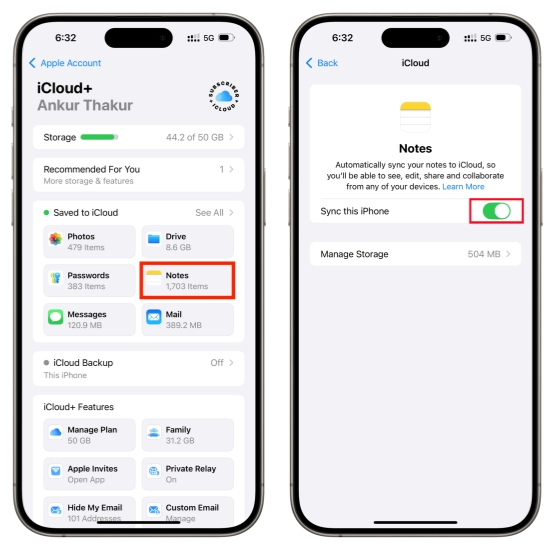
Step 1. Open iPhone Settings and tap your Apple ID.
Step 2. Tap iCloud > Notes and disable Sync this iPhone.
Step 3. Wait a few seconds. Toggle on Sync this iPhone to force iCloud to re-sync your notes to the device.
03Optional Notes Recovery from Mail Accounts
If you previously stored notes using email accounts, such as Gmail, Outlook, or Yahoo, your missing notes might still be saved there. To bring them back into the Notes app:
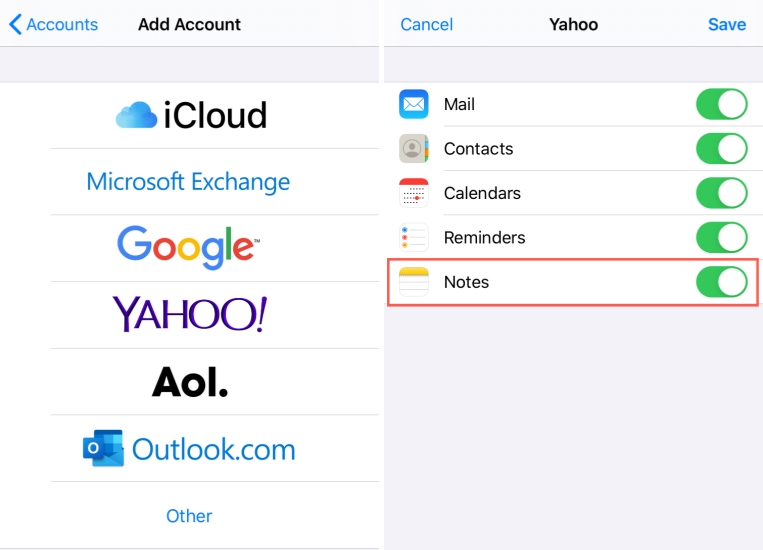
Step 1. Go to iPhone Settings > Apps > Notes.
Step 2. Tap Notes Accounts > Add Account. Choose the provider and sign in with your account details.
Step 3. After the account is added, tap that account and make sure the Notes toggle is turned on.
Step 3. Open the Notes app and check the folders linked to those accounts, such as Gmail or Outlook folders, to see if your notes are there.
04Check the Recently Deleted Folder in Notes
If some notes still seem to be missing, they may have been deleted inside the app, but are not gone permanently yet:
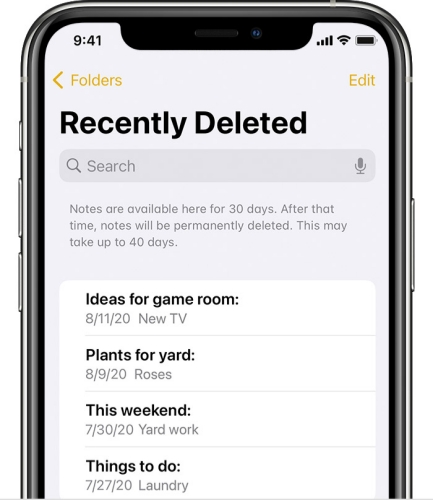
Step 1. Open the Notes app and enter the Recently Deleted folder under iCloud or under a specific account.
Step 2. Check notes that were removed within the last 30 days.
Step 3. Tap Edit, select the notes you want to get back, and then tap Move to move them to another folder.
Part 3. How to Recover Notes on iPhone After Accidentally Deleting Notes App
In most cases, if iCloud Notes sync is turned on, your notes will come back automatically after you reinstall the Notes app and refresh the sync. However, if iCloud Notes was not enabled, or if some notes are still missing, you may need to recover them from a backup or with a specialized recovery tool. Below are three common methods you can try.
Method 1. Recover Notes on iPhone from iCloud Backup
If your iPhone was backing up to iCloud before the Notes app was deleted, you may be able to restore your notes by restoring an iCloud backup. However, you need to reset your iPhone to perform a restore. It's suggested that you make a backup in advance to avoid further data loss.

Step 1. Go to Settings > your Apple ID > iCloud > iCloud Backup and check the date and time of your last backup.
Step 2. If the backup is from before you accidentally deleted the Notes app and you're willing to factory reset your iPhone, go to Settings > General > Transfer or Reset iPhone > Erase All Content and Settings.
Step 3. Tap Continue > Erase iPhone and enter the required passcode or Apple ID password to verify.

Step 4. After your iPhone restarts, follow the setup steps and choose From iCloud Backup when you reach the Transfer Your Apps & Data screen.
Step 5. Sign in with your Apple ID and select the backup you want to restore.
Step 6. When the setup is done, go to the Notes app to see if your notes data appear.
Method 2. Recover Notes on iPhone from iTunes Backup
If you used to back up your iPhone with iTunes, you can also try restoring Notes data from a previous iTunes backup. You should be aware that the current data will be overwritten.

Step 1. Connect your iPhone to the computer you used to back up.
Step 2. Launch iTunes and click the iPhone icon.
Step 3. Click Summary in the left directory, then click Restore Backup and choose one iTunes backup to restore to your iPhone.
Method 3. Recover Notes on iPhone with Notes Recovery App
If you don't have a suitable iCloud or iTunes backup, or if you don't want to erase and restore your entire device, you can try using a Notes recovery tool. MagFone Notes Data Recovery is designed to recover various data on iPhone, iPad, and iPod. Before the recovery, you are able to preview iPhone data and recover data to your computer selectively. In addition, you can also extract data from iTunes backup or iCloud without restoring. Just follow the steps below to recover accidentally deleted notes on iPhone:

MagFone iPhone Data Recovery
Recover data from iPhone and iPad in three recovery modes without data overwriting and device reset.
Step 1 Launch MagFone iPhone Data Recovery

Download and install MagFone iPhone Data Recovery on your computer. At the same time, connect your iPhone to the computer using a data cable. Then launch MagFone to start.
Step 2 Scan Notes App on iPhone
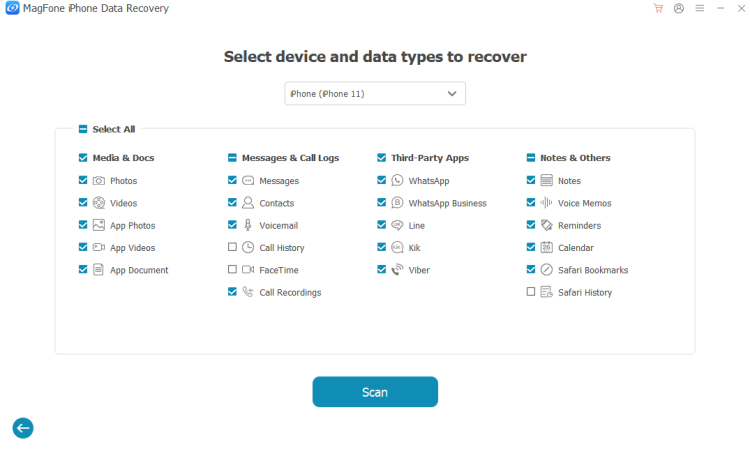
Choose iPhone/ iPad Data Recovery. Select the data you want to restore on iPhone and click Scan to scan the data.
Step 3 Recover Notes on iPhone
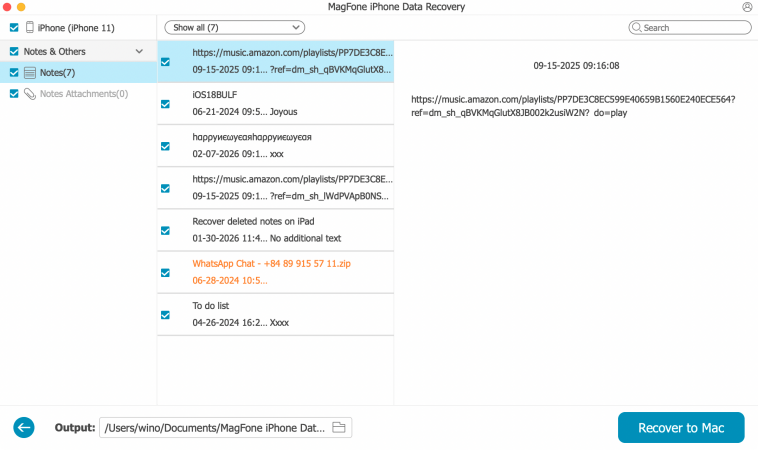
When the Notes data is scanned, you can check on the next page. Then select the wanted notes and click Recover to PC or Recover to Mac to export them.
Part 4. Conclusion
Accidentally deleting photos from the Recently Deleted file is unexpected but not impossible. Fortunately, you can still try some possible solutions to retrieve permanently deleted photos on iPhone from iCloud. If none of these options work or you never had iCloud properly set up, a dedicated tool like MagFone iPhone Data Recovery becomes your most powerful option. Test it and tell us your experience!

Edgar Davis
Editor in chief





