








It's odd that there is no Recently Deleted notes folder on iPhone, especially when you delete something important and want to get it back. Don't worry. In this guide, we'll explain why the Recently Deleted notes folder is missing, walk you through several methods to fix the no Recently Deleted notes on iPhone issue, and provide a practical way to recover deleted notes so you don't lose valuable information.
- Part 1. Why Is Recently Deleted Notes Folder Missing on iPhone?
- Part 2. How to Fix No Recently Deleted Notes Folder on iPhone
- Part 3. How to Recover Deleted Notes on iPhone
- Part 4. Conclusion
Part 1. Why Is Recently Deleted Notes Folder Missing on iPhone?
Many iPhone users are surprised to find that the Recently Deleted folder suddenly disappears from the Notes app. When this happens, it's easy to assume something is wrong with your device or that your notes are lost forever. In fact, the missing folder is usually related to temporary system glitches, how your notes are stored, or whether there are any notes eligible to show as recently deleted. Below are the most common reasons:
- There are no recently deleted notes on your iPhone.
- Notes in the Recently Deleted folder have been permanently removed.
- Recently deleted notes are stored in the third-party account's trash folder.
- Temporary software bugs or Notes settings are hiding the folder.
How to Find Recently Deleted Notes Folder on iPhone:
If there is content in the Recently Deleted folder, you can easily find the Recently Deleted folder in the Notes app:
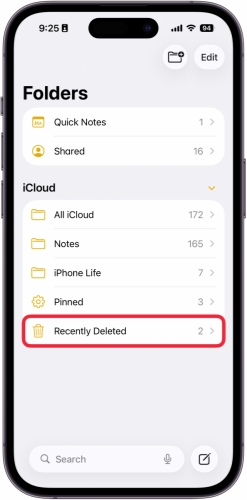
Step 1. Open the Notes app on your iPhone.
Step 2. Tap the upper‑left corner until you see all your accounts and folders.
Step 3. Check the folder under each store location, including iCloud, On My iPhone, and any email accounts.
If you still can't find the Recently Deleted folder after checking all folders and accounts, continue to Part 2 to learn how to fix the issue.
Part 2. How to Fix No Recently Deleted Notes Folder on iPhone
Now that you know the main reasons why the Recently Deleted folder may be missing, you can start troubleshooting the issue directly on your device. Below are several practical methods you can try one by one to make the folder reappear or locate where your deleted notes have gone.
Method 1. Delete a Note to Check the Recently Deleted Folder
The most common reason the Recently Deleted folder is missing is that there are no notes eligible to appear there, or all previously deleted notes have already been permanently removed after the 30‑day grace period. In this case, the folder may stay hidden. If you can't find the Recently Deleted folder on your iPhone, try deleting a note to see if it reappears:
Step 1. Open the Notes app.
Step 2. Choose any note you don't need and swipe left on it, then tap Delete.
Step 3. Tap the top‑left corner and check whether a Recently Deleted folder has appeared under iCloud or On My iPhone.
If the folder shows up after you delete a note, it means it was simply hidden because there were no recently deleted notes before.
Method 2. Check the Recently Deleted Notes Folder on iCloud Web
If your notes are synced with iCloud, the Recently Deleted folder might still be visible from a browser, even if you don't see it on your iPhone. You can check it on iCloud Web:
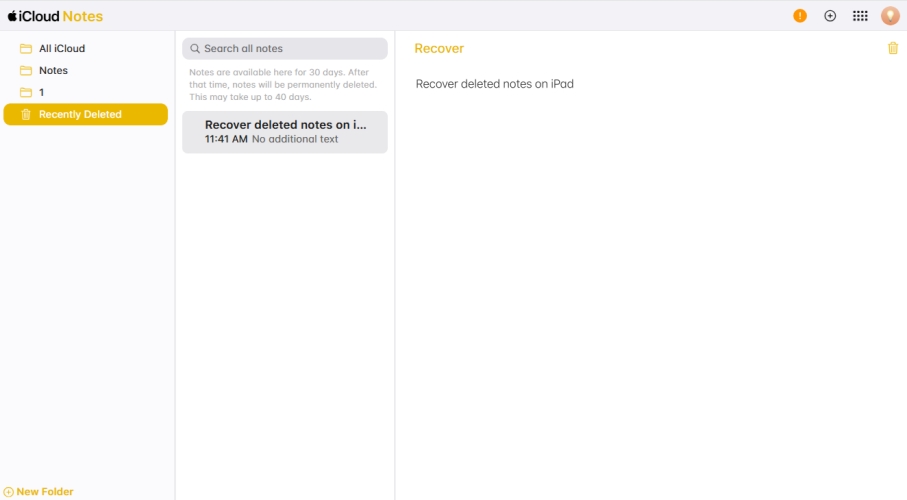
Step 1. Log in to your Apple Account on iCloud web.
Step 2. Click Notes app in the app list.
Step 3. Check if there is a Recently Deleted folder in the left folder list.
Method 3. Enable On My iPhone for Notes App
You can store notes either in iCloud or directly on your device. To see local folders such as On My iPhone and the Recently Deleted folder, you need to enable this option first. If On My iPhone is turned off, those folders will not appear.
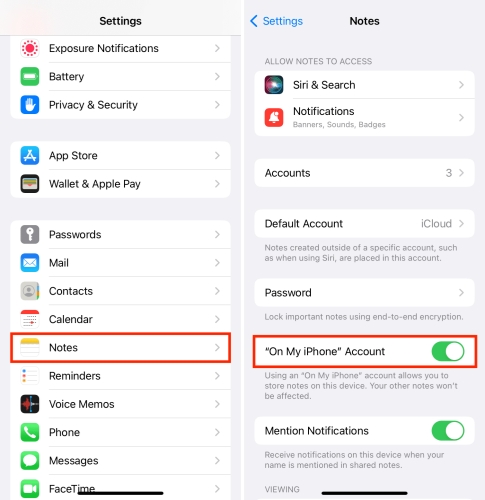
Step 1. Go to iPhone Settings > Apps > Notes.
Step 2. Enable On My iPhone Account.
Step 3. Go back to the Notes app and check if the Recently Deleted notes folder appears under On My iPhone.
Method 4. Check Third-Party Account Bin
If you've added third‑party accounts, such as Gmail, Yahoo, Outlook, or Exchange, to the Notes app and save notes to those accounts, deleted notes might not go into the iPhone's built‑in Recently Deleted folder. Instead, they are often moved to the trash folder of the email account itself. You can access the corresponding app to check if the deleted notes are in the mail account trash.
Part 3. How to Recover Deleted Notes on iPhone
If your deleted notes have stayed in the Recently Deleted folder for more than 30 days, iOS will automatically remove them permanently. In this case, both the deleted notes and the Recently Deleted folder may no longer show on the iPhone. To recover deleted notes from the Recently Deleted folder on iPhone, you can use a professional iOS data recovery tool such as MagFone Notes Data Recovery. This software can scan your iPhone for notes that are no longer visible in the app and help you restore them without overwriting existing data. Follow the steps below to use MagFone Notes Data Recovery and get your deleted notes back on your iPhone.

MagFone iPhone Data Recovery
Recover data from iPhone and iPad in three recovery modes without data overwriting and device reset.
Step 1 Run MagFone iPhone Data Recovery

First, download and install MagFone iPhone Data Recovery on your computer. Then connect your iPhone to the computer using a data cable and launch the tool.
Step 2 Scan for Deleted Notes on iPhone
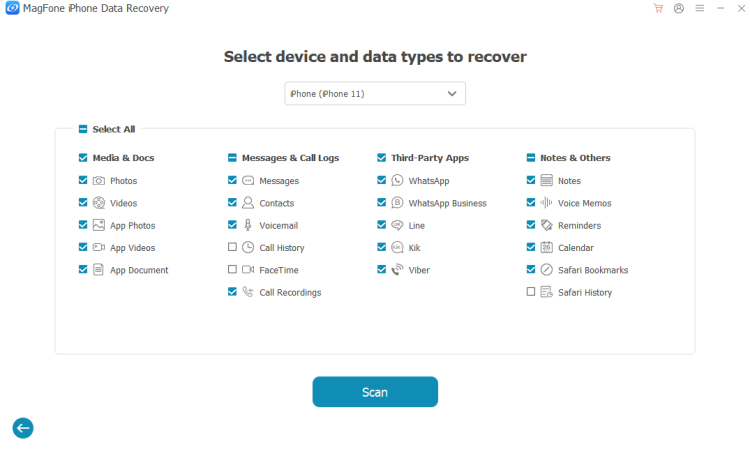
Click iPhone/iPad Data Recovery on the main interface. Choose the data you want to scan from your iPhone and click Scan to allow the tool to find deleted notes on your iPhone.
Step 3 Recover Deleted Notes on iPhone
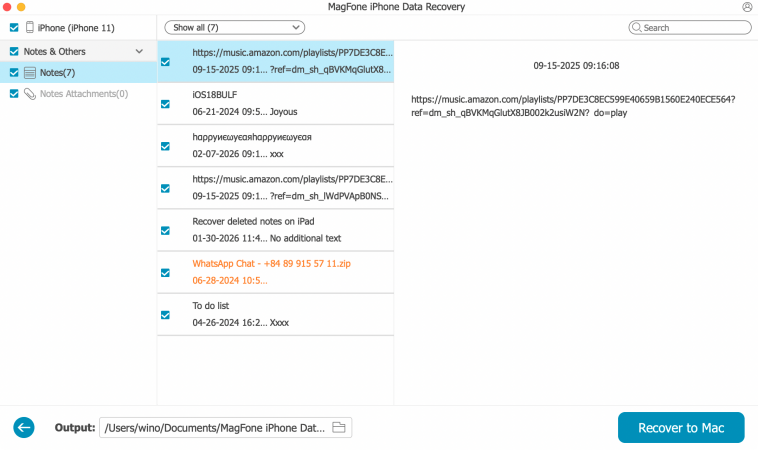
Once the scan is completed, you can check all the notes data from your iPhone. Then select and click Recover to PC/ Recover to Mac to export these notes to your computer.
Part 4. Conclusion
In most cases, no Recently Deleted notes folder on iPhone is a temporary bug. You can get the Recently Deleted notes folder back by deleting a new note. If you can't find it on iPhone, then check iCloud Notes, Notes settings, or a third-party account to find the deleted notes on iPhone. For deeper data, MagFone iPhone Data Recovery is available to scan and recover.

Edgar Davis
Editor in chief





