








Knowing Apple supports unlocking iPhone with Apple Watch, you may wonder if you can unlock an iPad with an iPhone or unlock an iPhone with an iPad. This is possible, but all the methods have requirements and will cause data loss. In this guide, we will show you how to unlock iPad with iPhone and alternative methods to unlock an iPad.
- Part 1. Can I Unlock My iPad with My iPhone?
- Part 2. How to Unlock iPad with iPhone [Erase iPad]
- Part 3. Alternative Methods to Unlock iPad with iPhone
- Part 4. Conclusion
Part 1. Can I Unlock My iPad with My iPhone?
Strictly speaking, you can't use your iPhone to directly bypass the passcode on your iPad, but you can use it as a powerful remote management tool. As long as features like Find My are enabled on the locked iPad, your iPhone can help you locate, erase, and then set up the iPad again. In other words, though you can't unlock an iPad with an iPhone directly, you can remove the passcode by erasing the device and restoring it, allowing you to regain access.
Part 2. How to Unlock iPad with iPhone [Erase iPad]
If you know the passcode of the iPad, the most recommended unlocking method is to enter the passcode directly. If you don't remember the passcode, then you can consider using an iPhone to unlock your iPad. There are two methods that allow you to unlock an iPad from an iPhone. However, these two methods work when the Find My iPad has been previously enabled on the iPad and the iPad is connected to the internet. The process involves erasing the iPad to unlock it.
Method 1. Unlock iPad from iPhone at iCloud Website
When the Find My iPad is enabled, you can sign in to the Apple ID that is linked with the locked iPad at the iCloud website and manage the iPad online. By erasing iPad online, you remove the passcode and restore the iPad to factory settings, allowing you to set it up again and create a new passcode.
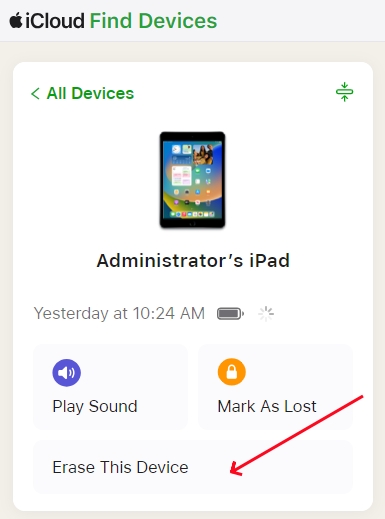
Step 1. Open the iCloud website on your iPhone and log in to the same Apple ID as your iPad.
Step 2. Tap the target iPad and tap Erase.
Step 3. Tap Next and enter a phone number and the Apple ID password to erase the iPad remotely.
Method 2. Unlock iPad from iPhone in Find My App
If Find My is enabled on the iPad, you can also manage the iPad in the Find My app on an iPhone. Once you sign in with the same Apple ID on your iPhone, you'll see your iPad listed among your devices in the Find My app. Then you can erase and unlock it.
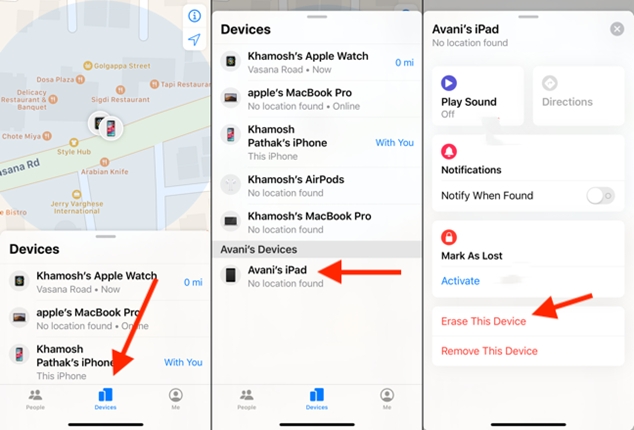
Step 1. Open the Find My app on your iPhone, tap Devices at the Bottom.
Step 2. Access the iPad device, tap Erase, and you'll be required to input a phone number.
Step 3. Enter the Apple ID password and tap Erase to wipe all data on the iPad.
Part 3. Alternative Methods to Unlock iPad with iPhone
Using your iPhone to erase and unlock your iPad is convenient, but it's not the only option, nor is it always the most suitable one. Apart from the iCloud website and Find My app, there are three alternative methods to unlock an iPad with an iPhone, including options you can try directly from the lock screen, through iTunes, or with the help of a professional iPad unlocker tool.
Method 1. Unlock iPad from Lock Screen
Apple support erase iPad from the lock screen if there are multiple failed passcode attempts. You can enter a wrong passcode multiple times in a row to trigger the erase iPad feature.
On iPadOS 17 and later
Step 1. Enter a wrong passcode in sequence to trigger the iPad Unavailable screen.
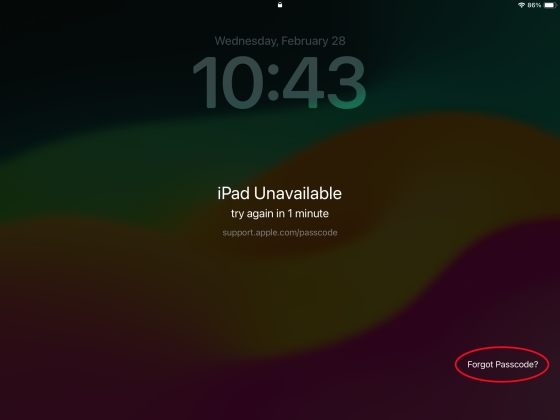
Step 2. Tap Forgot Passcode?.
Step 3. Enter the Apple ID password to sign out and confirm to erase the iPad.
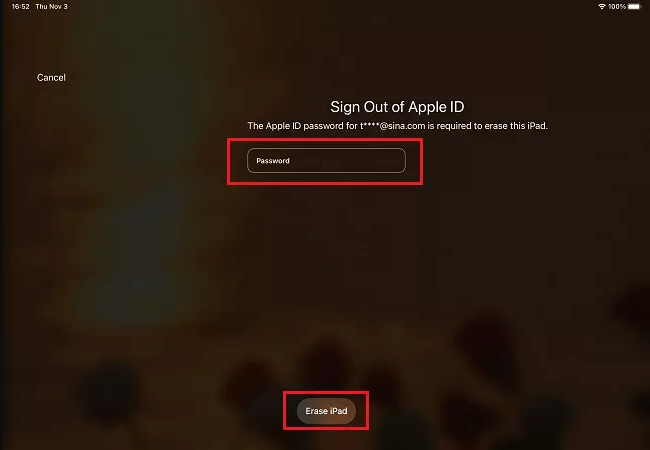
From iPadOS 15.2 to iPadOS 16
Step 1. Input a wrong passcode to trigger the Security Lockout screen.
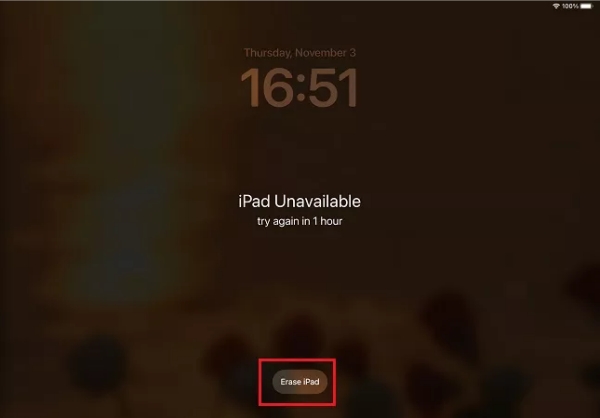
Step 2. Choose Erase iPad and enter the Apple ID password to sign out of the account. Then the iPad will be erased, and you can unlock it.
Method 2. Unlock iPad with iTunes
When the iPad is locked or disabled, using iTunes to restore it is a practical method to unlock it. An iTunes restore will update the iPad to the latest iOS version and erase all data on the iPad. But be cautious that this may enable activation lock if the Find My iPad is enabled.
Step 1. Get the iPad into recovery mode:
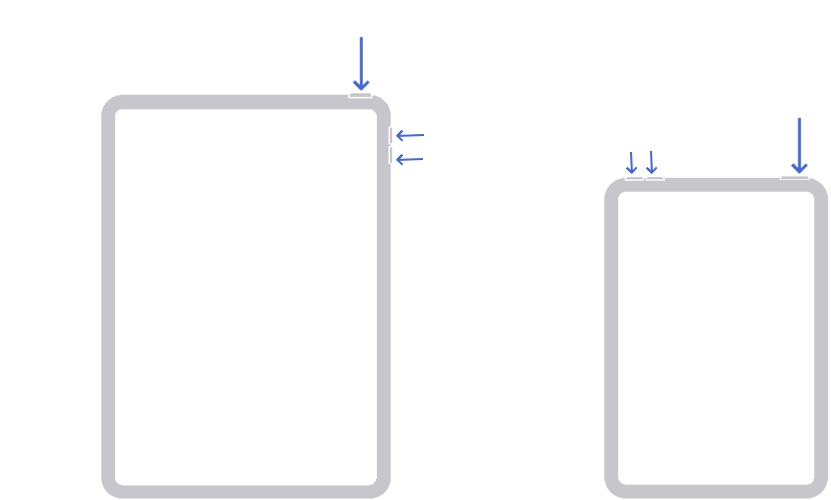
- iPad with Home button: Hold the Home button and the power button at the same time. Release the power button when the screen light. Keep holding the Home button until you see a computer icon.
- iPad without Home button: Press and release the volume up button, volume down button in sequence. Then keep holding the power button until a computer icon appears on the iPad screen.
Step 2. Connect the iPad to a computer using a data cable, then open iTunes.
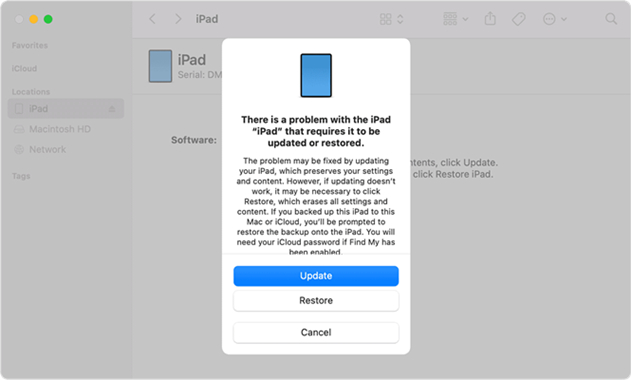
Step 3. Choose Restore on the pop-up window. The restore will erase all data on the iPad, as well as the iPad passcode.
Method 3. Unlock iPad Using iPad Unlocker
Using a dedicated iPad unlocker tool is often the most comprehensive option when you need to access an iPad but don't remember the passcode. Whether your iPad is protected by a 4‑digit code, 6‑digit code, Touch ID, Face ID, or a custom alphanumeric passcode, an unlocking tool can help you get past the lock screen without needing the original code.
Among these tools, MagFone iPad Unlocker stands out for its broad compatibility and ease of use. It can unlock an iPad even if Find My iPad is turned on or off, and it works with different iPad models and iOS/iPadOS versions. Follow the steps below to unlock a locked iPad:

MagFone iPhone Unlocker
Unlock various locks on iOS devices, including screen locks, MDM, Apple ID, and Activation Lock without needing a password.
Step 1 Install MagFone iPhone Unlocker

Download MagFone iPad Unlocker on your computer. Connect the iPad to the computer using a data cable.
Step 2 Get iPad into Recovery Mode
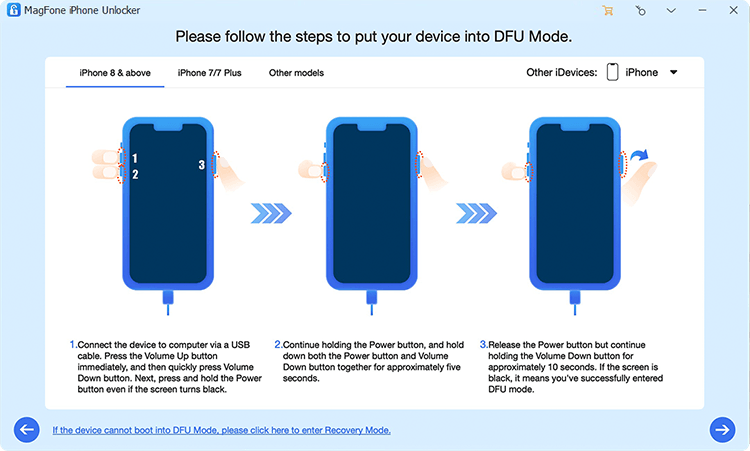
Open MagFone and choose Unlock iOS Screen from the interface. Click Start and follow the onscreen instructions to get the iPad into recovery mode or DFU mode. Then click the next icon for the next step.
Step 3 Download the Firmware Package
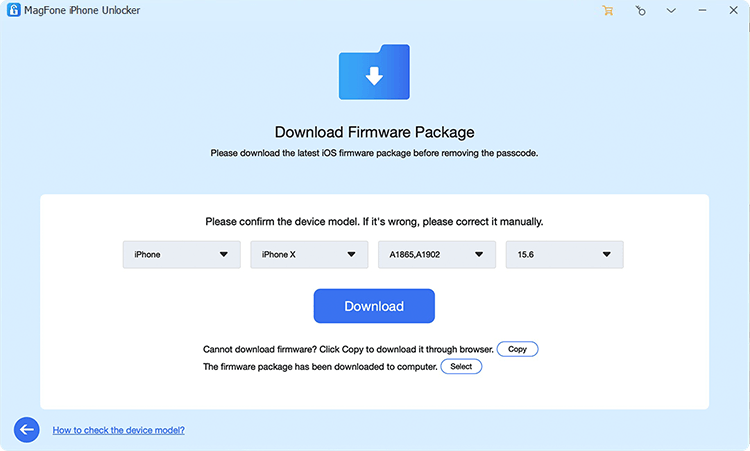
Check the iPad information and choose a compatible firmware package, then click Download.
Step 4 Unlock iPad Passcode

After downloading and verifying the firmware package, click Unlock to remove the passcode on your iPad.
Part 4. Conclusion
Unlocking an iPad with an iPhone is possible, but it's not recommended if you still remember the iPad passcode, since most of these methods will erase your data. If you truly can't recall the passcode, you can use your iPhone to unlock the iPad via the iCloud website or the Find My app by remotely erasing the device and setting it up again. In addition, you can consider using a professional tool like MagFone iPad Unlocker, which offers a more flexible way to remove different types of screen locks when Apple's solutions are unavailable or fail to work.

Teresa Miller
Editor in chief





