








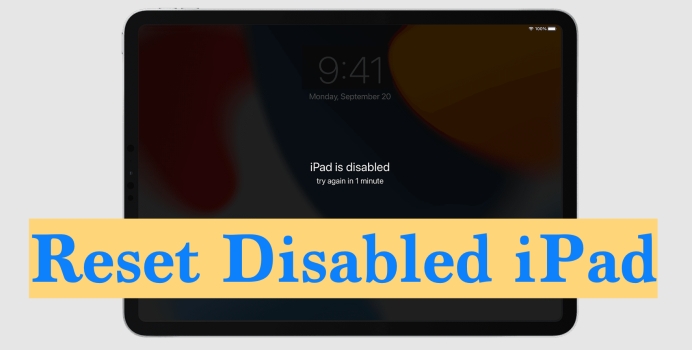
If your iPad has been disabled after too many incorrect passcode attempts, don't panic. A disabled iPad can still be reset and restored with the right method, even if you don't have access to iTunes. In this guide, we'll walk you through how to reset a disabled iPad, including using a dedicated unlocking tool, iCloud, the Find My app, and iTunes. Whether you're looking for the easiest option or a more traditional approach, this article will help you choose the method that works best for your situation.
- Part 1. How Do You Reset a Disabled iPad?
- Part 2. How to Reset Disabled iPad without iTunes
- Part 3. How to Reset Disabled iPad with iTunes
- Part 4. Conclusion
Part 1. How Do You Reset a Disabled iPad?
When an iPad becomes disabled, a hard reset can help you regain access to it. And there are several ways to reset a disabled iPad, depending on the tools and services available to you. Knowing these options in advance can save time and make the resetting process fluent.
| Method | Apple ID & Password | Find My iPad | Computer | Operation |
|---|---|---|---|---|
| MagFone iPhone Unlocker | ❌ | / | Need | Quite easy |
| iCloud Website | ✔️ | Enabled | ❌ | Easy |
| Find My App | ✔️ | Enabled | ❌ | Easy |
| iTunes | ❌ | Disabled | Need | Moderate |
Part 2. How to Reset Disabled iPad without iTunes
What most users are curious about is resetting a disabled iPad without iTunes. Here are 3 methods available to reset a disabled iPad without iTunes. Depending on whether you have access to your Apple ID, another Apple device, or a third-party unlocking tool, you can choose the method that best fits your situation.
Method 1. Reset Disabled iPad via MagFone iPhone Unlocker
For users who want a quick and straightforward solution, MagFone iPad Unlocker can be a useful option. This tool is designed to help remove screen locks from Apple devices, including disabled iPads, without requiring iTunes. In addition, it's also delicate to remove screen time, MDM, and Apple ID from Apple devices without the passcode or password. It is especially helpful for users who may not remember their passcode or who want an easier process with clear on-screen instructions. Before using this method, make sure you have a computer available to install and run the software.

MagFone iPhone Unlocker
Unlock various locks on iOS devices, including screen locks, MDM, Apple ID, and Activation Lock without needing a password.
Step 1 Open MagFone iPhone Unlocker

Download and install MagFone iPhone Unlocker on your computer. Then open this tool.
Step 2 Put iPad into Recovery Mode
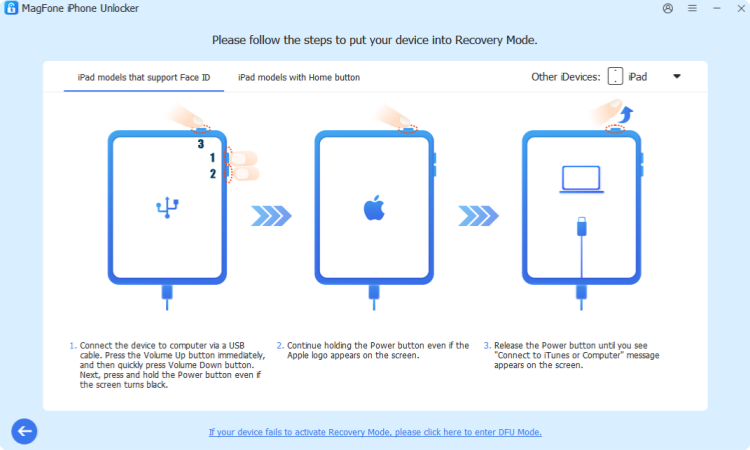
Use a data cable to connect the disabled iPad to your computer. Choose Unlock iOS Screen from the main interface. Click Start and follow the onscreen instructions to get the iPad into recovery mode.
Step 3 Download the Firmware Package
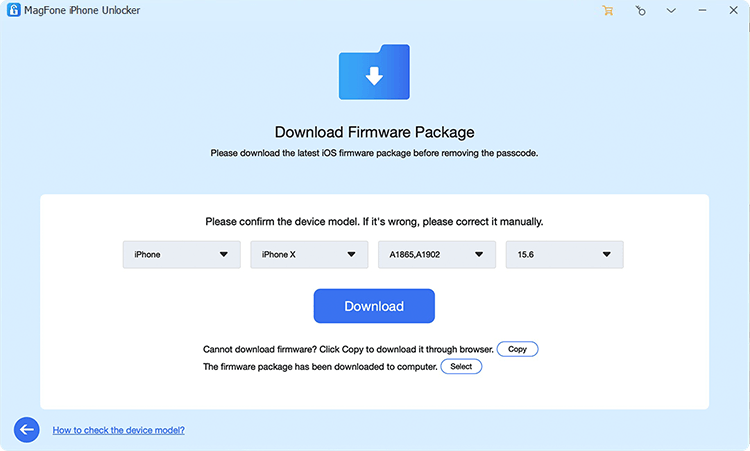
When the iPad is in recovery mode, click the next icon that appears on the screen. Then check the device information and choose a compatible firmware to download.
Step 4 Factory Reset iPhone without iTunes

After downloading and verifying the firmware package, click Unlock to factory reset the disabled iPad. After resetting, you can regain access to it.
Method 2. Reset Disabled iPad on iCloud Website
The iCloud website offers a convenient way to erase a disabled iPad remotely, as long as Find My iPad is enabled on the device and you know the Apple ID credentials linked to it. Once the device is erased through iCloud, you can set it up again and restore your data from a backup if one is available.
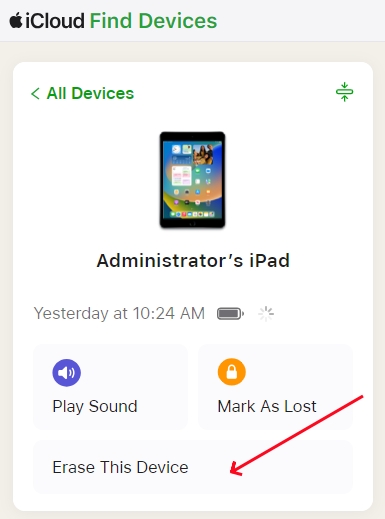
Step 1. Go to the iCloud website and sign in with your account.
Step 2. Find the disabled iPad from the devices list.
Step 3. Choose Erase > Next, and enter an optional phone number.
Step 4. Choose Erase and enter the Apple ID password to hard reset the disabled iPad.
Method 3. Reset Disabled iPad in Find My App
Another official way to reset a disabled iPad without iTunes is by using the Find My app on another Apple device. If you have an iPhone, iPad, or Mac signed in with the same Apple ID, this method can be both fast and convenient. Through the app, you can locate the disabled iPad and erase it remotely in just a few steps.
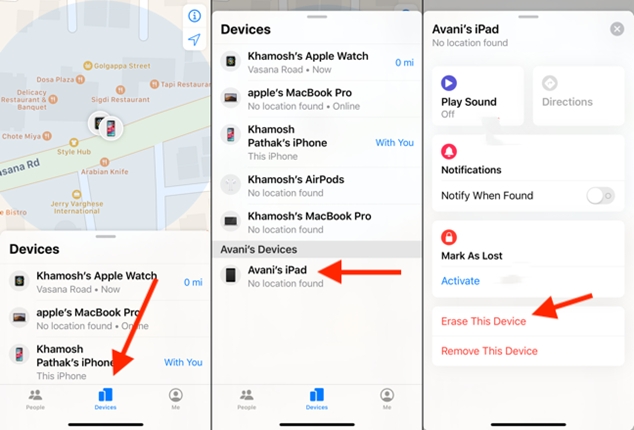
Step 1. Open the Find My app on an Apple device that is linked to the same Apple ID as the disabled iPad.
Step 2. Tap Devices at the bottom and find the disabled iPad.
Step 3. Tap Erase > Next, and enter an optional phone number.
Step 4. Tap Erase again and enter the Apple ID password to factory reset the disabled iPad.
Part 3. How to Reset Disabled iPad with iTunes
If you prefer to use Apple's traditional restore method, iTunes is another reliable option for resetting a disabled iPad. Although it may take a few more steps and a longer time than some of the alternatives, this method is widely used and works well for users who have access to a computer. By putting the iPad into recovery mode and restoring it through iTunes, you can erase the device and regain access.
Step 1. Use a data cable to connect the disabled iPad to your computer and open iTunes.
Step 2. Get the disabled iPad into recovery mode.
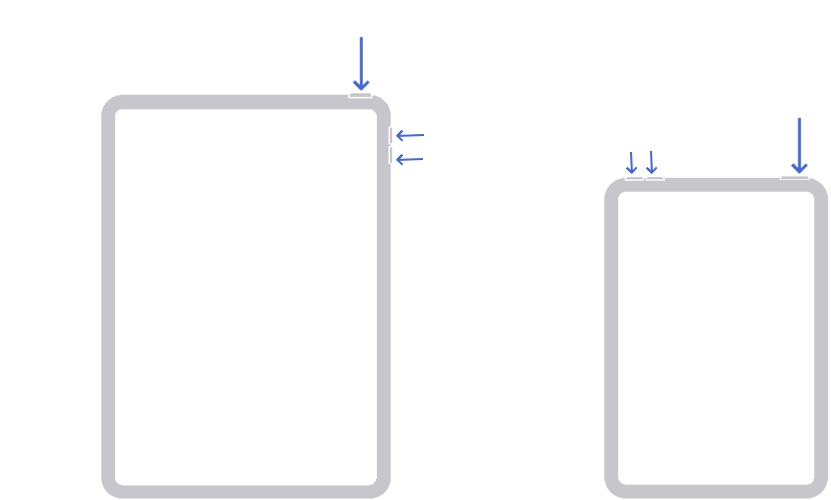
- iPad with Home button: Keep holding the Home button and the power button until the iPad screen displays a computer icon.
- iPad without Home button: Press and release the volume up button, volume down button in sequence. Then keep holding the power button until the iPad screen displays a computer icon.
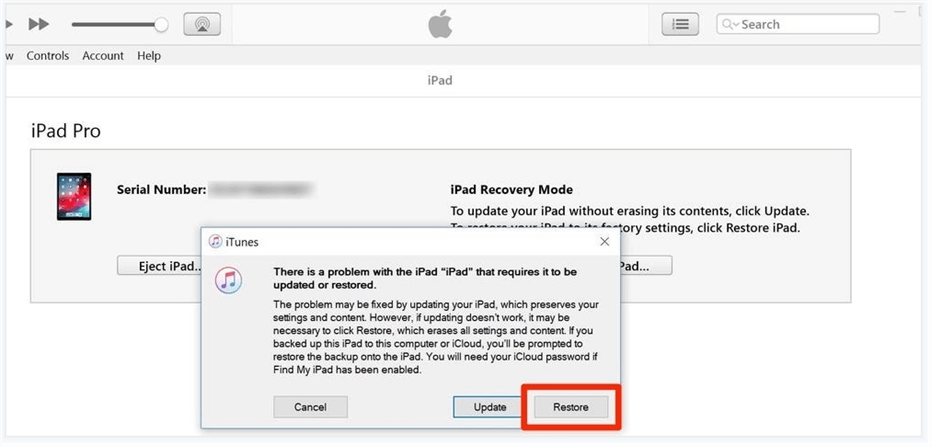
Step 3. Once the iPad enters recovery mode, there will be a window asking you to restore the iPad or update it. Choose Restore to reset the disabled iPad to factory settings.
Part 4. Conclusion
Being locked out of a disabled iPad may seem overwhelming at first, but by resetting it, you can easily regain access. Whether you choose a third-party unlocking tool like MagFone iPhone Unlocker, use iCloud or the Find My app, or rely on iTunes, each method can help you regain access to your device. The best choice depends on the tools you have available and whether features like Find My iPad are enabled. By following the right steps, you can erase the disabled iPad, set it up again, and use it again.

Teresa Miller
Editor in chief





