








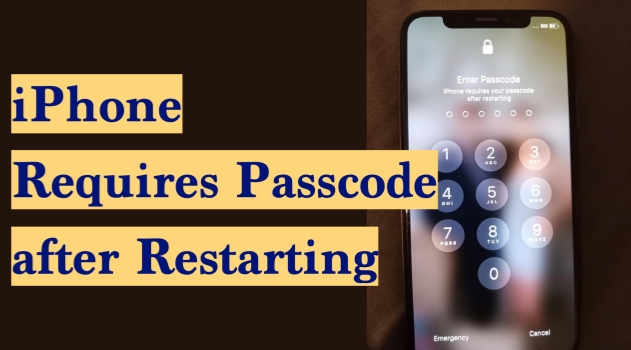
It's normal for an iPhone to ask for a passcode after restarting. This security step is designed to protect your data, yet it becomes a real headache when you can't remember the passcode or something goes wrong with the unlock process. In this guide, we will explain why your iPhone requires passcode after restarting and walk you through six methods to unlock it. Whether you know your passcode or have forgotten it, you'll find a method that fits your situation.
- Part 1. Why Does iPhone Require Passcode After Restarting?
- Part 2. How to Unlock iPhone Requires Passcode After Restarting
- Part 3. How to Unlock iPhone Requires Passcode After Restarting [All Scenarios]
- Part 4. Conclusion
Part 1. Why Does iPhone Require Passcode After Restarting?
iPhone asking for a passcode after restarting is a security mechanism. If your iPhone is asking for a passcode after restarting, you need to know that it's not an error or bug. Instead, it is a deliberate security feature built into every iPhone. When the iPhone detects a suspicious secure action, it will require you to enter the passcode to verify your identity. Below are common situations that may trigger the "Enter Passcode. iPhone requires your passcode after restarting" message:
Situations That Trigger the Passcode Screen:
- Any manual restart or power-on
- iPhone enters SOS mode screen
- iPhone unused for more than 48 hours
- 5 consecutive failed Face ID / Touch ID attempts
- Remote lock sent via Find My
- After an iOS software update
- iPhone auto-restarted after 72 hours of inactivity
Part 2. How to Unlock iPhone Requires Passcode After Restarting
There are several different ways to deal with the iPhone requires passcode after restarting screen. The best method for you depends on whether you still remember your passcode, whether you've turned on Find My, and whether you have the Apple ID password. In the sections below, we will walk through each option to help you.
Method 1. Unlock iPhone Using the Correct Passcode
If you still remember your passcode, this is the quickest and easiest way to unlock your iPhone after a restart. Simply enter the correct passcode on the lock screen, and once your iPhone is unlocked, Face ID or Touch ID will work normally again for future unlocks.
Method 2. Unlock iPhone from Lock Screen
If you can't remember the exact passcode, the lock screen offers options to reset your device. Depending on your iOS version, you may see options like Forgot Passcode? or Erase iPhone after multiple failed attempts. Using these options lets you erase the iPhone directly from the lock screen and then set it up again, so you can regain access even without the original passcode.
On iOS 17 or later:
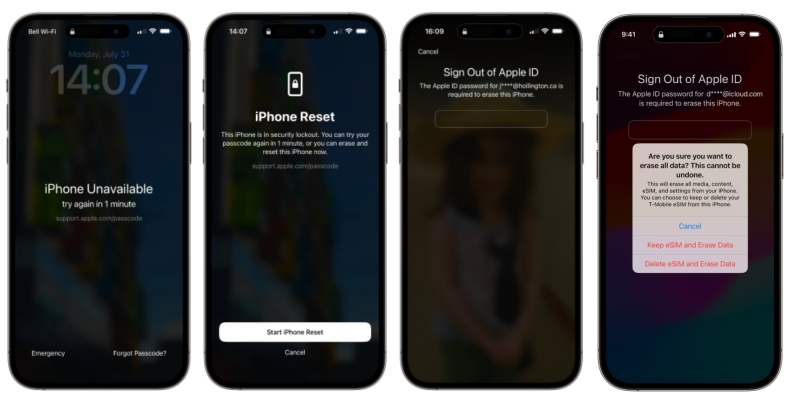
Step 1. Enter a wrong passcode until you see the iPhone Unavailable screen.
Step 2. Tap Forgot Passcode? > Start iPhone Reset.
Step 3. Enter the iPhone passcode to sign out of your Apple ID, and the iPhone will be wiped afterwards.
From iOS 15.2 to iOS 16:
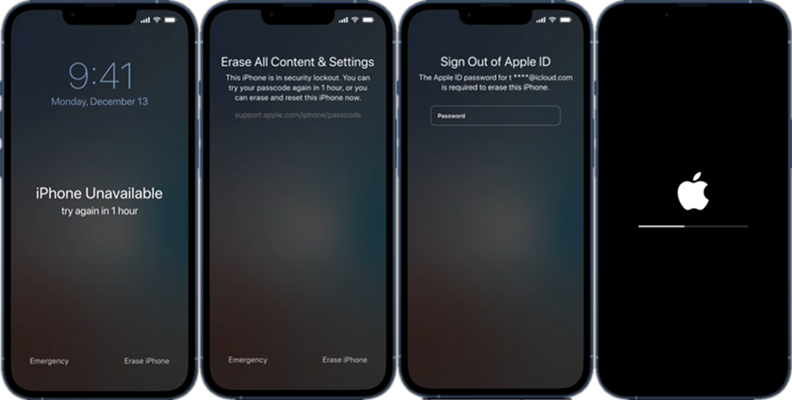
Step 1. Enter a wrong passcode until you are stopped by the security message.
Step 2. Tap Erase iPhone and enter the Apple ID password.
Step 3. Tap Erase iPhone again to erase all content and settings on the iPhone.
Method 3. Unlock iPhone on iCloud Web
For users who have Find My iPhone enabled, iCloud.com provides a convenient way to unlock a device remotely. By signing in with your Apple ID, you can wipe the passcode and all data from the device. After the erase is complete, you can regain access to the iPhone.
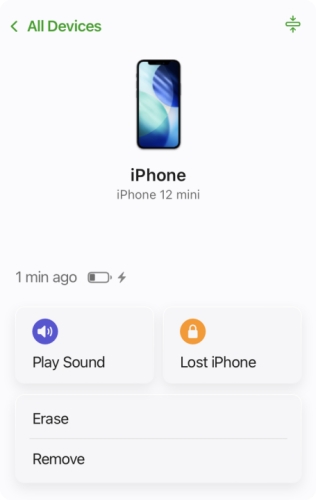
Step 1. Load icloud.com/find on any browser and log in to your Apple Account.
Step 2. Access the locked iPhone and choose Erase.
Step 3. Access Next or Continue, and you'll be asked to enter an optional phone number.
Step 4. Tap Erase, then enter the Apple ID password and tap Erase again to wipe the iPhone passcode.
Method 4. Unlock iPhone in Find My App
If you have another Apple device, such as an iPad or another iPhone signed in with the same Apple ID, you can use the Find My app to unlock the device that's stuck on the passcode screen.
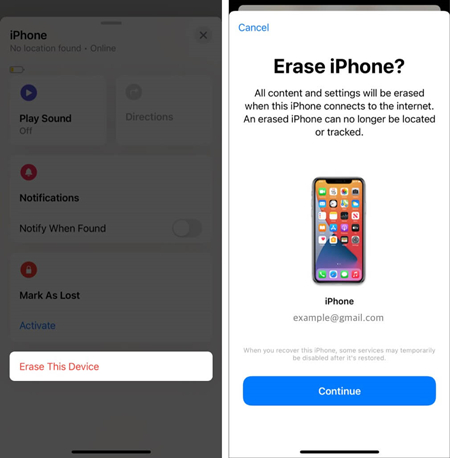
Step 1. Open the Find My app on another Apple device.
Step 2. Tap Devices at the bottom, then tap the locked iPhone.
Step 3. Tap Erase This Device or Erase > Continue.
Step 4. Enter an optional phone number and the Apple ID password to wipe the iPhone.
Method 5. Unlock iPhone with iTunes
If you are locked out of the iPhone requires your passcode after restarting screen, you can put the iPhone in recovery mode and restore it with iTunes. You can consider this method only when the Find My iPhone is disabled on the device. Otherwise, the activation lock may be triggered after a restore.

Step 1. Get the iPhone into recovery mode:
- iPhone 8 or later: Press and release the volume up button, volume down button in sequence. Then keep holding the power button until the computer icon appears.
- iPhone 7 series: Keep holding the power button and the volume down button at the same time until the computer icon appears.
- iPhone 6 and earlier: Keep holding the power button and the home button at the same time until the computer icon appears.
Step 2. Use a data cable to link the iPhone to a computer and open iTunes.
Step 3. Then a window will pop up to ask whether to restore or update the iPhone. Choose Restore to erase all content and settings on the iPhone.
Part 3. How to Unlock iPhone Requires Passcode After Restarting [All Scenarios]
If you own the iPhone passcode, you can quickly unlock the iPhone when it requires a passcode after restarting. But if you don't own the passcode, an alternative and comprehensive method is to use an unlocking tool. Bringing the same results as other methods in Part 2, using MagFone iPhone Unlocker to unlock iPhone requires no internet, Apple ID password, and is available whether Find My iPhone is enabled or not. For whichever scenario of your iPhone, follow the steps below to unlock it:

MagFone iPhone Unlocker
Unlock various locks on iOS devices, including screen locks, MDM, Apple ID, and Activation Lock without needing a password.
Step 1 Open MagFone iPhone Unlocker

Download and install MagFone iPhone Unlocker on your computer, then connect the iPhone to the computer using a data cable. Afterwards, launch MagFone iPhone Unlocker to start.
Step 2 Put iPhone into Recovery Mode
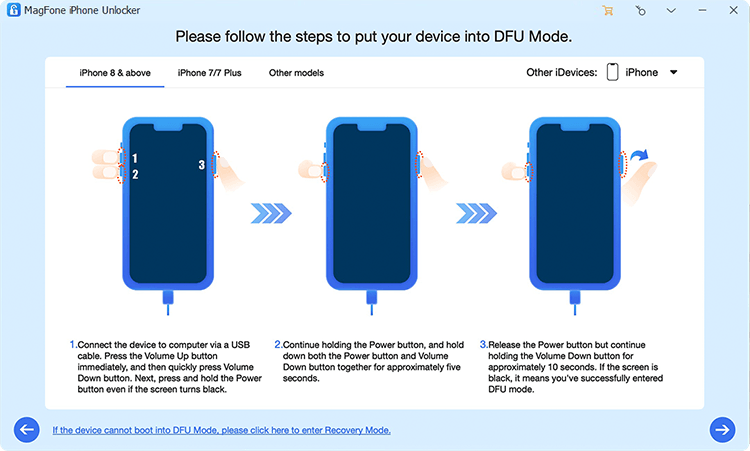
Click Unlock iOS Screen > Start, then follow the onscreen instructions to get the iPhone into recovery mode. Afterwards, click the next button in the bottom right corner.
Step 3 Download A Firmware Package
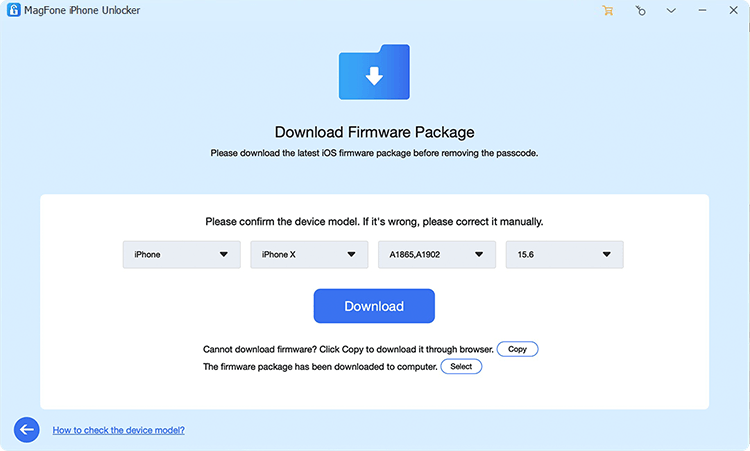
Check and adjust the device information on screen, then choose a suitable firmware package to download.
Step 4 Unlock iPhone without Passcode

After downloading and verifying the firmware package, click Unlock to unlock the iPhone without a passcode.
Part 4. Conclusion
The next time you see the "iPhone requires your passcode after restarting" message, don't panic. Simply try entering your passcode to unlock the device. If you can't remember it or the passcode no longer works, check the methods in Part 2 and choose the option that best fits your situation. And if you want a more streamlined solution that can handle almost any lock screen issue in one place, MagFone iPhone Unlocker is a strong option to consider.

Teresa Miller
Editor in chief





