








Connecting to Wi-Fi on an iPhone is usually seamless, but trying to view or share that password later can quickly become frustrating. If you go to your Wi-Fi settings expecting a clear password field and find nothing, you are not alone. Whether the option is completely missing or the field shows up empty, this guide will break down why you can't see WiFi password on iPhone and how to retrieve it step-by-step.
- Part 1. Why Can't I See WiFi Password on iPhone?
- Part 2. Built-in Way to See WiFi Password on iPhone
- Part 3. 100% Working Way to See WiFi Password on iPhone [All iOS Versions]
- Part 4. Conclusion
Part 1. Why Can't I See WiFi Password on iPhone?
There are two cases where you can't see a WiFi password on an iPhone. One is that you can't see the Password field in WiFi settings, and the other is that the WiFi password field shows No Password.
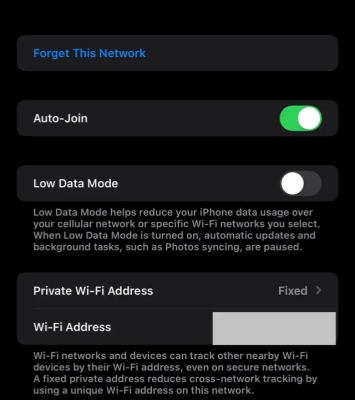
Case 1. No WiFi Password Field
When you check the WiFi password in iPhone Settings, the Password field is missing.
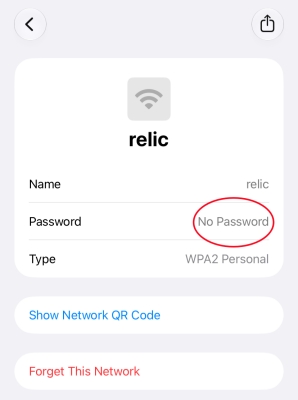
Case 2. No Password in WiFi Password Field
When you check the WiFi password in the Passwords app, the Password field shows No Password.
No matter which case you are in, the causes are mainly from the following aspects:

Reason 1. Older iOS Version (iOS 15 or Earlier)
If your iPhone is running iOS 15 or an earlier version, Apple doesn't support WiFi password viewing. You can update the iOS version to fix the issue.
Reason 2. Shared Wi-Fi Connection
When someone uses Apple's Share WiFi Password feature to connect your iPhone to a network, your device stores the authentication token rather than the plain-text password. As a privacy safeguard, iOS hides the actual password field so you cannot read or copy shared credentials.
Reason 3. System Restrictions or MDM Profiles
If your iPhone is managed by an employer or school via Mobile Device Management, corporate security policies might disable password visibility. Similarly, active Content & Privacy Restrictions under Screen Time can restrict account changes and hide sensitive credential options.
Part 2. Built-in Way to See WiFi Password on iPhone
You know there are two places where you can find WiFi passwords on an iPhone. If you can't see the WiFi password in one entry, you may find it in another entry. Let's see the two ways to see WiFi passwords on iPhone.
Option 1. Find WiFi Password in Settings [iOS 16+]
For devices running iOS 16 or newer, you can view the password for your currently connected network or any previously saved network directly inside the Settings app.
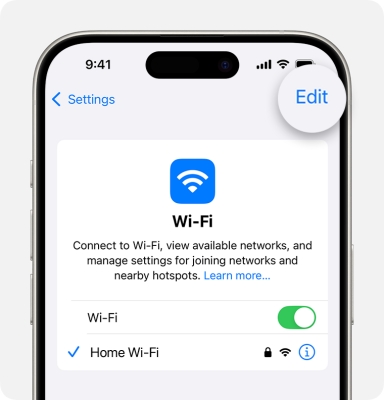
Step 1. Go to Settings > WLAN.
Step 2. Tap Edit and authenticate with your Face ID, Touch ID, or passcode.
Step 3. Tap the WiFi you want to check and tap the Password field to reveal the WiFi password.
Option 2. Find WiFi Password in Passwords App [iOS 18+]
With the release of iOS 18, Apple introduced a dedicated Passwords app that organizes all stored login credentials, passkeys, and network security keys in one place. So you can also find all saved WiFi passwords in the Passwords app.
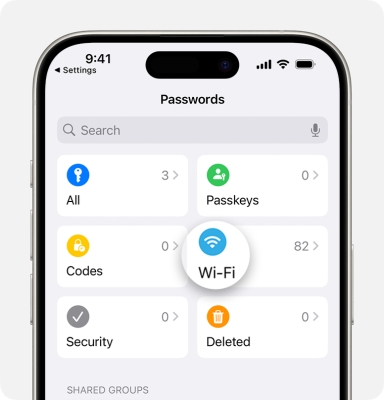
Step 1. Open the Passwords app and authenticate with your Face ID, Touch ID, or passcode.
Step 2. Tap Wi-Fi and you can see all connected WiFi betwork on your iPhone.
Step 3. Tap the WiFi you want to check and tap the Password field to view the password.
Part 3. 100% Working Way to See WiFi Password on iPhone [All iOS Versions]
No matter why you can't see a WiFi password on your iPhone, there is still a reliable way to find saved network passwords. As a dedicated iPhone password manager, MagFone iPhone Unlocker can scan and reveal different types of passwords on iPhone, including WiFi passwords, app and website passwords, email passwords, and Apple ID passwords. With just a few simple steps, you can quickly access the WiFi passwords saved on your device without hassle.

MagFone iPhone Unlocker
Find and retrieve WiFi passwords on iPhone quickly, no matter which iOS version you are running.
Step 1 Download and Install MagFone iPhone Unlocker
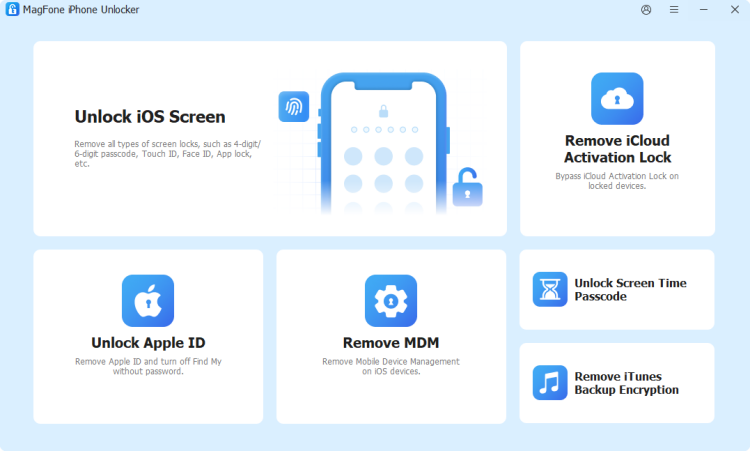
First, download and install MagFone iPhone Unlocker on your computer. Then use a data cable to connect your iPhone to the computer. Then run this tool to start.
Step 2 Scan All Saved WiFi Passwords on iPhone
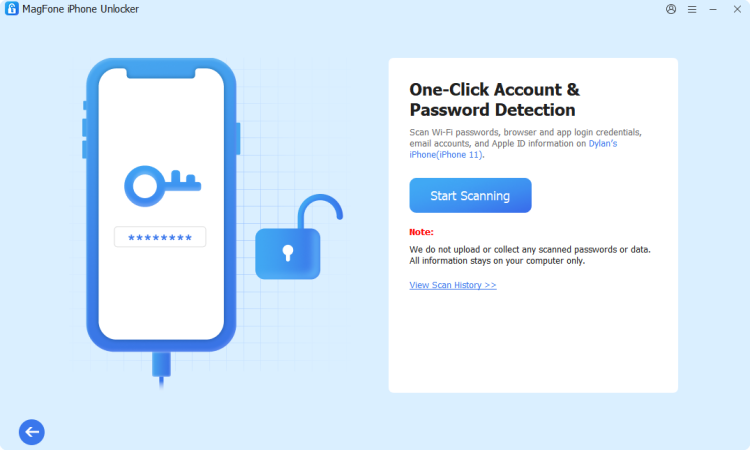
Click Password Manager from MagFone's interface, and click Start Scanning to scan all saved password on your iPhone, including WiFi passwords, app and website passwords, email password, and Apple ID passwords.
Step 3 Check WiFi Passwords on Computer
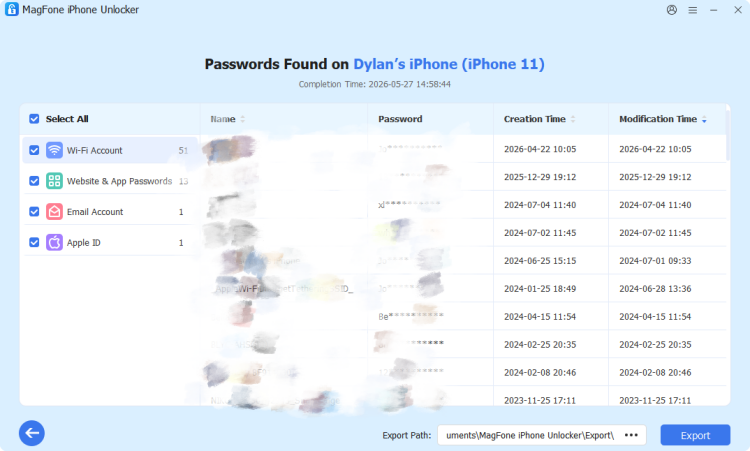
After scanning, you can check all saved passwords on the screen. Click WiFi Passwords and click the View icon to reveal the WiFi password. The scan history will also be kept in the tool, so you can check saved passwords at any time you want.
Part 4. Conclusion
Being unable to see a WiFi password on an iPhone usually comes down to system software limitations, shared network privacy rules, or altered setting in newer iOS versions like iOS 18. By checking your iOS version or utilizing built-in options like the Settings menu and the Passwords app, you can easily find and view a WiFi password. If none of this works, MagFone iPhone Unlocker deserves a try.

Dylan Jones
Editor in chief




