








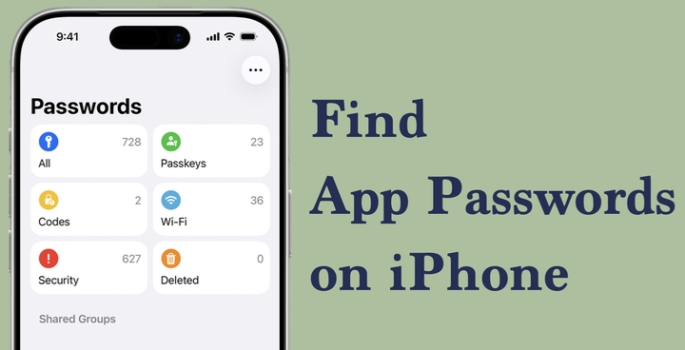
Remembering you have saved an app password on iPhone, but are unable to find it? It can be frustrating, and it's also a common issue for many iPhone users. In some cases, the problem is caused by differences between iOS versions, while in others, the password may be hidden for different reasons. In this guide, we'll show you how to find app passwords on iPhone step by step and explain what to do if you still can't find them.
- Part 1. How to Find App Passwords on iPhone
- Part 2. Why Can't I Find App Passwords on iPhone?
- Part 3. How to Find All App Passwords on iPhone [All iOS Versions]
- Part 4. Conclusion
Part 1. How to Find App Passwords on iPhone
If you want to check saved app passwords on your iPhone, the exact method depends on the iOS version your device is running. Apple stores passwords in slightly different places across system versions, so you may need to check either the Settings app or the dedicated Passwords app. Below, we'll walk you through the available options so you can quickly find the one that works for your iPhone.
Option 1. Find App Passwords in iPhone Settings [iOS 17 and earlier]
If your iPhone is running iOS 17 or an earlier version, saved app passwords are usually stored in the Settings app. Depending on the specific version of iOS installed on your device, the path may vary slightly.
Before iOS 14:
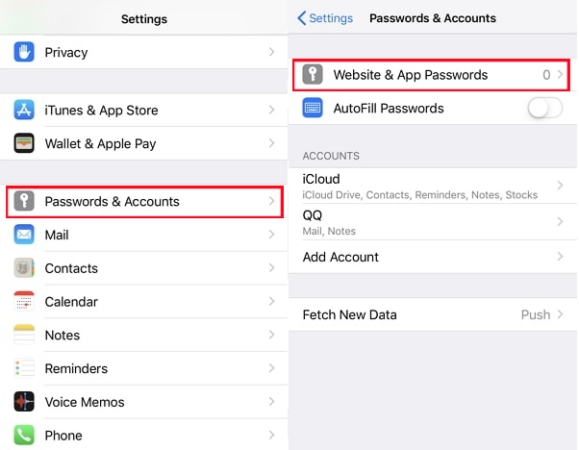
Step 1. Open iPhone Settings and tap Passwords & Accounts.
Step 2. Tap Website & App Passwords to see all saved app passwords on your iPhone.
Step 3. You can tap the app account to reveal the password.
iOS 14 ~ iOS 17:
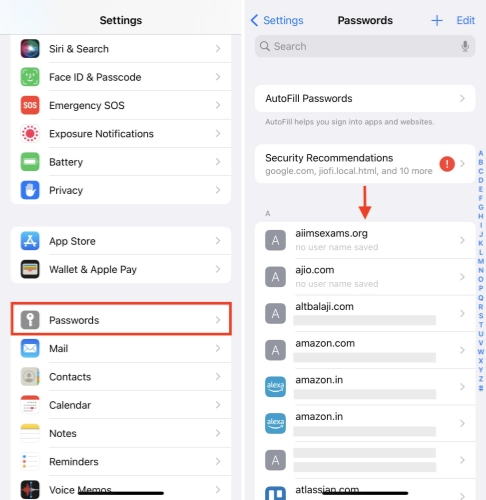
Step 1. Go to iPhone Settings and tap Passwords.
Step 2. You can view all your saved app passwords on this page. You can tap one to view the password.
Option 2. Find App Passwords in Passwords App [iOS 18 and later]
If your iPhone is running iOS 18 or later, you can find saved app passwords in Apple's new Passwords app. This app is designed to manage all kinds of saved credentials in one place, including app passwords, website passwords, Wi-Fi passwords, passkeys, and verification codes, making password management much easier and more organized.
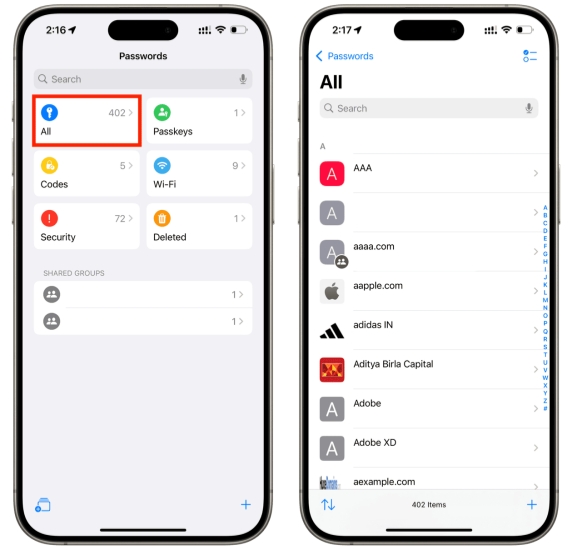
Step 1. Open the Passwords app and unlock with your Face ID or passcode.
Step 2. Tap All to see all saved app passwords on your iPhone.
Step 3. Access a specific app account and tap the Password area to reveal the password.
Note:
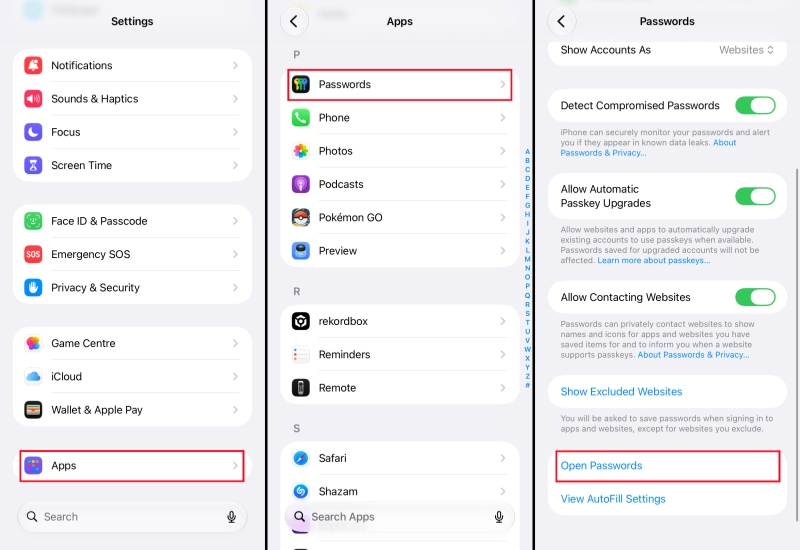
If the Passwords app doesn't appear on your Home Screen, you can use Search to look for it quickly. You can also access it through Settings. Just go to Settings > Apps > Passwords, then scroll down and tap Open Passwords to open the app directly.
Option 3. Find App Passwords via Siri
You can also use Siri to help you quickly access a saved app password on your iPhone. Simply activate Siri and ask, “What is my [App] password?” If the password has been saved to your iPhone, Siri can direct you to the corresponding password entry after authentication.
Find App Passwords in Keychain Access
If you have enabled iCloud Keychain Passwords on all your Apple devices that are signed with the same Apple ID, the app passwords will sync across your devices, so you can also find the app passwords on other devices.
Part 2. Why Can't I Find App Passwords on iPhone?
Although Apple offers built-in ways to save and manage passwords on iPhone, there are still situations where you may not be able to find a saved app password. This can happen for several reasons, such as system update bugs, the way you signed in, disabled sync settings, or password features that are not turned on. Below, we'll explain the most common reasons and show you how to fix them.
Sign in with Apple ID
If you choose Sign in with Apple when creating or logging into an app, you may not see the app password saved on your iPhone. In some cases, if you sign in to an app or website through a browser other than Safari, the login information may also not appear in Apple's password manager.
Enable iCloud Keychain Sync
If the password was originally saved on another Apple device, but iCloud Keychain sync is not enabled, you may not be able to view it on all your devices. Turning on iCloud Keychain allows your saved passwords to sync across Apple devices that are signed in with the same Apple ID.
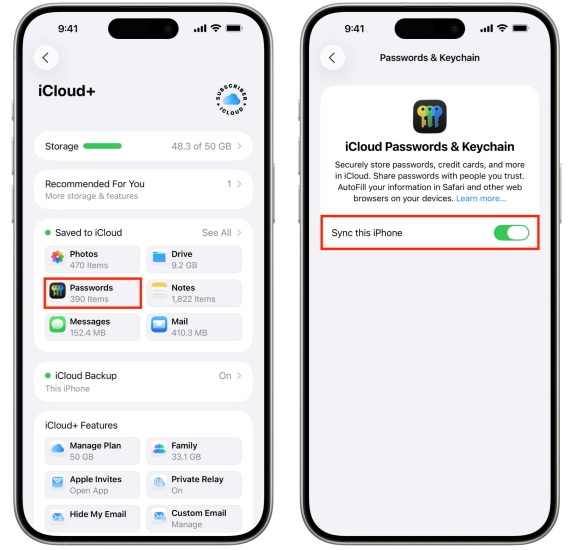
Step 1. Go to iPhone Settings and tap your Apple ID.
Step 2. Access iCloud > Saved to iCloud > Passwords & Keychain.
Step 3. Enable Sync this iPhone, then the passwords will sync on other Apple devices that are linked to the same Apple ID.
Enable AutoFill Passwords
If you can't find a specific app password manually, enabling AutoFill Passwords may help. Once this feature is turned on, your iPhone can automatically suggest saved passwords when you try to sign in to an app or website. This makes it easier to confirm whether the password is already stored on your device.
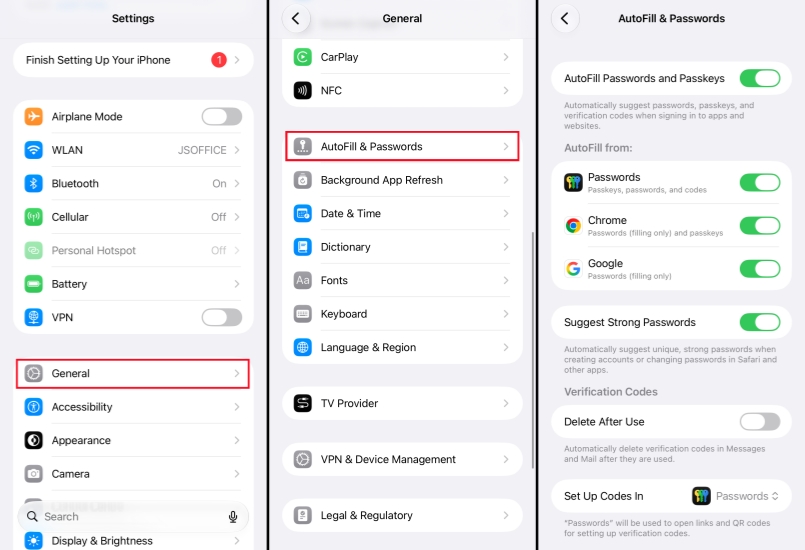
Step 1. Go to iPhone Settings > General > AutoFill & Passwords.
Step 2. Turn on AutoFill Passwords and Passkeys, then enable access for the password sources listed under AutoFill From.
Step 3. Open the app you want to log into, and check whether the password AutoFill prompt appears.
Part 3. How to Find All App Passwords on iPhone [All iOS Versions]
Starting from iOS 18, Apple has changed the way where to store your passwords and passkeys on your device. Many users are complaining about this update because they can't find some passwords on iPhone that used to be stored in Settings.
In these cases, a password manager is essential for finding missing app passwords on iPhone. As a versatile iOS passcode finder, MagFone iPhone Unlocker can find all app passwords on your iPhone, even if they're not showing on your device. Besides, it's also available to manage Wi-Fi passwords, email credentials, and Apple ID passwords on your iPhone. No matter which iOS version you are using, MagFone iPhone Unlocker offers a feasible way to recover app passwords.

MagFone iPhone Unlocker
One-click to find saved app and website passwords on iPhone, compatible with all iOS versions.
Step 1 Run MagFone iPhone Unlocker
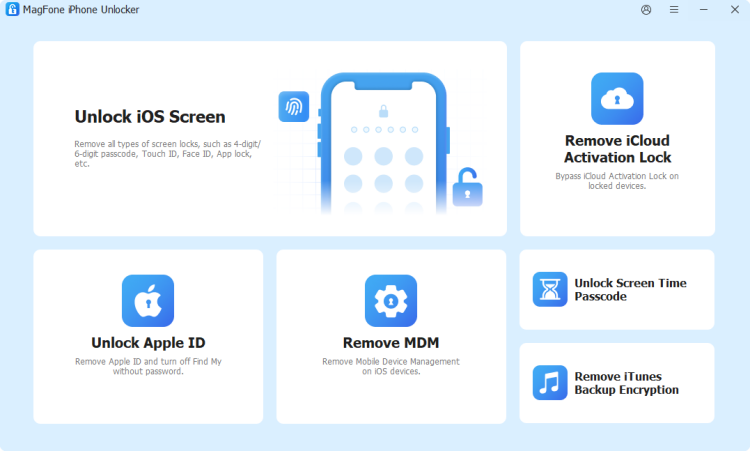
Download and install MagFone iPhone on your computer, then launch this password manager on your computer.
Step 2 Scan App Passwords on iPhone
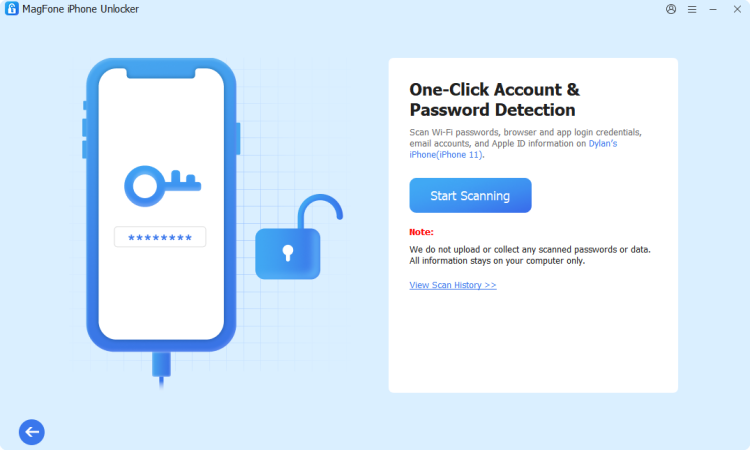
Click Password Manager on the main interface. Use a data cable to connect your iPhone to the computer, and you will see the Start Scanning option when it's detected. Click Start Scanning to scan all saved app passwords on your iPhone.
Step 3 Export App Passwords on iPhone
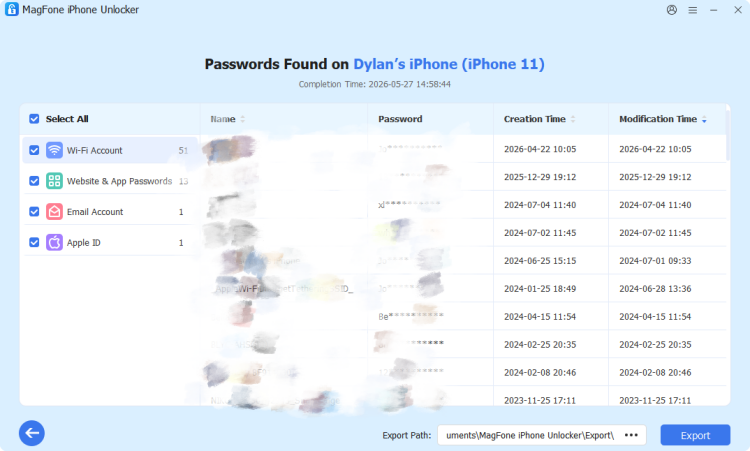
After scanning, you can click Web & App Passwords to find your missing app passwords on iPhone. You can select the app passwords and click Export to export them to your computer.
Part 4. Conclusion
Depending on your iOS version, you can check saved passwords in Settings, the Passwords app, Siri, or even on another Apple device through iCloud Keychain. If you still can't find a saved password, checking your sign-in method and enabling features like iCloud Keychain sync and AutoFill Passwords can often solve the problem. For users who want to view all saved passwords more efficiently, tools like MagFone iPhone Unlocker can also provide an additional solution.

Dylan Jones
Editor in chief





