








Forgetting a WiFi network's details can stop you in your tracks, whether you want to connect a secondary device or share access with a friend or you want to reconnect to a network after ignoring it. If you have forgotten the WiFi password on your iPhone, there are several options you have to change, look up, or recover the WiFi password on iPhone. Let's see what to do if you forgot the WiFi password on iPhone and recover the WiFi password quickly.
- Part 1. What to Do If You Forgot WiFi Password on iPhone?
- Part 2. How to Look Up Forgotten WiFi Password on iPhone
- Part 3. How to Retrieve A WiFi Password on iPhone [All iOS]
- Part 4. Conclusion
Part 1. What to Do If You Forgot WiFi Password on iPhone?
When facing a forgot WiFi password on iPhone situation, your immediate steps depend on your iOS version and administrative access. Here are three options you have when you forgot your iPhone WiFi password.
- Look Up WiFi Passwords on iPhone: Devices running iOS 16 or later can display saved passwords directly within system settings after identification.
- Recover WiFi Passwords on iPhone: For iOS devices or restricted systems where saved WiFi passwords are inaccessible, a specialized iOS password manager can help bypass entry barriers to regain network configurations.
- Change WiFi Password as Administrator: If you are the WiFi administrator, you can log into your router's web interface and modify the WiFi password.
Change WiFi Password as Administrator:
If you are the WiFi administrator, you can change the WiFi password on router web with administrator credentials.
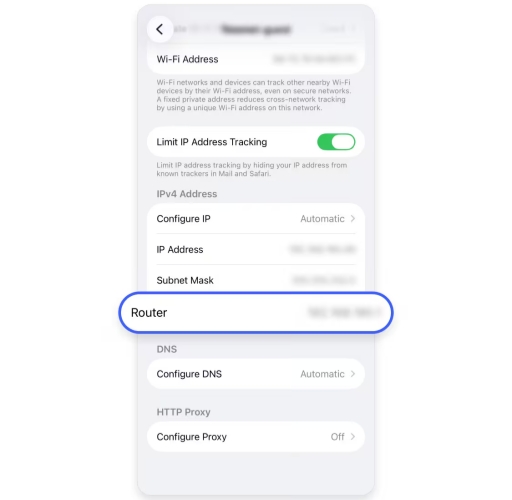
Step 1. Go to iPhone Settings > WLAN.
Step 2. Tap the Info icon next your WiFi network.
Step 3. Copy the router address and load it in the browser.
Step 4. Enter the administrator password, and then you can change your WiFi password.
Part 2. How to Look Up Forgotten WiFi Password on iPhone
When you forgot the iPhone password but the iPhone was previously connected to the network, you have a chance to reveal the WiFi password in Settings or the Passwords app.
Option 1. Look Up WiFi Password in iPhone Settings [iOS 16+]
If your device operates on iOS 16, iOS 17, or later, you can reveal hidden Wi-Fi credentials straight from the network panel.
Current connected WiFi password:
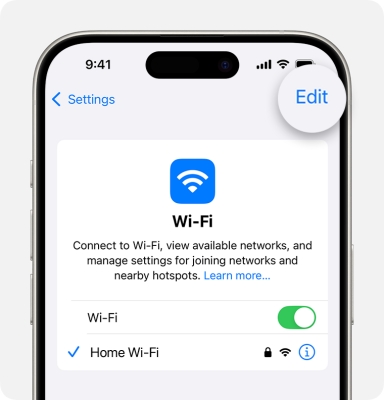
Step 1. Open Settings and tap WLAN.
Step 2. Tap Edit and verify your identity.
Step 3. Tap the Info icon next to the WiFi you want to check.
Step 4. Tap the Password field to view the WiFi password.
Option 2. Look Up WiFi Password in Passwords App [iOS 18+]
Starting with iOS 18, Apple introduced a dedicated Passwords application that centralizes all saved login items and network security keys. So you can also look up a WiFi password in the Passwords app.
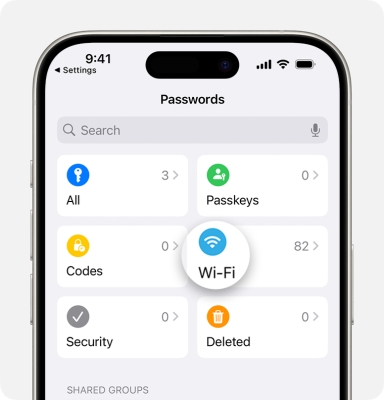
Step 1. Launch the Passwords app on your iPhone and authenticate using your Face ID, Touch ID, or passcode.
Step 2. Tap Wi-Fi, and you can see all connected networks here.
Step 3. Choose your target network from the list to view its password.
Part 3. How to Retrieve A WiFi Password on iPhone [All iOS]
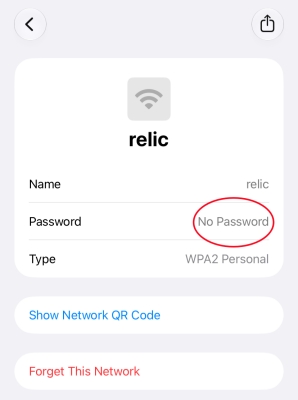
If you just forgot the WiFi passwords on your iPhone, you can usually look up the passwords on your device. If you have forgotten the WiFi network or ignored the WiFi on your iPhone, the password will be removed from iCloud Keychain across your devices, and you can't find the passwords on your device anymore.
In this case, MagFone iPhone Unlocker can help scan all saved WiFi passwords on iPhone, even though you have forgotten the network on your device. In addition, it can help scan all saved apps or website logins, Apple ID passwords, and email account passwords on your device. It can be a helpful choice when you are unable to find and see WiFi passwords on your iPhone. Now follow the steps below to scan forgotten WiFi passwords on your iPhone.

MagFone iPhone Unlocker
Find and retrieve WiFi passwords on iPhone quickly, even though you have ignored the network.
Step 1 Install MagFone iPhone Unlocker
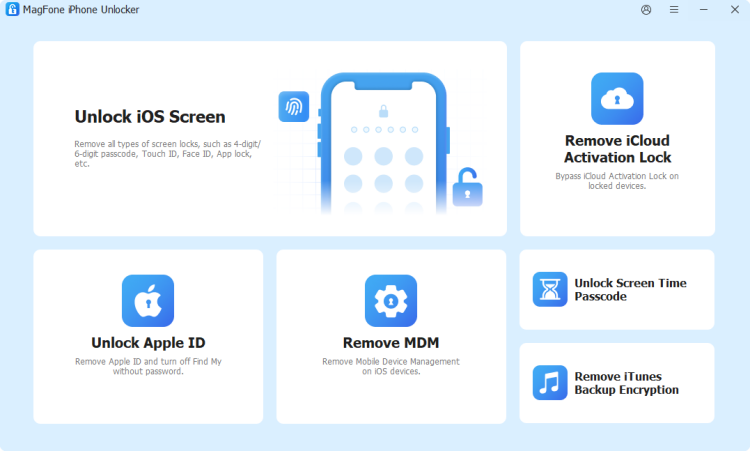
Click the button to download the MagFone iPhone Unlocker package on your computer. After downloading, open the file to install it. Then launch this tool to start.
Step 2 Scan for WiFi Passwords on iPhone
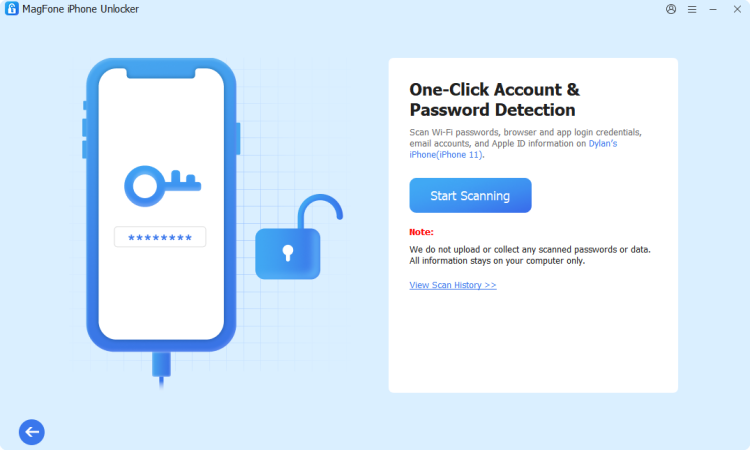
Connect your iPhone to the computer using a data cable. Choose Password Manager on MagFone's screen. Then click Start Scanning to scan for WiFi passwords on your iPhone.
Step 3 Retrieve WiFi Passwords on iPhone
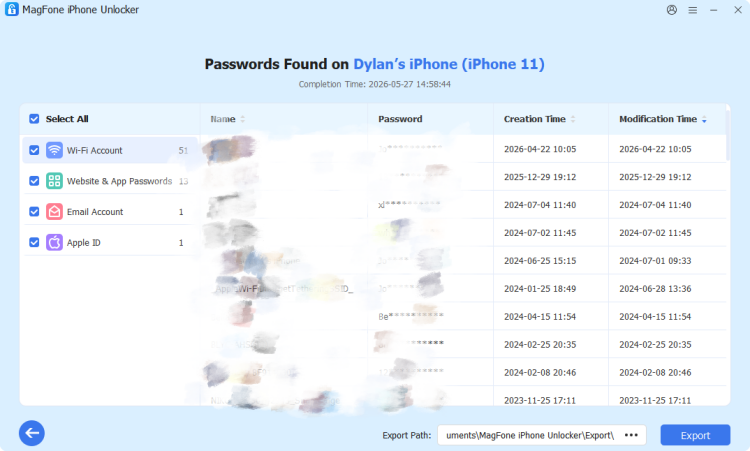
After scanning, you can click WiFi Passwords to check all saved WiFi on your iPhone. You can click the vView icon to reveal the password. You can also select all WiFi passwords and click Export to export them to your computer.
Part 4. Conclusion
When forgetting a WiFi password, don't worry. You can still look it up or retrieve it. If your iPhone supports it, you can quickly find the WiFi password in Settings or Passwords. If your iPhone no longer save and show the WiFi password, MagFone iPhone Unlocker is recommended to recover the WiFi password on iPhone, and is compatible with all iOS versions. Try it and regain access to any network!

Dylan Jones
Editor in chief





