








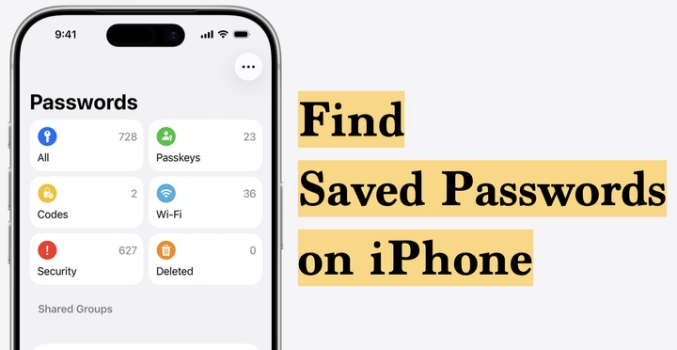
Forgot a Wi‑Fi password or can't remember the login you know you saved on your iPhone? You're not alone. iOS quietly stores passwords for your apps, websites, and Wi‑Fi networks, but many people don't know where to look. In this guide, we'll walk you step by step through how to find saved passwords on iPhone, no matter which iOS version you're using, and show you the easiest way to view them all in one place.
- Part 1. How Do I Find Saved Password on My iPhone?
- Part 2. How to Find Saved Passwords on iPhone
- Part 3. Best Way to Find All Saved Passwords on iPhone [All iOS Versions]
- Part 4. Conclusion
Part 1. How Do I Find Saved Password on My iPhone?
Where iPhone stores your passwords varies with the iOS versions. Before checking passwords on your iPhone, you should be aware of the following:
- On iOS 16 and later, you can view Wi‑Fi passwords directly on your iPhone.
- On iOS 17 and earlier, you can view saved Wi‑Fi, app, and website passwords in the iPhone Settings.
- On iOS 18 and later, you can still view saved Wi‑Fi, app, and website passwords, along with some enhanced password management options.
In the following section, we will also show you how to find all saved passwords on your iPhone, including all Wi‑Fi passwords as well as all app and website passwords, so you can manage them more easily.
Part 2. How to Find Saved Passwords on iPhone
Since you know where you can find saved passwords on iPhone for different iOS versions, let's look at the practical ways to find them. Depending on your iOS version and what you're trying to see — Wi‑Fi passwords, app logins, or website credentials — you can use Siri, Settings, or the new Passwords app.
Option 1. Use Siri for Quick Password Lookups
You can ask Siri to check any saved app and website passwords on your iPhone. Just activate Siri on your iPhone and ask "What's my password for [App or Website Name]?" Then Siri will take you straight to the matching entry in your saved passwords after you verify your identity.
Option 2. Check Saved Passwords in iPhone Settings [iOS 17 and Earlier]
On iPhones running iOS 17 or earlier, all your saved app, website, and Wi‑Fi passwords live inside the Settings app. From there, you can unlock a dedicated Passwords section that lists every saved login in one place.
Find Saved Wi-Fi Passwords:
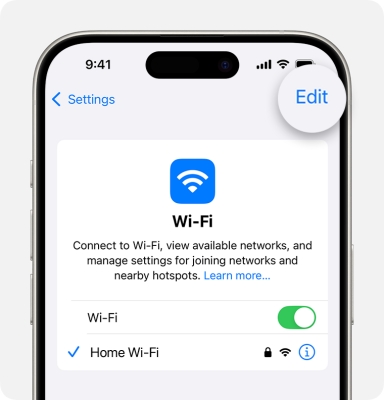
Step 1. Open Settings and tap WLAN.
Step 2. Tap Edit, and you will see the list of Wi-Fi networks you have connected to.
Step 3. Tap one and tap the Password area to view the Wi-Fi password.
Find Saved App & Web Passwords:
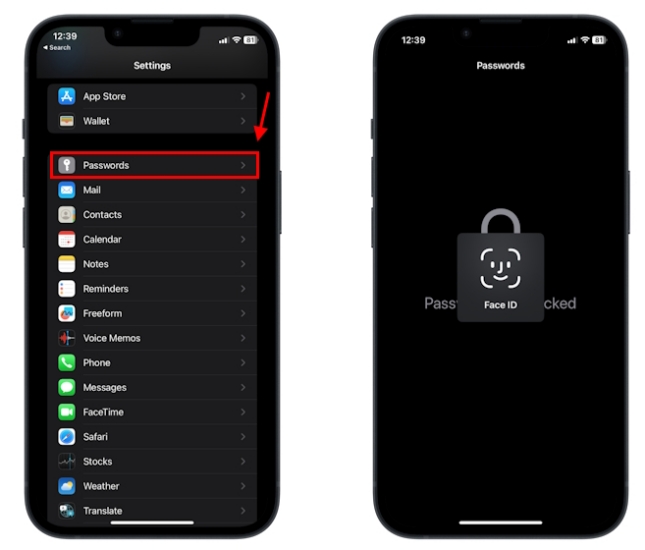
Step 1. Open iPhone Settings and tap Passwords or Passwords & Accounts.
Step 2. Authenticate your identity and tap Apps & Website Password to view all saved app and website passwords on your iPhone.
Step 3. Tap one specific to view the real password.
Option 3. Check Saved Passwords in Passwords App [iOS 18 and Later]
Starting with iOS 18, Apple has moved passwords into its own dedicated Passwords app. This app neatly organizes your Wi‑Fi passwords, passkeys, and saved logins, making it easier to find exactly what you're looking for. If your iPhone is updated to iOS 18 or later, this is the most streamlined way to view and manage all your passwords.
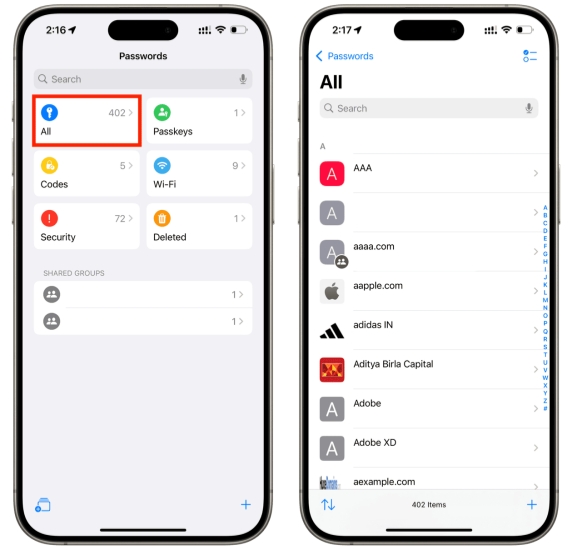
Step 1. Open the Passwords app.
Step 2. You can tap WLAN to see all your saved Wi-Fi passwords on your iPhone, and tap Passkeys to see all saved app and website passwords on your iPhone.
Part 3. Best Way to Find All Saved Passwords on iPhone [All iOS Versions]
The built‑in methods work well in most situations, but there are some limits on older iOS versions or when certain Wi‑Fi passwords won't show. If you need a more complete view of all passwords saved on your iPhone, including passwords that don't appear normally, a dedicated password manager tool can help.
MagFone iPhone Unlocker allows you to scan and view all saved passwords on your iPhone. Apart from a password manager, MagFone can even deal with various password or passcode issues you may encounter, ranging from removing Screen Time passcode and MDM password without data loss to unlocking iPhone screen passcode. If you need to see all saved passwords on your iPhone, export, and share them, you can follow the steps below to get it done.

MagFone iPhone Unlocker
Find all saved Wi-Fi, app and website passwords on iOS device quickly and securely.
Step 1 Launch MagFone iPhone Unlocker
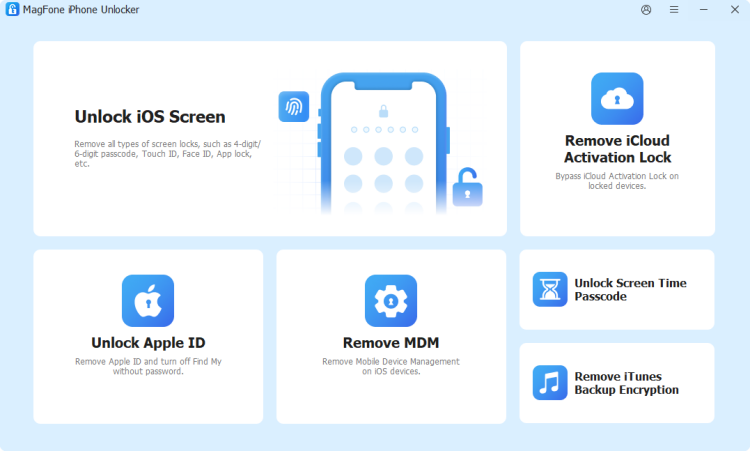
To use MagFone iPhone Unlocker, you need a computer and get MagFone iPhone Unlocker downloaded and installed on the computer. Then launch MagFone to start.
Step 2 Scan All Saved Passwords on iPhone
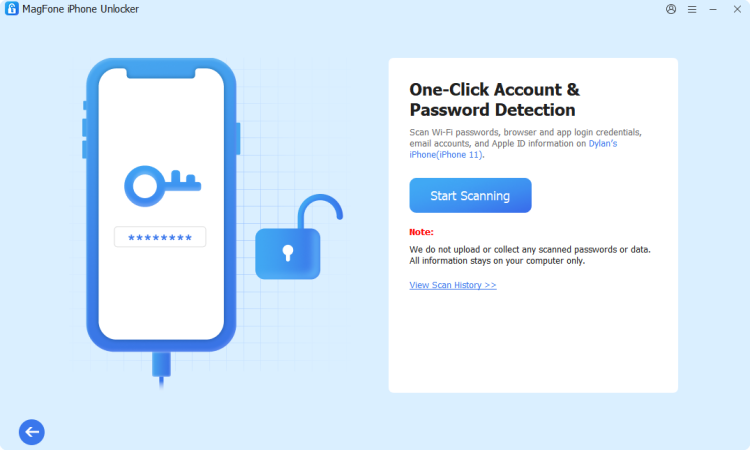
Use a USB cable to connect your iPhone to the computer and click Password Manager from the main interface. Then click Start Scanning to scan for all saved passwords on your iPhone.
Step 3 View Saved Passwords on iPhone
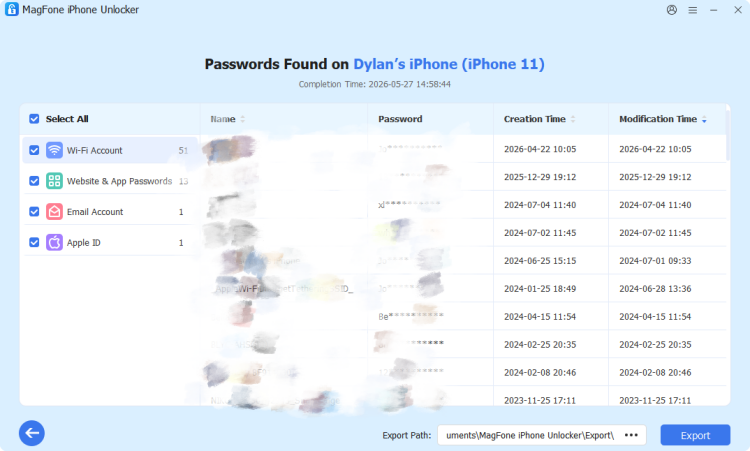
The scanned passwords will be categorized. You can click the category on the left screen to check your passwords on your iPhone. You can click the view icon to view your password details.
Part 4. Conclusion
By now, you've seen several reliable ways to check saved passwords on your iPhone. Just choose the method that matches your iOS version, and you can quickly view the passwords you've already stored. If you want to see every saved password in one place, with clear, detailed entries you can review or export, MagFone iPhone Unlocker is also worth considering.

Dylan Jones
Editor in chief




