








Want to log in to an account on a new browser and can't remember the password? You're not alone. Safari, together with Apple's password tools, can securely store and autofill your logins across iPhone, iPad, and Mac. In this guide, you'll learn, step by step, how to find saved passwords on Safari on each device, so you can quickly recover the login you need and get back into your accounts without resetting every password.
- Part 1. Where Are Safari Passwords Stored?
- Part 2. How to Find Saved Passwords on iPad/iPhone/Mac Safari
- Part 3. How to Export Passwords from Safari
- Part 4. Bonus Tip: Manage Saved Passwords on Safari
- Part 5. FAQs about Saved Passwords on Safari
- Part 6. Conclusion
Part 1. Where Are Safari Passwords Stored?
If you choose to save passwords when Safari asks, Apple securely stores those logins on your device. And if iCloud Keychain is enabled, they stay in sync across your Apple devices. Depending on your iOS version and your settings, you can view and access these saved Safari passwords through Settings, the Passwords app, Safari on Mac, or Keychain Access.
Part 2. How to Find Saved Passwords on iPad/iPhone/Mac Safari
The way you access saved Safari passwords can vary slightly depending on your iOS version and device settings. In this section, we'll walk you through, step by step, how to find and view saved passwords on your iPhone, iPad, and Mac.
Option 1. Find Saved Safari Passwords in Settings
You can find saved Safari passwords in the Settings on iPhones running iOS 17 and earlier versions. Or find saved Safari passwords in the System Preferences on Mac.
On iPhone/iPad [iOS 17 and earlier]:
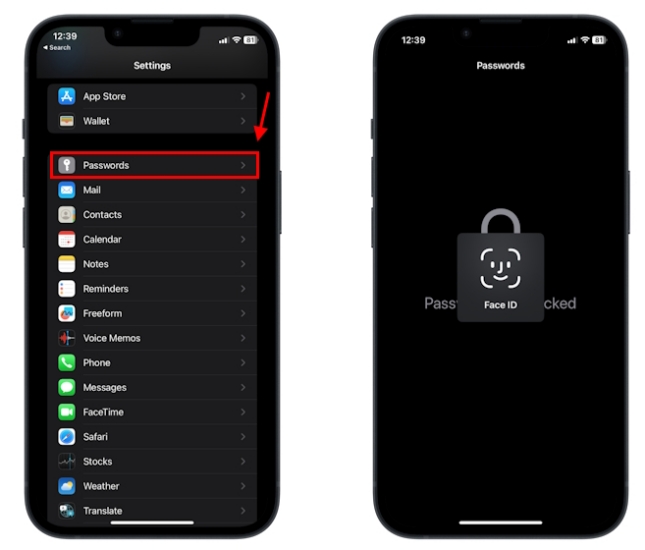
Step 1. Open Settings and tap Passwords or Passwords & Accounts.
Step 2. Unlock with your Touch ID, Face ID, or passcode to see all saved passwords on your iPhone.
On Mac:
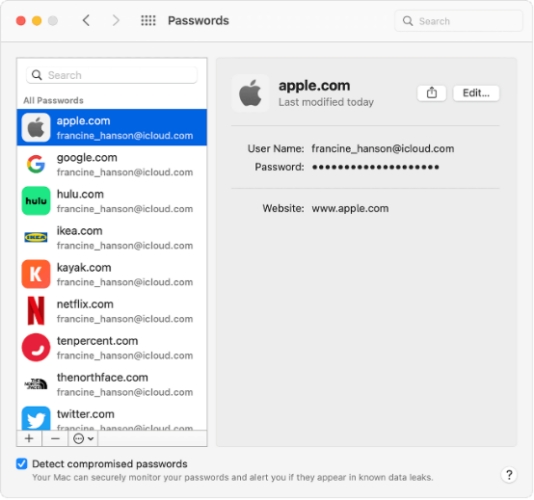
Step 1. Launch System Preferences and access Passwords.
Step 2. Enter your Touch ID or user password to unlock the Passwords.
Step 3. Click the target website and put your mouse over the Password field to see the Safari password.
Option 2. Find Saved Safari Passwords in Passwords App
On newer versions of iOS, iPadOS, and macOS, Apple provides a dedicated Passwords app that centralizes all your saved logins in one place. In Passwords, you can browse, search, edit, or delete saved accounts, see security alerts for weak or reused passwords, and manage verification codes.
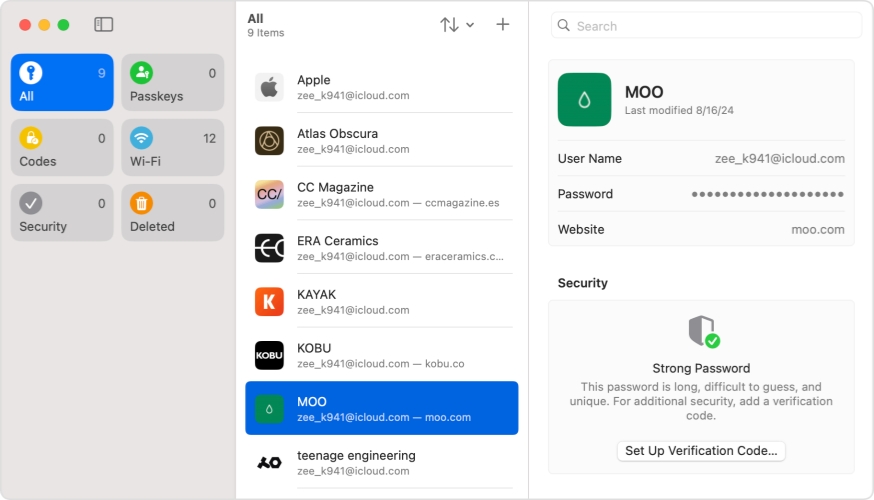
Step 1. Open Passwords on your device and tap Passkeys to see all saved passwords in iCloud, including saved passwords on Safari.
Step 2. Find and access the target website, then tap the Password field to see the password.
Option 3. Find Saved Safari Passwords in Safari App [Mac]
Safari on Mac also offers an entry to access saved passwords directly in the Safari Preferences. So, you can also view saved passwords from Safari on Mac.
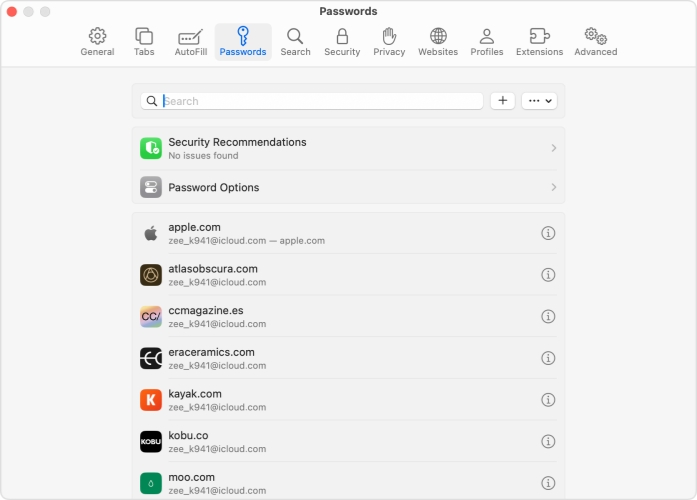
Step 1. Launch Safari on your Mac.
Step 2. Go to Safari > Preferences from the menu bar.
Step 3. Click Passwords and unlock with your Touch ID or password.
Step 4. Click the target website, then put the mouse over the Password field to view the password.
Option 4. Find Saved Passwords in Keychain Access [Mac]
Keychain Access is a built-in macOS utility that stores not only website passwords, but also Wi‑Fi keys, app logins, and more. When you have iCloud Passwords & Keychain enabled, you can sync saved passwords across your devices. So, you can find saved Safari passwords in Keychain Access on Mac.
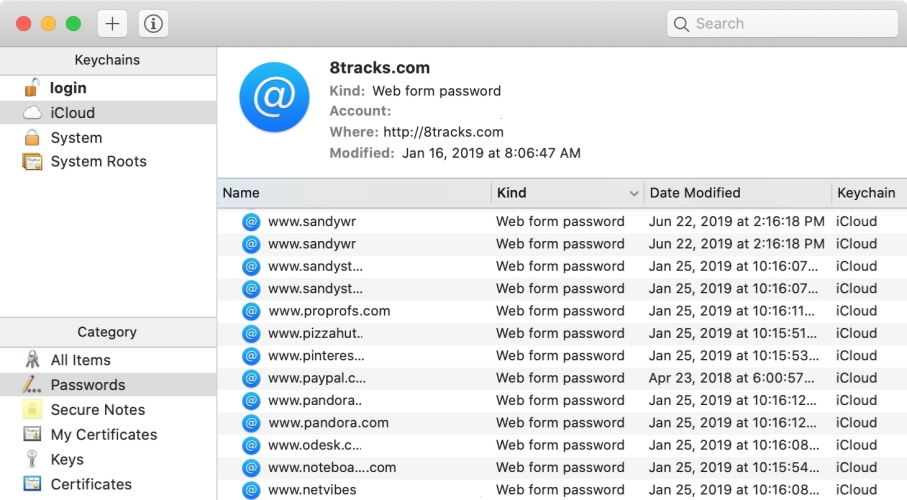
Step 1. Open Keychain Access on Mac and search for the website you want to check the password for.
Step 2. Double-click the result, then check Show password.
Step 3. Enter the administrator credentials to view the saved password.
Option 5. Find Saved Passwords via Siri
Siri can take you straight to your saved passwords without hunting through menus. Just activate Siri and ask Siri to show you a specific site's login password.
Part 3. How to Export Passwords from Safari
Now you have learned how to view your saved Safari passwords. For users who need to move them to a new device, another browser, or a third‑party password manager. Instead of manually copying each login, you can export your Safari passwords in one go. In this part, we'll explain how to export your passwords from Safari step by step.
On iPhone:
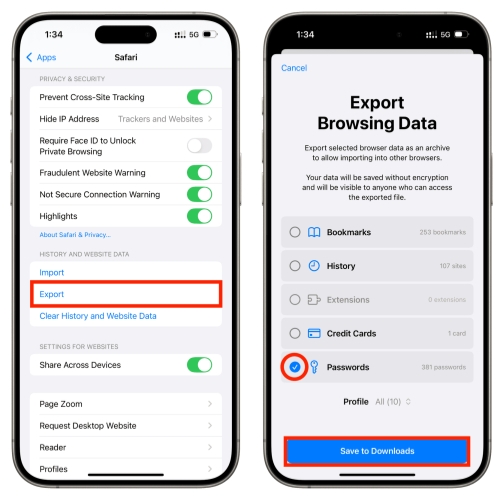
Step 1. Go to iPhone Settings > Apps > Safari.
Step 2. Scroll down and tap Export.
Step 3. Select Passwords and tap Save to Downloads to export the Safari passwords. Then you can open Files to check it.
On Mac:
Step 1. Launch Safari and click File in the Safari menu bar.
Step 2. Click Export > Passwords.
Step 3. Click Export Passwords to confirm and click Save to a location on your computer.
Part 4. Bonus Tip: Manage Saved Passwords on Safari
There is a more comprehensive way to manage saved passwords on Safari, especially when the built‑in options are not enough. MagFone iPhone Unlocker can help you quickly scan your iPhone or iPad to find Safari passwords, even if they've been deleted or no longer appear in your Settings or Passwords app. This is particularly useful if you've accidentally removed a login, forgotten a rarely used account, or need to recover multiple passwords at once. With MagFone iPhone Unlocker, you can view, organize, and export recovered Safari passwords more flexibly, giving you extra control of your passwords.

MagFone iPhone Unlocker
Locate saved Safari passwords and login credentials on iOS device quickly and securely.
Step 1 Launch MagFone iPhone Unlocker
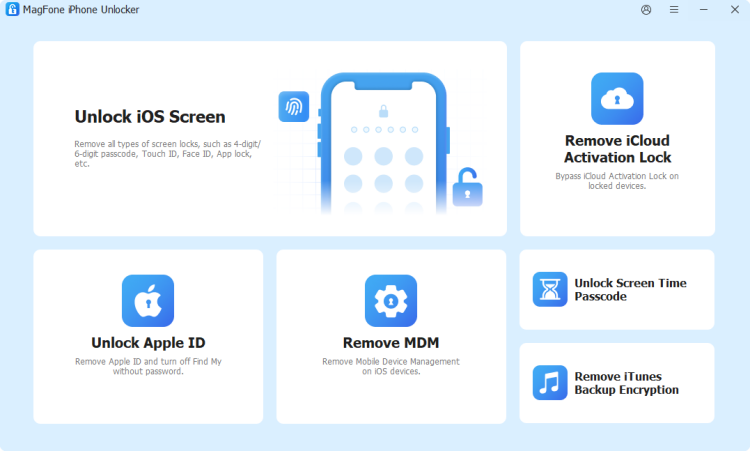
Download and install MagFone iPhone Unlocker on your computer, then use a data cable to link your iPhone to the computer.
Step 2 Scan Saved Passwords on Safari
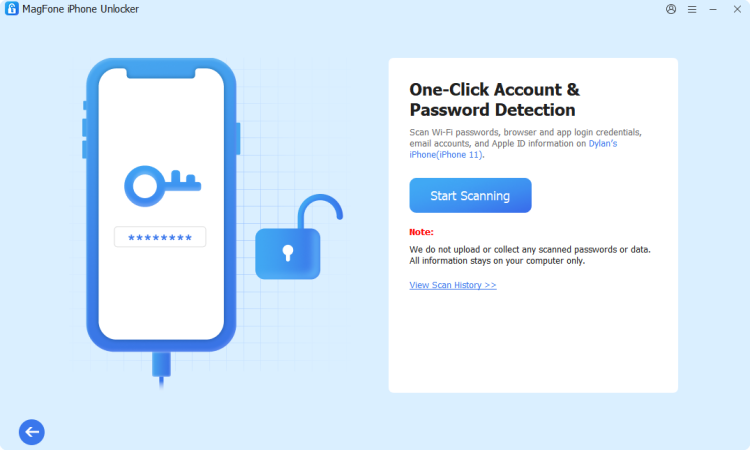
Choose Password Manager from the main interface, then click Start Scanning to let the tool find saved Safari passwords on your iPhone.
Step 3 View and Export Saved Safari Passwords
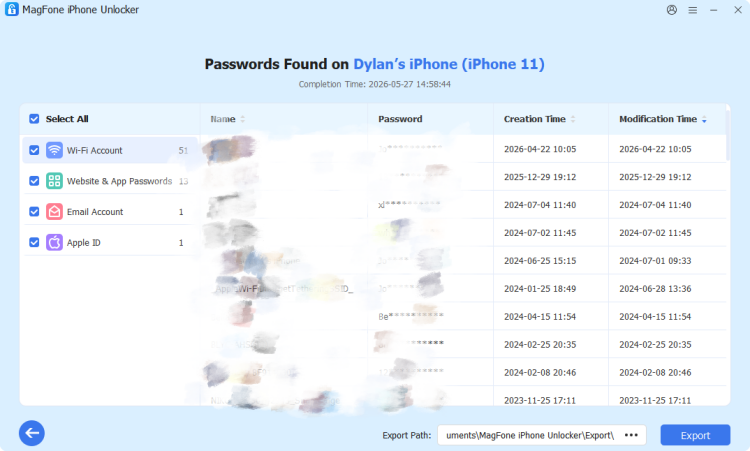
After scanning, you can click Website & App Passwords to view the passwords on Safari, including the creation time and modification time.
Part 5. FAQs about Saved Passwords on Safari
Can you import passwords from Chrome to Safari?
Yes, you can follow the steps below to import passwords from Chrome to Safari.
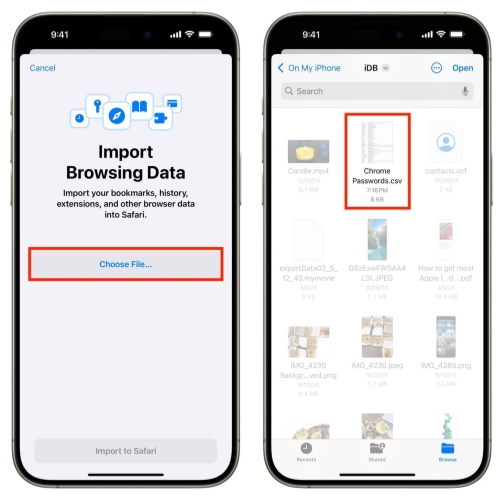
Step 1. Go to iPhone Settings > Apps > Safari.
Step 2. Scroll down and tap Export.
Step 3. Select Passwords and tap Save to Downloads to export the Safari passwords. Then you can open Files to check it.
Does clearing Safari history delete passwords?
No, clearing Safari history will remove related cookies and other website data, not delete passwords that are saved on your device.
Part 6. Conclusion
Apple's built-in password tools make it easy to find your saved Safari passwords on iPhone, iPad, and Mac, and to export them when you switch devices or browsers. By following the steps in this guide, you can quickly locate any saved logins in Safari and export your passwords when you need to. And if you want more powerful control over your Safari passwords, MagFone iPhone Unlocker is a useful extra tool.

Dylan Jones
Editor in chief





